
Sonicwall TZ570
SonicWall TZ570 Network Security Appliance User Manual
\nModel: TZ570
\n1. Introduction and Overview
\nThis manual provides comprehensive instructions for the SonicWall TZ570 Network Security Appliance. The TZ570 is a next-generation firewall designed to deliver robust security for mid-sized organizations and distributed enterprise environments, including SD-Branch locations. It offers industry-validated security effectiveness with a focus on automated, real-time breach detection and prevention.
\nKey features include advanced threat protection, comprehensive content filtering, and simplified deployment through Zero-Touch Deployment capabilities.
\n\n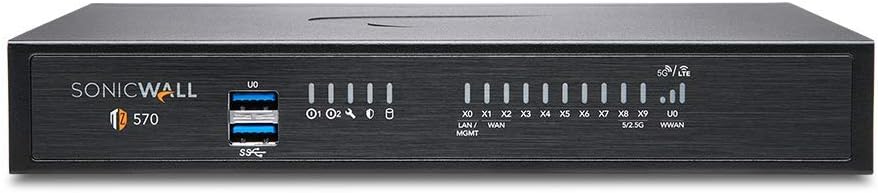 \n
\n Figure 1: Front view of the SonicWall TZ570 Network Security Appliance. This image displays the compact form factor of the device, featuring USB 3.0 ports and various LED indicators on the front panel.
\n \n
\n Figure 2: A stack of various SonicWall TZ series firewalls, showcasing the range of appliances available. The TZ570 is part of this series, designed for scalable network security solutions.
\n2. Setup and Installation
\nThe SonicWall TZ570 is designed for straightforward installation, supporting Zero-Touch Deployment for rapid rollout across multiple locations with minimal IT intervention.
\n\n2.1. Package Contents
\nVerify that all components are present in the package:
\n- \n
- SonicWall TZ570 Appliance \n
- Power Adapter(s) \n
- Ethernet Cable(s) \n
- Quick Start Guide (refer to this manual for detailed instructions) \n
- Blu-ray (as listed in "What's in the box" - typically for documentation or software) \n
2.2. Physical Connections
\nBefore powering on the device, connect all necessary cables. Ensure the appliance is placed in a well-ventilated area.
\n\n \n
\n Figure 3: Detailed view of the TZ570 Front Panel, showing USB 3.0 SuperSpeed ports, Power LEDs, Test LED, Security LED, M.2 SSD LED, LAN/MGMT X0 Port LED, WAN X1 and X2 Port LEDs, X0-X7 RJ45 Port LEDs, X8 / X9 SFP/SFP+ Port LEDs, and WWAN LEDs for USB 5G/LTE.
\n \n
\n Figure 4: Detailed view of the TZ570 Rear Panel, illustrating the RJ45 Console Port, Micro-USB Console Port, X8 / X9 SFP/SFP+ Ports, X4 / X5 / X6 / X7 RJ45 Ports, X3 RJ45 Port, X2 WAN RJ45 Port, X1 WAN RJ45 Port, X0 LAN RJ45, SafeMode Button, Grounding Screw, Primary Power Input, and Redundant Power Input.
\n- \n
- Connect Power: Connect the power adapter(s) to the Primary Power Input and/or Redundant Power Input on the rear panel (Figure 4). \n
- Connect Network Cables:\n
- \n
- Connect your internet service provider's modem/router to the X1 WAN RJ45 Port. \n
- Connect your internal network switch or devices to the X0 LAN RJ45 Port or other available LAN ports (X2-X7). \n
- Utilize the X8 / X9 SFP/SFP+ Ports for high-speed fiber connections if required. \n
\n - Console Connection (Optional): For initial configuration or troubleshooting, connect a console cable to the RJ45 Console Port or Micro-USB Console Port. \n
- Power On: Once all connections are secure, connect the power adapter(s) to a power outlet. The device will begin its boot sequence. \n
3. Operating the Appliance
\nThe SonicWall TZ570 operates as a comprehensive network security appliance, providing multi-layered protection against various cyber threats. Management is typically performed via a web-based interface, Network Security Manager, CLI, SSH, or REST APIs.
\n\n3.1. Initial Configuration
\nUpon first boot, the appliance will guide you through an initial setup wizard via the web interface. Access the web interface by connecting a computer to a LAN port and navigating to the default IP address (refer to your Quick Start Guide or SonicWall documentation for the default IP).
\nDuring setup, you will configure network settings, administrator credentials, and register the device with SonicWall for service activation.
\n\n3.2. Advanced Protection Service Suite
\nThe TZ570 Secure Upgrade Plus Advanced Edition includes a 3-year Advanced Protection Service Suite, which provides:
\n- \n
- Gateway Anti-Virus: Real-time protection against viruses, spyware, and other malware at the gateway. \n
- Anti-Spyware: Blocks and removes spyware from network traffic. \n
- Intrusion Prevention System (IPS): Protects against network-based attacks and exploits. \n
- Application Firewall Service: Granular control over application usage and bandwidth. \n
- Content Filtering Premium Services: Advanced web content filtering to enforce internet usage policies. \n
- 24x7 Support with Firmware Updates: Continuous technical support and access to the latest firmware for optimal performance and security. \n
These services are crucial for maintaining a secure network environment and are managed through the appliance's web interface.
\n4. Maintenance
\nRegular maintenance ensures the optimal performance and security of your SonicWall TZ570 appliance.
\n- \n
- Firmware Updates: Regularly check for and apply the latest firmware updates. These updates often include security patches, bug fixes, and new features. Your 24x7 Support service includes access to firmware updates. \n
- Configuration Backups: Periodically back up your appliance's configuration settings. This allows for quick restoration in case of an unexpected issue or hardware replacement. \n
- Physical Environment: Ensure the appliance is kept in a clean, dust-free environment with adequate ventilation to prevent overheating. \n
- Service Renewal: Monitor the expiration dates of your Advanced Protection Service Suite and other licenses to ensure continuous protection. \n
5. Troubleshooting
\nThis section provides basic troubleshooting steps for common issues. For more complex problems, refer to the SonicWall knowledge base or contact technical support.
\n- \n
- No Power:\n
- \n
- Verify that the power adapter(s) are securely connected to both the appliance and a working power outlet. \n
- Check the Power LEDs on the front panel (Figure 3). \n
\n - No Network Connectivity:\n
- \n
- Check all Ethernet cable connections to ensure they are secure and connected to the correct ports (LAN/WAN). \n
- Observe the LAN/WAN port LEDs on the front panel (Figure 3) for activity. \n
- Verify IP address configurations on connected devices and the appliance. \n
\n - SafeMode Button: The SafeMode Button on the rear panel (Figure 4) can be used to reset the appliance to factory defaults or enter SafeMode for recovery purposes. Refer to the SonicWall documentation for proper usage of this button. \n
- Contact Support: If issues persist, leverage your 24x7 Support service. Have your product serial number and a description of the problem ready. \n
6. Specifications
\nThe following tables detail the technical specifications and performance metrics of the SonicWall TZ570 Network Security Appliance.
\n\n6.1. General Specifications
\n- \n
- Product Dimensions: 5.91 x 8.86 x 1.38 inches \n
- Item Weight: 4 pounds \n
- Item Model Number: 9303021000 \n
- Manufacturer: SonicWall \n
- First Available: August 21, 2020 \n
- Connectivity Technology: Ethernet \n
- Recommended Uses: Business \n
6.2. Hardware and Performance
\n \n
\n Figure 5: Table detailing SonicWall Gen 7 TZ series system specifications, including operating system, interfaces (8x1GbE, 2x5GbE, 2 USB 3.0, 1 Console for TZ570), wireless support, PoE support, storage expansion, management options, redundant power supply, SSO users, VLAN interfaces (256 for TZ570), and maximum access points supported.
\n \n
\n Figure 6: Table detailing SonicWall Gen 7 TZ series system performance, including Firewall Inspection Throughput (4.00 Gbps for TZ570), Threat Prevention Throughput (4.00 Gbps), IPS Throughput (2.5 Gbps), IPSec VPN Throughput (1.80 Gbps), maximum connections, DPI, DPI-SSL, site-to-site VPN tunnels, IPSec VPN clients, SSL VPN licenses, encryption/authentication, key exchange, route-based VPN, certificate support, VPN features, global VPN client platforms, NetExtender, Mobile Connect, security services, networking protocols, and user capacities.
\n \n
\n Figure 7: Quick Glance table comparing specifications across various SonicWall SOHO and TZ series models, including multi-gig interfaces, expandable storage, redundant power, and various performance metrics.
\n7. Warranty and Support
\nThe SonicWall TZ570 Secure Upgrade Plus Advanced Edition includes a 3-year Advanced Protection Service Suite. This suite provides comprehensive security services and 24x7 technical support with firmware updates.
\nSecure Upgrade Plus Program: Please note that all Secure Upgrade Plus purchases require a qualifying Trade-up or Competitive Trade-in product during the Secure Upgrade Plus registration process. Ensure you submit the required information to activate your services.
\nFor detailed warranty information and to register your product, please visit the official SonicWall website or refer to the documentation included with your purchase.
\nFor technical assistance, contact SonicWall support directly. Have your product serial number ready for faster service.
\nRelated documentsTZ570


Ask a question about this manual
Ask about setup, troubleshooting, compatibility, parts, safety, or missing instructions. Manuals+ will review the question and use this page’s manual context to help answer it.