
Introduction
This manual provides comprehensive instructions for setting up, operating, and maintaining your Macally Bluetooth Keyboard. Designed for multi-device compatibility, this wireless keyboard features a built-in stand, a rechargeable battery, and 78 keys for efficient typing across various devices including tablets, smartphones, and computers.

Image: The Macally Bluetooth Keyboard in white, with a tablet securely docked in its integrated stand, showcasing its compact design and functionality.
What's in the Box
Upon unboxing your Macally Bluetooth Keyboard, please ensure all the following items are present:
- Macally Bluetooth Keyboard
- USB Charging Cable
- User Manual (this document)
If any items are missing or damaged, please contact Macally customer support.
Product Features
The Macally Bluetooth Keyboard is designed for versatility and convenience, offering several key features:
- Multi-Device Connectivity: Seamlessly switch between up to 3 Bluetooth-enabled devices (e.g., tablet, smartphone, computer).
- Integrated Device Stand: Features a built-in 10.5-inch slot to securely hold your smartphone or tablet.
- Compact and Portable: Small enough to fit into most bags, making it ideal for on-the-go use.
- Rechargeable Battery: Equipped with a 280mAh rechargeable battery for extended use.
- Efficient Layout: Includes 78 quiet scissor-switch keys and 13 convenient shortcut/media keys for enhanced productivity.

Image: The keyboard demonstrating seamless Bluetooth connectivity with a 30ft wireless range, compatible with Apple, Windows, iOS, and Android operating systems.

Image: A visual representation of the keyboard's multi-device capability, showing it paired with a laptop, a desktop computer, and a smartphone simultaneously.

Image: The keyboard positioned on a desk, with both a tablet and a smartphone docked in its integrated 10.5-inch stand, highlighting its "setup anywhere" convenience.
Setup
Charging the Keyboard
Before first use, fully charge your Macally Bluetooth Keyboard. Connect the provided USB charging cable to the keyboard's charging port and the other end to a USB power source (e.g., computer USB port, USB wall adapter). The charging indicator light will show the charging status.

Image: The keyboard with its charging cable connected, illustrating the rechargeable 280mAh battery and the included charging cable.
Bluetooth Pairing
Follow these steps to pair your keyboard with a device:
- Ensure the keyboard is charged and powered on. The power switch is located on the top right of the keyboard.
- On your device (tablet, smartphone, computer), enable Bluetooth.
- Press and hold the Fn key and one of the Bluetooth channel keys (B1, B2, or B3) simultaneously for a few seconds until the corresponding Bluetooth indicator light starts blinking rapidly. This indicates the keyboard is in pairing mode.
- On your device, search for "Macally Keyboard" or a similar name in the Bluetooth device list and select it to connect.
- Once connected, the indicator light will stop blinking and remain solid for a moment before turning off, indicating successful pairing.
To pair additional devices, repeat steps 3-5 using a different Bluetooth channel key (B1, B2, or B3).
Operating Instructions
Switching Between Devices
To switch between paired devices, simply press the Fn key along with the corresponding Bluetooth channel key (B1, B2, or B3) for the desired device. The keyboard will quickly connect to the selected device.
Using Shortcut Keys
The keyboard features 13 dedicated shortcut/media keys for quick access to common functions. These keys are typically located on the top row (F1-F12 and an additional key). Functions may vary slightly depending on the operating system of your connected device.
Common shortcut functions include:
- Media playback controls (play/pause, next/previous track)
- Volume control (mute, volume up/down)
- Screen brightness adjustment
- Home screen/desktop access
- Search function
Refer to your device's operating system documentation for specific compatibility and functionality of these keys.

Image: A detailed view of the keyboard's layout, emphasizing its 78 quiet scissor-switch keys and the 13 dedicated shortcut/media keys for efficient use.
Maintenance
To ensure the longevity and optimal performance of your Macally Bluetooth Keyboard, follow these maintenance guidelines:
- Cleaning: Use a soft, dry, lint-free cloth to clean the keyboard surface. For stubborn dirt, slightly dampen the cloth with water or a mild, non-abrasive cleaner. Avoid excessive moisture.
- Storage: When not in use for extended periods, store the keyboard in a cool, dry place away from direct sunlight and extreme temperatures.
- Battery Care: To preserve battery life, avoid fully discharging the keyboard frequently. Recharge it when the low battery indicator appears. If storing for a long time, charge it to about 50% every few months.
- Avoid Spills: Keep liquids away from the keyboard to prevent internal damage.
Troubleshooting
If you encounter issues with your Macally Bluetooth Keyboard, try the following solutions:
| Problem | Possible Solution |
|---|---|
| Keyboard does not turn on. | Ensure the keyboard is charged. Connect it to a power source using the USB cable. |
| Unable to pair the keyboard. |
|
| Keyboard disconnects frequently. |
|
| Keys are not responding. |
|
If these solutions do not resolve the issue, please contact Macally customer support for further assistance.
Specifications
| Feature | Detail |
|---|---|
| Model Number | BTTABKEYBAT |
| Connectivity Technology | Bluetooth |
| Number of Keys | 78 |
| Battery Type | 1 Lithium Ion battery (included) |
| Item Weight | 1.92 pounds |
| Package Dimensions | 13.98 x 7.91 x 2.48 inches |
| Manufacturer | Mace Group Inc / Macally Peripherals |
| Compatible Devices | PC, Tablet, Apple devices, Windows Desktop/Laptop, Surface, Chromebook, Smartphones, TVs (any device with Bluetooth) |
| Recommended Uses | Office, School, Everyday Use, Personal, Education, Business |
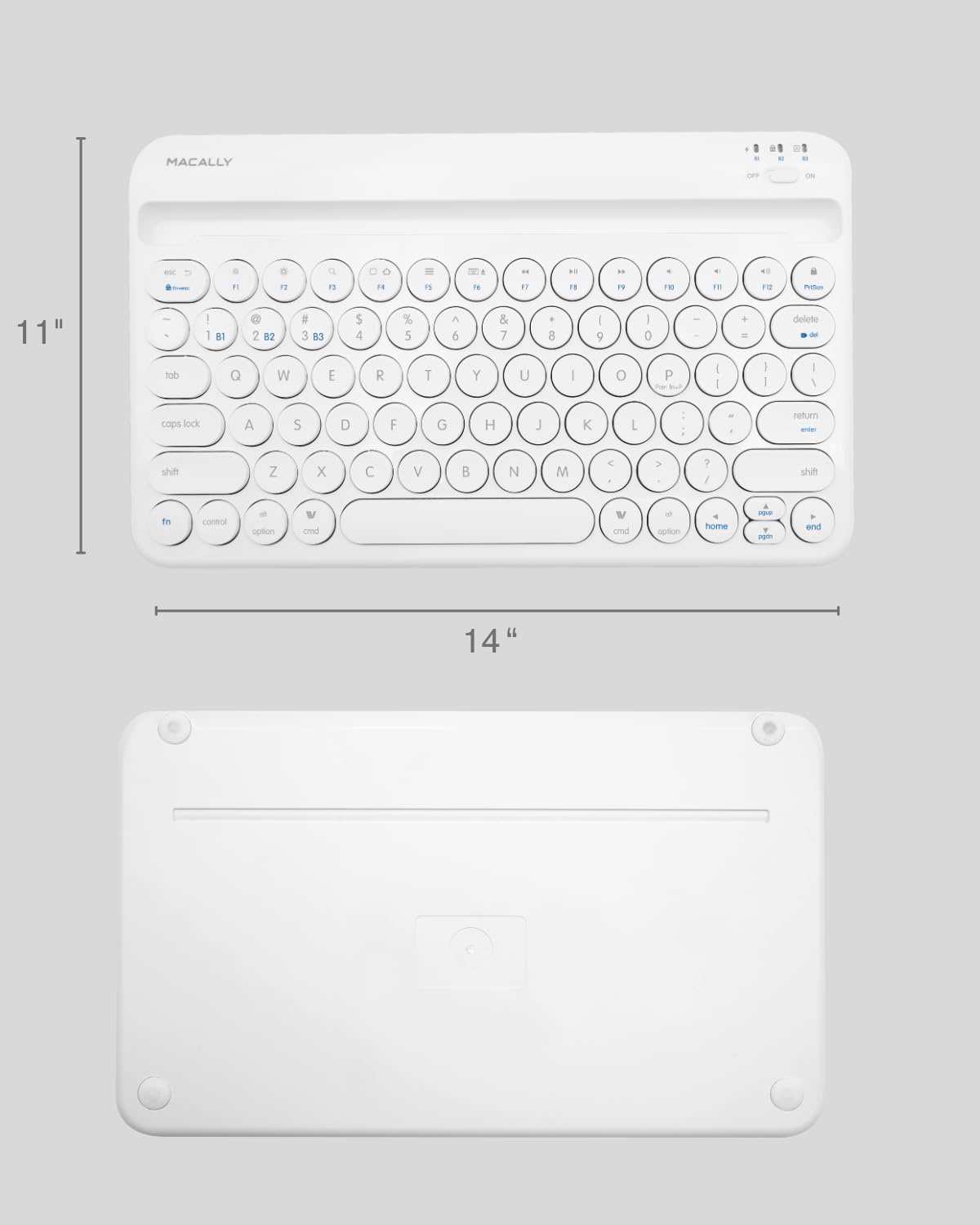
Image: The physical dimensions of the keyboard, measuring approximately 11 inches in width and 14 inches in length.

Image: The keyboard fitting easily into a backpack, demonstrating its compact size and suitability for travel and on-the-go use.
Warranty and Support
Macally products are designed for quality and reliability. For information regarding product warranty, technical support, or service, please visit the official Macally website or contact their customer service department. Keep your purchase receipt as proof of purchase for warranty claims.
You can find more information and support at the Macally Store on Amazon.


