
Introduction
The Picun Elite P80S Wireless Headset provides a high-definition audio experience with multidimensional surround sound, extra bass, and noise reduction. Designed for comfort and versatility, it features both wireless and wired connectivity options, a detachable microphone, and intuitive controls. This manual provides detailed instructions for setup, operation, maintenance, and troubleshooting to ensure optimal performance of your headset.
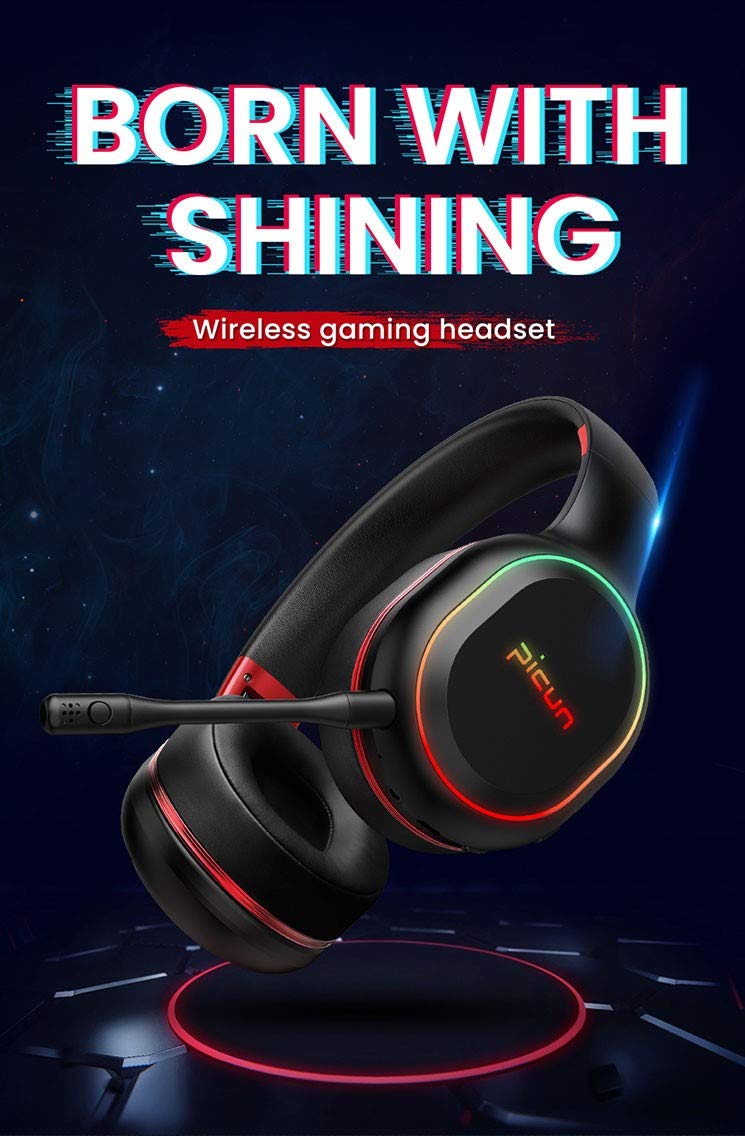
Image: The Picun Elite P80S Wireless Headset, showcasing its design and integrated microphone.
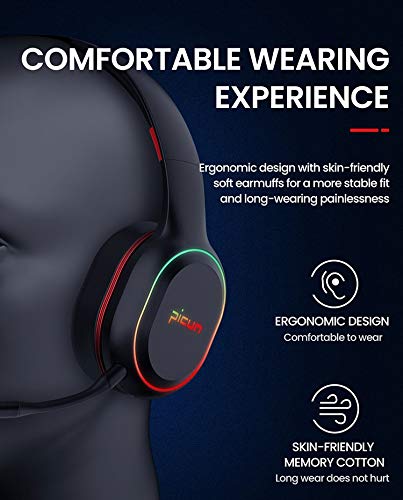
Image: The Picun Elite P80S Headset demonstrating its ergonomic design and comfortable earcups made from skin-friendly memory cotton.
What's in the Box
Please verify that all items are present in the package:
- Picun Elite P80S Wireless Headset
- Detachable Microphone
- USB Charging Cable
- 3.5mm AUX Audio Cable
- User Manual (this document)
Setup
1. Charging the Headset
Before initial use, fully charge the headset. Connect the provided USB charging cable to the headset's charging port and to a compatible USB power source (e.g., computer USB port, USB wall adapter). The LED indicator will show charging status and turn off or change color when fully charged.
A full charge provides approximately 40 hours of game time or 60 hours of music/media playback in wireless mode.
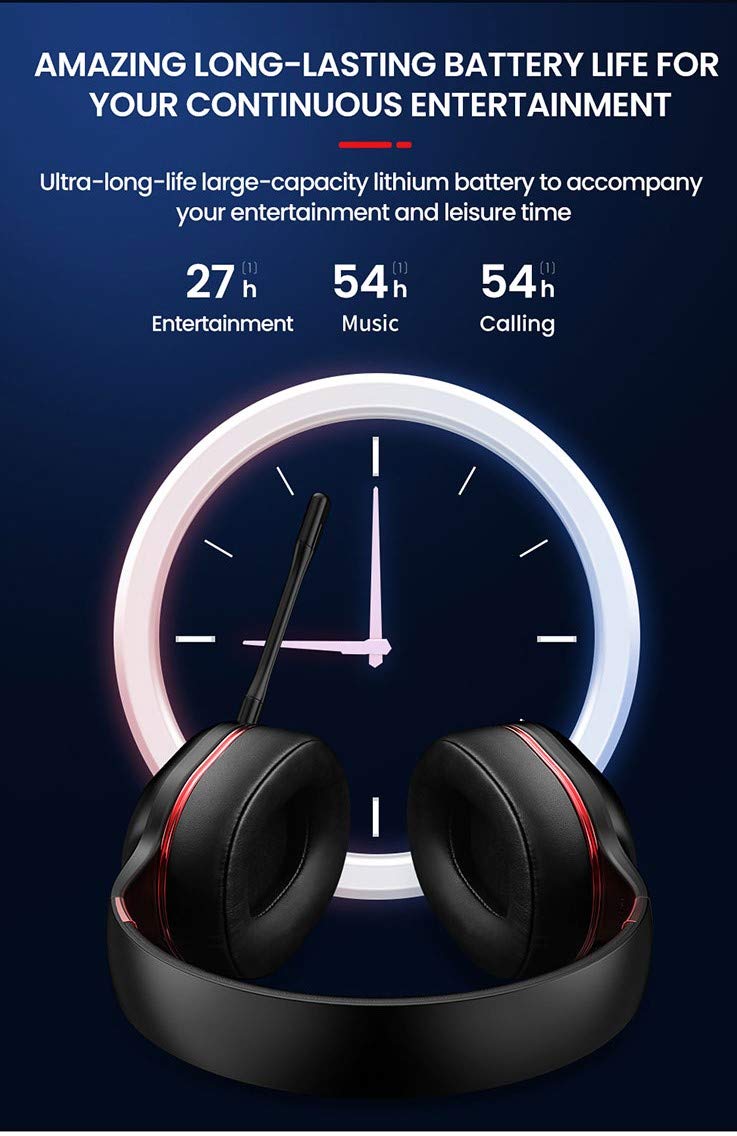
Image: Picun Elite P80S Headset illustrating long battery life for entertainment, music, and calls.
2. Attaching the Microphone
The professional detachable microphone can be inserted into the designated port on the left earcup. Ensure it is securely connected for clear voice communication. The microphone can be rotated 360 degrees for optimal positioning.
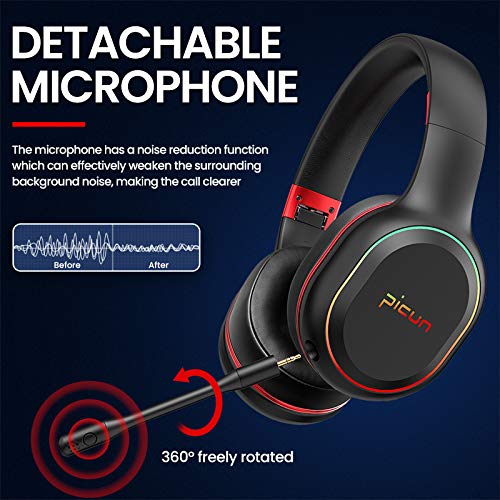
Image: Picun Elite P80S Headset showing the detachable microphone and its 360-degree rotation capability.
Operating Instructions
1. Power On/Off
- Power On: Press and hold the Power button for approximately 3 seconds until the LED indicator lights up.
- Power Off: Press and hold the Power button for approximately 3 seconds until the LED indicator turns off.
2. Bluetooth Pairing (Wireless Mode)
After powering on, the headset will automatically enter pairing mode (LED indicator will flash). On your device (smartphone, PC, console), enable Bluetooth and search for "Picun Elite P80S". Select it to connect. A voice prompt will confirm successful pairing. The headset maintains a stable connection up to 10 meters.

Image: Diagram illustrating the stable and instant connection features of the Picun Elite P80S headset, highlighting 10-meter transmission, audio/video synchronization, call stability, and no in-game delay.
3. Wired Mode (AUX Connection)
To use the headset in wired mode, connect the provided 3.5mm AUX audio cable to the headset's AUX port and to your audio source. Wired mode allows for indefinite playback regardless of battery charge. The headset functions as a passive headphone in wired mode.
4. Microphone Usage
- Detachable Pro Microphone: Provides high-definition vocals and effectively reduces ambient noise for clear communication during gaming or calls.
- Inbuilt Microphone: An additional microphone is integrated for general use, ensuring seamless communication even without the detachable mic.
5. Audio Features
The Picun Elite P80S provides omnidirectional stereo sound, allowing for an immersive audio experience, especially beneficial for gaming to detect subtle sound cues.
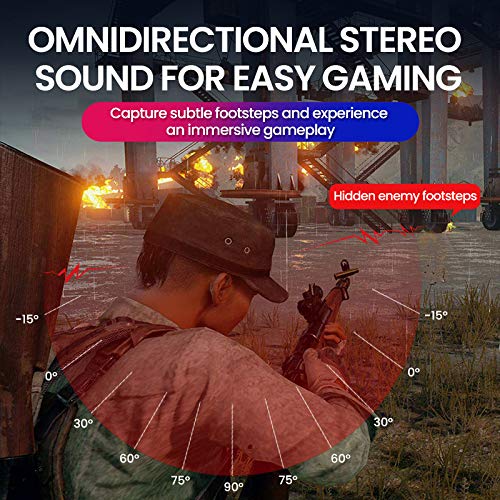
Image: A gaming scenario demonstrating the omnidirectional stereo sound capability, helping users identify sound sources like footsteps from various directions.
6. Media Controls
The headset features integrated buttons for easy control:
- Play/Pause: Press the Multi-function button once to play or pause music/videos.
- Answer/End Call: Press the Multi-function button once to answer an incoming call, and again to end it.
- Volume Control: Use the Volume Up (+) and Volume Down (-) buttons to adjust the audio level.
- Next/Previous Track: Long press Volume Up (+) for next track, Long press Volume Down (-) for previous track.
7. Dual Shock / Vibration Mode
Activate the Dual Shock / Vibration Mode for an enhanced immersive experience, particularly for deep bass in music and movies, or realistic vibrations during gaming. This mode can be toggled on or off using the dedicated switch on the headset.
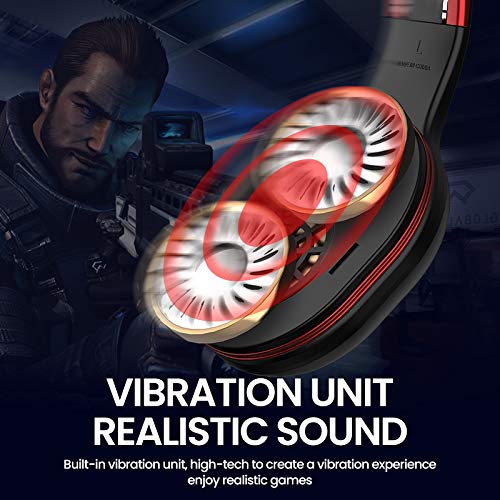
Image: Close-up of the Picun Elite P80S earcup highlighting the built-in vibration unit for realistic sound and gaming experience.
8. LED Light Display
The headset features a gradient colorful breathing light display. To turn the LED lights on or off, press and hold both the Volume Up (+) and Volume Down (-) buttons simultaneously for approximately 3 seconds.

Image: Picun Elite P80S Headset showcasing its gradient colorful breathing light effect, with instructions on how to activate/deactivate it.
Maintenance
- Cleaning: Use a soft, dry cloth to clean the headset. Do not use abrasive cleaners or solvents.
- Storage: Store the headset in a cool, dry place away from direct sunlight and extreme temperatures. The foldable design allows for compact storage.
- Battery Care: To prolong battery life, avoid fully discharging the headset frequently. Charge it regularly, even if not in use for extended periods.
- Cable Care: Handle cables gently. Avoid sharp bends or excessive pulling to prevent damage.
Troubleshooting
No Power / Headset Not Turning On
- Ensure the headset is fully charged. Connect it to a power source using the USB charging cable.
- Verify that the power button is pressed and held for the correct duration (approx. 3 seconds).
Cannot Pair via Bluetooth
- Make sure the headset is in pairing mode (LED flashing). If not, power it off and on again.
- Ensure Bluetooth is enabled on your device and it is within 10 meters of the headset.
- Remove "Picun Elite P80S" from your device's Bluetooth list and attempt to pair again.
- Try pairing with a different device to rule out device-specific issues.
No Sound / Low Volume
- Check the volume levels on both the headset and your connected device.
- If in wired mode, ensure the 3.5mm AUX cable is fully inserted into both the headset and the audio source.
- If in wireless mode, ensure the headset is properly paired and connected.
- Test with different audio sources or applications.
Microphone Not Working
- Ensure the detachable microphone is securely plugged into the headset.
- Check microphone settings on your connected device (e.g., input device selection, volume levels).
- Test the microphone in different applications or communication platforms.
One Earpiece Not Working
- Check audio balance settings on your connected device.
- If using the AUX cable, ensure it is fully inserted and try a different cable if available.
- Restart the headset and your connected device.
Specifications
| Brand | Picun |
| Model Name | Elite P80S |
| Colour | Black |
| Form Factor | Over Ear |
| Noise Control | Active Noise Cancellation |
| Headphones Jack | 3.5 mm Jack |
| Enclosure Material | Faux Leather |
| Compatible Devices | Personal Computers/Laptops, Playstations/ X-box/ Nintendo Switch, Smartphones/Pads |
| Cable Features | Detachable |
| Wireless Technology Type | Bluetooth |
| Control Type | Volume Control |
| Control Method | Touch (for some functions, e.g., Play/Pause, Answer/End Call via Multi-function button) |
Warranty and Support
For warranty information and technical support, please refer to the warranty card included with your product or contact Picun customer service through their official website. Please retain your proof of purchase for any warranty claims.
For further assistance, please visit the official Picun support page or contact their customer service directly.