
MERCUSYS AC10
MERCUSYS AC10 AC1200 Dual-Band Wi-Fi 5 Router User Manual
Model: AC10
Introduction
This manual provides comprehensive instructions for setting up, operating, maintaining, and troubleshooting your MERCUSYS AC10 AC1200 Dual-Band Wi-Fi 5 Router. Please read this manual carefully before using the device to ensure proper functionality and optimal performance.
The MERCUSYS AC10 is a high-speed Wi-Fi router compliant with the 802.11ac standard, offering speeds up to 1200 Mbps. It supports dual-band operation, providing 300 Mbps on the 2.4 GHz band for general internet use and 867 Mbps on the 5 GHz band for demanding tasks like HD streaming and online gaming.
Package Contents
Verify that all items are present in your package:
- MERCUSYS AC10 AC1200 Dual-Band Wi-Fi 5 Router
- Power Adapter
- Ethernet Cable
- Quick Installation Guide
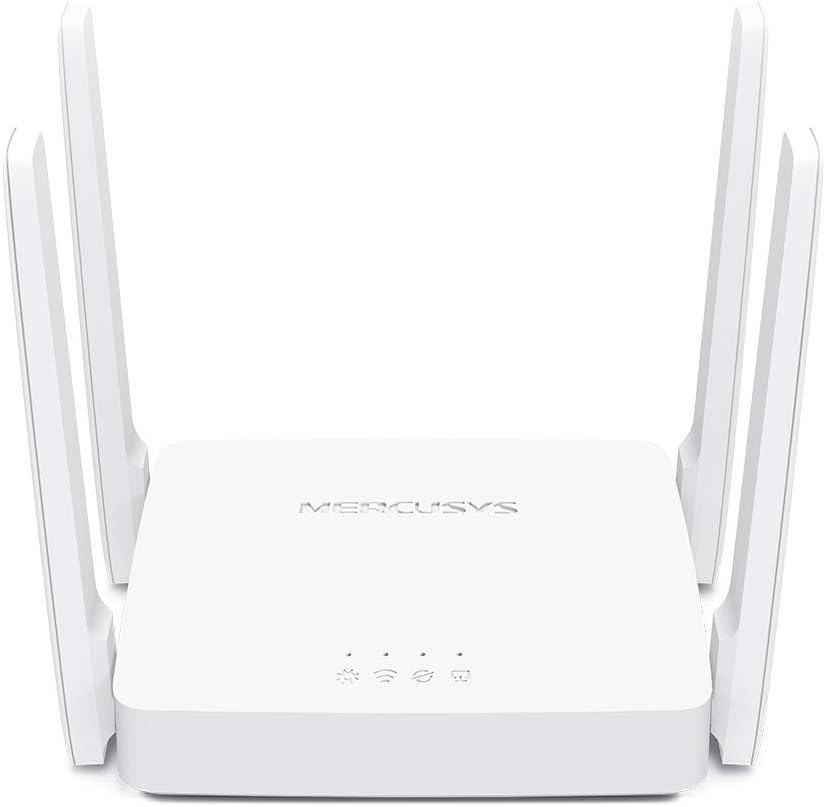
Image: Front view of the MERCUSYS AC10 router, showing the brand logo and LED indicators.
Hardware Overview
Front Panel Indicators
The front panel of the AC10 router features several LED indicators that provide status information:
- Power LED: Indicates power status.
- Internet LED: Indicates internet connection status.
- Wi-Fi LED: Indicates wireless network activity.
- LAN LEDs: Indicate activity on the LAN ports.
Rear Panel Ports and Buttons
The rear panel contains all the necessary ports and buttons for connectivity and control:
- WAN Port: Connects to your modem for internet access.
- LAN Ports (x3): Connect to wired devices such as computers or gaming consoles.
- Power Port: Connects to the included power adapter.
- Reset/WPS Button: Used to reset the router or activate WPS (Wi-Fi Protected Setup).

Image: Rear view of the MERCUSYS AC10 router, showing the WAN, LAN, Power, and Reset/WPS ports and buttons.
Setup Guide
Step 1: Connect the Hardware
- Power Off Your Modem: Disconnect the power from your existing modem.
- Connect Router to Modem: Connect one end of the Ethernet cable to the WAN port (usually blue) on your AC10 router and the other end to your modem's Ethernet port.
- Power On Modem: Reconnect power to your modem and wait for it to fully boot up (typically 1-2 minutes).
- Power On Router: Connect the power adapter to the AC10 router's power port and plug it into a wall outlet. Wait for the router to boot up. The Power LED should turn solid.
- Connect Your Device: You can connect your computer or mobile device to the router either wirelessly or via an Ethernet cable.
- Wired Connection: Connect an Ethernet cable from a LAN port (yellow) on the router to your computer's Ethernet port.
- Wireless Connection: Find the Wi-Fi network name (SSID) and password printed on the label at the bottom of your router. Connect your wireless device to this network.
Step 2: Configure the Router
- Launch a Web Browser: Open a web browser (e.g., Chrome, Firefox, Edge) on your connected device.
- Access Router Management Page: Type
mwlogin.netor192.168.1.1into the address bar and press Enter. - Create Login Password: The first time you access the page, you will be prompted to create a login password. Set a strong password and remember it.
- Run Quick Setup: Follow the on-screen instructions of the Quick Setup wizard to configure your internet connection and wireless settings. This typically involves selecting your internet connection type (e.g., Dynamic IP, Static IP, PPPoE) and setting up your Wi-Fi network name (SSID) and password.
Operating the Router
Wireless Network Management
The AC10 supports dual-band Wi-Fi, operating on both 2.4 GHz and 5 GHz frequencies. You can manage these networks through the router's web interface.
- Changing Wi-Fi Name (SSID) and Password: Navigate to the "Wireless" or "Wi-Fi Settings" section in the web interface to modify your network names and security keys.
- Guest Network: Enable a separate guest network to provide internet access to visitors without sharing your main network password.
Multi-Mode Operation
The MERCUSYS AC10 can operate in multiple modes to suit various networking needs:
- Router Mode: The default mode, where the device acts as a central hub for your home network, providing internet access to all connected devices.
- Access Point Mode: Transforms your existing wired network into a wireless network.
- Range Extender Mode: Extends the coverage of an existing wireless network.
You can switch between these modes via the router's web management interface, typically found under "Operation Mode" or "Working Mode" settings.
MU-MIMO Technology
The AC10 features MU-MIMO (Multi-User, Multiple-Input, Multiple-Output) technology, which allows the router to communicate with multiple devices simultaneously. This improves network efficiency and throughput, especially in environments with many connected devices.

Image: A diagram showing how MU-MIMO technology allows the router to communicate with multiple devices concurrently, improving data efficiency.
Parental Controls
The router includes active parental controls, allowing you to manage and monitor internet access for children. You can set time limits, block specific websites, and restrict access to certain content categories.
IPTV and IPv6 Support
The AC10 supports IPTV (Internet Protocol Television) for seamless streaming of TV services over the internet. It also supports IPv6, the latest version of the Internet Protocol, ensuring future compatibility and improved network efficiency.

Image: A diagram illustrating the dedicated LAN port for IPTV, ensuring smooth streaming performance.
Maintenance
- Firmware Updates: Regularly check the MERCUSYS official website for firmware updates. Updating the firmware can improve performance, add new features, and fix security vulnerabilities.
- Router Placement: Place the router in a central location, away from obstructions and devices that emit electromagnetic interference (e.g., microwaves, cordless phones) to ensure optimal Wi-Fi coverage.
- Regular Reboot: Periodically rebooting your router (unplugging and replugging the power) can help clear its memory and resolve minor network issues.
- Cleaning: Keep the router clean and free from dust. Use a soft, dry cloth to wipe the exterior. Do not use liquid cleaners.

Image: The MERCUSYS AC10 router positioned on a table, demonstrating an ideal placement for optimal signal distribution.
Troubleshooting
No Internet Access
- Check all cable connections. Ensure the Ethernet cable from your modem is securely plugged into the router's WAN port.
- Reboot your modem and router. Power off both devices, wait 30 seconds, then power on the modem first, wait for it to fully boot, then power on the router.
- Verify your internet connection type in the router's web interface (e.g., Dynamic IP, Static IP, PPPoE). Ensure it matches the settings provided by your Internet Service Provider (ISP).
- If using PPPoE, ensure your username and password are correct.
Poor Wi-Fi Signal or Slow Speeds
- Relocate the router to a central, open area, away from obstacles and interference sources (e.g., thick walls, metal objects, microwaves, cordless phones).
- Adjust the router's antennas for optimal signal direction.
- Check for Wi-Fi interference from neighboring networks. You can use Wi-Fi analyzer apps to find less congested channels and change your router's Wi-Fi channel in the settings.
- Ensure your devices are connected to the appropriate band (2.4 GHz for range, 5 GHz for speed).
Forgot Router Login Password
If you forget your router's login password, you will need to perform a factory reset. Locate the Reset/WPS button on the rear panel. With the router powered on, press and hold the button for approximately 5-10 seconds until the LEDs flash. The router will reboot with factory default settings, and you will need to reconfigure it.
Forgot Wi-Fi Password
If you forget your Wi-Fi password, you can either log into the router's web interface to retrieve or change it, or perform a factory reset as described above. The default Wi-Fi password is printed on the label at the bottom of the router.
Specifications
| Feature | Detail |
|---|---|
| Model Name | AC10 |
| Brand | MERCUSYS |
| Manufacturer | TP-Link |
| Wireless Standard | 802.11ac/a/b/g/n |
| Wi-Fi Speed | AC1200 (300 Mbps 2.4 GHz, 867 Mbps 5 GHz) |
| Frequency Band Class | Dual-Band |
| Connectivity Technology | Wi-Fi, Ethernet |
| Ports | 1x WAN, 3x LAN (10/100 Mbps) |
| Dimensions (L x W x H) | 3.7 x 4.49 x 1.02 inches |
| Item Weight | 13.4 ounces |
| Special Features | MU-MIMO, Beamforming, Parental Controls, Multi-Mode (Router, AP, Range Extender), IPTV, IPv6 Support |
| Compatible Devices | Laptop, Gaming Console, Personal Computer, Tablet, Smartphone, Desktop Computer |
Warranty and Support
MERCUSYS products come with a limited warranty. For detailed warranty information, please refer to the warranty card included in your product package or visit the official MERCUSYS website.
For technical support, firmware updates, and frequently asked questions, please visit the MERCUSYS support page:
When contacting support, please have your product model (AC10) and serial number ready.
Ask a question about this manual
Ask about setup, troubleshooting, compatibility, parts, safety, or missing instructions. Manuals+ will review the question and use this page’s manual context to help answer it.