
Introduction
This manual provides instructions for the installation and use of the A-Tech 8GB DDR3 1600MHz PC3-12800 SODIMM RAM module. This memory module is designed to enhance the performance of compatible laptop systems, specifically the Toshiba Satellite P75-A7200. Please read these instructions carefully before proceeding with the installation.
Product Specifications
| Feature | Detail |
|---|---|
| Capacity | 8GB |
| Memory Type | DDR3 SODIMM |
| Speed | 1600MHz (PC3-12800) |
| Voltage | 1.35V |
| Pin Count | 204-Pin |
| Error Correction | Non-ECC Unbuffered |
| Compatibility | Designed for Toshiba Satellite P75-A7200 and other compatible laptops. |
| Model Number | AOB728 |
For detailed dimensions, refer to the product image showing measurements.

Image: A-Tech 8GB DDR3 SODIMM RAM module with detailed dimensions (67.60mm length, 30mm height, 24.80mm notch offset).
Installation Guide
Installing RAM requires careful handling of electronic components. If you are unsure about any step, consult a qualified technician.
Safety Precautions
- Always disconnect the laptop from its power source and remove the battery before beginning installation.
- Discharge any static electricity by touching a grounded metal object (e.g., an unpainted metal part of the computer chassis) before handling the RAM module. Consider using an anti-static wrist strap.
- Handle the RAM module by its edges only. Avoid touching the gold connectors or the chips on the module.
Tools Required
- Small Phillips head screwdriver
- Plastic pry tool (optional, for opening laptop casing)
Step-by-Step Installation
- Power Down and Disconnect: Shut down your Toshiba Satellite P75-A7200 completely. Disconnect the AC adapter and remove the battery.
- Access Memory Bay: Carefully turn the laptop over. Locate the memory compartment cover, usually secured by small screws. Unscrew these and gently remove the cover. Refer to your laptop's specific service manual for exact location and removal instructions if needed.
- Remove Existing Module (if applicable): If you are replacing an existing RAM module, gently push outwards on the two small clips on either side of the module. The module will pop up at an angle. You can then carefully pull it out of the slot. Store it safely if you intend to keep it.
- Insert New Module: Align the notch on the A-Tech SODIMM module with the key in the memory slot. Insert the module at a 45-degree angle into the slot. Apply firm, even pressure until the module is fully seated.
- Secure Module: Gently push the module down until the two clips on the sides snap into place, securing the module horizontally. Ensure it is firmly seated and the clips are engaged.
- Reassemble: Replace the memory compartment cover and secure it with the screws. Reinsert the battery and reconnect the AC adapter.
- Power On: Turn on your laptop. The system should automatically detect the new memory. You can verify the installed RAM in your operating system's system information or BIOS settings.
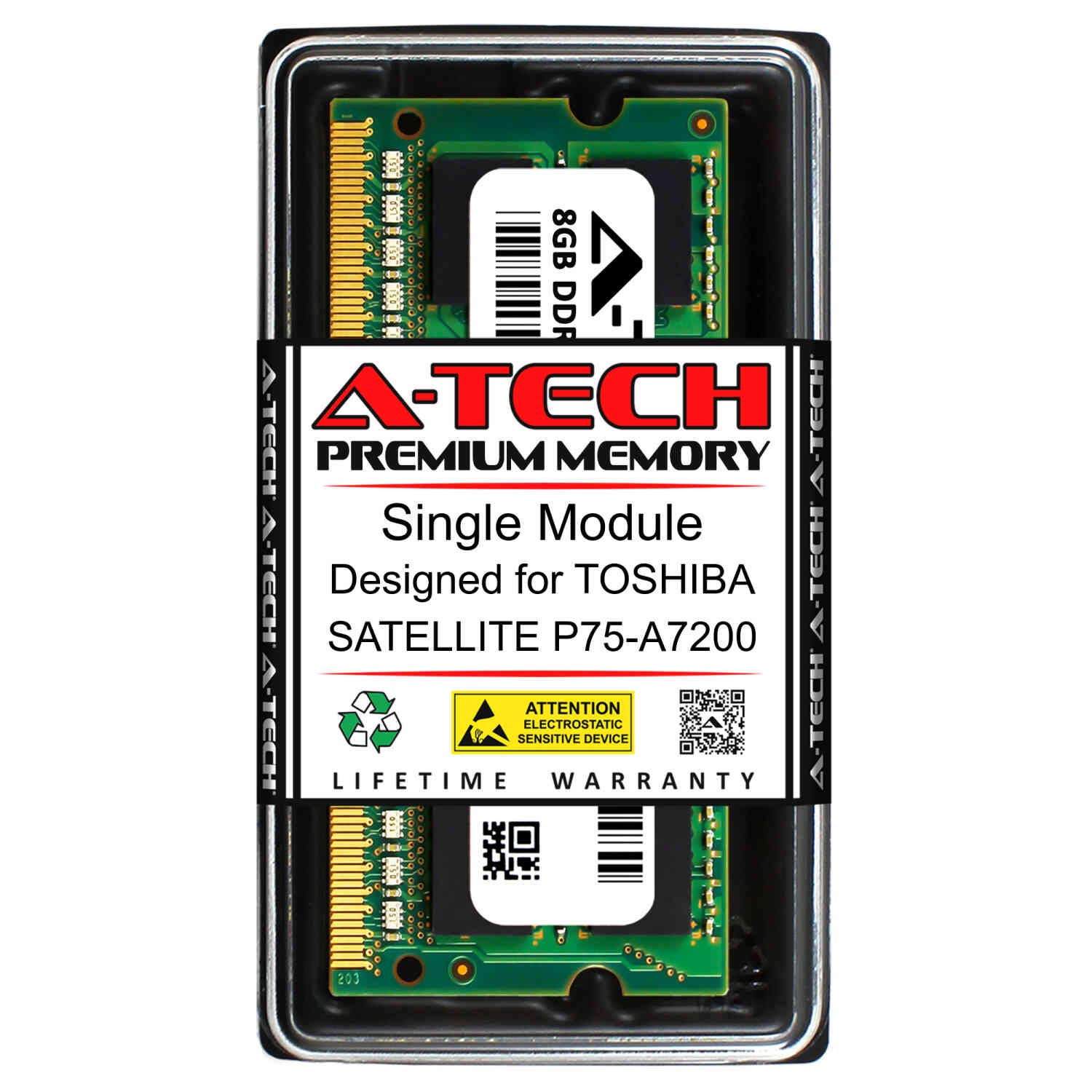
Image: Front view of the A-Tech 8GB DDR3 SODIMM RAM module.
Operation
Once correctly installed, the A-Tech RAM module operates automatically with your laptop's operating system. No additional software or drivers are required. The system will utilize the increased memory capacity to improve multitasking, application performance, and overall system responsiveness.
Maintenance
The A-Tech RAM module is a sealed electronic component and requires minimal maintenance.
- Keep the module in a clean, dry environment.
- Avoid exposing the module to extreme temperatures or humidity.
- If the module needs to be removed or reinstalled, follow the safety precautions outlined in the Installation Guide. Avoid touching the gold contacts.
Troubleshooting
Common Issues and Solutions
- System Does Not Boot or Beeps:
- Ensure the RAM module is fully seated in its slot. Remove and reinsert it, making sure the clips snap into place.
- Verify that the module is compatible with your laptop model (Toshiba Satellite P75-A7200).
- If you installed multiple modules, try booting with only one module at a time to identify a potentially faulty module or slot.
- System Boots but Does Not Recognize Full RAM:
- Check your operating system's system information to confirm the recognized RAM amount.
- Ensure your operating system is 64-bit to utilize more than 4GB of RAM.
- Verify that the module is correctly seated.
- Consult your laptop's BIOS/UEFI settings to see if the memory is detected there.
- Frequent Crashes or Blue Screens:
- This could indicate a faulty RAM module or an incompatibility.
- Run a memory diagnostic tool (e.g., Windows Memory Diagnostic) to check for errors.
- Ensure your laptop's BIOS is up to date.
If troubleshooting steps do not resolve the issue, contact A-Tech Technical Support for further assistance.
Warranty and Support
All A-Tech memory modules undergo rigorous quality assurance testing to ensure dependable and reliable performance.
- Lifetime Warranty: A-Tech products come with a Lifetime Warranty. Refer to the official A-Tech website for full warranty terms and conditions.
- Technical Support: Free United States Based Technical Support is available for assistance with installation or troubleshooting.
For more information and support, visit the official A-Tech website: atechmemory.com

