
1. Product Overview
The XIAOMI Smartmi Standing Floor Fan 3 is a portable, rechargeable DC pedestal fan designed to provide natural wind simulation and efficient air circulation. It features intelligent controls, a quiet operation, and a built-in battery for wireless use.
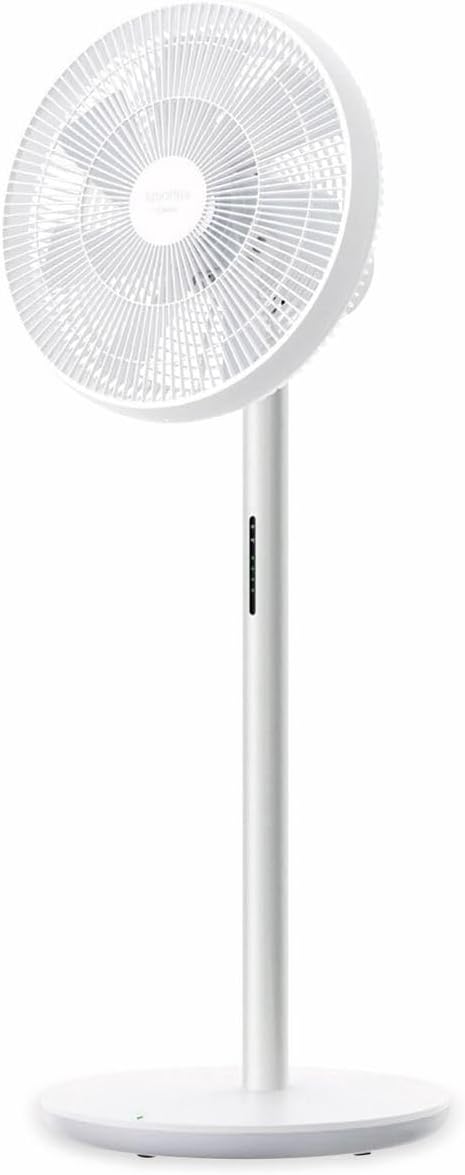
Figure 1.1: Front view of the Smartmi Standing Floor Fan 3, showcasing its minimalist white design and fan head.

Figure 1.2: Side profile of the Smartmi Standing Floor Fan 3, highlighting its slim pedestal and stable base.
2. Setup and Assembly
The Smartmi Standing Floor Fan 3 is designed for easy assembly. Follow these steps to set up your fan:
- Unpack Components: Carefully remove all components from the packaging. Ensure all parts are present: fan head, pedestal, base, power adapter, and remote control.
- Attach Pedestal to Base: Align the bottom of the pedestal with the opening in the base. Secure it firmly, typically with a screw provided, using the included tool or a standard screwdriver.
- Attach Fan Head to Pedestal: Connect the fan head to the top of the pedestal. Ensure it clicks into place or is secured according to the visual guides.
- Initial Charging: Before first use, connect the power adapter to the fan and a suitable power outlet. Allow the fan to charge for approximately 4 hours until fully charged. The power indicator on the pedestal will provide charging status.
- App Connection (Optional): Download the Xiaomi Home app from your device's app store. Follow the in-app instructions to connect your fan via Wi-Fi (IEEE 802.11b/g/n 2.4GHz). This enables advanced control features.
3. Operating Instructions
The fan can be operated using the physical buttons on the pedestal, the included Bluetooth remote control, or the Xiaomi Home app.
3.1 Power On/Off
- Physical Button: Press the power button on the pedestal once to turn on, and again to turn off.
- Remote Control: Press the power button on the remote control.
- Xiaomi Home App: Use the power toggle within the app interface.
3.2 Fan Speed Adjustment
- Remote Control: Use the speed adjustment buttons on the remote to cycle through available speeds.
- Xiaomi Home App: The app allows for precise adjustment across 100 different speed settings.
3.3 Wind Type Selection
The fan offers a 'Natural Wind' mode, which simulates irregular wind patterns for a more comfortable experience.
- Remote Control: Press the mode button to switch between standard and natural wind modes.
- Xiaomi Home App: Select the desired wind mode from the app interface.
3.4 Oscillation (Head Shaking)
The fan head can oscillate to distribute air across a wider area. The oscillation angle is adjustable via the app.

Figure 3.1: Illustration of the fan's adjustable oscillation angles (30°, 60°, 90°, 120°).
- Remote Control: Press the oscillation button to start or stop head shaking.
- Xiaomi Home App: Adjust the oscillation angle (30°, 60°, 90°, 120°) and control the oscillation function.
3.5 Timer Function
Set a timer for the fan to automatically turn off after a specified duration (up to 7.5 hours or more).
- Remote Control: Use the timer button to cycle through preset timer options.
- Xiaomi Home App: Set a precise timer duration.
3.6 Additional App Features
When connected to the Xiaomi Home app, you can access:
- Negative ion function activation.
- Screen brightness adjustment on the pedestal.
- Child safety lock activation.
4. Maintenance
Regular cleaning ensures optimal performance and longevity of your fan.
- Power Off: Always unplug the fan from the power source before cleaning.
- Exterior Cleaning: Wipe the exterior surfaces of the fan, pedestal, and base with a soft, damp cloth. Avoid abrasive cleaners or solvents.
- Fan Blade Cleaning: For thorough cleaning, the front grille can typically be removed to access the fan blades. Use a soft brush or cloth to gently clean the blades. Ensure all parts are dry before reassembling.
- Storage: If storing the fan for an extended period, ensure it is clean and dry. Store it in a cool, dry place, preferably in its original packaging.
5. Troubleshooting
- Fan Does Not Turn On:
- Ensure the fan is properly plugged into a working power outlet or that the internal battery is charged.
- Check if the power adapter is securely connected to the fan.
- Remote Control Not Responding:
- Replace the batteries in the remote control.
- Ensure there are no obstructions between the remote control and the fan.
- App Connectivity Issues:
- Verify your Wi-Fi network is active and operating on the 2.4GHz band.
- If the fan is running on battery and has been off for a period, it may enter a deep sleep mode. In this state, it might not respond to app commands until the physical power button on the fan is pressed to wake it up.
- Ensure the Xiaomi Home app is updated to the latest version.
- Battery Charge Status Indication:
- The fan's battery indicator typically shows status changes for a limited duration (e.g., 20 seconds) rather than a continuous display. Observe the indicator during charging or immediately after powering on.
6. Specifications
| Feature | Specification |
|---|---|
| Brand | XIAOMI (Smartmi) |
| Model Number | ZLBPLDS05ZM (6970403201486) |
| Rated Power | 25W |
| Rated Voltage | 220V |
| Rated Frequency | 50Hz |
| Battery Capacity | 33.6Wh / 288mAh |
| Wireless Usage Time | Up to 4 hours |
| Product Dimensions | 340 x 330 x 960 mm (34 x 33 x 96 cm) |
| Net Weight | 3.5 kg |
| Noise Level | 29 Decibels (minimum) |
| Rotary Vane Quantity | 7 |
| Wireless Connection | Wi-Fi IEEE 802.11b/g/n 2.4GHz |
| Control Modes | Remote Controlled, App Controlled |
7. Warranty and Support
For warranty information, please refer to the warranty card included with your product or contact your retailer. For technical support, please visit the official XIAOMI or Smartmi website, or contact their customer service department.
Keep your proof of purchase for any warranty claims.

