
TP-Link Archer C24
TP-Link Archer C24 AC750 Dual-Band Wi-Fi Router User Manual
Model: Archer C24
1. Introduction
The TP-Link Archer C24 AC750 Dual-Band Wi-Fi Router is designed to provide high-speed wireless connectivity for your home or small office. With AC750 dual-band Wi-Fi, it offers fast speeds for HD video streaming and high-speed downloads. Its multi-mode functionality allows it to operate as a Router, Access Point, or Range Extender, providing flexibility for various network setups. Equipped with four antennas, it ensures far-reaching Wi-Fi coverage and reliable connections. Advanced features like Parental Controls and Guest Network enhance network management and security. The compact design allows for versatile placement.

Figure 1: Top-down view of the Archer C24 router with its four antennas.
2. Package Contents
Before you begin, please verify that your package contains the following items:
- TP-Link Archer C24 Wi-Fi Router
- Power Adapter
- RJ45 Ethernet Cable
- Quick Installation Guide
3. Setup
Follow these steps to set up your Archer C24 router:
- Connect the Hardware:
- Power off your modem.
- Connect the Ethernet cable from your modem's LAN port to the Archer C24's blue WAN port.
- Connect the power adapter to the router and plug it into a power outlet.
- Power on your modem, then wait for it to fully start up (usually 1-2 minutes).
- Power on the Archer C24 router. Wait for the Wi-Fi LED indicator to become solid, indicating the router is ready.

Figure 2: Rear view of the Archer C24 showing port connections.
- Configure the Router:
You can configure the router using either the TP-Link Tether app or a web browser.
- Using the Tether App (Recommended):
Download the TP-Link Tether app from the App Store or Google Play. Connect your mobile device to the router's default Wi-Fi network (SSID and password are on the label at the bottom of the router). Follow the in-app instructions to complete the setup.
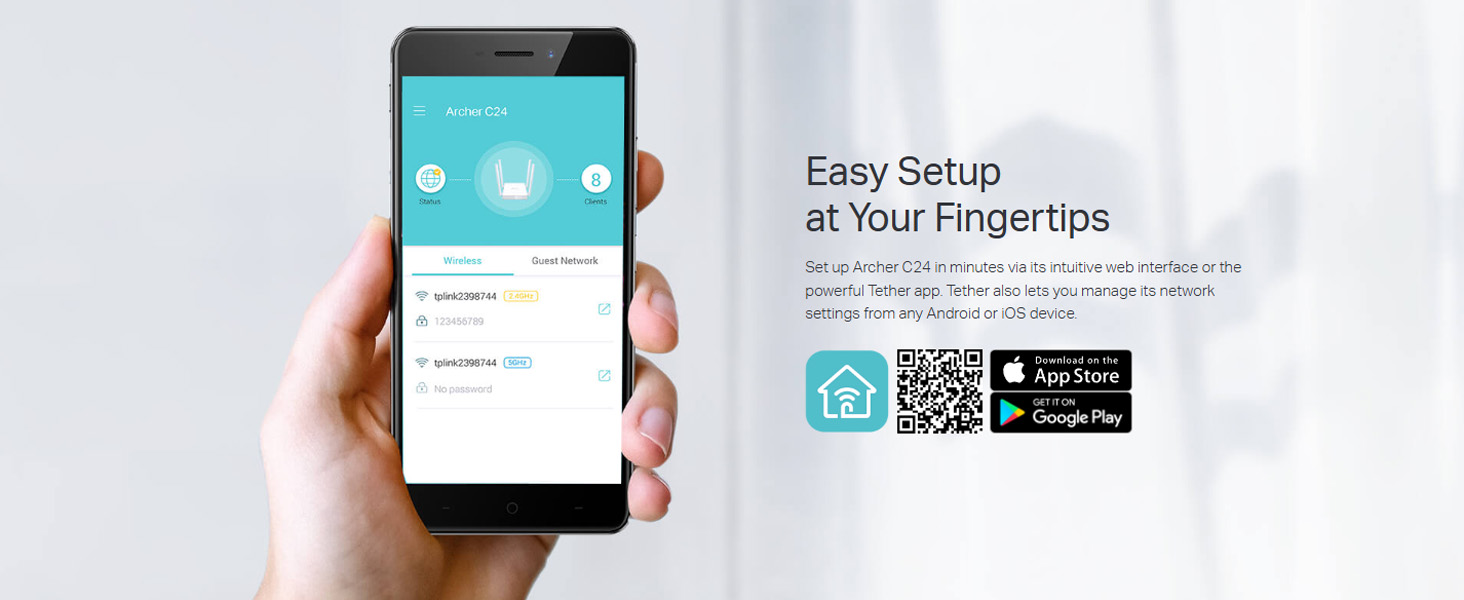
Figure 3: Easy setup using the TP-Link Tether app. Scan the QR code to download the app: TP-Link Tether App
- Using a Web Browser:
Connect your computer to the router via an Ethernet cable (to any yellow LAN port) or wirelessly. Open a web browser and type
http://tplinkwifi.netorhttp://192.168.0.1in the address bar. Create a login password and follow the on-screen instructions to complete the setup.
- Using the Tether App (Recommended):
4. Operating the Router
The Archer C24 offers various features to optimize your network experience.
4.1 Dual-Band Wi-Fi
The router operates on two distinct Wi-Fi bands:
- 2.4 GHz Band: Provides wider coverage and is suitable for general internet use like browsing and email.
- 5 GHz Band: Offers faster speeds and is ideal for bandwidth-intensive activities such as HD video streaming and online gaming.
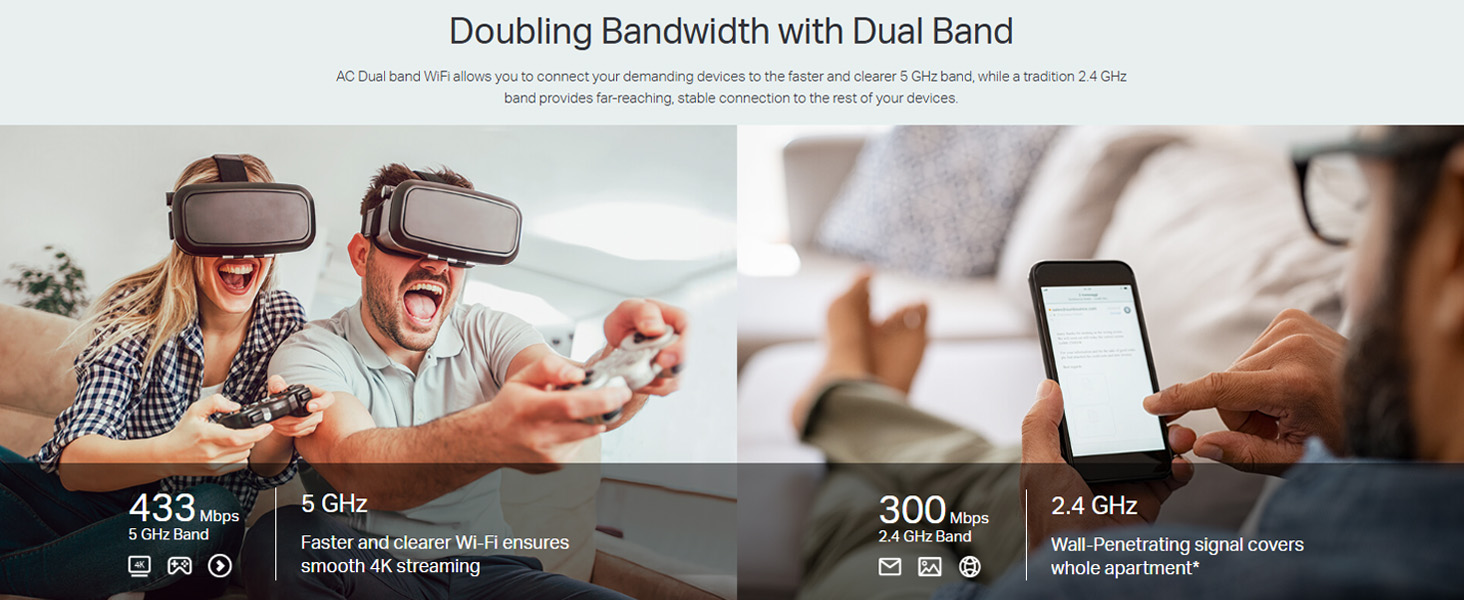
Figure 4: Doubling bandwidth with dual-band Wi-Fi.
4.2 Multi-Mode Operation
The Archer C24 supports three operational modes:
- Router Mode (Default): Connects to the internet and shares the connection with all your Wi-Fi devices.
- Access Point Mode: Transforms your existing wired network into a wireless one.
- Range Extender Mode: Boosts the existing wireless coverage in your home.
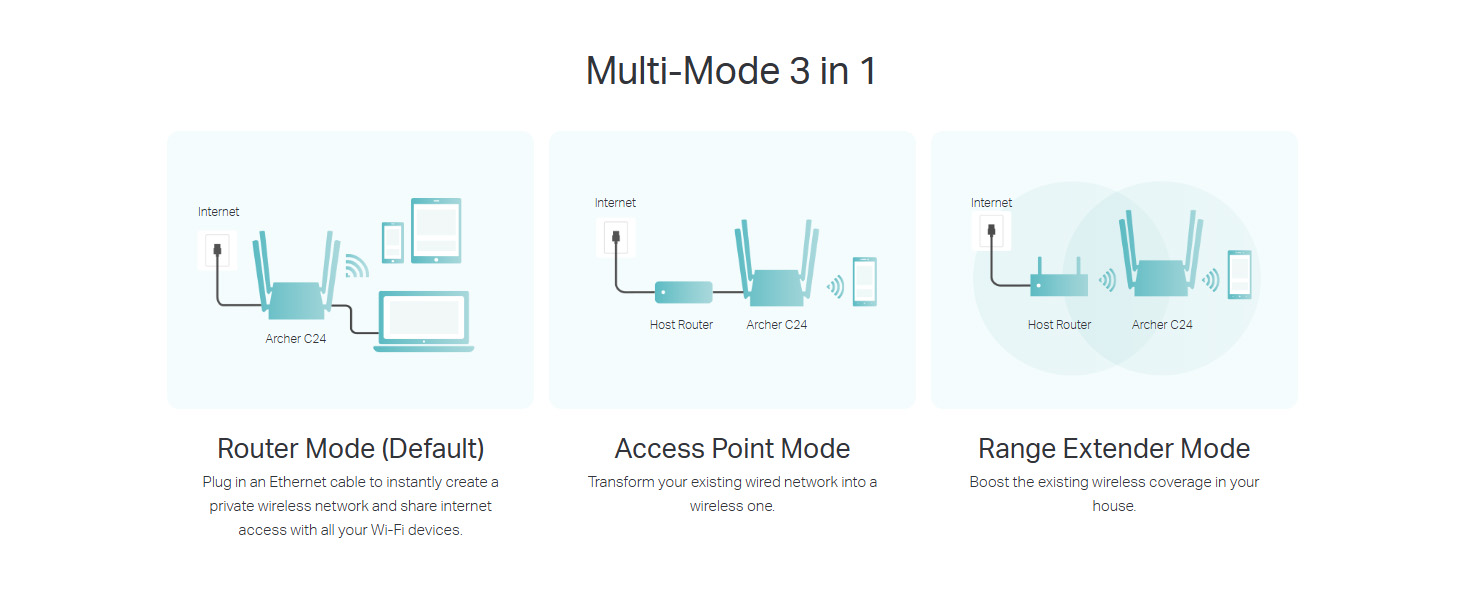
Figure 5: Multi-Mode 3-in-1 functionality.
4.3 Parental Controls
Manage when and how connected devices can access the internet. This feature allows you to block inappropriate content and set time limits for internet usage on specific devices.
4.4 Guest Network
Provide separate Wi-Fi access for guests while keeping your main network secure and private. Guests can access the internet without needing access to your local network resources.
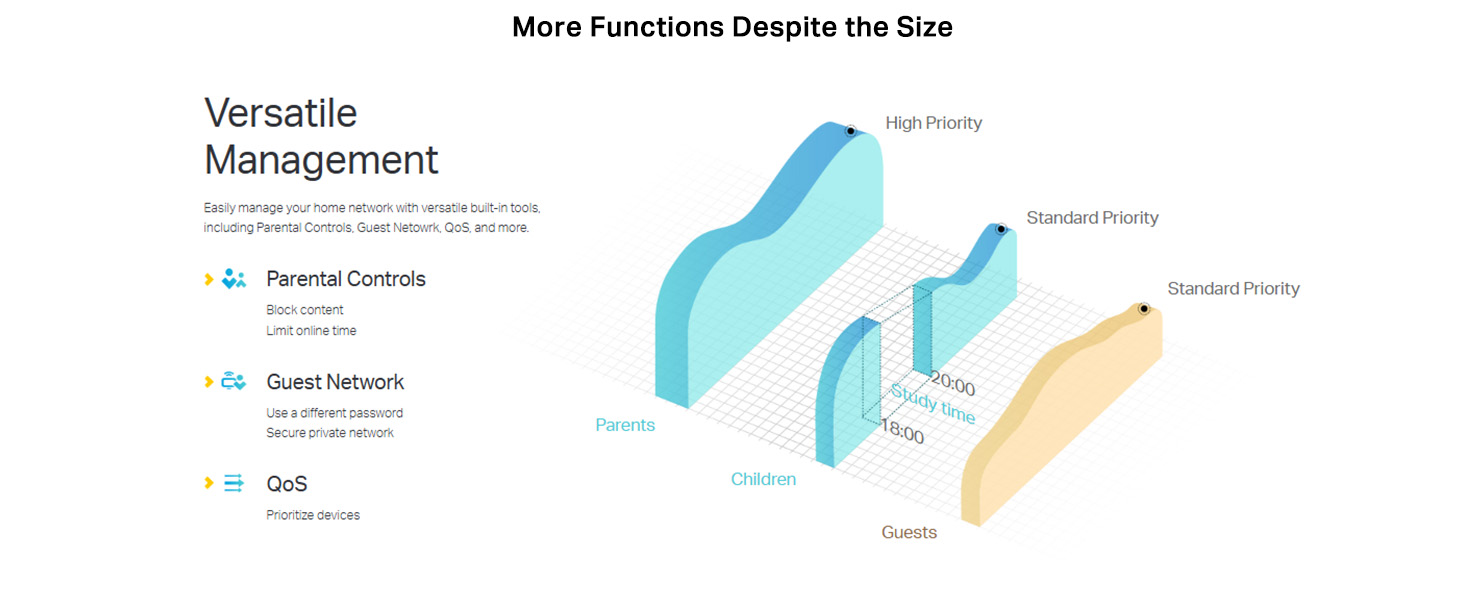
Figure 6: Versatile management features.
4.5 IPv6 Support
The Archer C24 is compatible with IPv6, the latest version of the Internet Protocol, ensuring future-proof networking.
4.6 IPTV Optimization
Supports IGMP Proxy/Snooping, Bridge, and Tag VLAN to optimize IPTV streaming, providing a smooth and buffer-free viewing experience.
5. Maintenance
To ensure optimal performance and longevity of your router, consider the following maintenance tips:
- Placement: Place the router in a central location, away from obstructions and devices that emit strong electromagnetic interference (e.g., microwaves, cordless phones). Avoid placing it near large metal objects.
- Firmware Updates: Regularly check for and install firmware updates from the TP-Link website. Firmware updates often include performance improvements, security patches, and new features.
- Cleaning: Keep the router clean and free from dust. Use a soft, dry cloth to wipe the exterior. Ensure ventilation openings are not blocked.
- Restarting: Periodically restart your router (e.g., once a month) to clear its memory and refresh network connections, which can help resolve minor performance issues.
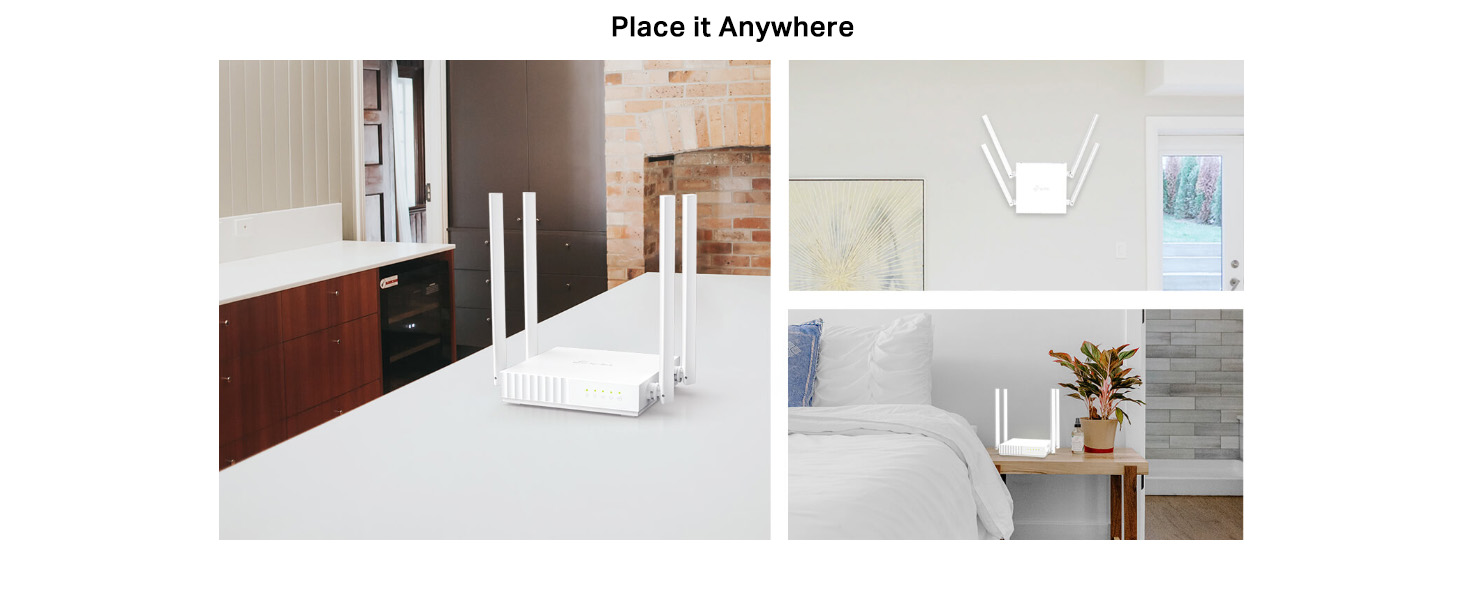
Figure 7: Flexible placement options for the Archer C24.
6. Troubleshooting
If you encounter issues with your Archer C24 router, try the following troubleshooting steps:
- No Internet Access:
- Check all cable connections between the modem, router, and computer. Ensure the WAN port LED is lit.
- Restart your modem and router.
- Verify your internet service provider (ISP) connection is active.
- Log in to the router's web management page and check the WAN settings.
- Slow Wireless Speed:
- Ensure your device is connected to the appropriate Wi-Fi band (5 GHz for faster speeds).
- Move your device closer to the router to improve signal strength.
- Avoid interference from other electronic devices.
- Check for firmware updates.
- Cannot Access Router Management Page:
- Ensure your device is connected to the router's network.
- Verify you are using the correct address (
http://tplinkwifi.netorhttp://192.168.0.1). - Clear your browser's cache and cookies, or try a different browser.
- Temporarily disable any firewall or antivirus software.
- Forgot Wi-Fi Password or Login Password:
- The default Wi-Fi password is on the label at the bottom of the router.
- If you changed it and forgot, you may need to perform a factory reset. Press and hold the WPS/RESET button on the back of the router for about 5-10 seconds until the LEDs flash. This will restore the router to its factory default settings.
7. Specifications
| Feature | Detail |
|---|---|
| Brand | TP-Link |
| Model Name | Archer C24 |
| Wireless Standard | 802.11ac/a/b/g/n |
| Frequency Band Class | Dual-Band (2.4 GHz & 5 GHz) |
| Wireless Speed | AC750 (300 Mbps on 2.4 GHz, 433 Mbps on 5 GHz) |
| Antennas | 4 Fixed Omni-Directional Antennas |
| Ethernet Ports | 1 WAN Port, 4 LAN Ports |
| Dimensions (LxWxH) | 10.7 x 11.4 x 2.5 Centimeters |
| Operating System Compatibility | Windows, macOS, Linux (Web-based management) |
| Special Features | Guest Mode, Parental Control, Remote Access (via Tether App) |
| Included Components | Wi-Fi Router, Power Adapter, RJ45 Ethernet Cable, Quick Installation Guide |
| Country of Origin | China |
8. Warranty and Support
For warranty information and technical support, please refer to the official TP-Link website or contact their support channels.
- Manufacturer: TP-LINK CORPORATION LIMITED
- Importer/Packer (India): TP-LINK India Private Limited, Green Industrial Park, Dongri Pada, Poman, Kaman-Bhiwandi Road, Vasai East, Palghar, Maharashtra – 401208
- Contact: Toll Free 1800 2094 168, support.in@tp-link.com
Please retain your purchase receipt for warranty claims.
Related documentsArcher C24


Ask a question about this manual
Ask about setup, troubleshooting, compatibility, parts, safety, or missing instructions. Manuals+ will review the question and use this page’s manual context to help answer it.