
1. Introduction
This manual provides essential instructions for the safe and efficient operation of your Lenco DIR-250 Internet Radio. Please read this manual thoroughly before using the device and retain it for future reference. The Lenco DIR-250 is a versatile audio system offering Internet Radio, DAB+, FM radio, Bluetooth connectivity, Spotify Connect, and USB playback.
2. Safety Information
- Do not expose the unit to rain or moisture to prevent fire or electric shock.
- Ensure proper ventilation. Do not block ventilation openings.
- Use only the power adapter supplied with the unit.
- Do not open the casing. Refer all servicing to qualified personnel.
- Keep the unit away from direct sunlight, heat sources, and strong magnetic fields.
- Avoid placing heavy objects on top of the unit.
3. Package Contents
Verify that all items are present upon unpacking:
- Lenco DIR-250 Internet Radio Unit
- Power Adapter
- Remote Control
- User Manual (this document)
- Antennas (2 included)
4. Product Overview

Figure 4.1: Front view of the Lenco DIR-250 Internet Radio and its remote control.

Figure 4.2: Close-up of the right side of the front panel, featuring the TFT LCD display, volume control knob, Dimmer, and Alarm buttons.
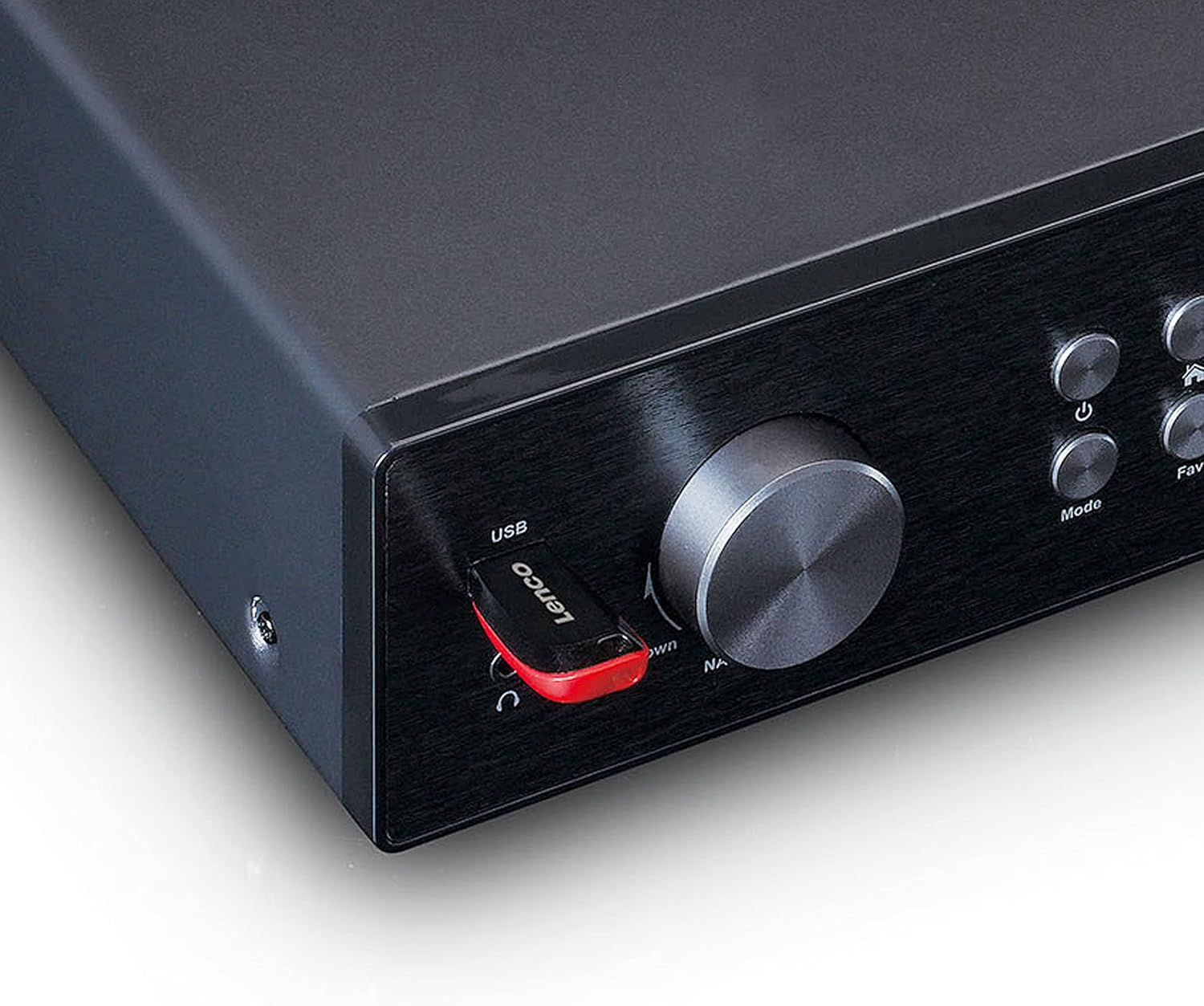
Figure 4.3: Close-up of the left side of the front panel, showing the USB port, headphone jack, Navigate/OK knob, Mode, and Favorite buttons.

Figure 4.4: Rear panel connections, including DC IN, Audio Output (RCA), Analog Input/Output, Optical Output, Coaxial Output, LAN (RJ45), and Antenna ports.
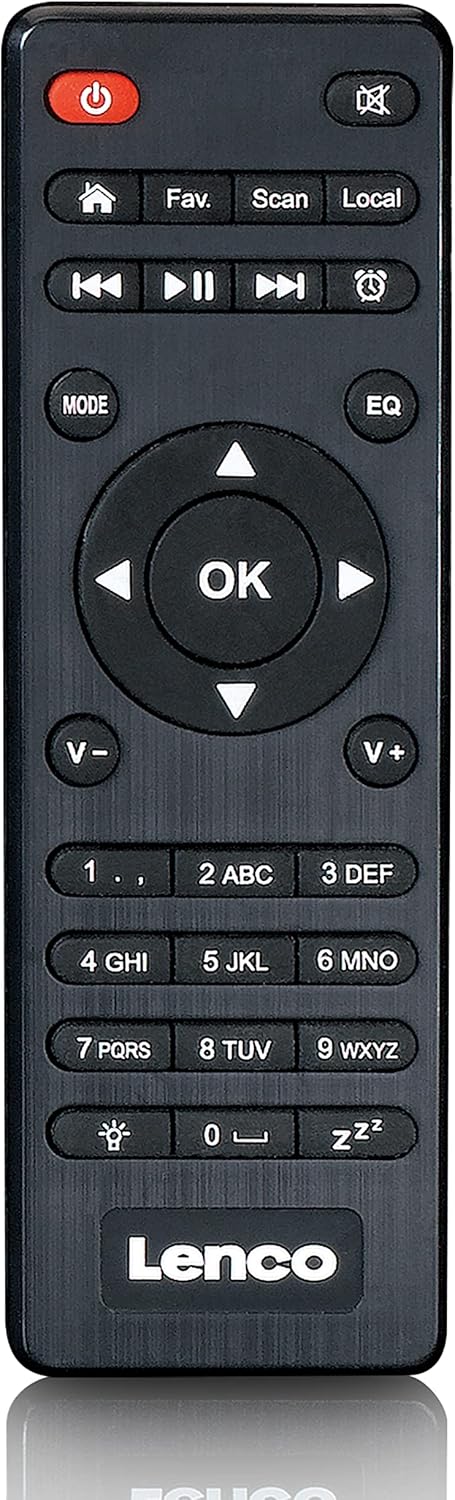
Figure 4.5: The included remote control for convenient operation of the Lenco DIR-250.
5. Setup
5.1. Power Connection
- Connect the supplied power adapter to the DC IN port on the rear of the unit.
- Plug the power adapter into a wall outlet.
5.2. Antenna Connection
For optimal reception of DAB+ and FM radio, connect the provided antennas to their respective ports on the rear panel. Extend the telescopic antenna fully for best results.
5.3. Network Connection
The DIR-250 supports both Wi-Fi and Ethernet connections for Internet Radio and Spotify Connect.
- Wi-Fi: Upon first power-on, the unit will guide you through the Wi-Fi setup. Select your network from the list and enter the password using the navigation knob and OK button, or the remote control.
- Ethernet: Connect an Ethernet cable from your router to the LAN port on the rear of the unit. The device will automatically detect the wired connection.
5.4. Initial Setup Wizard
The first time you power on the DIR-250, an initial setup wizard will appear on the display. Follow the on-screen prompts to configure language, time, date, and network settings. This ensures the device is ready for use.
6. Operating
6.1. Basic Controls
The DIR-250 can be operated using the front panel controls or the included remote control.
- Power Button: Turns the unit on/off or puts it into standby mode.
- Volume Knob: Rotate to adjust volume. Press to mute/unmute.
- Navigate/OK Knob: Rotate to scroll through menus and options. Press to confirm a selection.
- Mode Button: Cycles through available modes (Internet Radio, DAB+, FM, Bluetooth, USB, AUX).
- Fav. Button: Accesses your list of favorite stations or saves the current station as a favorite.
- Dimmer Button: Adjusts the brightness of the display.
- Alarm Button: Sets or manages alarms.
6.2. Internet Radio
Access thousands of radio stations worldwide via your internet connection.
- Press the Mode button until "Internet Radio" is selected.
- Use the Navigate/OK knob or remote control to browse stations by location, genre, or search.
- Press OK to select a station.
- To save a station as a favorite, press and hold the Fav. button.
6.3. DAB+ Radio
Enjoy high-quality digital radio broadcasts.
- Press the Mode button until "DAB+" is selected.
- The radio will automatically scan for available DAB+ stations.
- Use the Navigate/OK knob or remote to select a station from the list.
6.4. FM Radio
Tune into traditional analog FM radio stations.
- Press the Mode button until "FM" is selected.
- Use the Scan button on the remote or the Navigate/OK knob to search for stations.
- Press OK to listen to a selected station.
6.5. Bluetooth Mode
Stream audio wirelessly from your smartphone, tablet, or other Bluetooth-enabled devices.
- Press the Mode button until "Bluetooth" is selected. The display will show "Pairing".
- On your external device, enable Bluetooth and search for "Lenco DIR-250".
- Select the device to pair. Once connected, you can play audio from your device through the radio.
6.6. Spotify Connect
Control your music directly from the Spotify app on your smartphone or tablet.
- Ensure your Lenco DIR-250 and your smartphone/tablet are connected to the same Wi-Fi network.
- Open the Spotify app on your device.
- Play a song and tap the "Devices Available" icon (usually a speaker or computer icon).
- Select "Lenco DIR-250" from the list of available devices.
6.7. USB Playback
Play audio files (MP3, WAV, AAC) from a USB flash drive.
- Insert a USB flash drive into the USB port on the front panel.
- Press the Mode button until "USB" is selected.
- Use the Navigate/OK knob or remote to browse and select audio files.
6.8. AUX Input
Connect external audio devices using a 3.5mm audio cable.
- Connect your external audio device to the AUX IN port on the rear panel.
- Press the Mode button until "AUX" is selected.
- Play audio from your connected device.
6.9. Alarm and Sleep Timer
Set alarms to wake up to your favorite radio station or use the sleep timer to automatically turn off the radio.
- Alarm: Press the Alarm button on the front panel or remote. Follow the on-screen instructions to set alarm time, source, and volume.
- Sleep Timer: Press the Sleep button on the remote control repeatedly to cycle through available sleep timer durations (e.g., 15, 30, 60 minutes, Off).
7. Maintenance
7.1. Cleaning
To clean the unit, wipe it with a soft, dry cloth. Do not use abrasive cleaners, waxes, or solvents as these may damage the surface. Ensure the unit is unplugged before cleaning.
7.2. Storage
If you plan not to use the unit for an extended period, unplug it from the power outlet and store it in a cool, dry place, away from direct sunlight and extreme temperatures.
8. Troubleshooting
| Problem | Possible Cause | Solution |
|---|---|---|
| No power | Power adapter not connected or faulty outlet. | Check power connections. Try a different outlet. |
| No sound | Volume too low, muted, or incorrect input selected. | Increase volume. Check if muted. Select correct input mode. |
| Cannot connect to Wi-Fi | Incorrect password, out of range, or router issue. | Verify Wi-Fi password. Move unit closer to router. Restart router. |
| Internet Radio buffering/disconnecting | Weak Wi-Fi signal or slow internet connection. | Improve Wi-Fi signal strength. Check internet speed. Try wired Ethernet connection. |
| Poor DAB+/FM reception | Antenna not properly connected or extended. | Ensure antennas are fully extended and positioned for best reception. |
| Bluetooth pairing issues | Device not in pairing mode, or already paired with another device. | Ensure DIR-250 is in Bluetooth mode. Disconnect from other devices. |
| Unit freezes or becomes unresponsive | Temporary software glitch. | Unplug the power adapter, wait 10 seconds, then plug it back in to restart the unit. |
9. Specifications
| Brand | Lenco |
| Model Number | A004231 |
| Display Technology | LCD |
| Connectivity | Bluetooth V5.0, Ethernet (RJ45), Wi-Fi |
| Radio Bands Supported | Internet Radio, DAB+, FM |
| Special Features | Spotify Connect, USB Playback, Alarm, Sleep Timer |
| Dimensions (L x W x H) | 43 x 28.7 x 7.2 cm |
| Weight | 1.5 kilograms |
| Power Source | Wired (AC Adapter) |
| Compatible Devices | Tablet, Smartphone, USB storage devices |
10. Warranty
This product comes with a manufacturer's warranty of 24 months from the date of purchase. Please retain your proof of purchase for warranty claims. The warranty covers defects in materials and workmanship under normal use. It does not cover damage caused by misuse, accidents, unauthorized modifications, or normal wear and tear.
11. Support
For technical support, service, or further inquiries regarding your Lenco DIR-250 Internet Radio, please visit the official Lenco website or contact their customer service department. Contact information can typically be found on the Lenco website or in the warranty documentation included with your product.
Lenco Official Website: www.lenco.com


