
1. Product Overview
The Redragon GA250 Vulcan is a versatile keyboard and mouse adapter designed to enhance your gaming experience on various console platforms. It allows you to use a standard USB keyboard and mouse with your PlayStation 3, PlayStation 4, Nintendo Switch, and Xbox One consoles, providing a PC-like control scheme for compatible games, particularly beneficial for first-person shooter (FPS) titles.

Figure 1: Front view of the Redragon GA250 Vulcan adapter, showcasing its compact design and Redragon logo.
Ports and Connections
The GA250 adapter features multiple ports for connecting your console and peripherals:
- Console Input Port: Connects to your gaming console.
- Keyboard USB Port: For connecting your USB keyboard.
- Mouse USB Port: For connecting your USB mouse.
- DC Input Port: For additional power if required by high-power peripherals (cable not always included).

Figure 2: Close-up view of the Redragon GA250 Vulcan adapter, showing the various input and output ports for console, keyboard, mouse, and DC power.
2. Setup Instructions
Follow these steps to connect your Redragon GA250 Vulcan adapter to your gaming console and peripherals. The adapter is designed for plug-and-play functionality, requiring no additional drivers.
- Connect to Console: Plug the console input cable from the GA250 adapter into an available USB port on your PlayStation 3, PlayStation 4, Nintendo Switch, or Xbox One console.
- Connect Keyboard: Insert your USB keyboard's cable into the designated keyboard USB port on the GA250 adapter.
- Connect Mouse: Insert your USB mouse's cable into the designated mouse USB port on the GA250 adapter.
- Power (Optional): If your keyboard or mouse requires additional power, or if you experience unstable connections, connect a DC power cable (not included) to the DC Input port on the adapter.
- Verify Connection: Observe the LED indicator on the adapter to confirm successful connection (refer to Section 3 for LED indicator details).
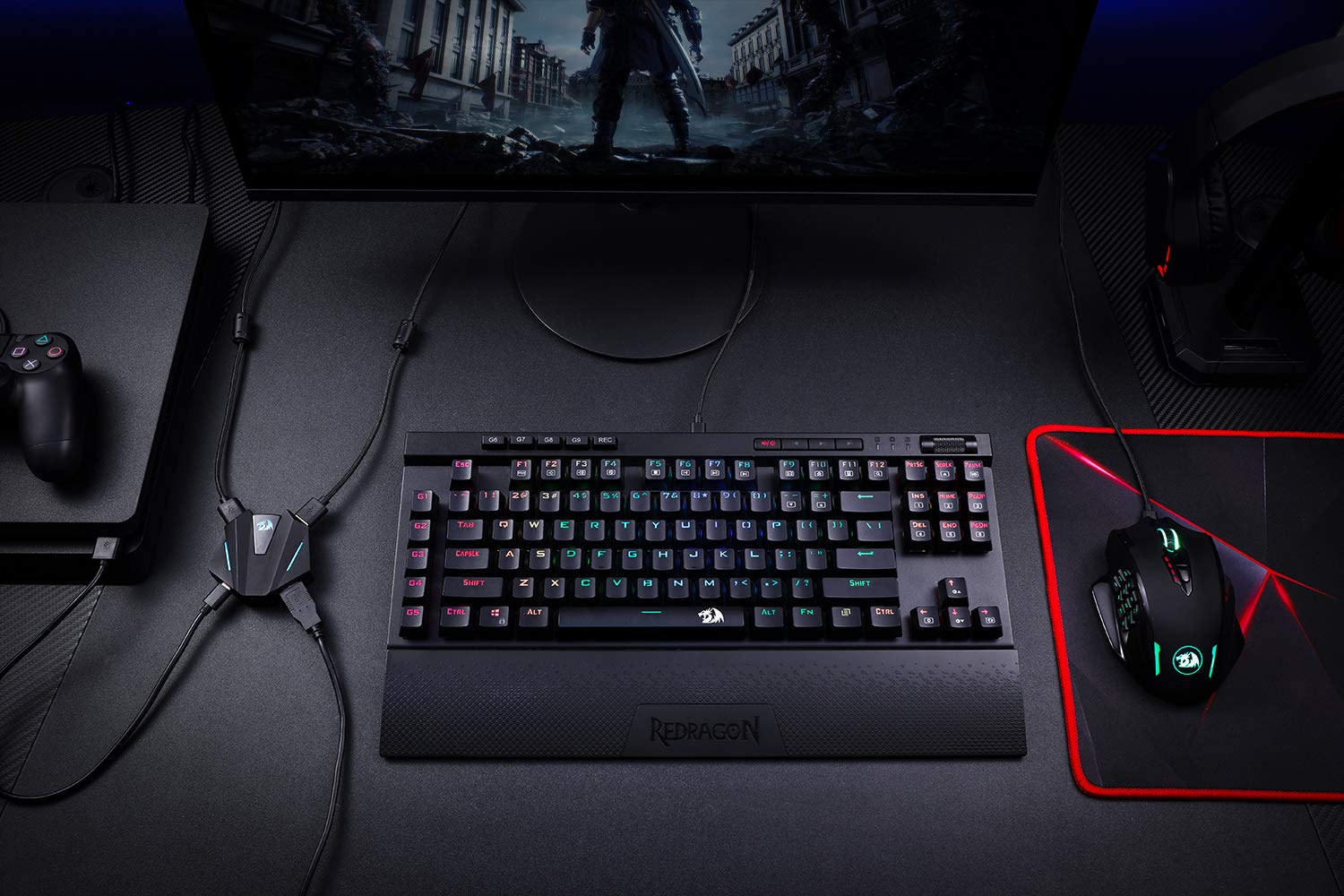
Figure 3: A complete setup showing the Redragon GA250 Vulcan adapter connected to a PlayStation 4 console, a gaming keyboard, and a gaming mouse, ready for use.
3. LED Indicator Guide
The Redragon GA250 Vulcan adapter features an LED indicator that provides visual feedback on its connection status. Understanding these indicators is crucial for proper setup and troubleshooting.
- White LED: Indicates that the adapter is powered on and ready for connection.
- Red LED: Signifies that one gaming device (either the keyboard or the mouse) is successfully connected to the adapter.
- Green LED: Indicates that a second gaming device (the remaining keyboard or mouse) is successfully connected to the adapter.
- Gold LED: Confirms that both the keyboard and mouse are successfully connected and the adapter is fully operational with the console.

Figure 4: The Redragon GA250 Vulcan adapter displaying a blue LED, indicating a connection status. Note: The actual LED colors for specific statuses are described in the text above.
4. Operating Instructions
Once the Redragon GA250 Vulcan adapter is successfully connected and the LED indicator shows gold, your keyboard and mouse are ready for use with your console. The adapter translates keyboard and mouse inputs into controller commands, allowing for precise control in games.
- Game Compatibility: The adapter works by emulating a controller. Game compatibility depends on the game's support for controller input.
- Input Mapping: Specific key and mouse button mappings may vary by game. Some games may offer in-game customization options for controller layouts.
- Sensitivity Adjustment: Mouse sensitivity can often be adjusted within the game's settings to suit your preference.

Figure 5: The Redragon GA250 Vulcan adapter connected to a gaming keyboard and mouse, positioned on a gaming desk, illustrating a typical operational setup.
5. Troubleshooting
If you encounter issues while using your Redragon GA250 Vulcan adapter, please refer to the following common troubleshooting steps:
- No Power/No LED: Ensure the adapter is securely plugged into a powered USB port on your console. If using high-power peripherals, consider connecting an external DC power source to the adapter's DC Input port.
- Keyboard/Mouse Not Responding:
- Verify that the keyboard and mouse are correctly plugged into their respective ports on the adapter.
- Check the LED indicator on the adapter. If it's not gold, refer to the LED Indicator Guide (Section 3).
- Try disconnecting and reconnecting the keyboard/mouse.
- Test the keyboard/mouse directly on a computer to ensure they are functional.
- Lag or Input Delay:
- Ensure all connections are secure.
- If using wireless peripherals, ensure they are fully charged and within range.
- Consider connecting an external DC power source to the adapter if not already in use.
- Console Specific Issues: Ensure your console's firmware is up to date. Some consoles may require specific settings for external input devices.
If you have followed these steps and continue to experience issues, please contact Redragon customer support for further assistance.
6. Specifications
| Feature | Detail |
|---|---|
| Model | GA250 Vulcan |
| Compatibility | PS3, PS4, Nintendo Switch (NS), Xbox One |
| Connection Type | Wired USB (for console and peripherals), supports 2.4Ghz Wireless Connection for compatible devices |
| Package Dimensions | 14.99 x 7.87 x 2.54 cm |
| Item Weight | 91 g |
| Manufacturer | Redragon |
7. Warranty and Support
Redragon products are manufactured to high-quality standards. For information regarding warranty coverage, technical support, or any product-related inquiries, please visit the official Redragon website or contact their customer service department directly. Keep your purchase receipt as proof of purchase for warranty claims.

