
Introduction
The NETGEAR Nighthawk Pro Gaming XR1000 WiFi 6 Router is designed to optimize your online gaming experience and provide robust wireless connectivity. Powered by DumaOS 3.0, it offers advanced features to reduce ping rates, prioritize gaming traffic, and enhance network security. This manual provides essential information for setting up, operating, maintaining, and troubleshooting your XR1000 router.
Product Overview

Figure 1: Front view of the NETGEAR Nighthawk Pro Gaming XR1000 WiFi 6 Router. The router features a sleek, angular black design with red accents and four external antennas.
The XR1000 is a 6-stream AX5400 dual-band WiFi 6 router, offering wireless speeds up to 5.4Gbps. It is equipped with a powerful 1.5GHz triple-core processor to handle multiple devices and demanding applications simultaneously. Key features include:
- DumaOS 3.0: Optimizes lag-free server connections, reduces ping rates by up to 93%, and allows for geo-fencing and bandwidth allocation.
- WiFi 6 (802.11ax): Provides faster speeds, increased capacity for more devices, and reduced network congestion. It is backward compatible with WiFi 5 (802.11ac) and earlier WiFi standards.
- Wired Connectivity: Features four 1 Gigabit Ethernet LAN ports for wired devices and one 1 Gigabit Ethernet WAN port for connecting to your modem.
- USB 3.0 Port: For sharing a storage drive with connected devices.
- NETGEAR Armor: Advanced cybersecurity for your home network and connected devices.
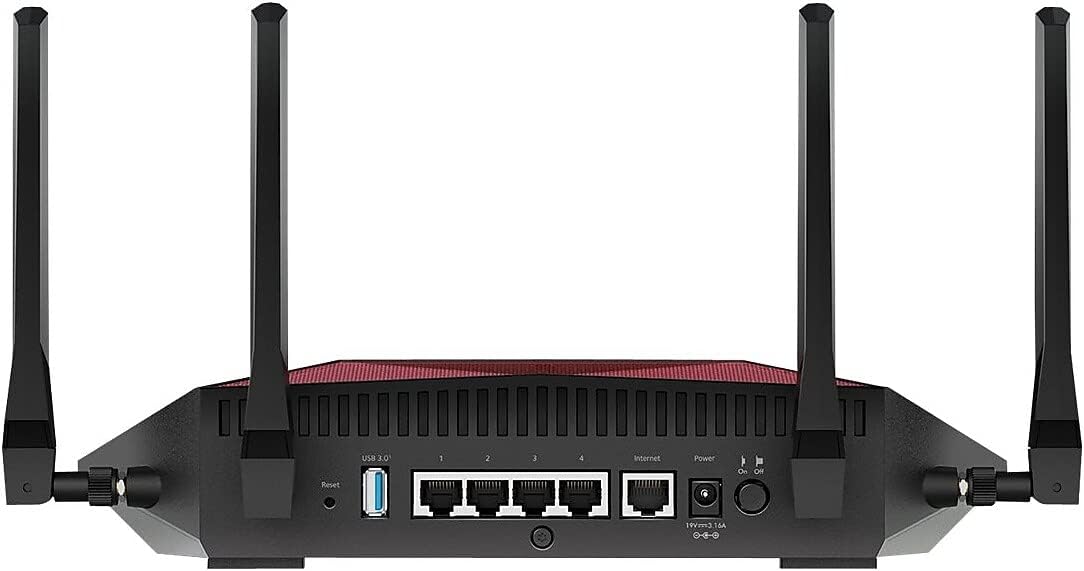
Figure 2: Rear view of the XR1000 router, highlighting the USB 3.0 port, four Gigabit Ethernet LAN ports, one Gigabit Ethernet WAN port, power input, and power on/off switch.
Setup Instructions
Follow these steps to set up your NETGEAR Nighthawk Pro Gaming XR1000 router:
- Unpack the Router: Carefully remove the router and all accessories from the packaging.
- Attach Antennas: Screw the four detachable antennas onto the gold connectors on the back and sides of the router. Ensure they are securely fastened.
- Connect to Modem: Plug one end of the provided Ethernet cable into the yellow Internet (WAN) port on the back of the XR1000 router. Plug the other end into an available LAN port on your existing modem or gateway.
- Connect Power: Plug the power adapter into the power input on the back of the router, then plug the other end into a power outlet. Press the Power On/Off button to turn on the router.
- Download Nighthawk App: Download the NETGEAR Nighthawk App from your mobile device's app store (iOS or Android).
- Follow In-App Setup: Open the Nighthawk App and follow the on-screen instructions. You can scan the QR code on the router's label for quick setup. The app will guide you through connecting to your new WiFi network, setting up an admin password, and configuring basic settings.
- Firmware Update: If prompted by the app, update the router's firmware to ensure you have the latest features, bug fixes, and security updates. Do not unplug or power off your router during the update process.
Video 1: An official unboxing video for the NETGEAR Nighthawk Pro Gaming XR1000 Router, demonstrating the contents of the box and initial physical setup steps.
Operating Your Router
DumaOS 3.0 Features
DumaOS 3.0 is the operating system that powers your XR1000 router, providing a suite of tools designed for an optimized gaming and streaming experience:
- Geo-Filter: Customize and filter which game servers you connect to, ensuring you play on servers with the best connection for reduced latency.
- Ping Heatmap: Visualize ping to various game servers globally to identify the best connection quality for your preferred games.
- Bandwidth Allocation (QoS): Prioritize bandwidth for specific devices or applications (e.g., gaming, streaming) to prevent network congestion and ensure critical traffic gets the necessary speed.
- Traffic Controller: Block traffic by device or application on a schedule, providing granular control over your network usage.
WiFi 6 Connectivity
The XR1000 utilizes WiFi 6 technology to deliver superior performance:
- Increased Capacity: Connect more devices simultaneously without sacrificing speed, ideal for smart homes with numerous connected gadgets.
- Lower Latency: Experience smoother gaming and streaming with reduced delays.
- Backward Compatibility: Works seamlessly with older WiFi 5 (802.11ac) and earlier generation WiFi devices.
Video 2: An official introduction video for the NETGEAR Nighthawk Pro Gaming XR1000 Router, highlighting its key features and benefits for gamers and streamers.
Maintenance
To ensure optimal performance and security for your XR1000 router:
- Regular Firmware Updates: Periodically check for and install firmware updates via the Nighthawk App or the router's web interface. Updates often include performance improvements, security patches, and new features.
- Physical Placement: Place your router in a central location, away from obstructions and other electronic devices that may cause interference. Ensure adequate ventilation to prevent overheating.
- Network Monitoring: Use the Nighthawk App to monitor network activity, connected devices, and bandwidth usage.
- Security Checks: Regularly review your NETGEAR Armor settings to ensure your network is protected against online threats.
Troubleshooting
If you encounter issues with your XR1000 router, try the following steps:
- No Internet Connection:
- Check all cable connections (Ethernet, power) to ensure they are secure.
- Restart your modem and router by unplugging them from power for 30 seconds, then plugging them back in. Wait for both devices to fully boot up.
- Verify your Internet Service Provider (ISP) is not experiencing an outage.
- Slow WiFi Speed:
- Ensure your devices are connected to the appropriate WiFi band (5GHz for faster speeds, 2.4GHz for wider coverage).
- Check for interference from other electronic devices or neighboring WiFi networks.
- Use DumaOS's Bandwidth Allocation (QoS) feature to prioritize your gaming or streaming devices.
- Router Not Responding:
- Perform a soft reset by pressing the Reset button on the back of the router for a few seconds.
- If issues persist, perform a factory reset (refer to the Nighthawk App or user manual for specific instructions, as this will erase all custom settings).
Specifications
| Feature | Detail |
|---|---|
| Model Name | XR1000-100NAS |
| Wireless Technology | WiFi 6 (802.11ax) |
| Wireless Speed | AX5400 (up to 5.4Gbps) |
| Frequency Band Class | Dual-Band (2.4GHz & 5GHz) |
| Processor | 1.5GHz Triple-Core |
| Ethernet Ports | 4 x 1G LAN, 1 x 1G WAN |
| USB Ports | 1 x USB 3.0 |
| Special Feature | Internet Security (NETGEAR Armor) |
| Product Dimensions | 11.61 x 7.87 x 2.51 inches |
| Item Weight | 1.32 pounds |
| Included Components | WiFi 6 Pro Gaming Router (XR1000), 4 detachable antennas, Ethernet cable, Quick start guide, Power adapter |
Warranty & Support
NETGEAR provides 24/7 technical support for your Nighthawk Pro Gaming XR1000 router. For detailed warranty information and to extend your technical support beyond 90 days of product purchase (US only), please visit prosupport.netgear.com/warranty.


