
Introduction
This manual provides essential information for the proper setup, operation, and maintenance of your Uogic USI 2.0 Stylus Pen. Please read it thoroughly before using the product to ensure optimal performance and longevity.
What's in the Box
- Uogic USI 2.0 Stylus Pen
- USB-C Charging Cable
- 2 x Replaceable Nibs
- Nib Extractor Tool
- User Manual (this document)
Video: Unboxing and initial setup of the Uogic USI 2.0 Stylus Pen, demonstrating included accessories and basic functionality.
Product Overview
The Uogic USI 2.0 Stylus Pen is crafted from aviation aluminum alloy, offering a comfortable and durable design. It features intuitive controls and a precise tip for an enhanced digital experience.

Image: Detailed diagram of the Uogic USI 2.0 Stylus Pen, highlighting its key components including the function button (eraser), dust plug/charging port, indicator light, power button (select function), and replaceable nib.
Key Features:
- Function Button: Located on the side, this button typically serves as an eraser function in compatible applications.
- Power Button: Also on the side, used for powering the pen on/off and for select functions.
- USB Type-C Charging Port: A hidden port with a dust plug for protection, located at the top end of the pen.
- Indicator Light: Provides visual feedback on charging status and power-on.
- Replaceable Nib: A durable cone-shaped tip designed for strong signal transmission and easy replacement.
Setup
1. Charging the Stylus
Before first use, charge the stylus for at least 10 minutes. A full charge takes approximately 1 hour and provides up to 110 hours of use.
- Connect the provided USB-C charging cable to the stylus's hidden port (under the dust plug).
- LED Indicator:
- Red light blinks: Charging or low battery.
- Green light solid: Fully charged.

Image: The stylus pen's hidden USB-C charging port, protected by a dust plug, connected to a charging cable.
2. Powering On/Off & Pairing
No Bluetooth pairing or app is needed. The stylus automatically connects to compatible devices.
- Power On: Press the power button once. The green indicator light will illuminate for 3 seconds and then turn off.
- Smart Standby: The pen will wake up automatically when picked up after a short period of inactivity.
- Auto Sleep: The stylus enters sleep mode after 5 minutes of inactivity. Press any button to wake it.
- Auto Shutdown: If inactive for 45 minutes, the stylus will shut down. Press the power button to restart.
Operating Instructions
1. Palm Rejection
Write or draw naturally on your screen without worrying about accidental marks from your palm. The stylus features integrated palm rejection technology.

Image: A user's hand resting on a tablet screen while writing with the stylus, illustrating effective palm rejection without requiring gloves.
2. Pressure Sensitivity
Experience precise control with 4096 levels of pressure sensitivity. This allows for varied line thicknesses and shading, ideal for sketching, note-taking, and detailed artwork.
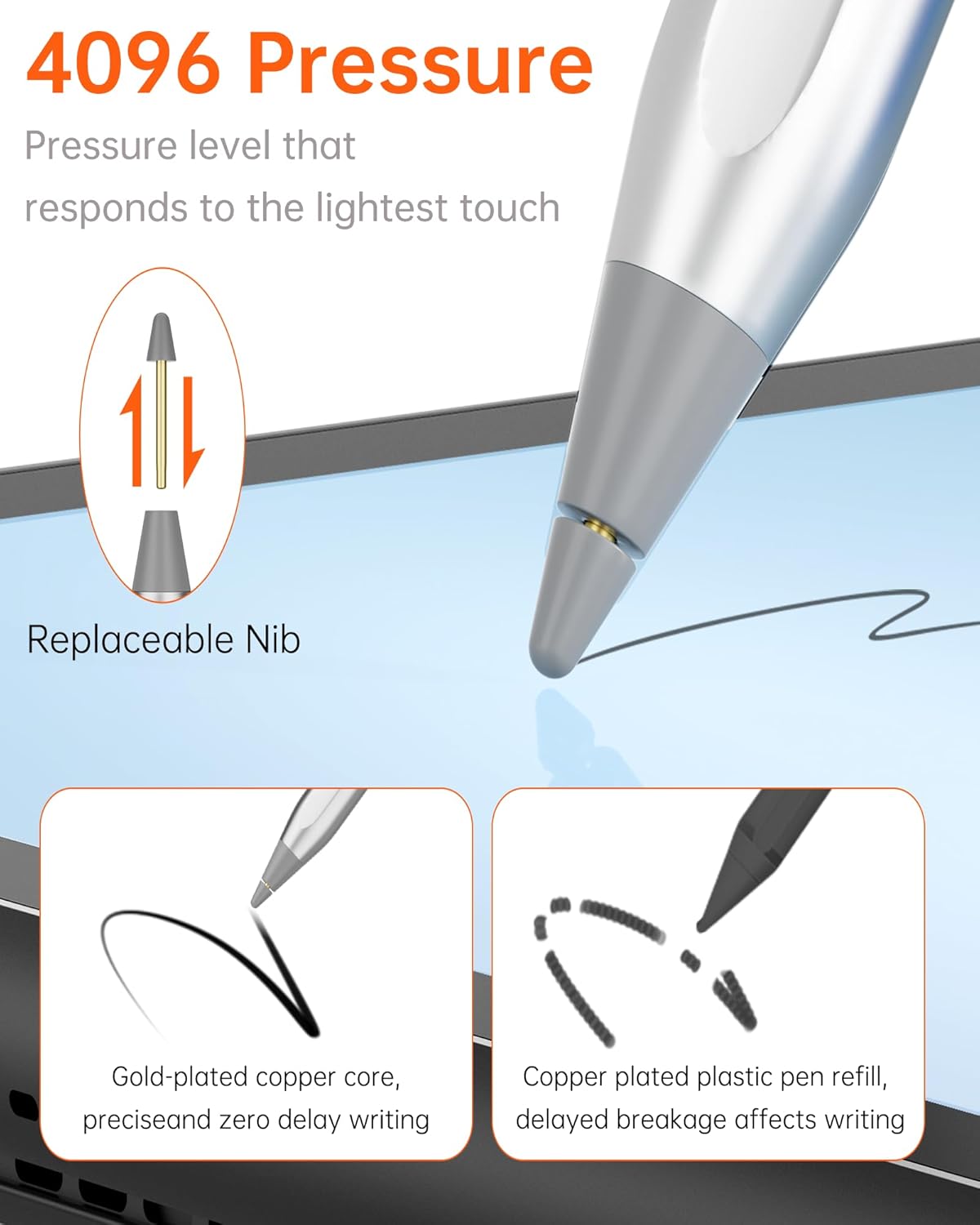
Image: The stylus demonstrating 4096 levels of pressure sensitivity on a tablet, allowing for fine control over line weight. An inset shows the replaceable nib.
3. Tail Eraser Function
The tail end of the stylus functions as an eraser in supported applications, providing a natural and efficient way to correct mistakes.
Video: Demonstration of the stylus's palm rejection, pressure sensitivity, and eraser function on a tablet, showcasing its capabilities for drawing and writing.
4. Magnetic Attachment
The stylus can be conveniently attached magnetically to compatible Chromebooks and tablets for easy storage and transport. Note that not all devices support magnetic attachment.

Image: The stylus magnetically adhering to the side of a tablet, illustrating its convenient storage feature.
Compatibility
The Uogic USI 2.0 Stylus is widely compatible with various USI 2.0 protocol touch screens, including:
- Amazon Fire Max 11
- Amazon Fire HD 10 (2023 release)
- Google Pixel Tablet
- Lenovo Duet
- HP Chromebook 360
- ASUS Chromebook Flip
- And more USI 2.0 supported devices.

Image: A comprehensive list of compatible devices, including various HP, Lenovo, ASUS Chromebooks, and Amazon Fire tablets.
Maintenance
Replacing the Nib
The stylus nib is replaceable to ensure continued precision and responsiveness. Use the provided nib extractor tool to carefully remove the old nib and insert a new one.

Image: Instructions for replacing the stylus nib, showing the nib extractor tool in use.
Troubleshooting
- Stylus not responding:
- Ensure the stylus is powered on (press the power button).
- Check battery level. If low, charge the stylus.
- Verify device compatibility (refer to the Compatibility section).
- Charging issues:
- Ensure the USB-C cable is securely connected to both the stylus and a power source.
- Try a different USB-C cable or power adapter.
- Confirm the charging port is free of debris.
- Inaccurate or delayed input:
- Ensure the nib is securely attached and not worn. Replace if necessary.
- Restart your tablet and the stylus.
Specifications
| Feature | Detail |
|---|---|
| Product Dimensions | 6.2 x 0.35 x 0.33 inches |
| Item Weight | 0.45 ounces |
| Material | Aviation Aluminum Alloy |
| Battery Type | 1 Lithium Polymer battery (required) |
| Battery Average Life Standby | 110 Hours |
| Pressure Sensitivity | 4096 Levels |
Warranty and Support
Your Uogic USI 2.0 Stylus Pen is backed by a 12-month warranty for your peace of mind. For any questions, technical assistance, or warranty claims, please contact our customer support team.
We offer 24/7 online customer support to ensure prompt assistance whenever you need it.


