
1. Introduction
This manual provides essential information for the proper use, setup, and maintenance of your Transcend StoreJet 25M3C 4TB External Hard Drive. The StoreJet 25M3C is designed for reliable data storage and transfer, featuring a robust shock-resistant design and versatile connectivity options.

Image: The Transcend StoreJet 25M3C external hard drive, highlighting its compact and rugged design.
2. Product Overview
The Transcend StoreJet 25M3C is a 2.5-inch portable external hard drive engineered for durability and high-speed data transfer. Key features include:
- USB 3.1 Gen 1 Interface: Provides fast data transfer rates.
- Dual Connectivity: Includes both a USB Type-C to Type-C cable and a USB Type-C to Type-A cable for broad device compatibility.
- Three-Stage Shock Protection System: Meets U.S. military drop-test standards (MIL-STD-810G) for superior data protection. This system comprises a silicone rubber case, an internal shock-absorbing suspension damper, and a reinforced hard casing.
- One Touch Auto-Backup Button: Allows for instant data backup with a single press (requires Transcend Elite software).
- Included Software: Comes with Transcend Elite data management software and RecoveRx data recovery software.
- Capacity: 4TB storage capacity.

Image: An exploded view of the Transcend StoreJet 25M3C, illustrating its three-stage shock protection system.
3. Package Contents
Verify that your package contains the following items:
- Transcend StoreJet 25M3C External Hard Drive (4TB)
- USB Type-C to Type-C Cable
- USB Type-C to Type-A Cable
- Quick Start Guide (not included in this manual)

Image: The retail packaging of the Transcend StoreJet 25M3C, indicating the product and its accessories.
4. Setup
Follow these steps to set up your StoreJet 25M3C:
- Connect the Drive:
- For devices with a USB Type-C port, use the provided USB Type-C to Type-C cable.
- For devices with a standard USB Type-A port, use the provided USB Type-C to Type-A cable.
- Power On: The drive is bus-powered and does not require an external power adapter. It will power on automatically once connected to your computer.
- Driver Installation: Most modern operating systems (Windows, macOS, Linux) will automatically detect and install the necessary drivers. No manual driver installation is typically required.
- Initial Recognition: Allow a few moments for your computer to recognize the new hardware. The drive should appear as a removable storage device in your file explorer or desktop.

Image: The StoreJet 25M3C connected to a laptop, illustrating the use of its USB Type-C cable for data transfer.
5. Operating Instructions
5.1. Data Transfer
To transfer files, simply drag and drop them to and from the StoreJet 25M3C drive icon in your computer's file explorer. The USB 3.1 Gen 1 interface ensures rapid transfer speeds for large files and folders.
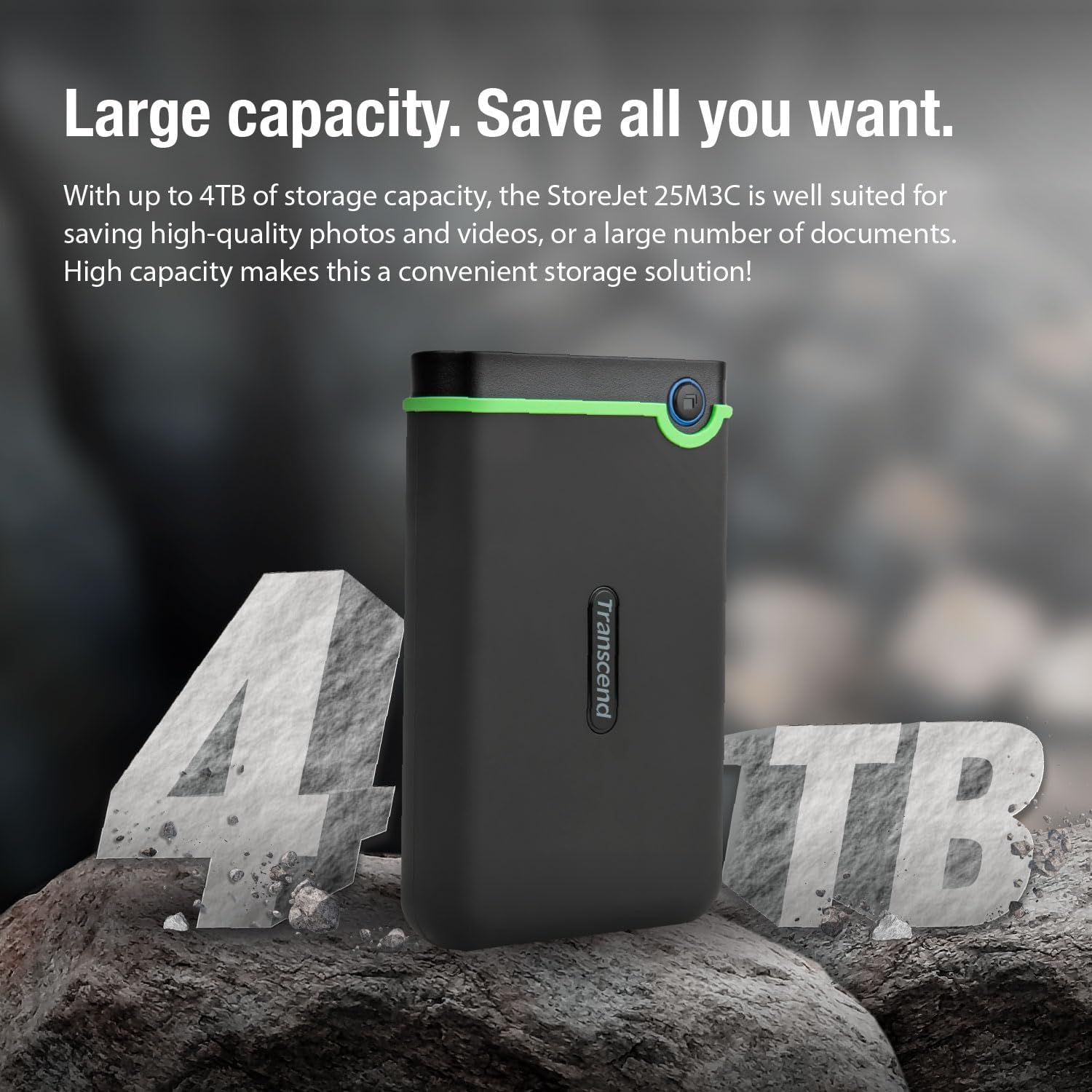
Image: The StoreJet 25M3C connected, emphasizing its USB 3.1 Gen 1 interface for fast data transfer.
5.2. One Touch Auto-Backup
The StoreJet 25M3C features a dedicated button for automatic data backup. To utilize this function:
- Install the Transcend Elite software on your computer. This software is available for download from the Transcend website.
- Configure your backup settings within the Transcend Elite application.
- Press the One Touch Auto-Backup button on the drive to initiate a backup according to your configured settings. This button also allows you to reconnect the hard drive to your PC without needing to unplug and reinsert it.

Image: A computer screen showing the Transcend Elite software, used for data management and backup.
5.3. Safely Ejecting the Drive
Always safely eject the drive from your operating system before disconnecting it to prevent data corruption. This can typically be done by right-clicking the drive icon and selecting "Eject" or using the "Safely Remove Hardware" option.
6. Maintenance
- Physical Care: While the StoreJet 25M3C is shock-resistant, avoid unnecessary drops or impacts. Keep the drive clean and free from dust and moisture.
- Software Updates: Regularly check the Transcend website for updates to Transcend Elite and RecoveRx software to ensure optimal performance and compatibility.
- Data Backup: Periodically back up critical data stored on the StoreJet 25M3C to another location to ensure data redundancy.
- Storage: When not in use, store the drive in a cool, dry place away from direct sunlight and extreme temperatures.
7. Troubleshooting
- Drive not detected:
- Ensure the USB cable is securely connected to both the drive and the computer.
- Try a different USB port on your computer.
- Try a different USB cable (if available).
- Restart your computer.
- Check your computer's Disk Management (Windows) or Disk Utility (macOS) to see if the drive is recognized but unformatted or unassigned a drive letter.
- Slow transfer speeds:
- Ensure you are connected to a USB 3.0 or USB 3.1 Gen 1 port on your computer for optimal performance. Older USB 2.0 ports will result in slower speeds.
- Avoid transferring many small files simultaneously; compressing them into a single archive can sometimes improve speed.
- Ensure your computer's drivers are up to date.
- One Touch Auto-Backup button not working:
- Verify that Transcend Elite software is installed and running on your computer.
- Ensure backup settings are properly configured within the Transcend Elite software.
For further assistance, refer to the Transcend support website or contact customer service.
8. Specifications
| Feature | Detail |
|---|---|
| Brand | Transcend |
| Model Number | TS4TSJ25M3C |
| Color | Steel Gray |
| Digital Storage Capacity | 4 TB |
| Hard Drive Interface | USB 2.0/3.0 (compatible with USB 3.1 Gen 1) |
| Hardware Interface | USB 3.1 Type A, USB Type C |
| Connectivity Technology | USB |
| Hard Drive Technology | Mechanical Hard Drive |
| Hard Drive Rotational Speed | 5400 RPM |
| Form Factor | 2.5 Inches |
| Compatible Devices | Computer |
| Operating System Compatibility | Windows, Linux (and macOS) |
| Special Features | Shock Resistant |
| Product Dimensions (L x W x H) | 13.34 x 0.79 x 4.22 cm (5.25 x 0.31 x 1.66 inches) |
| Product Weight | 354 Grams (0.78 lbs) |
9. Warranty and Support
Transcend products are designed for reliability. For information regarding warranty coverage, technical support, and service, please visit the official Transcend website. Keep your purchase receipt as proof of purchase for warranty claims.
Please note that information regarding spare parts availability and guaranteed software updates is not explicitly provided in the product details.
Transcend Official Website: www.transcend-info.com


