
XTRONS QDB8060CC
XTRONS 8.8 Inch Android 14 Car Stereo User Manual
Model: QDB8060CC | Brand: XTRONS
1. Introduction
This manual provides detailed instructions for the installation, operation, and maintenance of your XTRONS 8.8 Inch Android 14 Car Stereo. Please read this manual thoroughly before installation and use to ensure proper functionality and to avoid damage.
1.1 Applicable Models
This unit is designed for specific BMW models with the CCC system:
- For BMW 3 Series E90 E91 E92 E93 (2005-2008) CCC system
- For BMW 5 Series E60 E61 M5 (2005-2008) CCC system
Important Note:
Ensure your vehicle has an AUX-IN port. If an AUX-IN port is not present, an adapter may be required for audio output. Contact XTRONS support for compatible adapters if needed.
2. Product Features
The XTRONS 8.8 Inch Android 14 Car Stereo offers a range of advanced features to enhance your in-car entertainment and navigation experience:
- 8.8-inch IPS Screen: Features a 1280x480 high-resolution IPS display with a 178° viewing angle, supporting 1080P video playback.
- Wireless CarAutoPlay / Wired Android Auto: Seamless integration with your smartphone for navigation, calls, music, and voice assistants.
- Bluetooth 5.0 & Dual Band Wi-Fi: Stable hands-free calling, contact searching, music streaming, and flexible internet connection via 2.4GHz and 5GHz Wi-Fi.
- Global 4G LTE: Built-in 4G module for mobile broadband connection (Micro-SIM card required).
- Split-Screen Mode: Allows simultaneous use of two applications, such as navigation and music playback.
- GPS Navigation: Compatible with popular Android navigation software like Google Maps, Sygic, and Waze.
- Retains Original Functions: Maintains the functionality of your vehicle's iDrive system, original radio, CD player, Bluetooth, backup camera display, and steering wheel controls.
- Multiple UI Themes: Customizable user interface options, including XTRONS Q series special and BMW Style UI.
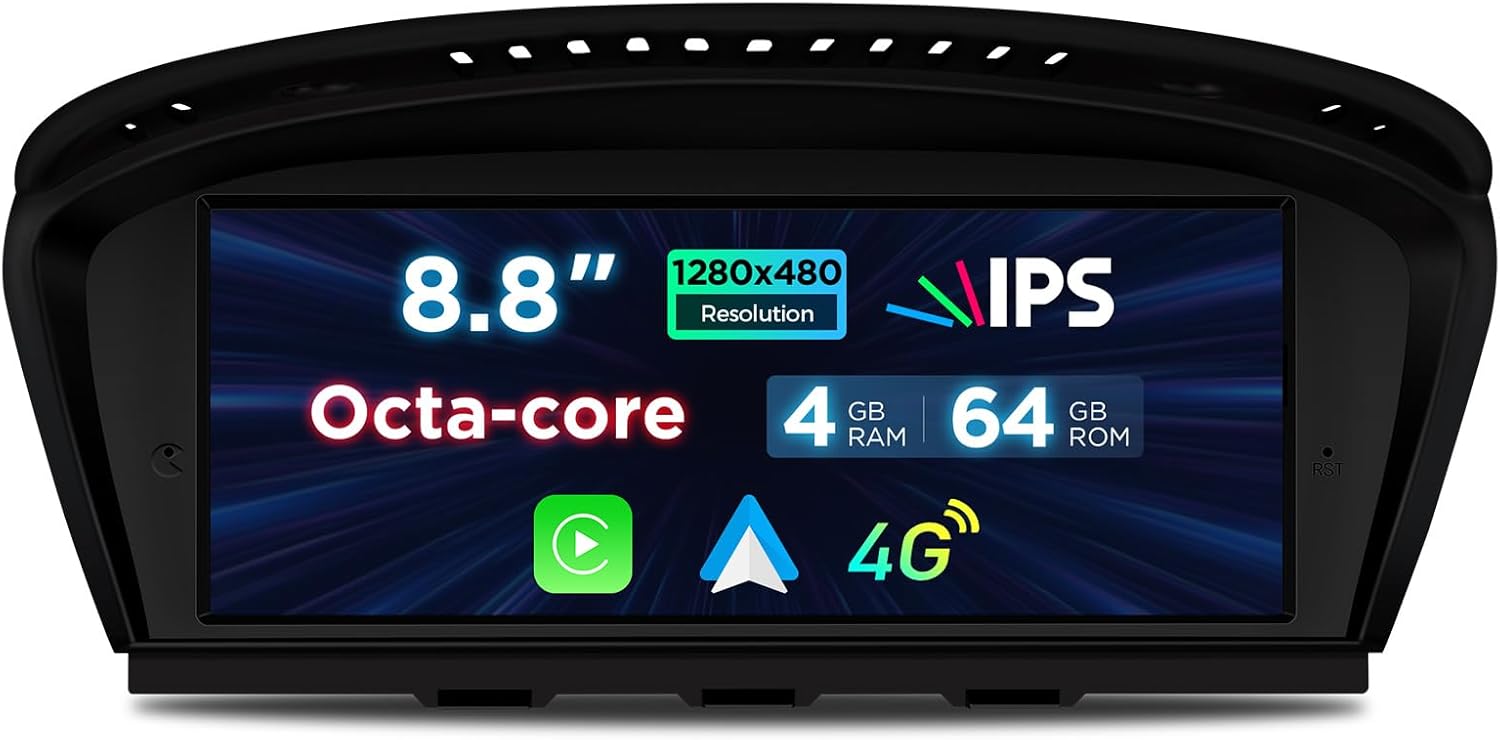
Figure 2.1: Overview of the XTRONS 8.8 Inch Android 14 Car Stereo highlighting its core features like 8.8-inch IPS display, Octa-core processor, 4GB RAM, 64GB ROM, Wireless CarPlay, Android Auto, and 4G connectivity.

Figure 2.2: Detailed view of the premium IPS screen, demonstrating G+G Touch Screen capability, IPS Technology for wide viewing angles (178°), and 1280x480 resolution for clear visuals.

Figure 2.3: Visual representation of optimized driving experience features including Wireless CarPlay, Android Auto (Wireless/Wired), Wireless Screen Mirroring, and Bluetooth connectivity.
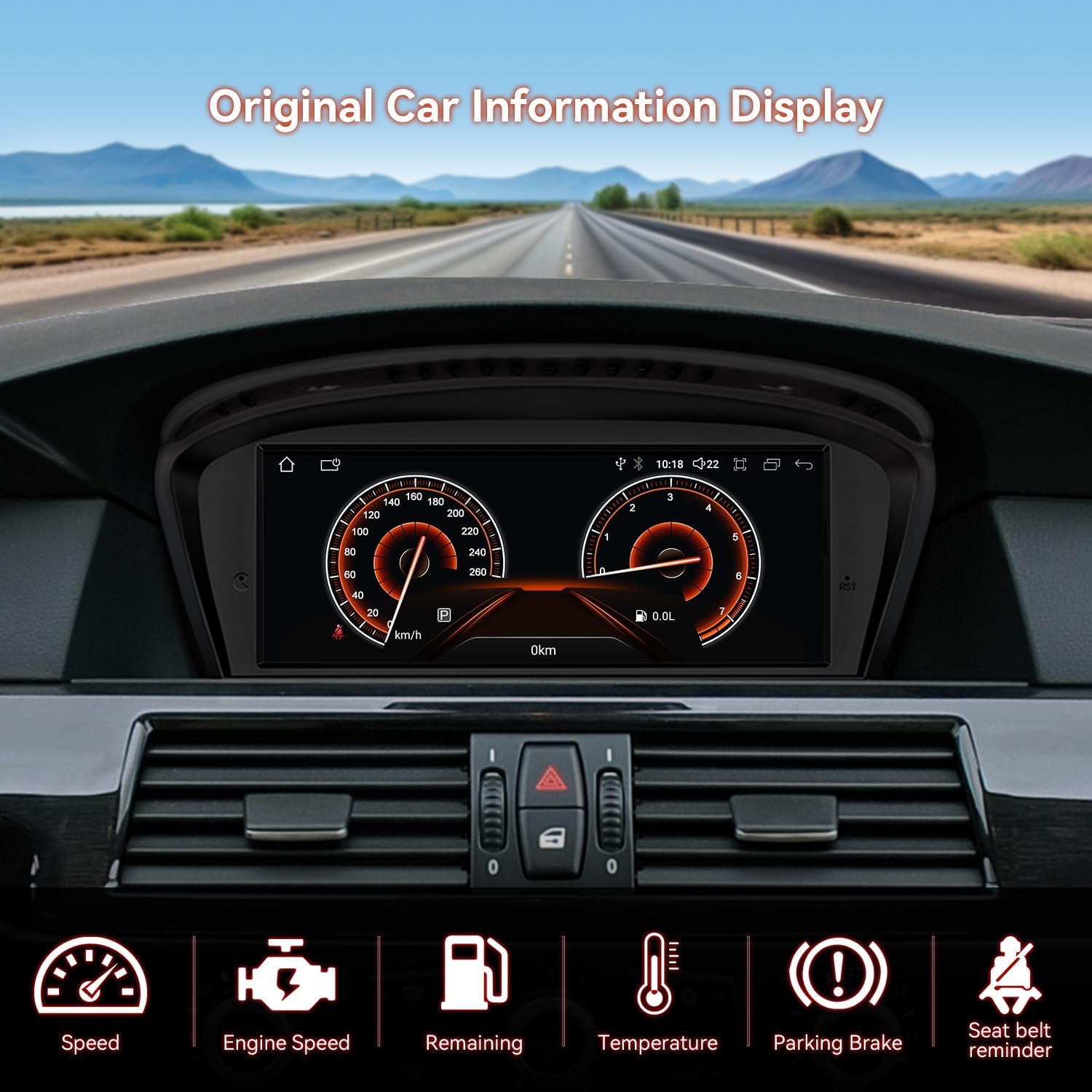
Figure 2.4: The unit's capability to display original car information such as speed, engine speed, remaining fuel, temperature, parking brake status, and seat belt reminder.

Figure 2.5: Illustration of how the XTRONS unit retains essential original car functions, including iDrive system control, amplifier system, original radio, CD, Bluetooth, backup camera display, and steering wheel controls.
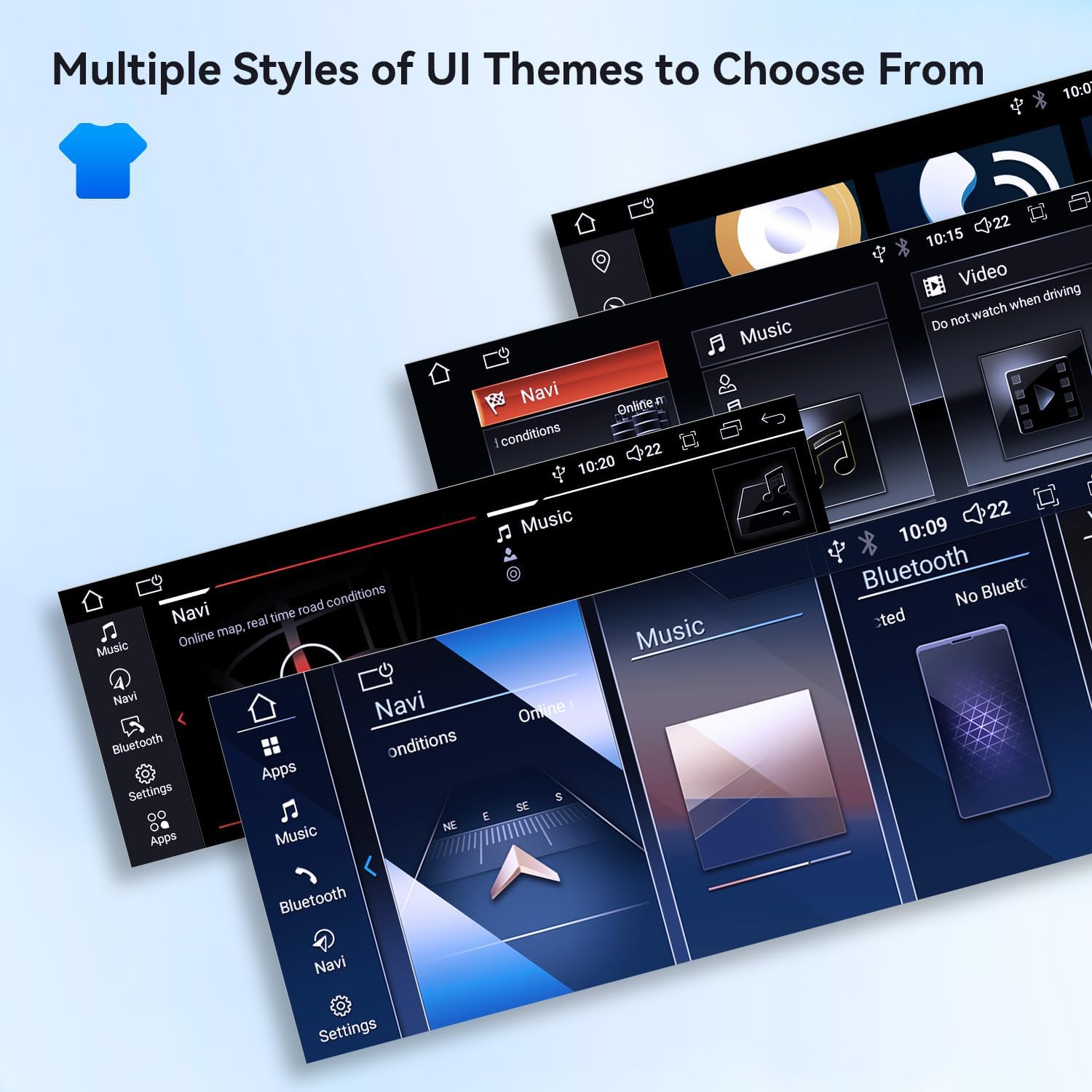
Figure 2.6: Examples of multiple UI themes that can be selected to customize the appearance of the stereo's interface.
3. Setup and Installation
Careful installation is crucial for optimal performance. It is recommended to consult a professional if you are unsure about any steps.
3.1 What's in the Box
Verify that all components are present before beginning installation:
- 1 × ISO Wiring Harness
- 1 × USB Cable
- 1 × Audio Cable
- 1 × 4G Antenna
- 1 × GPS Antenna
- 1 × Tweezers
- 1 × Installation Instructions (separate document)
- 1 × User Manual (this document)

Figure 3.1: Physical dimensions of the XTRONS unit and a visual representation of all included accessories: ISO Wiring Harness, USB Cable, GPS Antenna, 4G Antenna, Mini Speaker, Tweezers, Installation Instructions, and User Manual.
3.2 Wiring Harness Diagram
Refer to the diagram below for proper connection of the wiring harness components.
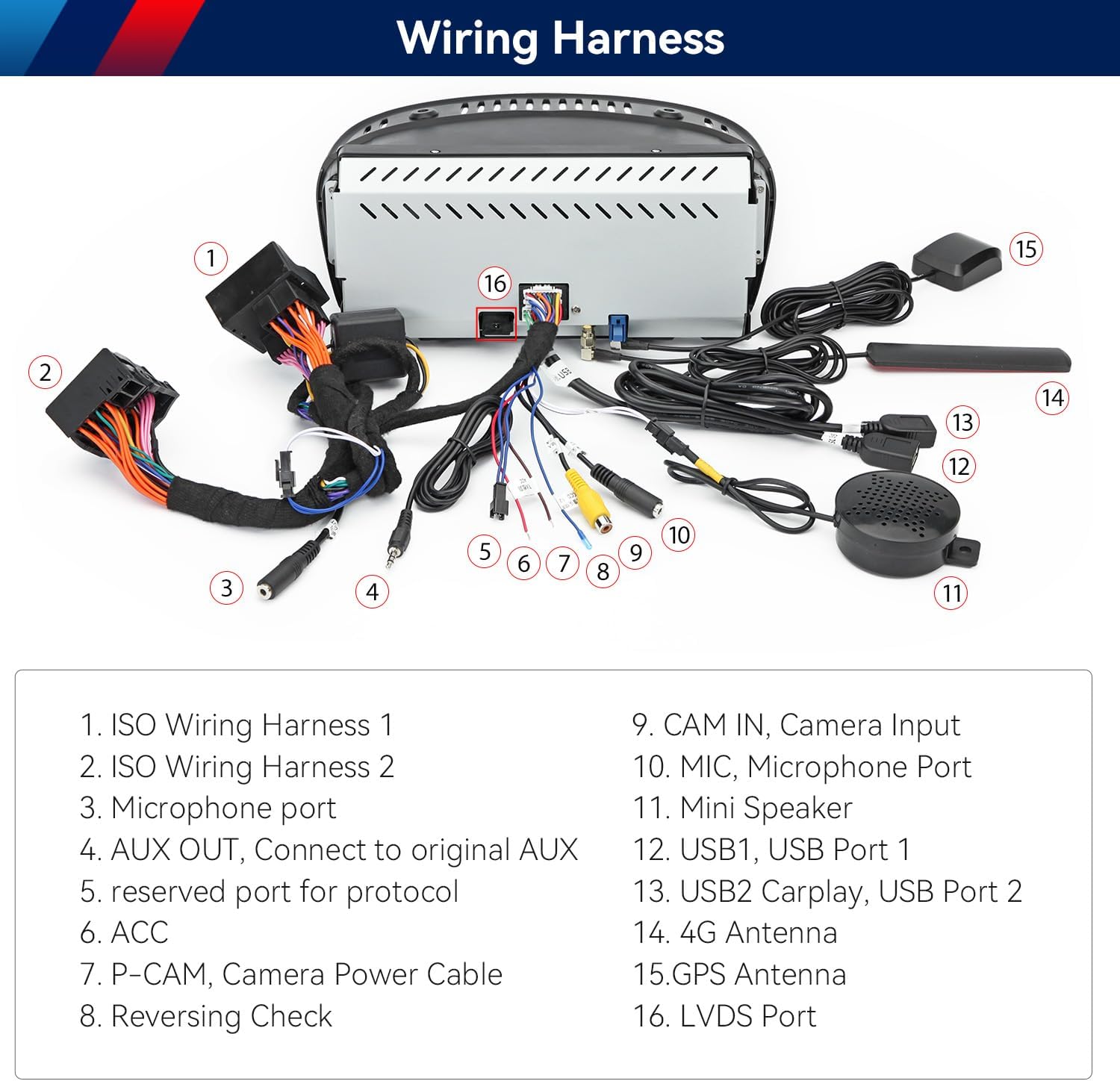
Figure 3.2: Comprehensive wiring diagram illustrating all connection points on the rear of the unit, including ISO Wiring Harnesses, Microphone port, AUX OUT, reserved ports, P-CAM, Reversing Check, CAM IN, MIC, Mini Speaker, USB ports, 4G Antenna, GPS Antenna, and LVDS Port.
3.3 Installation Steps Overview
While detailed installation instructions are provided in a separate document, here is a general overview:
- Carefully remove your vehicle's original head unit and display.
- Connect the provided ISO Wiring Harness to the vehicle's existing wiring and the new XTRONS unit.
- Connect the GPS Antenna and 4G Antenna to their respective ports on the unit. Position the antennas for optimal signal reception.
- Connect the USB cables for external devices and CarPlay/Android Auto functionality.
- Ensure the AUX-OUT cable from the new harness is connected to your car's AUX-IN port. This is critical for audio output.
- If installing a backup camera, connect the P-CAM and CAM IN cables.
- Carefully route all cables and secure the new XTRONS unit in the dashboard.
- Test all functions before fully reassembling the dashboard.
4. Operating Instructions
4.1 Powering On and Initial Setup
Once installed, the unit will power on with your vehicle's ignition. Follow the on-screen prompts for initial setup, including language selection and Wi-Fi connection.
4.2 Wireless CarPlay / Wired Android Auto
To use CarPlay or Android Auto:
- For Wireless CarPlay: Ensure your iPhone's Wi-Fi and Bluetooth are enabled. Select the CarPlay icon on the unit's screen and follow the pairing instructions.
- For Wired Android Auto: Connect your Android phone to the designated USB port using a high-quality USB cable. The unit will automatically launch Android Auto.
4.3 Bluetooth Connectivity
To pair your smartphone via Bluetooth:
- Go to the Bluetooth settings on the XTRONS unit.
- Enable Bluetooth on your smartphone and search for available devices.
- Select the XTRONS unit from the list on your phone and confirm the pairing code.
- Once paired, you can make hands-free calls, access contacts, and stream audio.
4.4 GPS Navigation
The unit comes with pre-installed GPS capabilities. You can download and use various navigation applications from the Google Play Store. Ensure the GPS antenna is properly installed and positioned for accurate location services.
4.5 Split-Screen Mode
To activate split-screen mode, long-press the recent apps button or drag an app to one side of the screen, then select another app for the other side. This allows for multitasking, such as running navigation alongside a music player.
4.6 UI Theme Selection
Navigate to the system settings to customize the user interface theme. Choose from various pre-loaded themes to personalize your display.
5. Maintenance
To ensure the longevity and optimal performance of your XTRONS car stereo, follow these general maintenance guidelines:
- Cleaning: Use a soft, dry, lint-free cloth to clean the screen and exterior. Avoid abrasive cleaners or solvents that could damage the display or finish.
- Temperature: Avoid exposing the unit to extreme temperatures, both hot and cold, for extended periods.
- Software Updates: Periodically check for and install software updates provided by XTRONS to ensure the unit has the latest features and bug fixes.
- Cable Connections: Ensure all cables remain securely connected. Loose connections can lead to intermittent issues.
6. Troubleshooting
If you encounter issues with your XTRONS car stereo, refer to the following common problems and solutions:
6.1 No Sound Output
- Check AUX-IN Connection: Ensure your car's OEM system is set to AUX mode. The AUX-OUT cable from the XTRONS harness must be properly connected to your vehicle's AUX-IN port.
- Bluetooth Conflict: If using CarPlay/Android Auto or Bluetooth for calls, ensure your car's original Bluetooth system is turned off and your phone is unpaired from it. Only connect your phone's Bluetooth to the XTRONS unit.
- Bluetooth Call Switch: Within the XTRONS unit's settings (often found under 'Car info' > 'General settings'), locate and uncheck the 'Bluetooth Call Switch' option if it is enabled.
6.2 Screen Off-Center or Display Issues
- Resolution Settings: Check the display settings within the unit's Android interface to ensure the resolution is correctly set to 1280x480.
- Cable Connection: Verify that the LVDS cable (video signal cable) is securely connected at both ends.
6.3 Unit Not Powering On
- Power Connections: Check the ISO Wiring Harness connections to ensure they are secure and receiving power from the vehicle.
- Vehicle Ignition: Ensure the vehicle's ignition is on, as the unit typically powers on with the car.
6.4 GPS Signal Issues
- Antenna Placement: Ensure the GPS antenna is placed in a location with a clear view of the sky, free from obstructions.
- Antenna Connection: Verify the GPS antenna is securely connected to the unit.
If these troubleshooting steps do not resolve the issue, please contact XTRONS customer support for further assistance.
7. Specifications
| Feature | Specification |
|---|---|
| Item Weight | 5.06 pounds |
| Package Dimensions | 16.5 x 9.45 x 7.24 inches |
| Item Model Number | QDB8060CC |
| Display Size | 8.8 Inches |
| Manufacturer | XTRONS/Fibocom Wireless Inc. |
| Brand | XTRONS |
| Model Name | RM |
| Vehicle Service Type | Car |
| Screen Size | 8.8 Inches |
| Special Feature | Touchscreen, Bluetooth |
| Connectivity Technology | Bluetooth, Wi-Fi, USB |
| Map Type | South America, Asia, Europe, Africa, Australia |
| Audio Output Mode | AUX, Stereo |
| Mounting Type | Dashboard Mount |
8. Warranty and Support
8.1 Warranty Information
The XTRONS 8.8 Inch Android 14 Car Stereo comes with a 1 Year Manufacturer Warranty. Please retain your proof of purchase for warranty claims.
8.2 Customer Support
For technical assistance, troubleshooting beyond this manual, or warranty inquiries, please contact XTRONS customer support. You can typically find contact information on the XTRONS official website or through your purchase platform.
Ask a question about this manual
Ask about setup, troubleshooting, compatibility, parts, safety, or missing instructions. Manuals+ will review the question and use this page’s manual context to help answer it.