
1. Introduction
Thank you for purchasing the GoolRC LS-E525 RC Drone. This manual provides essential information for the safe operation, setup, and maintenance of your drone. Please read it thoroughly before use to ensure proper functionality and to maximize your flying experience. The LS-E525 is a foldable FPV drone equipped with a 4K HD camera, offering features such as Headless Mode, Altitude Hold, Track Flight, and 3D Flip capabilities.
2. Package Contents
Before beginning, please verify that all items listed below are present in your package:

Image: Components included in the GoolRC LS-E525 Drone package.
- 1 x GoolRC LS-E525 RC Drone
- 1 x Remote Controller
- 4 x Propeller Guards
- 4 x Spare Blades
- 1 x Screwdriver
- 1 x USB Charging Cable
- 1 x User Manual
- 2 x Drone Batteries (3.7V 1800mAh Lithium)
- 1 x Storage Bag
3. Setup Guide
3.1 Drone Battery Installation and Charging
- Insert the provided 3.7V 1800mAh Lithium battery into the drone's battery compartment. Ensure it is securely latched.
- Connect the drone battery to the USB charging cable.
- Plug the USB charging cable into a suitable USB power source (e.g., computer USB port, USB wall adapter).
- Charging time is approximately 100 minutes. The indicator light on the USB cable will change to indicate charging status (refer to the specific indicator behavior in the included manual for details).
3.2 Remote Controller Battery Installation
- Open the battery compartment on the back of the remote controller.
- Insert 3 x 1.5V AA batteries (not included), ensuring correct polarity (+/-).
- Close the battery compartment securely.
3.3 Propeller Guard Installation
For enhanced safety, attach the propeller guards to the drone's arms. Align the guards with the designated slots and gently push until they click into place.
3.4 Mobile App Download and Connection

Image: Smartphone displaying the drone control app, highlighting WiFi connectivity.
- Scan the QR code in the included manual or search for the designated app (e.g., 'GoolRC FPV' or similar, check the physical manual for the exact app name) on the App Store (iOS 9.0 or later) or Google Play Store (Android 5.0 or later).
- Install the app on your mobile device.
- Power on the drone.
- On your mobile device, go to Wi-Fi settings and connect to the drone's Wi-Fi network (usually named 'GoolRC-XXXX' or similar).
- Open the installed app to establish a connection and view the live FPV feed.
4. Operating Instructions
4.1 Basic Flight Controls
Familiarize yourself with the remote controller layout and basic flight functions:
- Throttle Stick (Left Stick): Up/Down for altitude control.
- Directional Stick (Right Stick): Forward/Backward, Turn Left/Right for horizontal movement.
- Trimming Buttons: Used to fine-tune the drone's stability if it drifts.
4.2 One Key Take-off, Landing, and Return

Image: Drone performing one-key auto return to a home point.
- One Key Take-off: Press the designated button on the remote controller, and the drone will automatically ascend to a stable hovering altitude.
- One Key Landing: Press the designated button, and the drone will slowly descend and land.
- One Key Return: Press this button to initiate an automatic return to the take-off point. Ensure a clear path for return.
4.3 Altitude Hold Mode

Image: Drone maintaining a stable hover using altitude hold.
The intelligent altitude hold function uses air pressure sensors to accurately lock the drone's flight altitude, providing stable hovering. This feature is crucial for capturing clear aerial photos and videos by minimizing camera shake.
4.4 Headless Mode
In Headless Mode, the drone's orientation is relative to the pilot, regardless of the drone's actual front. This simplifies control, especially for beginners, as you don't need to worry about which way the drone is facing.
4.5 Track Flight (App Control)
After setting a target or drawing a flight path via the mobile app, the drone will automatically follow the designated track. This allows for hands-free flight along a pre-defined route.
4.6 Gesture Photo/Video
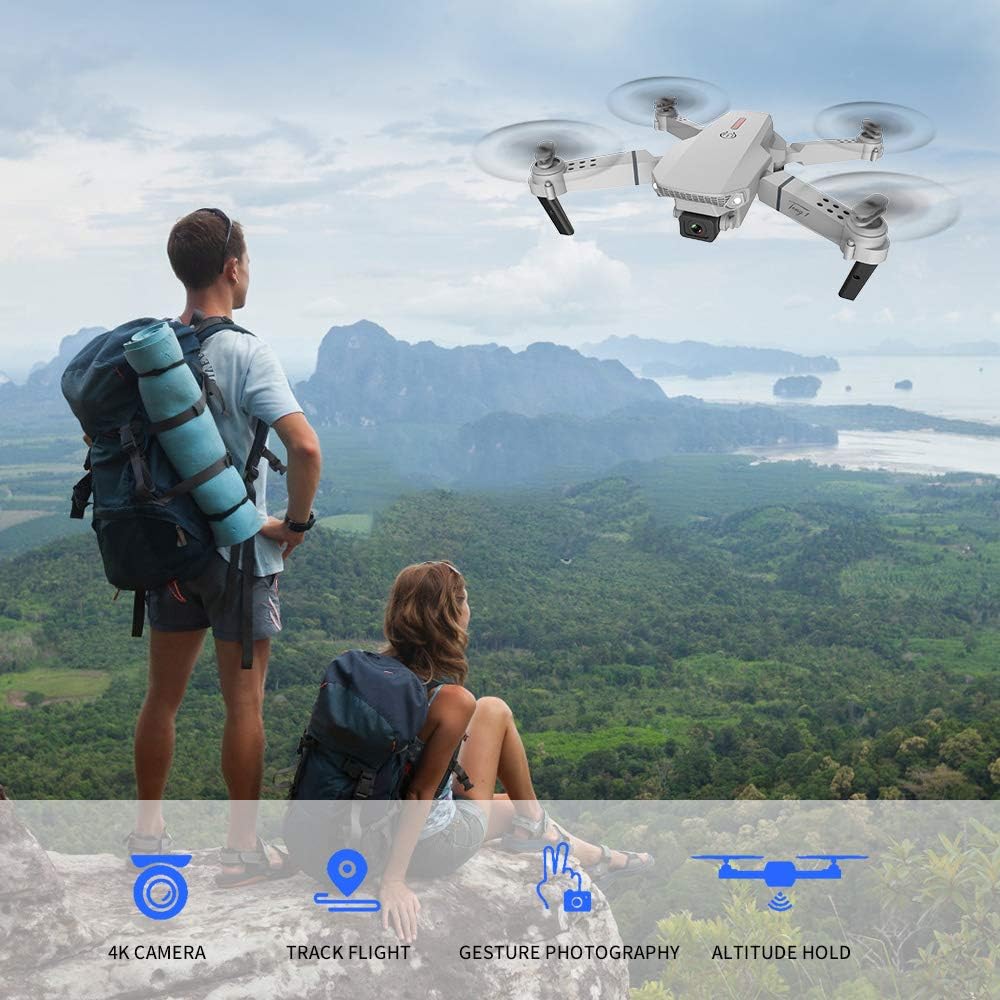
Image: Drone flying, illustrating gesture photography capability.
During flight, face the drone's camera and perform specific hand gestures (e.g., a 'Victory' sign for photos, an open palm for video). The drone will automatically recognize these gestures and capture photos or start/stop video recording.
4.7 3D Flip
Press the 3D Flip button on the remote controller and then move the directional stick to perform an acrobatic 360-degree flip in the desired direction.
4.8 4K HD Camera and FPV Live Video

Image: Close-up of the drone's 4K HD camera with 90-degree adjustable angle.

Image: Real-time FPV video feed displayed on a smartphone.
The drone is equipped with a 4K High-definition camera capable of capturing sharp and vivid images and videos. The camera angle is manually adjustable by 90 degrees. Through the Wi-Fi connection and mobile app, you can view a real-time FPV (First Person View) video feed directly on your smartphone, allowing for immersive flight and precise framing of shots.
5. Maintenance
5.1 Battery Care
- Always use the original charging cable.
- Do not overcharge or over-discharge batteries.
- Store batteries in a cool, dry place away from direct sunlight and extreme temperatures.
- If the drone will not be used for an extended period, charge the batteries to approximately 50% before storage.
5.2 Propeller Replacement
If propellers are damaged or bent, they should be replaced immediately to ensure stable flight. Use the provided screwdriver to remove the old propeller and install a new one from the spare blades, ensuring it is securely fastened.
5.3 Cleaning and Storage
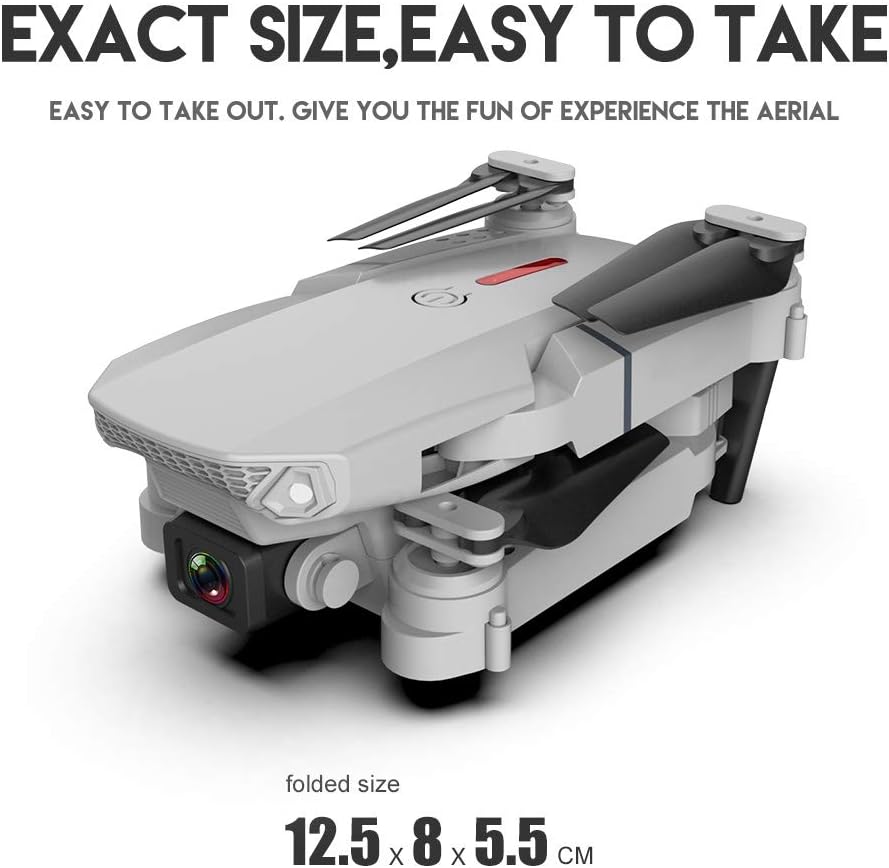
Image: Folded drone, ready for storage in its compact form.
- Wipe the drone's body with a soft, dry cloth after each use to remove dust and debris.
- Avoid using harsh chemicals or solvents.
- When not in use, fold the drone's arms and store it in the provided storage bag to protect it from damage.
6. Troubleshooting
If you encounter issues with your GoolRC LS-E525 drone, refer to the following common problems and solutions:
- Drone does not respond to remote controller:
Ensure both the drone and remote controller are powered on and fully charged. Re-pair the drone and remote controller according to the initial setup instructions. Check for signal interference. - Drone drifts during flight:
Perform a calibration of the drone's gyroscope. Use the trimming buttons on the remote controller to adjust for minor drifts. Check for damaged propellers. - Poor FPV video quality or no video feed:
Ensure your mobile device is correctly connected to the drone's Wi-Fi network. Move closer to the drone to improve signal strength. Close other applications on your phone that might interfere with Wi-Fi. - Short flight time:
Ensure the drone battery is fully charged. Battery performance can degrade over time; consider replacing old batteries. Avoid aggressive flying maneuvers that consume more power. - Drone fails to take off:
Check if the propellers are installed correctly and not obstructed. Ensure the battery is fully charged. Perform a gyroscope calibration.
For persistent issues not covered here, please consult the full user manual included in the package or contact GoolRC customer support.
7. Specifications
| Feature | Specification |
|---|---|
| Model | LS-E525 |
| Main Material | ABS plastic & electronic components |
| Max. Flight Time | 15 minutes |
| Charging Time | 100 minutes |
| Max. Remote Distance | 100 meters |
| Operating Frequency | 2.4GHz |
| Motor Type | Brushed Motor |
| Front Camera Max. Image Transmission Distance | 30 meters |
| Photo Resolution | 4096 * 2160 (4K) |
| Video Resolution | 2160 * 1080 |
| Camera Manually Adjustable Angle | 90° |
| Mobile Device System Compatibility | iOS 9.0 or later / Android 5.0 or later |
| Drone Battery | 3.7V 1800mAh Lithium Battery |
| Remote Controller Battery | 3 * 1.5V AA Batteries (not included) |
| Unfolding Size | 25 * 23 * 5.5 cm |
| Folding Size | 12.5 * 8 * 5.5 cm |
| Item Weight | 1.07 pounds |
| Material | Plastic |
8. Warranty and Support
8.1 Warranty Information
Specific warranty details for the GoolRC LS-E525 RC Drone are typically provided with the product packaging or on the manufacturer's official website. Please refer to the warranty card or documentation included in your package for information regarding coverage, duration, and terms. For any warranty claims, retain your proof of purchase.
8.2 Customer Support
Should you require technical assistance, have questions about product operation, or need to report a defect, please contact GoolRC customer support. Contact information can usually be found on the manufacturer's website or in the product's original documentation. When contacting support, please have your model number (LS-E525) and purchase details readily available.

