
1. Introduction
This manual provides instructions for the AT&T BL102-3 DECT 6.0 3-Handset Cordless Phone system. This system includes a digital answering machine, Smart Call Blocker, Caller ID Announcer, Audio Assist, and intercom functionality. It is designed for home use and offers extended range and clear audio quality.

Image: Overview of the AT&T BL102-3S 3-handset cordless phone system, highlighting its answering machine and smart call blocker features.
2. Setup
2.1 Package Contents
Verify that your package contains the following items:
- Cordless Handsets (3)
- Base Unit with Digital Answering System
- Chargers for Handsets (2)
- Power Adapter for Base Unit
- Telephone Line Cord
- Rechargeable Batteries for Handsets
- User's Manual (this document)
2.2 Connecting the Base Unit
- Connect the power adapter to the base unit and a wall outlet.
- Connect one end of the telephone line cord to the base unit and the other end to a telephone wall jack.
- Place the base unit on a flat, stable surface or mount it to a wall (mounting hardware not included).

Image: The AT&T BL102-3S base unit shown in both table-top and wall-mounted configurations, demonstrating its versatility.
2.3 Installing and Charging Handset Batteries
- Open the battery compartment cover on the back of each handset.
- Insert the supplied rechargeable battery, ensuring correct polarity.
- Close the battery compartment cover.
- Place each handset in its respective charger or the base unit. The CHARGE indicator on the handset will illuminate.
- Allow the handsets to charge for at least 16 hours before initial use to ensure optimal battery performance.
2.4 Initial Handset Setup
After charging, the handset will prompt you to set the date and time. Follow the on-screen instructions. You may also be prompted to select a language.
3. Operating the Phone
3.1 Making and Receiving Calls
- To Make a Call: Press PHONE/FLASH or SPEAKER, then dial the number.
- To Answer a Call: Press PHONE/FLASH or SPEAKER when the phone rings.
- To End a Call: Press OFF/CANCEL or place the handset in the charger.
3.2 Handset Speakerphone
The handset features a full-duplex speakerphone, allowing both parties to speak and be heard simultaneously for natural conversations.

Image: A cordless handset with its speakerphone function active, indicating hands-free communication.
3.3 Audio Assist
Press the AUDIO ASSIST button on the side of the handset to instantly boost volume and enhance sound frequencies, making speech easier to understand.

Image: A user holding the handset, with the 'Audio Assist' button on the side highlighted, indicating its function for enhanced sound.
3.4 Caller ID Announce
When a call comes in, the handset announces the name of the caller (if available in your Caller ID service and phonebook), allowing you to screen calls without looking at the display.

Image: The handset displaying a call from "Mr. Johnson" with a speech bubble indicating "Mr. Johnson is calling...", illustrating the Caller ID Announce feature.
3.5 Intercom
Use the intercom feature to communicate between handsets within your system. Press INTERCOM (if available on your model) or follow the menu options to initiate an intercom call.
3.6 Expandability
The system is expandable up to 5 handsets using the BL102-0 accessory handset (sold separately).
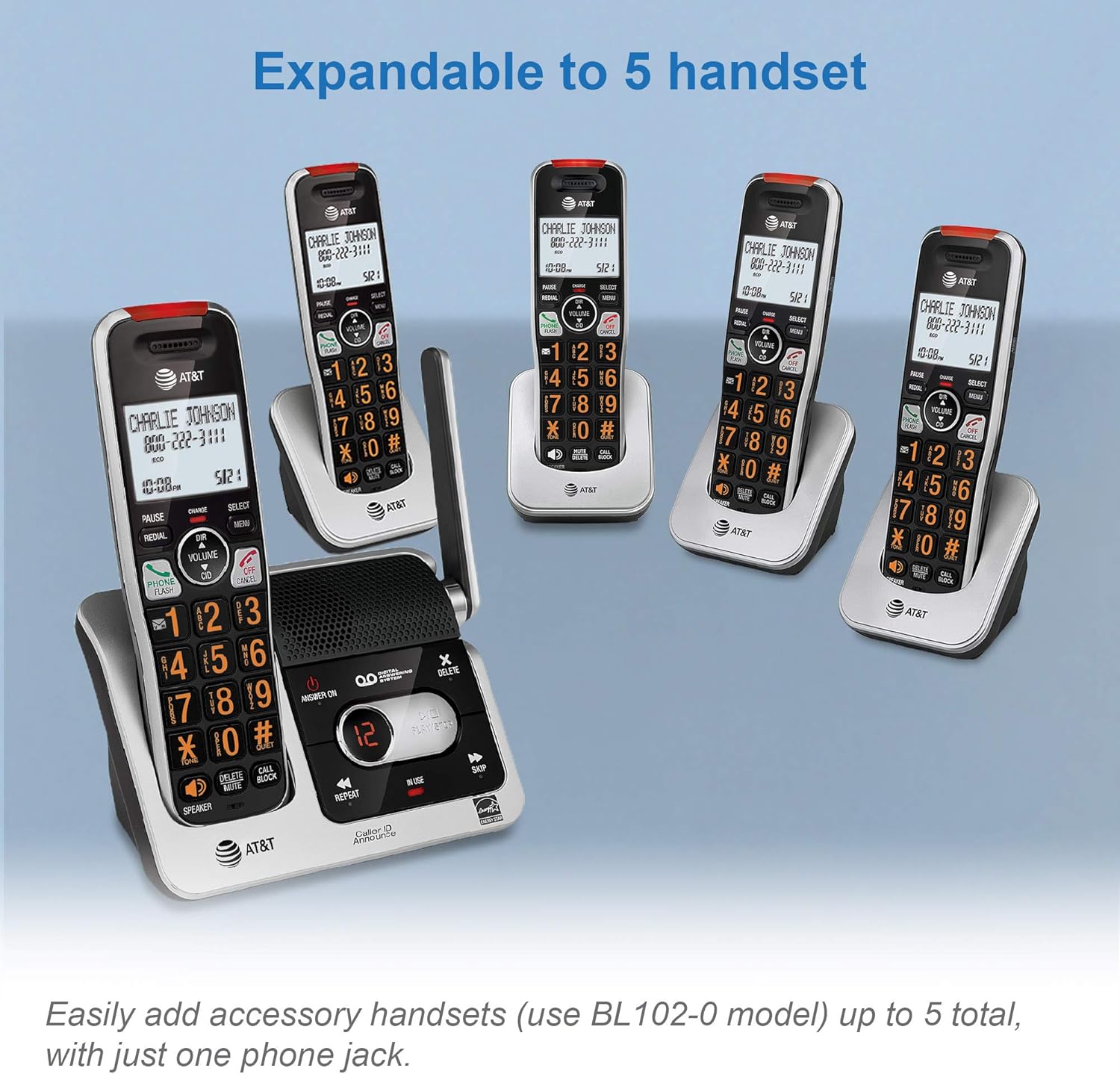
Image: The AT&T BL102-3S base unit with multiple accessory handsets, demonstrating the system's expandability up to five handsets.
4. Digital Answering System
The integrated digital answering system can record up to 22 minutes of incoming messages, outgoing announcements, and memos.
4.1 Turning the Answering System On/Off
Press the ANSWER ON/OFF button on the base unit to activate or deactivate the answering system.
4.2 Message Playback
Press PLAY/STOP on the base unit to listen to messages. Use REPEAT to replay the current message or SKIP to advance to the next message. The LED message counter displays the number of new messages.

Image: The base unit's answering system controls, showing the LED message counter displaying '12' and a speech bubble with a message, indicating message playback functionality.
4.3 Remote Access
You can access your answering system remotely from any touch-tone phone. Refer to the full user manual for detailed instructions on setting up and using remote access.
5. Smart Call Blocker
The Smart Call Blocker feature helps filter unwanted calls, including robocalls, telemarketers, and nuisance calls.

Image: The handset and base unit with a red 'no entry' symbol over a person icon, illustrating the Smart Call Blocker's function to block unwanted callers.
5.1 How it Works
- Robocall Blocking: Robocalls are automatically blocked from ringing through.
- Blacklisting Numbers: You can permanently blacklist any number with one touch using the dedicated CALL BLOCK key on the handset. The call block directory can store up to 1,000 entries.
- Call Screening: For unknown callers, the system can prompt them to announce their name or press a key, allowing you to decide whether to answer or block the call.

Image: A detailed graphic explaining how the Smart Call Blocker screens robocalls, unknown callers, and manages trusted organizations, with a visual representation of the handset and call block button.
6. Maintenance
6.1 Cleaning
Clean the phone and base unit with a soft, damp cloth. Do not use cleaning sprays or harsh chemicals, as these can damage the finish or electrical components.
6.2 Battery Care
- Use only the supplied rechargeable batteries or equivalent replacements.
- Do not dispose of batteries in a fire. Check local codes for special disposal instructions.
- If the phone will not be used for an extended period, remove the batteries to prevent leakage.
7. Troubleshooting
If you experience issues with your phone system, try the following solutions:
| Problem | Solution |
|---|---|
| No dial tone | Ensure the telephone line cord is securely connected to both the base unit and the wall jack. Check if the power adapter is connected to the base unit and a working electrical outlet. |
| Handset does not charge | Ensure the handset is correctly placed in the charger. Verify the charger is plugged into a working power outlet. Clean the charging contacts on both the handset and charger. |
| Poor sound quality/range | Move closer to the base unit. Avoid placing the base unit near other electronic devices (e.g., microwaves, Wi-Fi routers) that may cause interference. |
| Smart Call Blocker not working as expected | Review the Smart Call Blocker settings in the handset menu. Ensure the feature is enabled and that numbers are correctly added to the block list or trusted list. |
| Answering system not recording messages | Ensure the answering system is turned ON. Check if the memory is full; delete old messages if necessary. |
8. Specifications
8.1 General
- Technology: DECT 6.0 Digital technology
- Handsets: 3 (expandable up to 5)
- Answering System: Digital, up to 22 minutes recording time
- Call Blocking: Smart Call Blocker, 1000 name/number directory
- Caller ID: 50 name/number caller ID history, Caller ID Announce
- Phonebook: 50 name/number directory
- Display: Large 2-inch LCD with high-contrast text
- Keypad: Enlarged font, extra-large, and lighted
- Audio Features: Handset speakerphone, Audio Assist, Volume control
- Other Features: Visual Ringer, Quiet mode, ECO mode, Intercom between handsets, Conference between an outside line and up to 4 cordless handsets, Last 10 number redial, Any key answer
- Power Source: Battery Powered (rechargeable Ni-MH batteries)
- Material: Plastic
- Color: Silver/Black
8.2 Dimensions

Image: Diagram showing the dimensions of the AT&T BL102-3S base unit: Height 7.39 inches (18.77 cm), Width 3.46 inches (8.79 cm), Length 5.68 inches (14.43 cm).

Image: Diagram showing the dimensions of the AT&T BL102-3S handset: Height 7.29 inches (18.52 cm), Width 3.00 inches (7.62 cm), Length 2.83 inches (7.19 cm).
9. Warranty and Support
9.1 Warranty Information
This product is covered by a limited warranty. Please refer to the warranty card included in your product packaging or visit the manufacturer's official website for detailed warranty terms and conditions.
9.2 Customer Support
For technical assistance, product registration, or to purchase accessories, please visit the VTech (manufacturer of AT&T branded phones) support website or contact their customer service line. Contact details are typically provided in the product packaging or on the official VTech website.


