
1. Introduction
This manual provides essential instructions for the safe operation, setup, and maintenance of your Syma D350WH WiFi FPV Drone. Please read this manual thoroughly before operating the drone to ensure proper function and to prevent damage or injury.
The Syma D350WH is a WiFi FPV (First Person View) drone designed for both indoor and outdoor flight. It features live streaming video capabilities, auto hover, auto take-off, app control, flight plan functionality, 360-degree stunt flips, and two speed modes.

Image 1.1: The Syma D350WH WiFi FPV Drone, featuring a black body with red propellers and propeller guards.
2. Safety Precautions
- Age Recommendation: This product is recommended for users 14 months and up. Adult supervision is advised for younger users.
- Flight Environment: Operate the drone in open areas, away from people, animals, buildings, and power lines. Avoid flying in strong winds or adverse weather conditions.
- Battery Safety: Use only the provided charger and batteries. Do not overcharge or short-circuit batteries. Discontinue use if batteries show signs of damage or swelling.
- Propeller Safety: Keep hands, face, and loose clothing away from rotating propellers. Ensure propellers are securely attached before flight.
- Water Exposure: The drone is not waterproof. Avoid contact with water or moisture.
- Visual Line of Sight: Always maintain visual line of sight with the drone during flight.
3. Package Contents
Upon unpacking, verify that all components are present:
- Syma D350WH WiFi FPV Drone
- Remote Control Transmitter
- Drone Battery (rechargeable)
- USB Charging Cable
- Spare Propellers
- Propeller Guards
- Instruction Manual
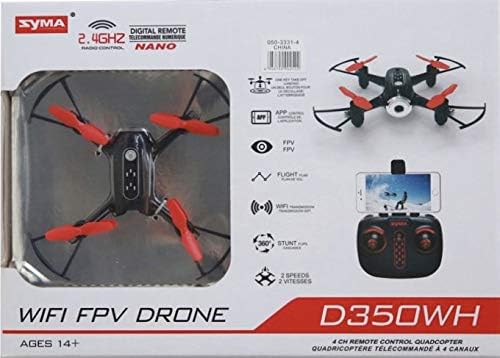
Image 3.1: The Syma D350WH Drone shown in its retail packaging, highlighting key features and components.
4. Setup
4.1 Drone Assembly
- Attach Propeller Guards: Carefully snap the propeller guards onto the drone's arms. Ensure they are securely fastened.
- Install Propellers: If not pre-installed, attach the propellers to the motor shafts. Match the 'A' and 'B' marked propellers to their corresponding motor shafts as indicated in the drone's markings.
4.2 Battery Installation and Charging
- Drone Battery: Insert the fully charged drone battery into the battery compartment on the drone's underside. Connect the battery connector firmly.
- Remote Control Batteries: Open the battery compartment on the back of the remote control. Insert the required batteries (typically AA, not always included) according to the polarity markings. Close the compartment.
- Charging: Connect the drone battery to the USB charging cable, then plug the USB cable into a suitable USB power source (e.g., computer, USB wall adapter). The indicator light on the USB cable will show charging status (e.g., red for charging, off for fully charged).
4.3 App Installation (for FPV and Advanced Features)
To utilize the WiFi FPV and advanced features like Flight Plan, download the official Syma FPV app from your smartphone's app store (iOS App Store or Android Google Play Store). Search for "Syma FPV" or refer to the QR code provided in the quick start guide (if applicable).
4.4 Pairing the Drone and Remote Control
- Place the drone on a flat, level surface.
- Turn on the drone's power switch. The drone's indicator lights will flash.
- Turn on the remote control.
- Push the left joystick (throttle) all the way up, then all the way down. The drone's indicator lights will stop flashing and remain solid, indicating successful pairing.
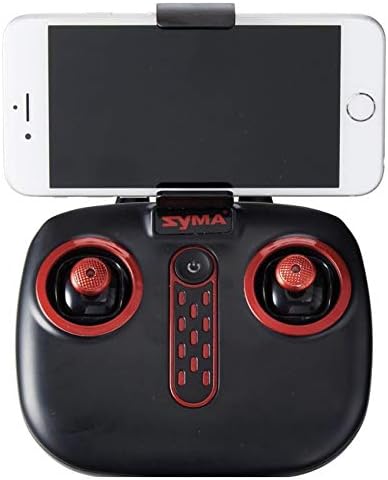
Image 4.1: The Syma D350WH remote control with a smartphone mounted, ready for FPV operation.
5. Operating Instructions
5.1 Basic Flight Controls
Familiarize yourself with the remote control layout:

Image 5.1: The Syma D350WH remote control, showing the two joysticks and various control buttons.
- Left Joystick (Throttle/Yaw):
- Up/Down: Controls altitude (ascend/descend).
- Left/Right: Controls yaw (rotate left/right).
- Right Joystick (Pitch/Roll):
- Up/Down: Controls pitch (move forward/backward).
- Left/Right: Controls roll (move left/right).
- One-Key Take-off/Landing Button: Press to automatically take off or land.
- Speed Switch Button: Toggles between two available speed modes (low/high).
- Auto Hover: The drone automatically maintains its altitude when the throttle joystick is released to the center position.
5.2 WiFi FPV Functionality
- Ensure the Syma FPV app is installed on your smartphone.
- Turn on the drone and pair it with the remote control.
- On your smartphone, go to Wi-Fi settings and connect to the drone's Wi-Fi network (e.g., "Syma_FPV_XXXX").
- Open the Syma FPV app. You should see the live video feed from the drone's camera.
5.3 Special Features
- 360 Stunt Flips: While flying, press the stunt button (refer to remote control diagram in app or quick start guide) and then push the right joystick in any direction to perform a flip.
- Flight Plan (App Control): Within the Syma FPV app, you can draw a flight path on your screen, and the drone will follow the designated route.
6. Maintenance
- Cleaning: Use a soft, dry cloth to clean the drone. Avoid using water or solvents.
- Propeller Replacement: If propellers are damaged, replace them with new ones, ensuring correct 'A' and 'B' propeller placement.
- Battery Care: Store batteries in a cool, dry place. Do not leave batteries fully charged or fully discharged for extended periods.
- Storage: When not in use, store the drone and remote control in a safe, dry environment, away from direct sunlight and extreme temperatures.
7. Troubleshooting
| Problem | Possible Cause | Solution |
|---|---|---|
| Drone does not respond to remote control. | Not paired; low battery in remote or drone. | Re-pair the drone and remote. Charge drone battery. Replace remote control batteries. |
| Drone flies erratically or drifts. | Not calibrated; damaged propeller; strong wind. | Perform gyroscope calibration (refer to quick start guide). Replace damaged propellers. Fly in calm conditions. |
| No FPV video feed. | Not connected to drone's Wi-Fi; app not open. | Ensure smartphone is connected to the drone's Wi-Fi network. Open the Syma FPV app. |
| Short flight time. | Battery not fully charged; aging battery. | Ensure battery is fully charged before flight. Consider replacing old batteries. |
8. Specifications
- Brand: Syma
- Model Name: D350WH
- Model Number: X22SW-RED
- Dimensions: 36 x 26 x 8 cm
- Weight: 500 g
- Material: Carbon Fiber, Plastic
- Remote Control Type: Wi-Fi
- Special Features: Adjustable, Integrated Camera, Portable
- Batteries: Included (for drone)
- Recommended Age: 14 months and up
- First Available: August 11, 2020
9. Warranty and Support
For warranty information, technical support, or replacement parts, please contact Syma customer service. Refer to the packaging or the official Syma website for the most current contact details.
Manufacturer: Syma


