
EDJO XYUS-MK201
EDJO 87-Key Mechanical Gaming Keyboard
Model: XYUS-MK201
1. Introduction
This manual provides detailed instructions for the EDJO 87-Key Mechanical Gaming Keyboard. Designed for gamers and typists, this keyboard features durable mechanical blue switches, vibrant rainbow LED backlighting, and anti-ghosting technology for a responsive and enjoyable experience.

Image: EDJO 87-Key Mechanical Keyboard overview banner.
2. Key Features
- Real Mechanical Blue Switches: Experience crisp, precise tactile feedback with an audible click sound. These switches offer a 50 million keystroke lifespan, 2.2mm distance to actuation, and 50g actuation force.
- Colorful Rainbow LED Backlit: Features 9 distinct lighting modes with adjustable brightness to enhance your gaming atmosphere. Laser UV carved characters ensure visibility in low-light conditions.
- 87 Keys Full Anti-Ghosting: All 87 keys are conflict-free with N-key rollover, ensuring every keypress is registered accurately, even during rapid, complex commands.
- Ergonomic Design: Constructed with a durable metal-ABS frame, designed for comfort during extended gaming or typing sessions.
- Multimedia Shortcuts: Includes 11 multimedia key combinations for efficient control of media playback and system functions.
- Durable Construction: Features an aluminum alloy panel, making it wear-resistant, anti-corrosion, and easy to clean. The keycaps are removable for maintenance.

Image: Detailed diagram illustrating the components and specifications of the Blue Mechanical Switch, including keystroke lifespan, distance to actuation, and actuation force.

Image: Close-up view of the keyboard, emphasizing features like the aluminum alloy panel, waterproof design, anti-corrosion properties, and removable keycaps.
3. Setup Guide
3.1 Connecting the Keyboard
- Locate the Micro USB port on the keyboard.
- Connect the provided removable USB cable to the keyboard's Micro USB port.
- Plug the other end of the USB cable into an available USB port on your computer (PC, Laptop, Chromebook, etc.).
- The keyboard is plug-and-play and should be automatically recognized by your operating system.
3.2 System Compatibility
The EDJO Mechanical Gaming Keyboard is widely compatible with the following operating systems:
- Windows XP
- Windows Vista
- Windows 7
- Windows 8
- Windows 10
- Windows X
- Mac OS
- Other operating systems (e.g., Chrome OS)

Image: Keyboard shown with icons representing various compatible operating systems and devices, including Windows, Android, Google, and Mac OS.
4. Operating Instructions
4.1 Backlight Modes and Adjustment
The keyboard features 9 distinct rainbow LED backlight modes. You can cycle through these modes and adjust their brightness using the function (Fn) key combinations:
- Change Light Mode: Press Fn + Ins (Insert key) to cycle through the 9 available lighting effects.
- Adjust Light Brightness: Press Fn + ↑ (Up Arrow) to increase brightness.
- Adjust Light Brightness: Press Fn + ↓ (Down Arrow) to decrease brightness.
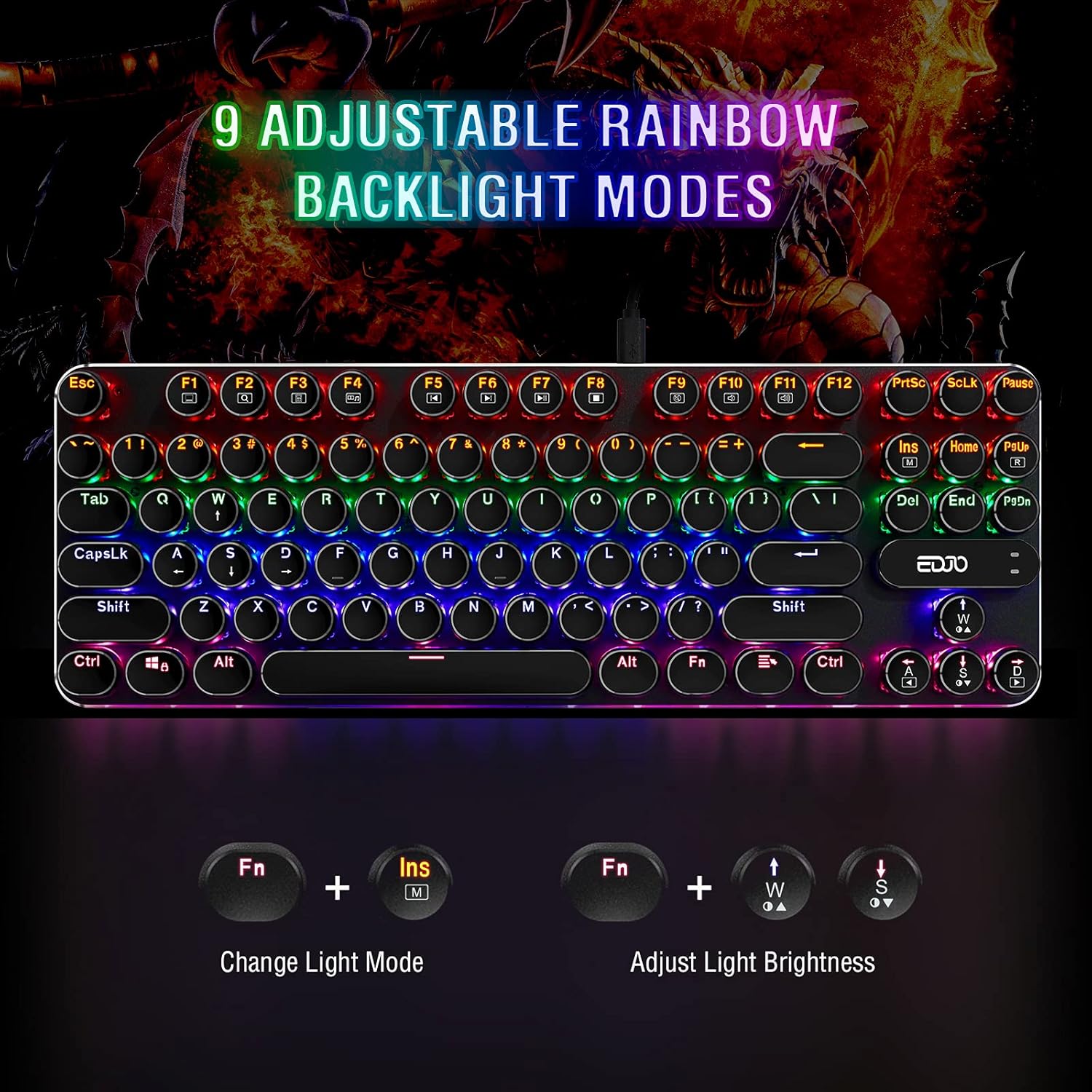
Image: Visual guide demonstrating how to change backlight modes and adjust brightness using Fn key combinations.
4.2 Multimedia Shortcuts
The keyboard includes 11 multimedia function key combinations for quick access to common tasks:
| Key Combination | Function |
|---|---|
| Fn + F1 | My Computer |
| Fn + F2 | Search |
| Fn + F3 | Calculator |
| Fn + F4 | Media Player |
| Fn + F5 | Previous Track |
| Fn + F6 | Next Track |
| Fn + F7 | Play/Pause |
| Fn + F8 | CD Stop |
| Fn + F9 | Mute |
| Fn + F10 | Volume Down |
| Fn + F11 | Volume Up |
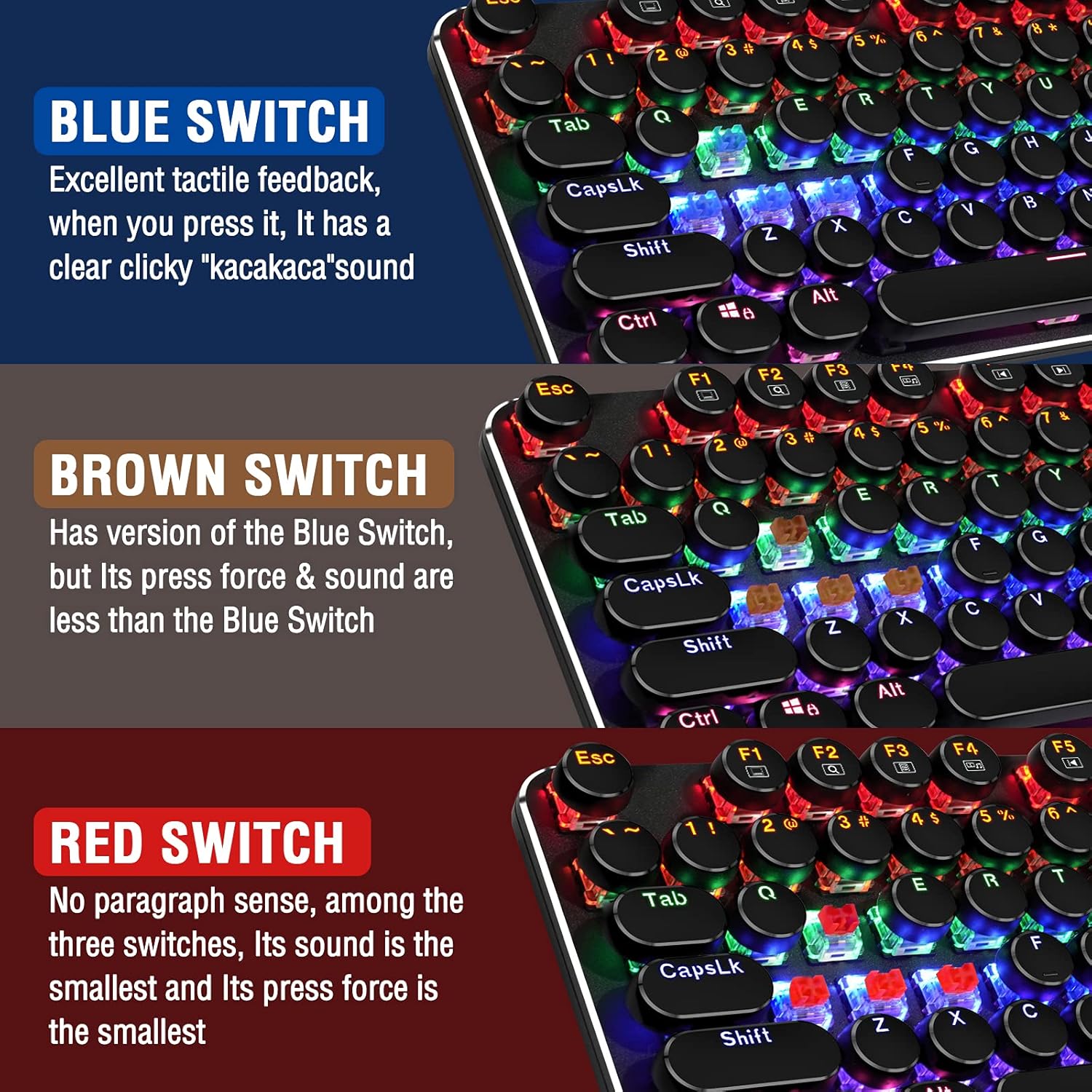
Image: Diagram illustrating the 11 multimedia shortcuts accessible via the Fn key combined with F1-F11.
4.3 Anti-Ghosting Feature
The EDJO 87-Key Mechanical Gaming Keyboard features full N-key rollover anti-ghosting. This means that all 87 keys can be pressed simultaneously without any conflicts or missed inputs, ensuring accurate registration of every command during intense gaming sessions.
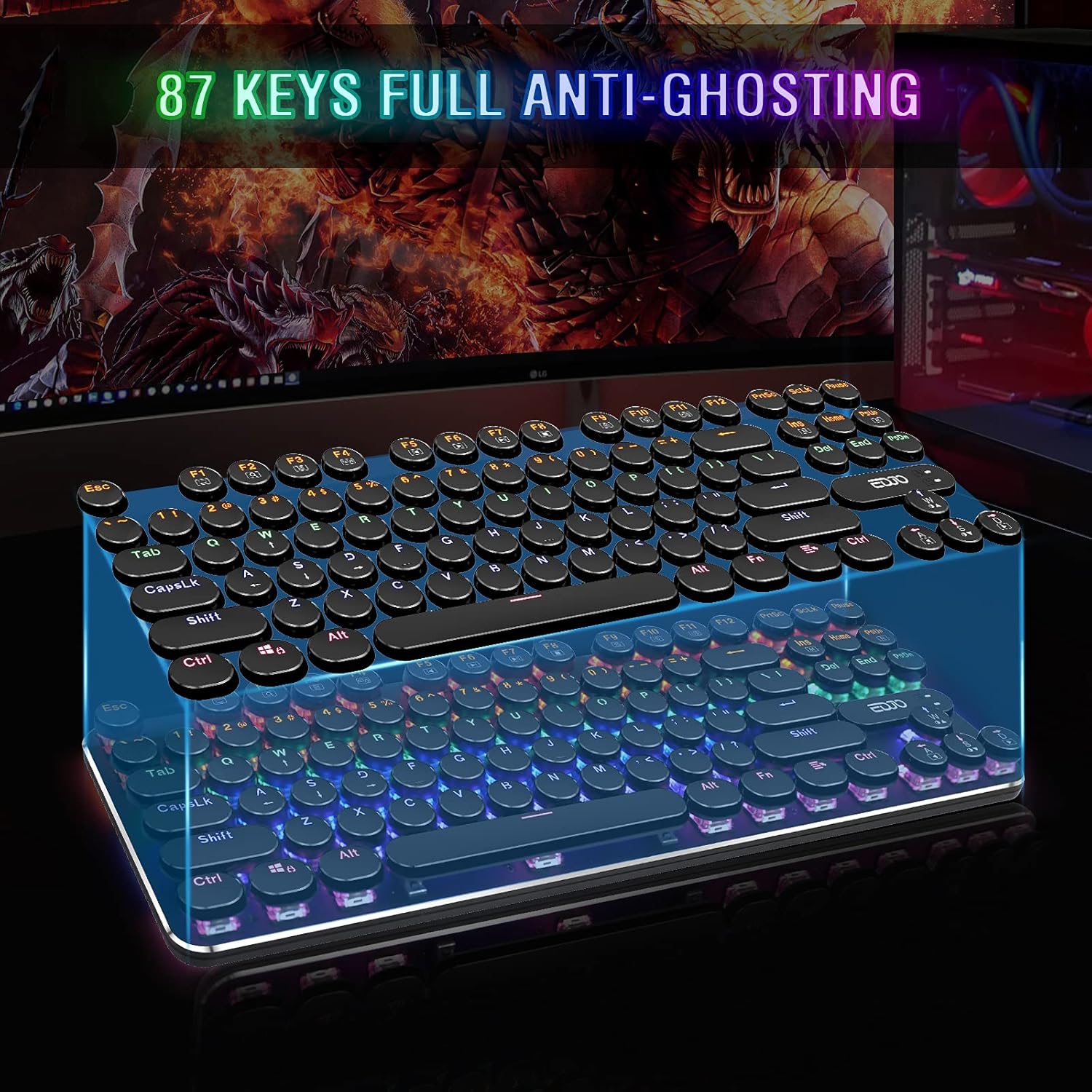
Image: Illustration demonstrating the 87-key full anti-ghosting capability, showing multiple simultaneous key presses being registered.
5. Maintenance
To ensure the longevity and optimal performance of your EDJO Mechanical Gaming Keyboard, follow these maintenance guidelines:
- Cleaning: Regularly wipe the keyboard surface with a soft, dry cloth. For deeper cleaning, you can use a can of compressed air to remove dust and debris from between the keycaps.
- Keycap Removal: The keycaps are removable, allowing for easier cleaning underneath. Use a keycap puller (if available) or gently pry them off. Ensure the keyboard is unplugged before removing keycaps.
- Avoid Liquids: While the keyboard has some water resistance, avoid direct exposure to large amounts of liquid. If spills occur, unplug the keyboard immediately and allow it to dry completely before reconnecting.
- Storage: Store the keyboard in a cool, dry place away from direct sunlight and extreme temperatures when not in use for extended periods.
6. Troubleshooting
If you encounter any issues with your EDJO Mechanical Gaming Keyboard, please refer to the following common problems and solutions:
- Keyboard Not Responding:
- Ensure the USB cable is securely connected to both the keyboard and the computer.
- Try plugging the keyboard into a different USB port on your computer.
- Restart your computer.
- Test the keyboard on another computer to determine if the issue is with the keyboard or the computer's USB port/drivers.
- Backlight Not Working or Flickering:
- Ensure the backlight is not turned off or set to the lowest brightness level using Fn + ↑/↓.
- Try cycling through the backlight modes using Fn + Ins.
- Keys Not Registering or Double-Typing:
- Check for any debris or foreign objects stuck under the keycap. Gently remove the keycap and clean the switch area.
- Ensure the keyboard drivers are up to date (usually handled automatically by the operating system).
If you encounter any problems during use that are not resolved by the above steps, please contact EDJO customer support via Amazon email for a satisfactory solution.
7. Specifications
| Attribute | Detail |
|---|---|
| Brand | EDJO |
| Manufacturer | EDJO |
| Model | XYUS-MK201 |
| Part Number | XYUS-MK201 |
| Operating System Compatibility | Windows XP/Vista/7/8/10/X, Mac, Chrome-book, etc. |
| Hardware Platform | PC |
| Compatible Devices | Laptop, Desktop Computer |
| Special Features | Backlit, Ergonomic, Anti-Ghosting, Multimedia Keys |
| Batteries Included | No |
| Batteries Required | No |
| Keyboard Description | Gaming Mechanical Keyboard |
| Connector Type | Micro USB (Removable Cable) |
| Hand Orientation | Ambidextrous |
| Has an attached light | Yes (Rainbow LED Backlit) |
| Product Dimensions | 35.56 x 12.45 x 2.54 cm |
| Item Weight | 721 g |
| ASIN | B08FMNP771 |
| Date First Available | Aug. 25 2020 |
| Colour | Blue Switch |
| Style | Gaming Keyboard |
| Number of Buttons | 87 |
| Series Number | 201 |
8. Warranty and Support
For any product-related inquiries, technical support, or warranty claims, please contact EDJO customer support directly through the Amazon platform where the product was purchased. Provide your order details and a clear description of the issue to receive prompt assistance.
Ask a question about this manual
Ask about setup, troubleshooting, compatibility, parts, safety, or missing instructions. Manuals+ will review the question and use this page’s manual context to help answer it.