
Introduction
This manual provides instructions for the installation, setup, and operation of your Lesim Smart Switch 3-Gang Wi-Fi Light Switch, Model 602. This device allows for smart control of your lighting, compatible with 2.4 GHz Wi-Fi networks, Amazon Alexa, and Google Assistant.
Important Safety Information
- WARNING: Always turn off power at the circuit breaker before beginning installation or maintenance. Failure to do so may result in serious injury or death.
- A neutral wire is required for installation. Verify its presence in your electrical box.
- This switch is designed for single-pole applications only. It does not support 2-way, 3-way, or multi-way switching configurations.
- The device operates exclusively on 2.4 GHz Wi-Fi networks. 5 GHz networks are not supported.
- Consult a qualified electrician if you are unsure about any part of the installation process.
Package Contents
- Three (3) separate Lesim Smart Switches
- One (1) 3-Gang Wall Plate (located at the bottom of the packaging box)
Product Specifications
| Feature | Specification |
|---|---|
| Operation Mode | Automatically, Off, Smart Switch |
| Current Rating | 15 Amps |
| Operating Voltage | 125 Volts |
| Contact Type | Normally Open |
| Connector Type | Screw |
| Terminal | Screw |
| Circuit Type | 1-way |
| Mounting Type | Wall Mount |
| Actuator Type | Touch |
| Contact Material | Copper, Brass |
| International Protection Rating | IP54 |
| Number of Positions | 3 |
| Controller Type | Amazon Alexa, Google Assistant, SmartThings, IFTTT |
| Control Method | Voice |
| Connectivity Protocol | Wi-Fi |
| Wattage | 1650 watts |
| Item Model Number | 602 |
| UPC | 717261145257 |
Installation Guide
WARNING: Turn off power at the circuit breaker before beginning installation. Failure to do so may result in serious injury or death.
- Identify Wires: In your electrical box, identify the Live (Line), Load, Neutral, and Ground wires. A neutral wire is required. Use a voltage tester to confirm the Live wire is de-energized.

Image: A diagram illustrating the typical wiring in a wall box, showing black (Live), white (Neutral), green (Ground), and another black (Load) wire. This helps in identifying the correct wires for connection.
Video: A step-by-step guide demonstrating how to identify electrical wires (Live, Load, Neutral, Ground) and how to use a voltage tester to ensure power is off before proceeding with the installation of the smart switch.
- Prepare Wires: Strip approximately 0.4 inches (10mm) of insulation from each wire end if not already stripped.
- Connect Wires to Switch: Connect the wires from your wall box to the corresponding terminals on the Lesim Smart Switch. Live (Line) wire to L-IN terminal, Load wire to LOAD terminal, Neutral wire to N-IN terminal, and Ground wire to Ground terminal.

Image: A detailed wiring diagram showing the connection points on the back of the Lesim Smart Switch. It clearly labels where the Live, Load, Neutral, and Ground wires should be connected using screw terminals.
- Secure Switch: Carefully push the wired switch into the wall box. Secure it with screws.
- Install Wall Plate: Attach the 3-gang wall plate over the switches.
- Restore Power: Turn the power back on at the circuit breaker. The blue indicator light on the switch should blink, indicating it's ready for network pairing.
Smart Life App Setup
Connecting your Lesim Smart Switch to the Smart Life app enables remote control and smart features.
- Download App: Download the "Smart Life" app from your smartphone's app store (iOS or Android).
- Register/Login: Open the app and register for a new account or log in if you already have one.
- Add Device: In the app, tap "Add Device" or the "+" icon. Select "Electrician" then "Switch (Wi-Fi)".
- Connect to Wi-Fi: Ensure your smartphone is connected to a 2.4 GHz Wi-Fi network. Enter your Wi-Fi password in the app.
- Pair Switch: Follow the in-app instructions to put the switch into pairing mode (usually by pressing and holding the switch button for 5-10 seconds until the indicator blinks rapidly). Confirm the indicator is blinking quickly in the app.
- Complete Setup: The app will detect and connect to the switch. Once connected, you can rename the switch and assign it to a room.

Image: A series of screenshots from the Smart Life app illustrating the steps to add a new device, select the switch type, connect to Wi-Fi, and complete the pairing process.
Voice Control Integration
Once your Lesim Smart Switch is connected to the Smart Life app, you can link it to Amazon Alexa or Google Assistant for convenient voice control.
- Open Voice Assistant App: Open the Amazon Alexa app or Google Home app on your smartphone.
- Enable Skill/Action:
- For Alexa: Go to "Skills & Games", search for "Smart Life", and enable the skill.
- For Google Assistant: Go to "Works with Google", search for "Smart Life", and link the account.
- Link Account: You will be prompted to log in with your Smart Life account credentials.
- Discover Devices: After linking, ask your voice assistant to "Discover devices" or use the app's device discovery feature.
- Voice Commands: You can now control your lights using voice commands such as:
- "Alexa, turn on the bedroom light."
- "Hey Google, turn off the kitchen lights."
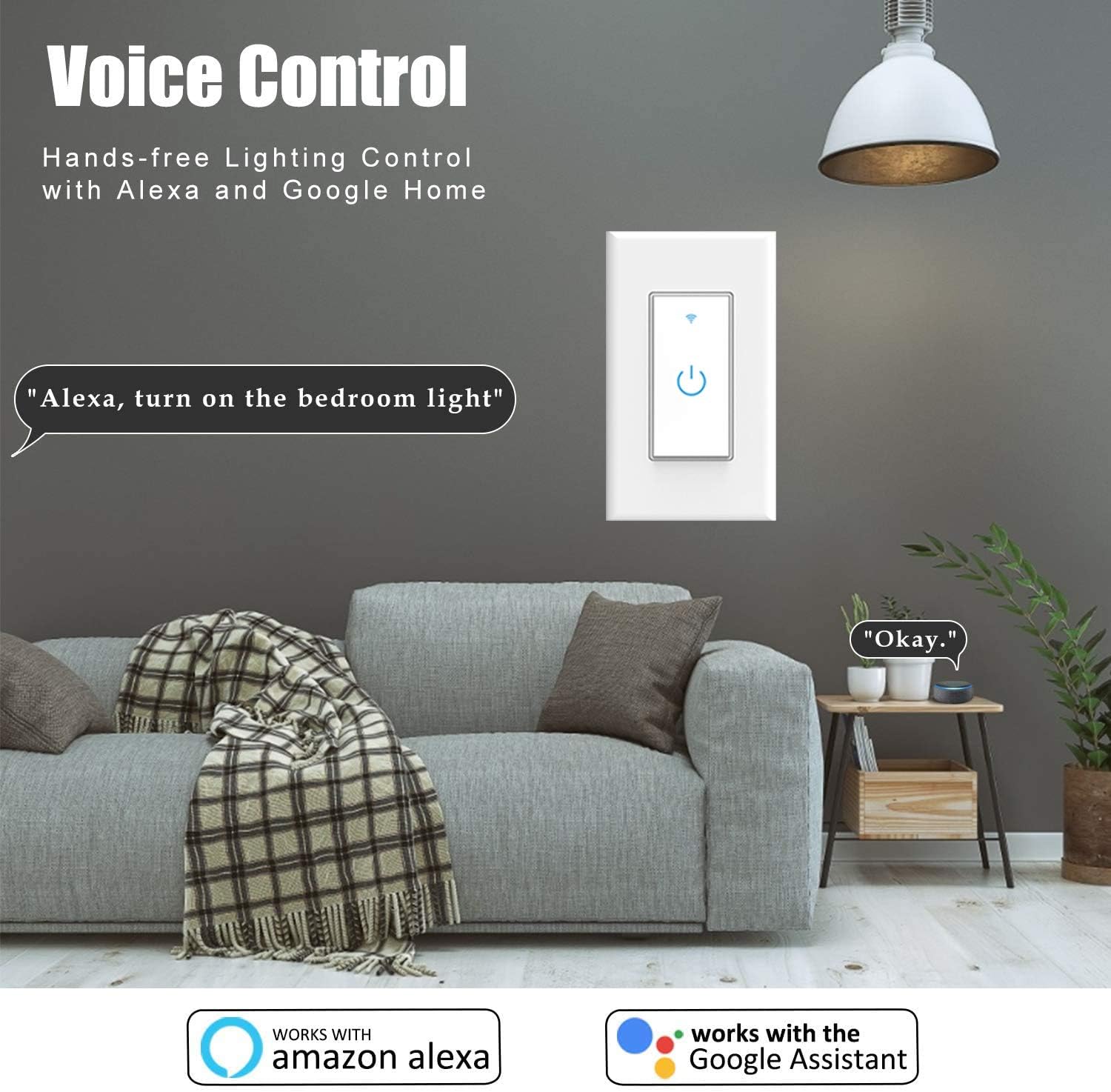
Image: An illustration depicting a user interacting with a voice assistant (Alexa) to control the smart light switch, highlighting the convenience of hands-free operation.
Operating Instructions
Manual Touch Control
The switch features a tempered glass touch screen for direct control. Simply touch the power icon to turn the connected light on or off. The blue indicator shows the current status and Wi-Fi connectivity.

Image: A close-up view of the 3-gang smart light switch, showing the touch-sensitive buttons with blue LED backlights, indicating power status and Wi-Fi connectivity.
Remote Control via Smart Life App
Control your lights from anywhere using the Smart Life app on your smartphone, ensuring you have an active internet connection.

Image: A smartphone screen displaying the Smart Life application, showing the interface for remotely controlling a light switch, emphasizing the "Control from Anywhere" feature.
Scheduling and Scenes
Set custom schedules and create scenes within the Smart Life app to automate your lighting based on your preferences.
- Schedules: Program lights to turn on or off at specific times (e.g., "On at sunset, off at bedtime").
- Scenes: Create custom scenes to control multiple lights or devices with a single command or tap (e.g., a "Movie Night" scene that dims lights).
Image: An illustration demonstrating the smart scheduling feature, showing lights turning on or off automatically based on preset times, enhancing convenience and energy efficiency.
Group Control and Device Sharing
- Group Control: Group multiple smart switches in the Smart Life app to control them simultaneously with a single command.
- Device Sharing: Share control of your smart switches with family members or other authorized users through the app, allowing them to manage the devices.

Image: A screenshot from the Smart Life app illustrating the device sharing function, allowing users to grant access to their smart devices to family members or friends.
Care and Maintenance
To maintain the performance and appearance of your smart switch:
- Clean the tempered glass surface with a soft, dry cloth. Avoid abrasive cleaners or harsh chemicals.
- Do not expose the device to excessive moisture or extreme temperatures.
- Periodically check electrical connections for tightness, ensuring power is off at the circuit breaker first.
Troubleshooting
| Problem | Possible Cause | Solution |
|---|---|---|
| Switch not responding | No power; Wi-Fi disconnected | Check circuit breaker; verify Wi-Fi connection in app. |
| Cannot connect to Wi-Fi | Incorrect Wi-Fi band (5GHz); wrong password; weak signal | Ensure 2.4 GHz Wi-Fi; re-enter password; move router closer or use Wi-Fi extender. |
| Voice control not working | Skill/Action not enabled; account not linked | Enable "Smart Life" skill/action in Alexa/Google Home app; relink accounts; discover devices. |
| Indicator light not blinking | Not in pairing mode | Press and hold the switch button for 5-10 seconds until it blinks rapidly. |
For further assistance, refer to the Smart Life app's help section or contact Lesim customer support.
Warranty and Support
For warranty details and customer support, please refer to the information provided with your purchase or visit the official Lesim website.


