1. Setup and Installation
1.1 Package Contents
Before installation, verify that all components are present in the package:
- CAMECHO Android 10.0 Car Stereo Unit
- Power Cable
- USB Cables (2x)
- GPS Antenna
- RCA Input/Output Cables
- Rear View Camera (Waterproof with 12 IR lights)
- Stents (Mounting Brackets)
- User Manual

Image: Overview of included accessories such as USB cables, power cable, GPS antenna, camera input cable, RCA input/output cables, mounting stents, and the user manual.
1.2 Unit Dimensions and Installation
The main unit is a double DIN car stereo with a 9.7-inch vertical touchscreen. Ensure your vehicle's dashboard opening is compatible with the unit's dimensions.
- Unit Dimensions: 21.8 (L) x 22.2 (H) x 5 (D) cm
- Screen Size: 9.7 inches

Image: Detailed diagram illustrating the physical dimensions of the car stereo unit and a visual comparison of horizontal versus vertical screen installation effects in a vehicle dashboard.
1.3 Wiring Diagram
Connect the power, speaker, and accessory wires according to the provided wiring diagram. Incorrect wiring can damage the unit or your vehicle's electrical system. Consult a professional if you are unsure about any connections.
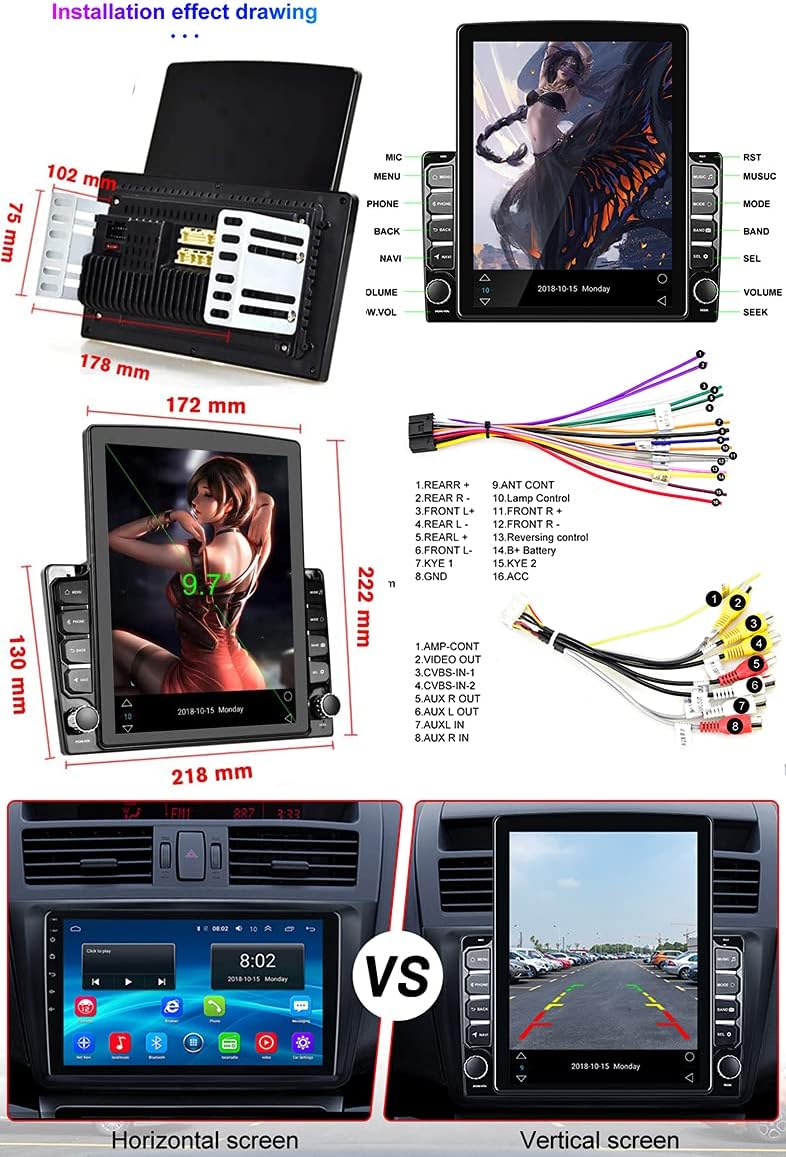
Image: Comprehensive wiring diagram indicating connections for power, speakers, camera input, USB, and other peripheral devices.
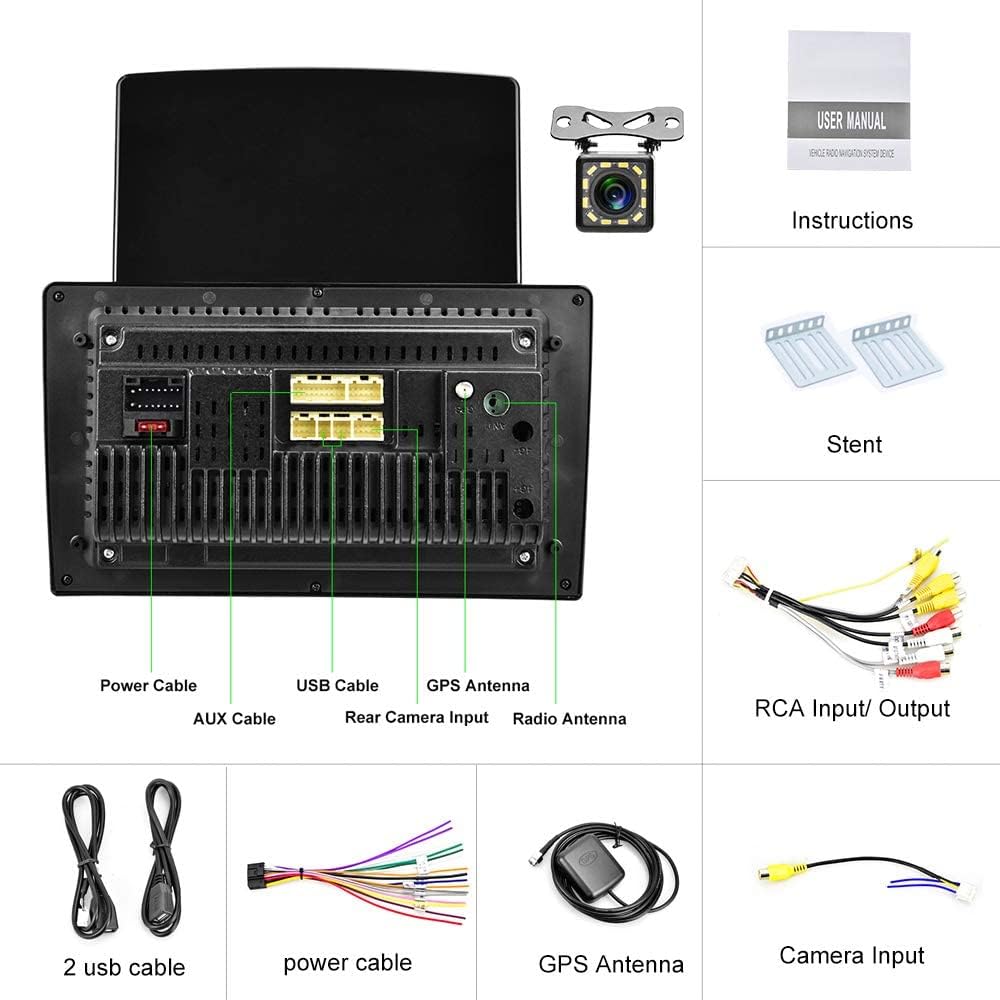
Image: Rear view of the car stereo unit, highlighting the various input and output ports including power, USB, GPS antenna, and rear camera input.
2. Operating Instructions
2.1 Basic Operation
- Power On/Off: Press and hold the power button (usually labeled 'VOL' or 'PWR') on the unit's front panel.
- Volume Control: Use the physical volume knob on the unit or the touchscreen controls.
- Touchscreen: Navigate the Android interface by tapping, swiping, and pinching on the 9.7-inch capacitive touchscreen.
2.2 Bluetooth Functionality
The unit supports Bluetooth 4.0 for hands-free calling and A2DP for high-quality music streaming. Pair your smartphone to the car stereo to access these features.
- Pairing: Go to the Bluetooth settings on the car stereo and your phone. Search for available devices and select 'CAMECHO' (or similar device name). Confirm the pairing code if prompted.
- Hands-Free Calls: Once paired, you can make and receive calls directly from the car stereo. The phone book can be synchronized automatically.
- Music Playback: Stream audio from your phone to the car stereo via Bluetooth.

Image: The car stereo's screen showing the Bluetooth interface, demonstrating hands-free calling and music streaming capabilities, alongside a smartphone displaying an active call.
2.3 GPS Navigation
The unit comes with pre-installed navigation software. You can use online navigation via WiFi or download offline maps.
- Online Navigation: Connect to a WiFi hotspot to use online mapping services.
- Offline Maps: The unit includes a map APK named "Here wego". Download free maps manually for offline use. Older versions may have iGo/Sygic maps pre-installed.

Image: The car stereo's screen showing a detailed GPS navigation map, indicating its navigational capabilities.
2.4 WiFi Connectivity
Connect the car stereo to a WiFi network to access online features, download apps, and browse the internet.
- Connecting to WiFi: Go to Settings > Network & Internet > Wi-Fi. Select your desired network and enter the password.
- App Installation: Once connected, you can install various Android applications from the app store.

Image: The car stereo's screen showcasing a grid of application icons, demonstrating the unit's WiFi connectivity and ability to run various Android apps.
2.5 Mirror Link Function
Mirror Link allows you to display your smartphone's screen on the car stereo. This feature supports both iOS and Android devices.
- iOS Devices: Connect via WiFi for one-way projection (phone to stereo).
- Android Devices: Connect via WiFi or USB data cable for two-way connection (control phone from stereo, and vice-versa).

Image: The car stereo's screen mirroring content from a smartphone, illustrating the Mirror Link function with a video playing simultaneously on both devices.
2.6 FM / RDS Radio
Tune into your favorite radio stations. The RDS function provides additional information like station name, song title, and traffic announcements.
- Tuning: Use the touchscreen interface to scan for stations or manually enter frequencies.
- RDS: Radio Data System automatically displays relevant information when available.

Image: The car stereo's screen showing the FM radio interface, including the current frequency and RDS (Radio Data System) information.
2.7 Rear View Camera Input
The included waterproof rear view camera automatically displays the rear view on the stereo screen when the vehicle is put into reverse gear, assisting with parking.
- Installation: Connect the camera to the dedicated 'Rear Camera Input' port on the stereo unit and ensure proper power connection.
- Automatic Display: The screen will automatically switch to the camera view when reverse gear is engaged.

Image: The car stereo's screen displaying the live feed from the rear view camera, complete with parking guidelines, as seen in a parking lot scenario.
2.8 Steering Wheel Control
The unit supports steering wheel control, allowing you to manage audio and other functions without taking your hands off the wheel. This requires proper wiring and configuration.

Image: The car stereo's screen displaying the settings menu for configuring steering wheel controls, allowing users to map functions to their vehicle's steering wheel buttons.
2.9 Color Button Light
Customize the color of the physical buttons on the unit to match your vehicle's interior lighting or your personal preference.

Image: The car stereo's screen displaying the interface for customizing the color of the physical buttons, featuring a color palette and adjustment sliders.
2.10 Video Playback
The unit supports video playback. Ensure video files are in a compatible format. You can play videos from USB drives or through Mirror Link.
Video: A demonstration of the car stereo's multimedia capabilities, likely showing the user interface or a feature in action.
3. Maintenance
3.1 Cleaning the Unit
To maintain optimal performance and appearance:
- Use a soft, dry cloth to wipe the screen and unit exterior.
- For stubborn smudges, slightly dampen the cloth with water or a screen-safe cleaner.
- Avoid using abrasive cleaners, solvents, or harsh chemicals, as these can damage the screen and finish.
3.2 Software Updates
Periodically check for software updates to ensure your unit has the latest features and bug fixes. Updates are typically available through the manufacturer's website or via an over-the-air (OTA) update if the unit is connected to WiFi.
4. Troubleshooting
If you encounter issues with your CAMECHO car stereo, refer to the following common problems and solutions:
| Problem | Possible Cause | Solution |
|---|---|---|
| No Power | Incorrect wiring, blown fuse, vehicle battery issue. | Check power connections (ACC, B+, GND). Verify vehicle fuses. Ensure battery is charged. |
| No Sound | Speaker wires disconnected, volume too low, incorrect audio source. | Check speaker wiring. Increase volume. Select correct audio source (FM, Bluetooth, USB). |
| Bluetooth Connection Issues | Phone not discoverable, incorrect pairing, interference. | Ensure Bluetooth is enabled on both devices. Delete previous pairings and re-pair. Move closer to the unit. |
| GPS Not Working / Inaccurate | GPS antenna not connected, poor signal, outdated maps. | Ensure GPS antenna is securely connected and placed in an unobstructed location. Update maps if necessary. |
| Rear Camera Not Displaying | Camera wiring issue, reverse trigger wire not connected. | Verify camera video input and power connections. Ensure the reverse trigger wire is correctly connected to the vehicle's reverse light circuit. |
| Unit Unstable in Dash | Improper mounting, missing cage. | Ensure the provided brackets are securely fastened to the unit and the vehicle's dash. If a mounting cage is required for your vehicle, it may need to be purchased separately. |
If the problem persists after attempting these solutions, please contact customer support.
5. Specifications
| Feature | Detail |
|---|---|
| Brand | CAMECHO |
| Model Number | Pantalla 9,7 Pulgadas |
| Operating System | Android 10.0 |
| Screen Size | 9.7 inches |
| Display Type | Capacitive Touchscreen, Vertical Display |
| Connectivity Technology | Bluetooth, WiFi, USB, FM Radio |
| Bluetooth Version | 4.0 (with A2DP) |
| GPS Navigation | Supports online/offline maps (e.g., Here wego, iGo/Sygic) |
| Mirror Link | Supports iOS (one-way) and Android (two-way) |
| Radio Tuner | FM with RDS |
| Rear Camera Input | Yes, includes waterproof camera with 12 IR lights |
| Audio Output Mode | Stereo, Subwoofer output support |
| Number of Channels | 4 |
| Output Power | 45 Watts |
| Color | Black |
| Product Dimensions (L x W x H) | 25 x 4 x 14.5 cm |
| Item Weight | 1.63 kilograms |
6. Warranty & Support
6.1 Manufacturer's Warranty
This CAMECHO car stereo unit comes with a 1-year manufacturer's warranty. This warranty covers defects in materials and workmanship under normal use. Please retain your proof of purchase for warranty claims.
The availability of spare parts is currently unavailable. Software updates are not guaranteed beyond the initial release.
6.2 Customer Support
For technical assistance, warranty claims, or further inquiries, please contact CAMECHO customer support through the retailer where the product was purchased or refer to the official CAMECHO website for contact information.
When contacting support, please have your product model number (Pantalla 9,7 Pulgadas) and purchase date ready.


