
TMEZON MZ-W205CR-A
TMEZON Outdoor WiFi PTZ Dome Surveillance Camera User Manual
Model: MZ-W205CR-A
Introduction
This manual provides comprehensive instructions for the installation, operation, and maintenance of your TMEZON Outdoor WiFi PTZ Dome Surveillance Camera. Please read this manual carefully before using the product to ensure proper functionality and safety. Keep this manual for future reference.
Product Overview
Key Features
- Smart 1080p Pan/Tilt: Supports 350° horizontal pan and 93° vertical tilt for comprehensive home monitoring.
- Real-time Motion Detection: Automatic recording to SD card upon motion detection.
- Two-way Audio: Built-in microphone and speaker for communication.
- Enhanced Night Vision: Features 4 infrared LEDs (up to 50m) and 4 white LEDs (up to 30m) for clear vision in dark environments.
- IP66 Dust and Water Protection: Durable design suitable for both indoor and outdoor use in various weather conditions.
- Instant Notifications & Remote View: Receive real-time alerts and monitor your home remotely via the 'ICSee' application.
Product Components
Familiarize yourself with the main components of your TMEZON camera:

Image Description: A detailed diagram of the TMEZON PTZ camera highlighting its various components: Antenna, Microphone, IR LED, White Light, 4mm Focusing Lens, SD Card slot, Network Cable port, and Power input.
- Antenna: For WiFi connectivity.
- Microphone: For audio input in two-way communication.
- IR LED: Infrared LEDs for night vision.
- White Light: White LEDs for full-color night vision and deterrence.
- 4mm Focusing Lens: The main camera lens.
- SD Card Slot: For local storage of recordings.
- Network Cable Port: For wired network connection (optional).
- Power Input: For connecting the power adapter.
Setup Guide
Follow these steps to set up your TMEZON camera:
- Power Connection: Connect the camera to a power source using the provided power adapter. The camera will power on and initiate its self-test.
- App Download: Download the 'ICSee' application from your smartphone's app store (available on App Store and Google Play).

Image Description: An image showing a smartphone screen with the ICSee app interface, demonstrating remote viewing and control. Below the phone, logos for the App Store and Google Play are visible, indicating where to download the application.
- Account Registration: Open the ICSee app and register for a new account or log in if you already have one.
- Add Device: In the app, select "Add Device" or the '+' icon. Follow the on-screen prompts to connect your camera to your WiFi network. Ensure your camera is within range of your WiFi router.
- SD Card Installation (Optional): If you wish to record footage locally, insert a compatible SD card into the designated slot. (Note: SD card is not pre-installed).
- Mounting: Securely mount the camera in your desired location using the provided mounting hardware. Ensure the location provides a clear view and stable WiFi signal.
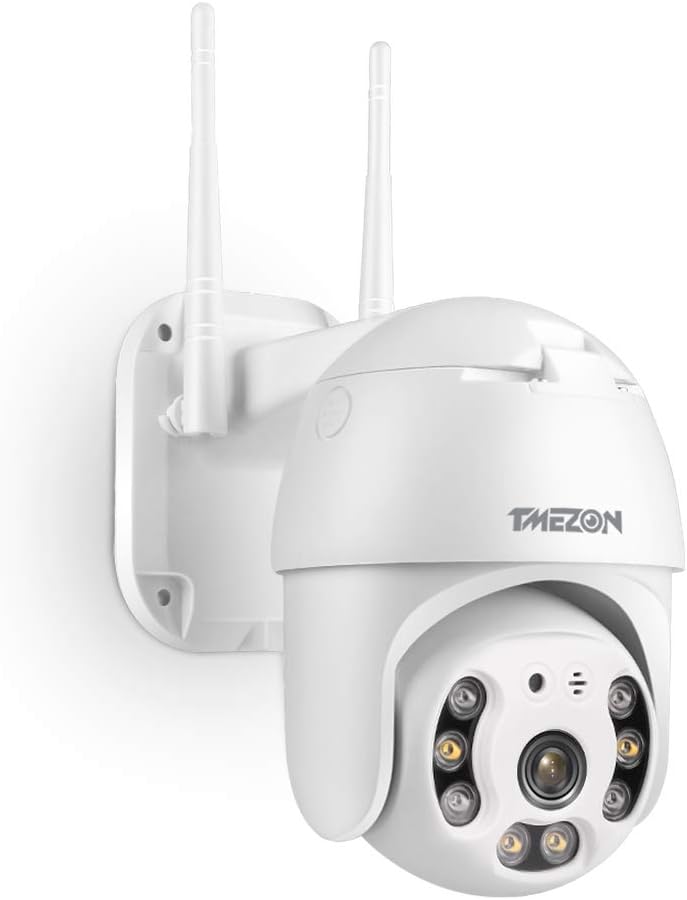
Image Description: The main product image of the TMEZON PTZ dome camera, showing its design and how it appears when mounted on a wall.
Operating Instructions
Remote Viewing and Control
Once connected, you can access your camera feed and controls via the ICSee app from anywhere with an internet connection.
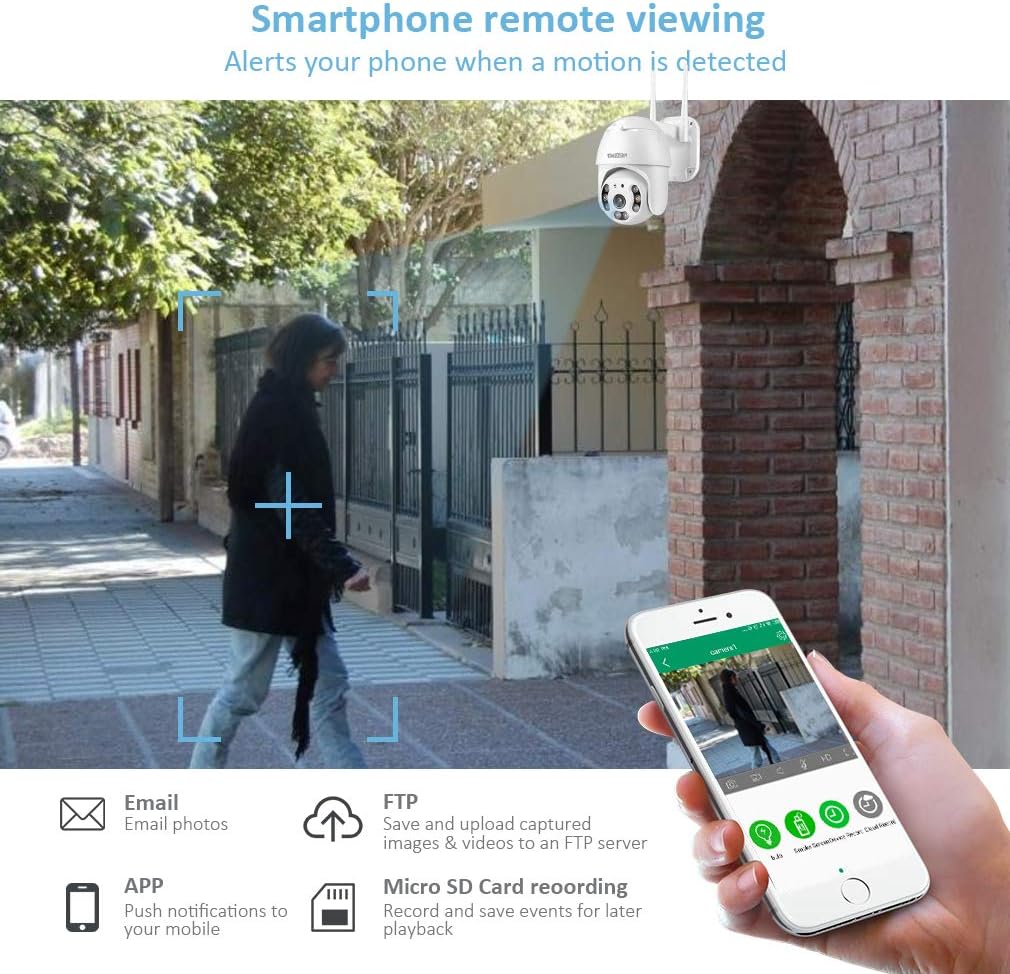
Image Description: A smartphone displaying the camera's live feed with icons for email photos, FTP upload, app notifications, and Micro SD card recording, illustrating remote viewing capabilities and alert options.
- Live View: Tap on the camera in the app to view the live feed.
- Pan/Tilt Control: Use the directional controls within the app to remotely pan the camera horizontally up to 350° and tilt vertically up to 93°.
- Zoom: Pinch to zoom on the live feed for closer inspection.
Two-Way Audio
The camera features a built-in microphone and speaker for two-way communication.

Image Description: An illustration demonstrating the two-way audio feature, showing a delivery person speaking and a smartphone user responding, with audio wave icons indicating sound transmission.
- Speak: Tap the microphone icon in the app to speak through the camera's speaker.
- Listen: The camera's microphone will pick up audio from its surroundings.
Motion Detection and Alerts
The camera can detect motion and send instant notifications.
- Enable Motion Detection: Go to camera settings in the app to enable motion detection and adjust sensitivity.
- Receive Alerts: Configure notification settings to receive real-time alerts or email notifications when motion is detected.
- Auto Tracking: The camera supports automatic tracking of detected human motion.
Night Vision Modes
The camera offers two night vision modes:

Image Description: A split image comparing the camera's IR Night Vision (top, black and white with red IR light) and Full Color Vision (bottom, color with white light illumination) modes, showing the difference in visual output.
- Infrared (IR) Night Vision: Provides clear black and white images in complete darkness up to 50 meters using IR LEDs.
- Full Color Night Vision: Activates white LEDs to provide full-color images in low-light conditions up to 30 meters. This mode can also act as a deterrent.
Maintenance
- Cleaning: Regularly wipe the camera lens and body with a soft, damp cloth to remove dust and dirt. Do not use harsh chemicals or abrasive cleaners.
- Firmware Updates: Check the ICSee app periodically for firmware updates. Keeping your camera's firmware updated ensures optimal performance and security.
- Weather Protection: While the camera is IP66 rated for dust and water resistance, ensure it is mounted securely to withstand strong winds and heavy precipitation.
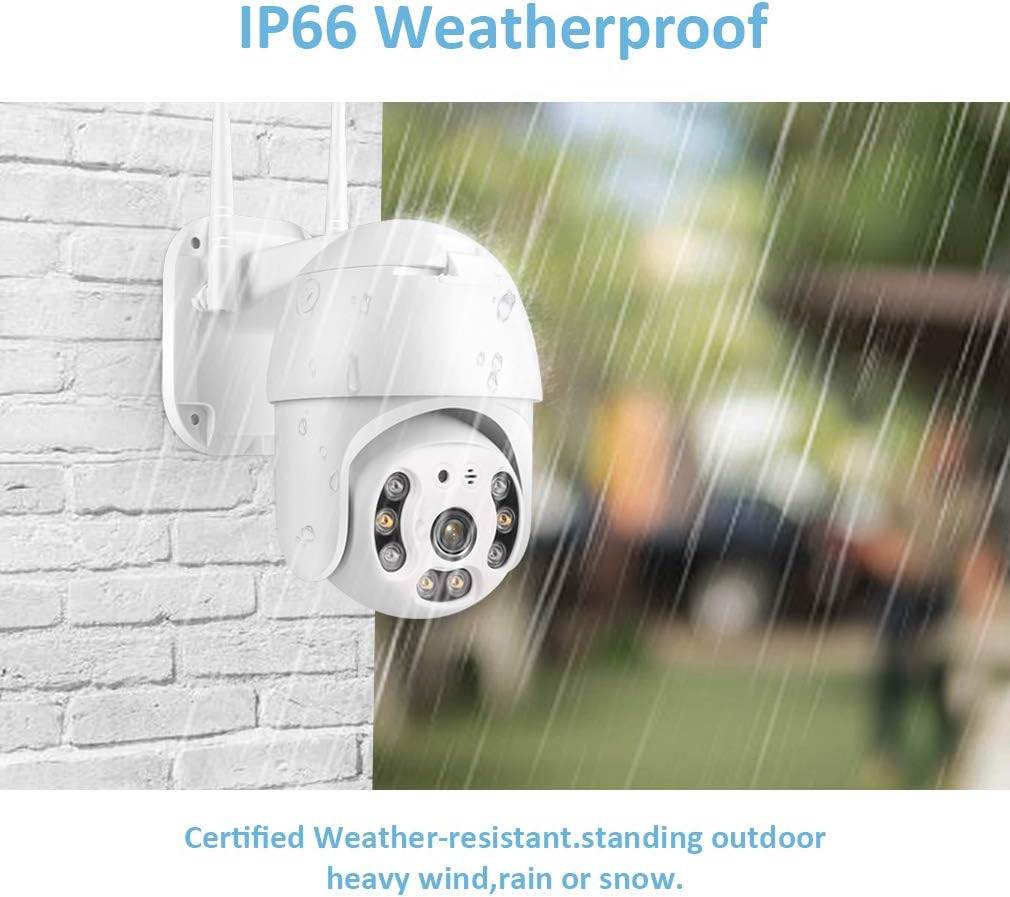
Image Description: The TMEZON camera mounted on an outdoor brick wall, with simulated rain falling, illustrating its IP66 weatherproof rating and ability to withstand outdoor elements.
Troubleshooting
| Problem | Possible Cause | Solution |
|---|---|---|
| Camera cannot connect to WiFi. | Incorrect WiFi password, camera too far from router, network interference. |
|
| No recording to SD card. | SD card not inserted, faulty SD card, SD card full, incorrect formatting. |
|
| Poor image quality. | Dirty lens, low light conditions, network bandwidth issues. |
|
| No audio from camera. | Microphone muted in app, speaker volume low, hardware issue. |
|
Specifications
| Feature | Detail |
|---|---|
| Brand | TMEZON |
| Model Number | MZ-W205CR-A |
| Form Factor | Dome |
| Effective Video Resolution | 1080 Pixels (1080p) |
| Pan/Tilt Range | Horizontal 350°, Vertical 93° |
| Night Vision | IR LEDs (up to 50m), White LEDs (up to 30m) |
| Connectivity Technology | Wireless (Wi-Fi) |
| Power Source | Electric Cable (12 Volts, 10 Watts) |
| Weather Resistance | IP66 Dust and Water Protection |
| Compatible Devices | Smartphone (via ICSee app) |
| Storage | External SD Card Slot (SD card not included) |
| Recommended Use | Surveillance |
| Package Dimensions | 20.5 x 20.1 x 12.5 cm; 780 grams |
Warranty and Support
For warranty information and technical support, please refer to the official TMEZON website or contact their customer service directly. Details regarding spare parts availability are not provided in this manual; please consult the manufacturer for further information.
Average customer review for this product is 4.0 out of 5 stars based on 706 ratings.
Ask a question about this manual
Ask about setup, troubleshooting, compatibility, parts, safety, or missing instructions. Manuals+ will review the question and use this page’s manual context to help answer it.