
1. Product Overview
The Victrix Gambit Gaming Headset offers both wireless and wired connectivity for versatile use with Xbox One, Xbox Series X|S, and PC. Designed for competitive gaming, it features Dolby Atmos surround sound, 50mm HD speaker drivers, and a bi-directional noise-canceling microphone.

Image 1.1: The Victrix Gambit Gaming Headset, showcasing its sleek black design and over-ear cups.

Image 1.2: The Victrix Gambit headset highlighting its dual wireless and wired modes for home and tournament play.
2. Setup Instructions
2.1 Package Contents
- Victrix Gambit Gaming Headset
- Wireless USB Dongle
- 3.5mm Audio Cable with In-line Controls
- USB Charging Cable
- User Manual (this document)
2.2 Charging the Headset
Before initial use, fully charge the headset. Connect the USB charging cable to the headset's charging port and to a powered USB port (e.g., console, PC, or USB wall adapter). The LED indicator will show charging status.
2.3 Wireless Connection (Xbox/PC)
- Insert the wireless USB dongle into an available USB port on your Xbox console or PC.
- Power on the headset by pressing and holding the Power button until the LED indicator illuminates.
- The headset and dongle should automatically pair. A solid LED on both indicates a successful connection.
- If pairing does not occur automatically, press the pairing button on the USB dongle, then press and hold the Power/Pairing button on the headset until the LED flashes rapidly, then becomes solid.
2.4 Wired Connection (3.5mm)
For wired use or tournament play, connect the supplied 3.5mm audio cable from the headset's 3.5mm port to your controller or device's audio jack. The headset will automatically switch to wired mode.
3. Operating the Headset
3.1 Power On/Off
- Power On: Press and hold the Power button on the headset until the LED illuminates.
- Power Off: Press and hold the Power button until the LED turns off.
3.2 Volume and Audio Controls
The headset features on-ear controls for convenient audio adjustments.

Image 3.1: Close-up of the headset's right earcup, showing the power button, mode switch, and game/chat balance dial.
- Master Volume: Use the volume dial on the earcup to adjust the overall audio level.
- Game/Chat Balance: Use the dedicated dial to balance game audio and chat volume.
- Mode Switch: Toggle between different audio modes or profiles if available (refer to specific software for customization).
3.3 Microphone Usage
The bi-directional noise-canceling microphone ensures clear communication.

Image 3.2: The flexible boom microphone of the Victrix Gambit headset, designed for clear voice capture.
- Flip-to-Mute: Flip the microphone boom arm upwards to mute the microphone. Flip it down to unmute.
- Microphone Monitoring: The headset may offer a three-stage mic monitor. Adjust this feature through the headset's companion software on PC or console settings to hear your own voice feedback.
3.4 Dolby Atmos Integration
The headset includes integrated Dolby Atmos for immersive surround sound. A lifetime subscription is included. Ensure Dolby Atmos is enabled in your console or PC audio settings for the best experience.
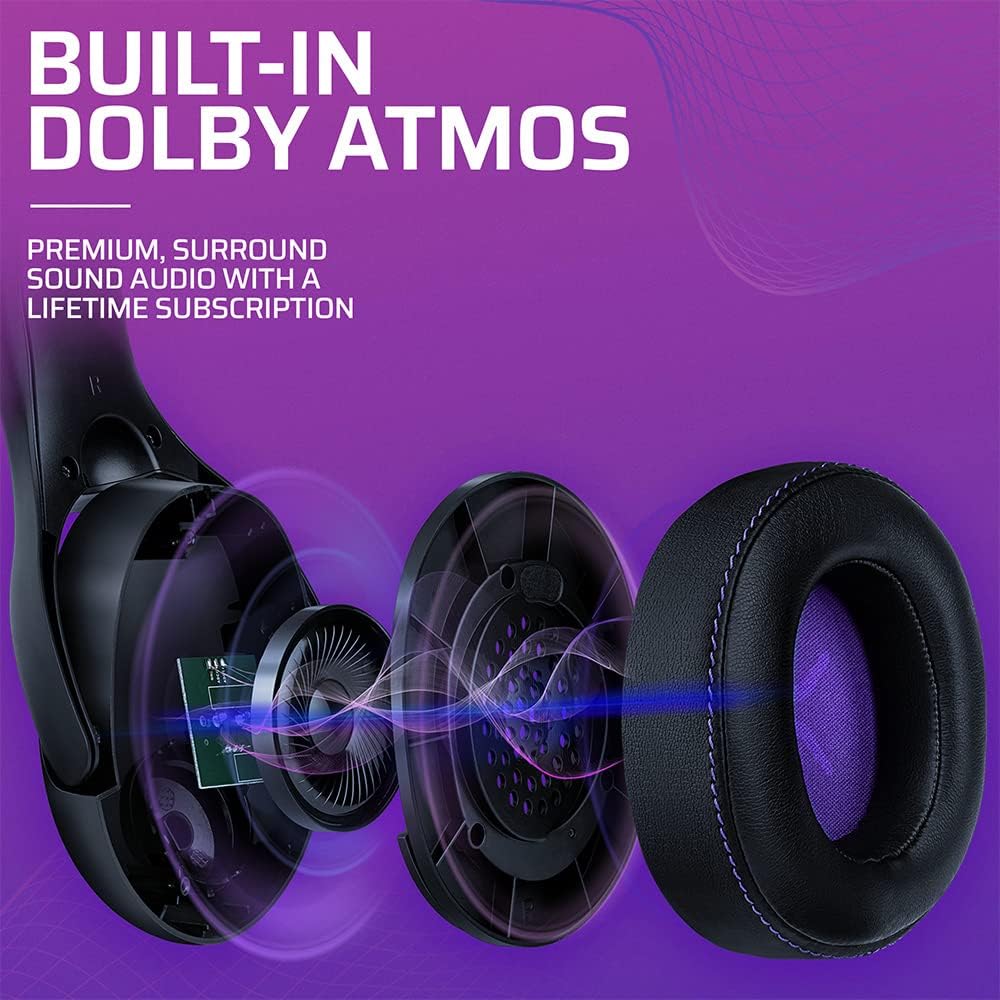
Image 3.3: An exploded view of the Victrix Gambit earcup, illustrating the 50mm speaker drivers and the audio waves representing Dolby Atmos sound.
4. Maintenance
4.1 Cleaning
- Use a soft, dry cloth to clean the headset's surfaces.
- For earcups, gently wipe with a damp cloth and mild soap solution if necessary, then dry thoroughly. Avoid excessive moisture.
- Do not use harsh chemicals or abrasive cleaners.
4.2 Storage
Store the headset in a cool, dry place away from direct sunlight and extreme temperatures. Avoid placing heavy objects on the headset to prevent damage.
4.3 Battery Care
To prolong battery life, avoid fully discharging the headset frequently. Charge the headset regularly, even if not in use for extended periods.
5. Troubleshooting
5.1 No Audio
- Ensure the headset is powered on and properly paired (for wireless) or connected (for wired).
- Check the volume levels on the headset, your console/PC, and the game/application.
- Verify that the correct audio output device is selected in your system settings.
- For wireless, try re-pairing the headset with the USB dongle.
5.2 Microphone Not Working
- Ensure the microphone is flipped down (unmuted).
- Check microphone input settings on your console/PC and in-game chat settings.
- Verify that the correct microphone input device is selected in your system settings.
- Test the microphone with another application or device if possible.
5.3 Connectivity Issues
- Wireless: Ensure the USB dongle is securely plugged in. Try a different USB port. Move closer to the dongle to rule out range issues.
- Wired: Ensure the 3.5mm cable is fully inserted into both the headset and the device. Try a different 3.5mm cable if available.
5.4 Headset Not Charging
- Ensure the USB charging cable is securely connected to both the headset and a powered USB port.
- Try a different USB port or charging cable.
- Verify the power source is active.
6. Specifications
| Model Number | 049-003-NA |
| Connectivity | Wireless (USB Dongle, up to 12.19 meters range), Wired (3.5mm audio cable) |
| Speaker Drivers | 50mm HD |
| Audio Technology | Dolby Atmos (lifetime subscription included) |
| Microphone | Bi-directional, Noise-Canceling, Flip-to-Mute |
| Battery | 1 Lithium-ion (included) |
| Dimensions (L x W x H) | 1 x 260.4 x 215.9 cm |
| Weight | 610 grams |
| Compatibility | Microsoft Xbox One, Xbox Series X|S, PC |
7. Warranty Information
For detailed warranty information, please refer to the official PDP website or the warranty card included with your product packaging. Warranty terms and conditions may vary by region.
8. Customer Support
If you encounter any issues or have questions not covered in this manual, please contact PDP customer support. Visit the official PDP website for support contact details, FAQs, and additional resources.


