
Introduction
This manual provides detailed instructions for the setup, operation, maintenance, and troubleshooting of your PDP Afterglow LED Wired Game Controller. Designed for use with Xbox Series X|S, Xbox One, and Windows PC, this controller features customizable Prismatic LED lighting, integrated audio controls, and dual vibration motors for an immersive gaming experience.

Image: Front view of the PDP Afterglow LED Wired Game Controller, showcasing its transparent casing and vibrant blue internal lighting.
Setup
To begin using your PDP Afterglow LED Wired Game Controller, follow these simple steps:
- Unpack the Controller: Carefully remove the controller and its attached USB cable from the packaging.
- Connect to Console/PC:
- For Xbox Series X|S or Xbox One: Plug the USB connector of the controller into any available USB port on your Xbox console.
- For Windows PC: Plug the USB connector of the controller into any available USB port on your PC. The necessary drivers should install automatically.
- Power On: Once connected, the controller will automatically power on and the LED lighting will illuminate.

Image: The PDP Afterglow LED Wired Game Controller shown alongside its retail box, illustrating the product and its packaging.
Operating Instructions
The PDP Afterglow controller offers several features to enhance your gaming experience:
Customizable LED Lighting
The controller features Prismatic LED lighting with various color hues and four different lighting modes. You can customize these settings using the free PDP Control Hub App.
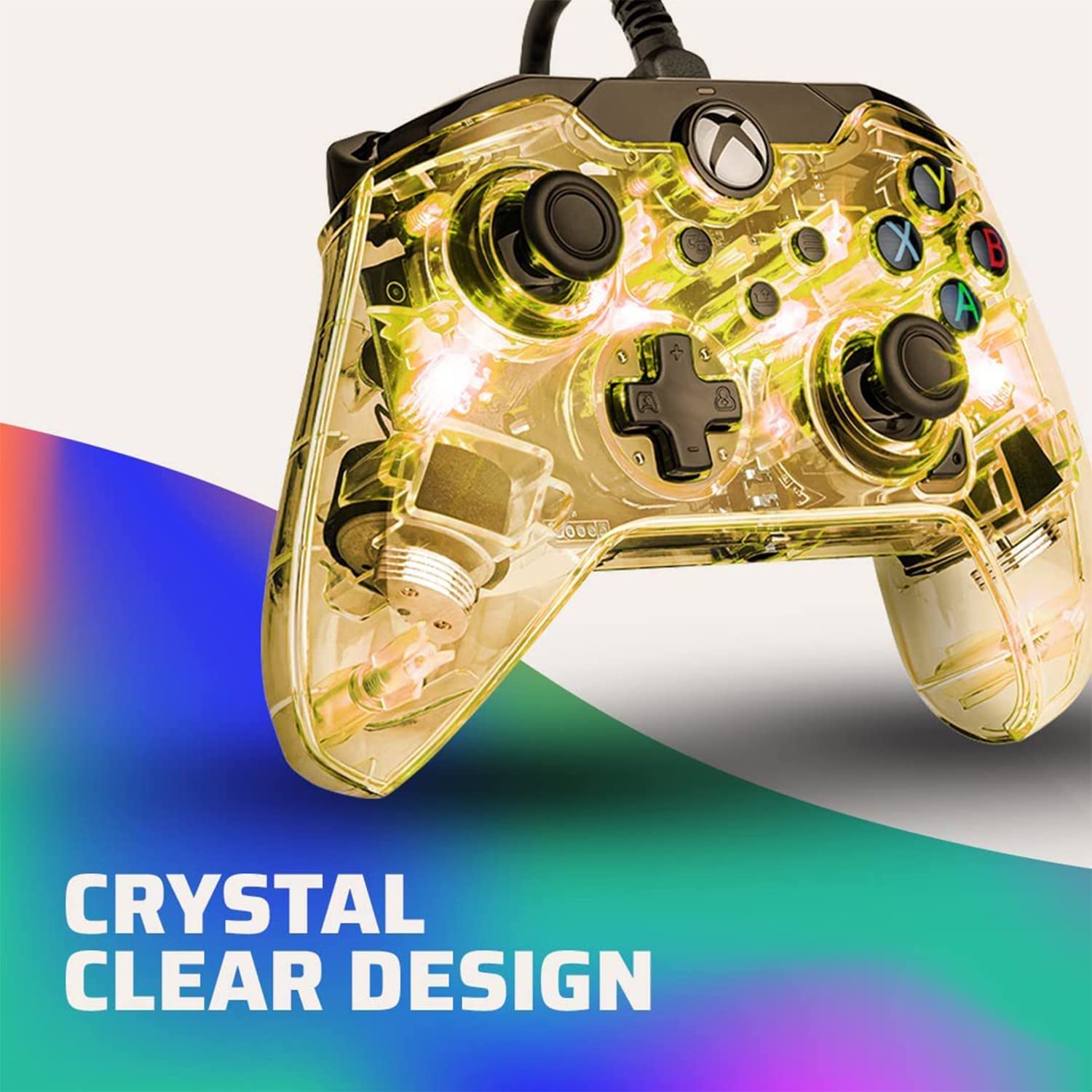
Image: A close-up of the PDP Afterglow controller with its transparent casing illuminated in yellow, highlighting the "Crystal Clear Design".

Image: Rear view of the PDP Afterglow controller, showing its transparent back and pink internal lighting, emphasizing its customizable nature.
Audio Controls
Adjust your game and chat audio directly from the controller using the audio controls located on the D-pad. The built-in 3.5mm audio jack allows for headset connection. Double-tap the "Function" button to mute your microphone.
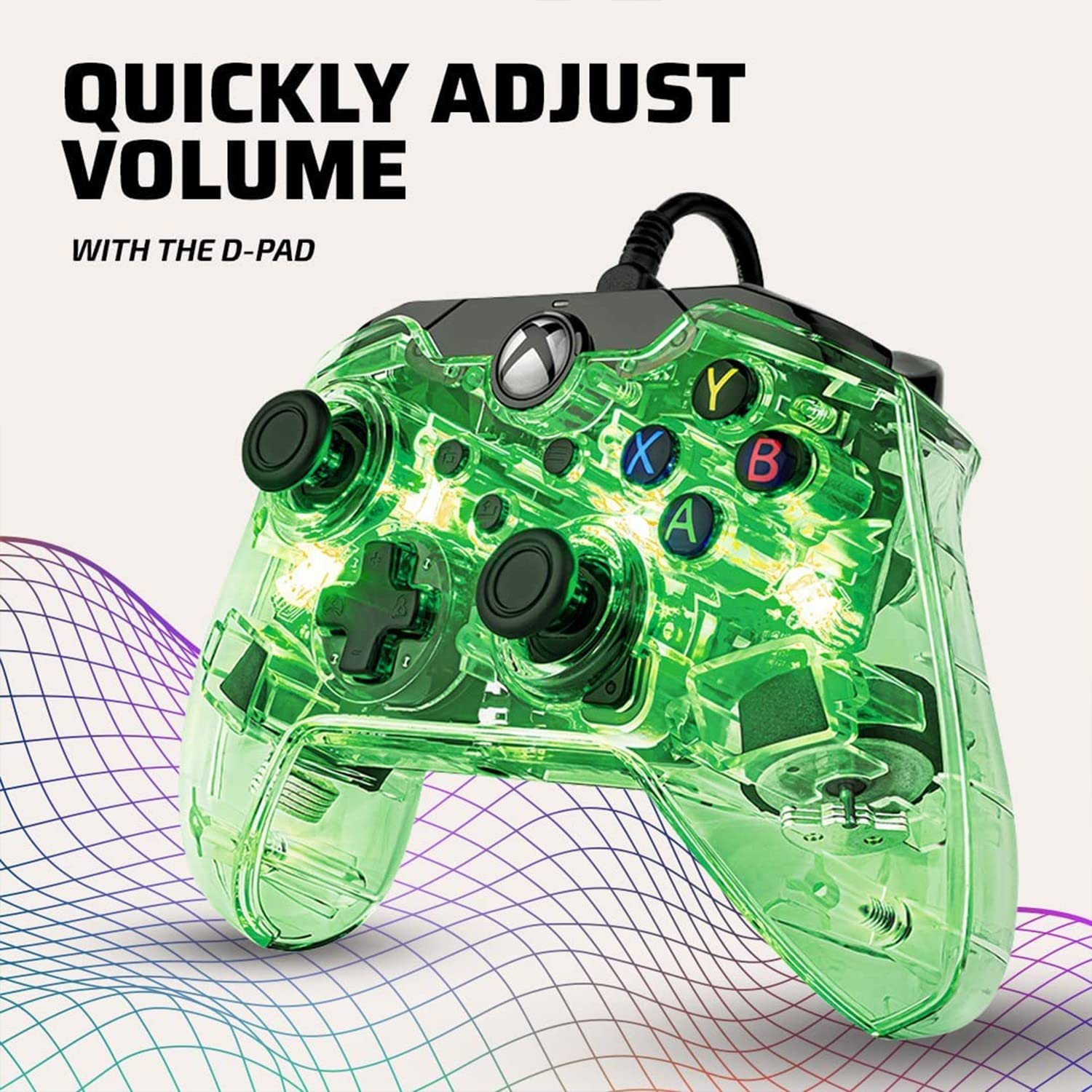
Image: The PDP Afterglow controller illuminated in green, with a focus on the D-pad, indicating its function for quick audio adjustments.
PDP Control Hub App
Download the free PDP Control Hub App to unlock advanced customization options. This app allows you to remap buttons, reconfigure triggers, adjust dead zones, and fine-tune other settings to personalize your gameplay.
Video: An official video demonstrating the customizable LED lighting features of the Afterglow controller and its compatibility with the PDP Control Hub App.
Share Button
Utilize the dedicated share button to easily capture and share your in-game images and videos.
Maintenance
To ensure the longevity and optimal performance of your controller, follow these maintenance guidelines:
- Cleaning: Use a soft, dry cloth to wipe down the controller. For stubborn dirt, slightly dampen the cloth with water. Avoid using harsh chemicals or abrasive cleaners.
- Storage: Store the controller in a cool, dry place away from direct sunlight and extreme temperatures. Avoid tangling the cable.
- Handling: Handle the controller with care. Avoid dropping it or subjecting it to excessive force, as this can damage internal components or the transparent casing.
Troubleshooting
If you encounter issues with your PDP Afterglow LED Wired Game Controller, try the following solutions:
| Problem | Possible Solution |
|---|---|
| Controller not recognized by console/PC |
|
| LED lights not working or stuck |
|
| Audio issues (no sound, mic not working) |
|
| Buttons or joysticks unresponsive/drifting |
|
Specifications
- Model Number: 049-005-NA
- Compatibility: Xbox Series X|S, Xbox One, Windows 10/11 PC
- Connectivity: Wired USB
- Cable Length: Approximately 10 feet (3 meters)
- Audio: 3.5mm audio jack, D-pad audio controls
- Lighting: Prismatic LED with customizable colors and modes
- Vibration: Dual Rumble Motors
- Dimensions: 3.15 x 8.27 x 4.33 inches
- Weight: 2.82 ounces
Warranty and Support
For warranty information and technical support, please refer to the official PDP website or contact their customer service. Keep your proof of purchase for warranty claims.
Additional resources, including a PDF user manual, may be available online:


