
Newland NLS-BS8060-3V
Newland NLS-BS8060-3V Wireless 1D Barcode Reader User Manual
Model: NLS-BS8060-3V | Brand: Newland
1. Introduction
This user manual provides comprehensive instructions for the Newland NLS-BS8060-3V Wireless 1D Barcode Reader. It covers product features, setup, operation, maintenance, and troubleshooting. Please read this manual thoroughly before using the device to ensure proper operation and to maximize its lifespan.
2. Package Contents
Please check the package contents upon unboxing to ensure all items are present and undamaged:
- Newland NLS-BS8060-3V Barcode Reader
- MicroUSB Cable (Type B)
- User Manual
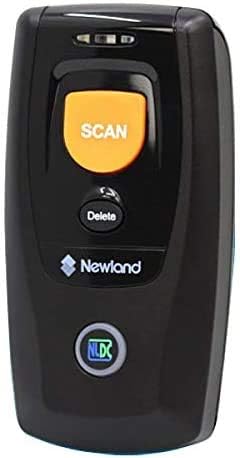
Image: Front view of the Newland NLS-BS8060-3V Barcode Reader, showing the 'SCAN' button and 'Delete' button, along with the Newland logo.
3. Product Features
- Advanced Decoding: Equipped with the latest decoder chip for efficient and accurate reading of major 1D barcodes.
- Superior Performance & Connectivity: Offers excellent reading performance with Bluetooth 4.0 BLE compatibility, ensuring low power consumption.
- Extended Communication Range: Provides stable communication over a wide range, up to 50 meters, allowing for flexible operation in various environments.
- Long Battery Life: Features a large capacity lithium battery, significantly extending the operating time for prolonged use.
- Customizable Feedback: Supports vibration feedback for scan confirmation, with an option to disable the audible beep sound for quiet environments.

Image: The barcode reader shown with a wrist strap, highlighting its Bluetooth connectivity and IP42 dust and water resistance rating.
4. Setup
4.1 Charging the Device
Before first use, fully charge the barcode reader. Connect the supplied MicroUSB Type B cable to the charging port on the device and the other end to a USB power adapter or a computer's USB port.

Image: Diagram illustrating how to connect the MicroUSB cable to the barcode reader for charging.
4.2 Powering On/Off
To power on the device, press and hold the 'SCAN' button for a few seconds until the indicator light illuminates. To power off, press and hold the 'SCAN' button again until the indicator light turns off.
4.3 Bluetooth Pairing
The NLS-BS8060-3V uses Bluetooth 4.0 BLE for wireless communication. To pair with a host device (e.g., computer, tablet, smartphone):
- Ensure the barcode reader is powered on.
- Activate Bluetooth on your host device and search for available devices.
- The barcode reader should appear as "Newland NLS-BS8060-3V" or similar. Select it to pair.
- Once paired, the indicator light on the barcode reader will change (refer to the device's specific LED indicator guide for details).
5. Operating Instructions
5.1 Scanning Barcodes
To scan a barcode, point the scanner's window at the barcode and press the large orange 'SCAN' button. A successful scan will be indicated by a vibration (if enabled) and/or a beep sound (if enabled).
5.2 Data Transmission
Once a barcode is scanned, the data will be immediately transmitted to the paired host device. Ensure your host device is ready to receive input (e.g., a text editor, spreadsheet, or specific application is open and active).
5.3 Deleting Scanned Data (Batch Mode)
If the scanner is operating in batch mode (storing scans internally), you can delete the last scanned item or clear all stored data using the 'Delete' button. Refer to the full programming guide for specific sequences to clear data.
5.4 Sound and Vibration Settings
The device allows you to enable or disable the beep sound and vibration feedback. These settings are typically configured by scanning specific programming barcodes found in the comprehensive user guide provided by Newland.
6. Maintenance
6.1 Cleaning
To maintain optimal performance, regularly clean the scanner's window and exterior. Use a soft, lint-free cloth lightly dampened with water or a mild, non-abrasive cleaning solution. Do not use harsh chemicals or abrasive materials.
6.2 Battery Care
To prolong battery life, avoid fully discharging the battery frequently. Charge the device regularly. If storing the device for an extended period, ensure it is charged to approximately 50% and store it in a cool, dry place.
6.3 Storage
Store the barcode reader in a dry environment, away from extreme temperatures, direct sunlight, and corrosive substances. Keep it protected from drops and impacts.
7. Troubleshooting
| Problem | Possible Cause | Solution |
|---|---|---|
| Device does not power on. | Low battery. | Charge the device fully. |
| Cannot scan barcodes. | Barcode damaged or unreadable; scanner window dirty; incorrect symbology enabled. | Try scanning a different barcode; clean the scanner window; refer to the programming guide to enable required symbologies. |
| Cannot connect via Bluetooth. | Device not in pairing mode; host device Bluetooth off; interference. | Ensure scanner is in pairing mode; turn on Bluetooth on host device; move closer to host device; restart both devices. |
| No data transmitted to host. | Not paired correctly; host application not ready. | Re-pair the device; ensure the cursor is active in the target application on the host device. |
If the problem persists after trying these solutions, please contact Newland customer support or refer to the comprehensive programming manual.
8. Specifications
| Brand | Newland |
| Model Number | NLS-BS8060-3V |
| Connectivity Technology | USB Cable, Bluetooth 4.0 BLE |
| Scan Rate | 2500 fps |
| Power Source | Battery Powered |
| Item Weight | 180 g |
| Dimensions (Package) | 12.8 x 9.2 x 5.2 cm |
| Color | Black |
| First Available Date | April 22, 2019 |
9. Warranty and Support
For information regarding warranty coverage, technical support, or service, please refer to the warranty card included with your product or visit the official Newland website. You may also contact your point of purchase for assistance.
Newland Official Website: www.newland-id.com
Ask a question about this manual
Ask about setup, troubleshooting, compatibility, parts, safety, or missing instructions. Manuals+ will review the question and use this page’s manual context to help answer it.