
Introduction
The POLY Voyager Focus UC is a stereo Bluetooth headset designed for professionals. It offers seamless connectivity between PC/Mac and smartphones, featuring active noise canceling to enhance focus in various environments.
Key Features:
- Wireless connectivity to PC/Mac via USB-A Bluetooth adapter and mobile phones via Bluetooth.
- Certified for Microsoft Teams and compatible with other leading collaboration platforms.
- Active Noise Canceling (ANC) for reduced background distractions.
- Three noise-canceling microphones for clear voice transmission.
- Up to 12 hours talk time (10 hours with ANC) and 15 hours listening time (12 hours with ANC).
- Roaming range of up to 98 feet (30 meters).
- Plush ear cushions for extended comfort.
What's in the Box
- POLY Voyager Focus UC Headset
- USB-A Bluetooth Adapter
- Charging Cable (USB)
- Carrying Case (if included with specific variant)
Note: Specific contents may vary based on product variant and region.
Setup
1. Initial Charge
Before first use, fully charge your headset. Connect the included USB charging cable to the headset's charging port and to a powered USB port on your computer or a USB wall adapter. The LED indicator on the headset will show charging status.
2. Power On/Off
To power on the headset, slide the Power switch located on the right earcup. To power off, slide the switch back to the off position.
3. Connecting to PC/Mac (USB-A Adapter)
- Insert the USB-A Bluetooth adapter into an available USB port on your computer.
- The adapter's LED will flash blue, then turn solid blue when connected to the headset.
- Ensure the headset is powered on and in pairing mode (if not already paired).
- Your computer should automatically recognize the headset. Select "POLY Voyager Focus UC" as your audio device in your system settings and communication applications (e.g., Microsoft Teams, Zoom).
4. Connecting to Mobile Phone (Bluetooth)
- With the headset powered on, slide and hold the Power switch towards the Bluetooth icon until the LED flashes red and blue.
- On your mobile phone, go to Bluetooth settings and select "POLY Voyager Focus UC" from the list of available devices.
- Once paired, the headset LED will stop flashing and you will hear a voice prompt confirming the connection.
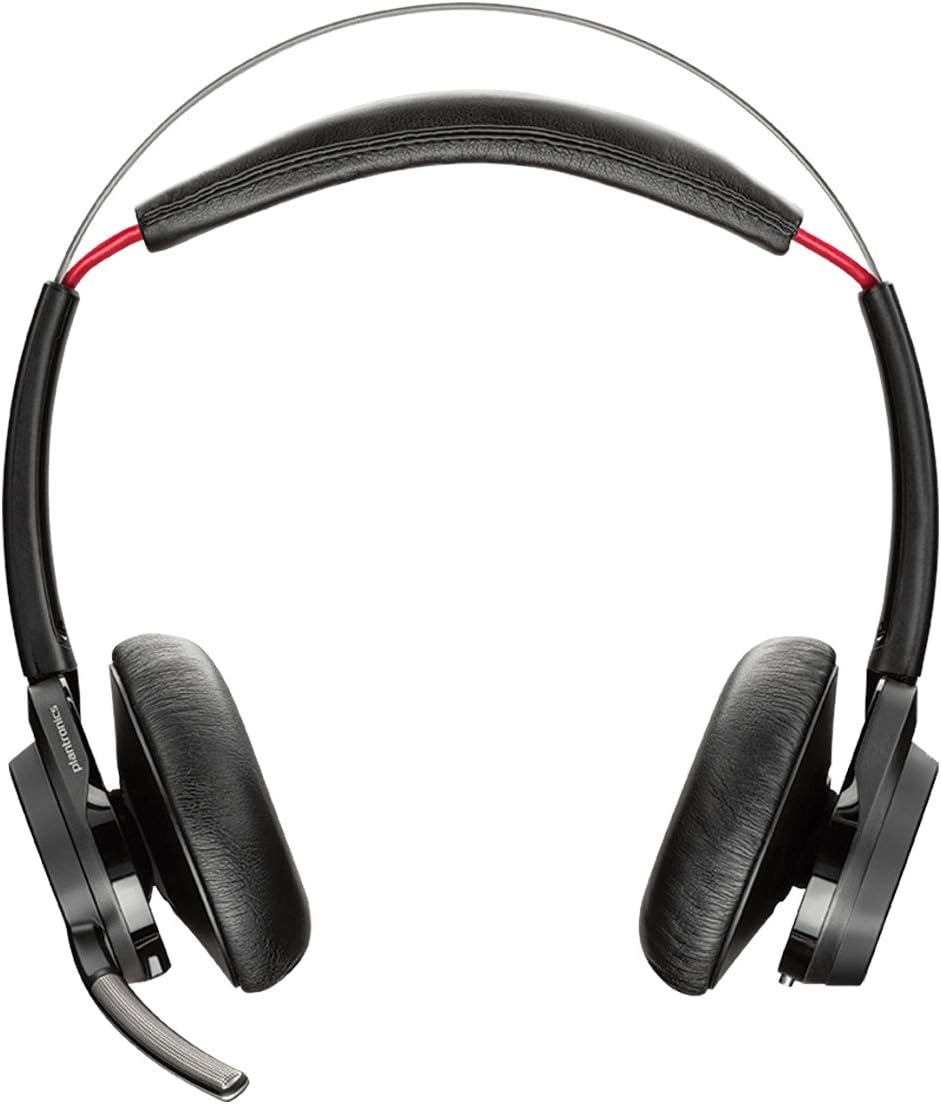
Figure 1: Front view of the POLY Voyager Focus UC Headset, showing the dual earcups and adjustable boom microphone.
Operating Instructions
1. Call Management
- Answer/End Call: Press the Call button on the right earcup.
- Mute/Unmute: Press the Mute button on the boom microphone or lift/lower the boom mic.
- Volume Control: Rotate the volume wheel on the right earcup up or down.
2. Active Noise Canceling (ANC)
To activate or deactivate Active Noise Canceling, slide the ANC switch located on the left earcup. ANC helps reduce ambient background noise for improved focus.
3. Media Playback
- Play/Pause: Press the Play/Pause button on the right earcup.
- Next Track: Press the Forward button.
- Previous Track: Press the Backward button.
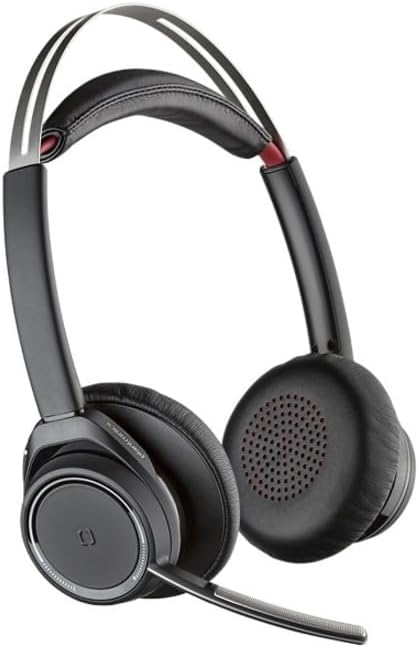
Figure 2: Close-up of the right earcup, illustrating the call, media, and volume controls.
Maintenance
- Cleaning: Use a soft, dry cloth to clean the headset. Avoid using abrasive cleaners or solvents.
- Storage: Store the headset in its carrying case when not in use to protect it from dust and damage.
- Battery Care: To prolong battery life, avoid fully discharging the battery frequently. Charge the headset regularly, even if not in constant use.
Troubleshooting
No Audio / Poor Audio Quality
- Ensure the headset is powered on and fully charged.
- Verify the headset is correctly paired and connected to your device (PC/Mac or mobile phone).
- Check your device's audio settings to ensure the "POLY Voyager Focus UC" is selected as the output and input device.
- If using the USB-A adapter, try plugging it into a different USB port.
- Restart your computer or mobile device.
Microphone Not Working
- Ensure the microphone boom is lowered and not muted.
- Check your application's (e.g., Teams, Zoom) microphone settings to confirm the headset is selected.
- Adjust the microphone position closer to your mouth.
Bluetooth Connection Issues
- Ensure the headset is within the 98 feet (30 meters) operating range of your device.
- Clear previous Bluetooth pairings on your device and re-pair the headset.
- Avoid sources of interference such as Wi-Fi routers, microwaves, or other Bluetooth devices.
Specifications
| Feature | Detail |
|---|---|
| Model Name | Voyager Focus UC |
| Connectivity Technology | Wireless (Bluetooth) |
| Wireless Communication Technology | Bluetooth 4.0 |
| Noise Control | Active Noise Cancellation |
| Talk Time | Up to 12 hours (10 hours with ANC on) |
| Listening Time | Up to 15 hours (12 hours with ANC on) |
| Bluetooth Range | Up to 30 meters (98 feet) |
| Compatible Devices | PCs, Macs, Mobile Phones, VoIP and Conferencing Applications |
| Item Weight | 0.634 ounces |
| Product Dimensions | 8.4 x 7.3 x 2.3 inches |
| Material | Plastic |
Warranty and Support
This product comes with a 2-year global warranty. For warranty claims or technical support, please visit the official POLY support website or contact their customer service. Keep your proof of purchase for warranty validation.
For further assistance, refer to the official POLY website: www.poly.com


