
Introduction
The Blue Yeti is a premium USB microphone designed to deliver clear, powerful, broadcast-quality sound for a wide range of applications, including music recording, podcasts, Twitch streaming, YouTube videos, and Zoom calls. It features advanced Blue VO!CE software (requires download and installation of Logitech G HUB) for enhanced vocal effects and high-definition audio samples. With its versatile four pickup patterns and intuitive studio controls, the Yeti offers exceptional flexibility and control over your audio recording process. It can be set up quickly using its included desktop stand or connected to a mic stand or boom arm.
Key Features
- Custom Three-Capsule Array: Produces clear, powerful, broadcast-quality sound.
- Blue VO!CE Software: Elevate your streams and recordings with enhanced effects, advanced modulation, and HD audio samples (requires Logitech G HUB).
- Four Pickup Patterns: Flexible cardioid, omni, bidirectional, and stereo patterns for diverse recording needs.
- Onboard Audio Controls: Headphone volume, pattern selection, instant mute, and microphone gain for precise control.
- Positionable Design: Adjustable desktop stand allows optimal mic positioning.
- Plug 'n Play: Easy setup on Mac or PC via USB.
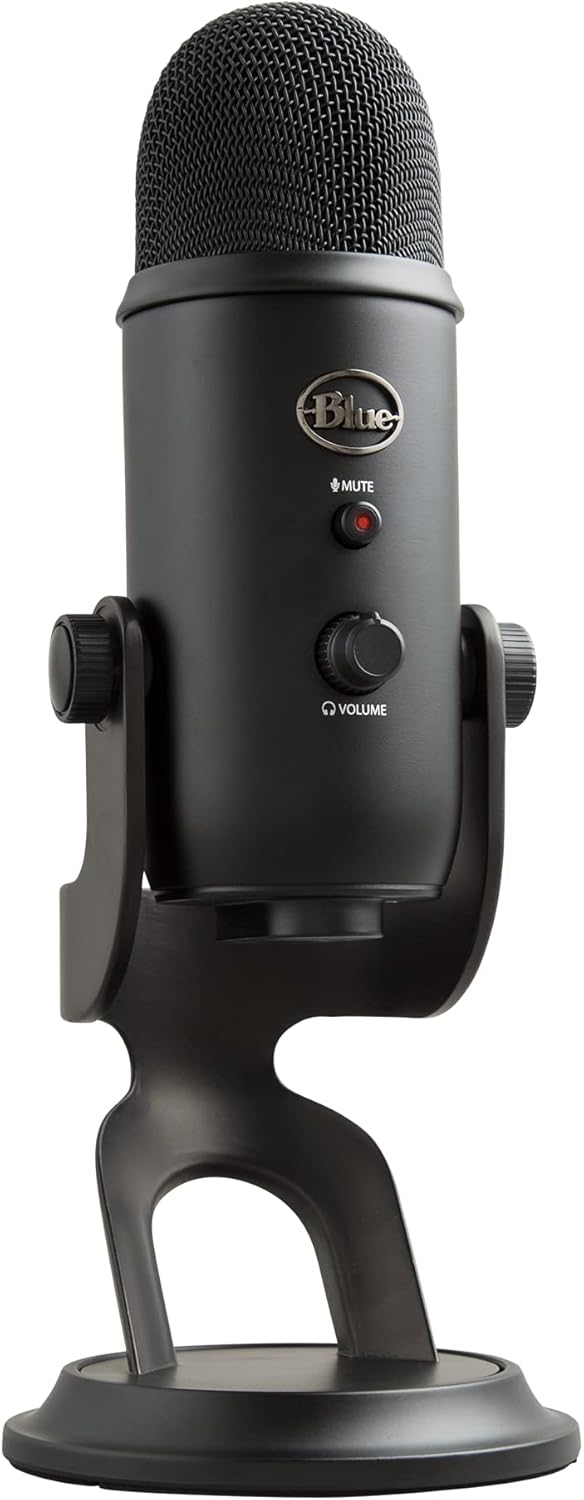
Blue Yeti USB Microphone in Blackout color, front view, on its desktop stand.

Close-up of the Blue Yeti microphone showing the Blue VO!CE broadcast effects interface on a screen behind it.

Close-up of the Blue Yeti microphone showing the internal capsules and highlighting the 4 pickup patterns.

Blue Yeti microphone with headphones, illustrating no-latency headphone monitoring.

Diagram of the Blue Yeti microphone highlighting its key features: three-capsule array, microphone gain, pickup pattern switch, desktop stand, headphone volume and mic mute, and USB output.
Setup Guide
What's in the Box
- 1 Blue Yeti USB Microphone
- 1 USB Cable
- Documentation

Image showing the Blue Yeti microphone box, the microphone itself, and the included USB cable, illustrating 'What's in the Box'.
Initial Connection
- Place the Blue Yeti microphone on its included desktop stand or attach it to a compatible mic stand or boom arm.
- Connect the supplied USB cable from the microphone's USB port to an available USB port on your computer (PC or Mac).
- Your computer should automatically recognize the microphone as an audio input device.
- For advanced features like Blue VO!CE effects, download and install the Logitech G HUB software from the official Logitech website.

Image showing the Blue Yeti microphone from two angles with dimensions: 11.61 inches (29.5 cm) tall, 4.92 inches (12.5 cm) wide, and 4.72 inches (12 cm) deep.
Operating Instructions
Microphone Controls
- Headphone Volume: Adjust the volume of your headphones for real-time monitoring.
- Instant Mute: Press the mute button to quickly silence the microphone.
- Microphone Gain: Control the microphone's sensitivity to adjust input level.

Close-up of the Blue Yeti microphone's front controls, showing the mute button and volume knob.
Pickup Patterns
The Blue Yeti offers four distinct pickup patterns, allowing you to optimize sound capture for various recording scenarios:
- Cardioid: Ideal for podcasts, vocals, and voice-overs. Records sound directly in front of the microphone, minimizing background noise.
- Omnidirectional: Captures sound equally from all directions. Best for recording multiple voices, conference calls, or ambient sounds.
- Bidirectional: Records from both the front and rear of the microphone. Suitable for two-person interviews or duets.
- Stereo: Uses both left and right channels to capture a wide, realistic sound image. Perfect for recording instruments or immersive audio.
Compatibility
The Blue Yeti USB Microphone is compatible with both PC and Mac operating systems, offering plug-and-play functionality. It is optimized for a variety of applications, including:
- Gaming
- Podcasting
- Music Recording
- Streaming (Twitch, YouTube)
- Online Meetings (Zoom, Skype)

Blue Yeti microphone on a desk next to a laptop, with logos for YouTube, Twitch, Skype, Zoom, and SoundCloud, indicating compatibility with various platforms.
Maintenance
To ensure the longevity and optimal performance of your Blue Yeti USB Microphone, follow these simple maintenance guidelines:
- Cleaning: Gently wipe the microphone's exterior with a soft, dry cloth. Avoid using liquid cleaners or abrasive materials, which can damage the finish or internal components.
- Storage: When not in use, store the microphone in a clean, dry environment, away from extreme temperatures and humidity.
- Handling: Handle the microphone with care. Avoid dropping it or subjecting it to strong impacts, as this can affect its internal capsule array.
Troubleshooting
If you encounter issues with your Blue Yeti USB Microphone, try the following troubleshooting steps:
- No Sound/Microphone Not Detected:
- Ensure the USB cable is securely connected to both the microphone and your computer.
- Try a different USB port on your computer.
- Restart your computer.
- Check your computer's sound settings to ensure the Blue Yeti is selected as the default input device.
- Distorted Audio:
- Adjust the microphone gain knob on the Yeti. If the audio is distorted, reduce the gain.
- Ensure you are not too close to the microphone, which can cause clipping.
- Check your recording software's input levels and adjust as necessary.
- Headphone Monitoring Issues:
- Ensure headphones are fully plugged into the 3.5mm jack on the bottom of the microphone.
- Adjust the headphone volume knob on the microphone.
Technical Specifications
| Feature | Detail |
|---|---|
| Microphone Form Factor | Table Array |
| Item Dimensions (L x W x H) | 4.9 x 4.7 x 11.6 inches |
| Power Source | Corded Electric |
| Signal-to-Noise Ratio | 80 dB |
| Hardware Platform | Laptop, PC |
| Number of Channels | 2 |
| Frequency Range | 20Hz - 20kHz |
| Frequency Response | 20 KHz |
| Noise Level | 80 dB |
| Manufacturer | Blue Microphones |
| Item Weight | 3.41 pounds (1.55 Kilograms) |
| Item Model Number | 988-000448 |
| Date First Available | October 20, 2023 |
| Recommended Uses | Gaming, Podcast, Recording, Singing |
| Connectivity Technology | USB |
| Connector Type | USB |
| Special Feature | Stand |
| Compatible Devices | Laptop, Personal Computer |
| Color | Blackout |
Warranty and Support
For detailed warranty information and customer support, please refer to the official Logitech for Creators website or the documentation included with your Blue Yeti USB Microphone. You can also visit the Logitech for Creators Store on Amazon for additional resources.


