
1. Introduction
This user manual provides comprehensive instructions for the MMK Dual Mode Wireless Mouse. This versatile mouse offers both Bluetooth 5.0 and 2.4G USB connectivity, allowing seamless switching between two devices. Its ergonomic design ensures comfort during extended use, and the built-in rechargeable battery provides long-lasting performance with intelligent power-saving features.
2. Product Overview
The MMK Dual Mode Wireless Mouse features a sleek, slim profile with a glossy finish and vibrant LED lighting. Key components include the left and right click buttons, a scroll wheel, a DPI adjustment button, and a mode switch on the underside.

Figure 2.1: Front view of the MMK Silver Dual Mode Wireless Mouse, showcasing its ergonomic shape and central scroll wheel.

Figure 2.2: Underside of the mouse, highlighting the 2.4G/OFF/BT mode switch and the storage slot for the USB receiver.

Figure 2.3: Side profile of the mouse, demonstrating its slim and portable design for comfortable grip.
3. Setup
3.1. 2.4G USB Receiver Connection
- Locate the USB receiver stored in the compartment on the underside of the mouse.
- Plug the USB receiver into an available USB port on your computer or laptop.
- Slide the mode switch on the bottom of the mouse to the "2.4G" position.
- The mouse will automatically connect to your device. No additional drivers are required.

Figure 3.1: Illustration of the 2.4G USB receiver being plugged into a laptop for effortless plug & play convenience.
3.2. Bluetooth Connection
- Slide the mode switch on the bottom of the mouse to the "BT 5.0" position.
- On your device (Laptop, PC, Mac OS, Android, iPad OS 13 or later), go to Bluetooth settings.
- Search for new Bluetooth devices and select "MMK Mouse" (or similar) from the list.
- Confirm pairing. The mouse is now connected via Bluetooth.
Note: You cannot use Bluetooth mode and 2.4G mode simultaneously. Ensure the mouse is not connected via the USB receiver when attempting Bluetooth pairing.
4. Operating Instructions
4.1. DPI Adjustment
The mouse features adjustable DPI (Dots Per Inch) levels to customize cursor sensitivity. Press the DPI button, located behind the scroll wheel, to cycle through the available settings:
- 1000 DPI: Standard sensitivity for general use.
- 1200 DPI: Increased sensitivity for faster cursor movement.
- 1600 DPI: High sensitivity for precise control or gaming.

Figure 4.1: Diagram illustrating the DPI adjustment button and the three available DPI levels.
4.2. Charging and Battery Life
The mouse is equipped with a built-in Li-polymer rechargeable battery. To charge the mouse:
- Connect the included USB charging cable to the charging port on the front of the mouse.
- Connect the other end of the USB cable to a USB power source (e.g., computer USB port, USB wall adapter).
The mouse features an auto energy-saving sleeping mode. If left idle for 10 minutes, it will enter sleep mode to conserve power. Click any button to reactivate the mouse. Your computer's battery indicator will display the mouse's charge level.
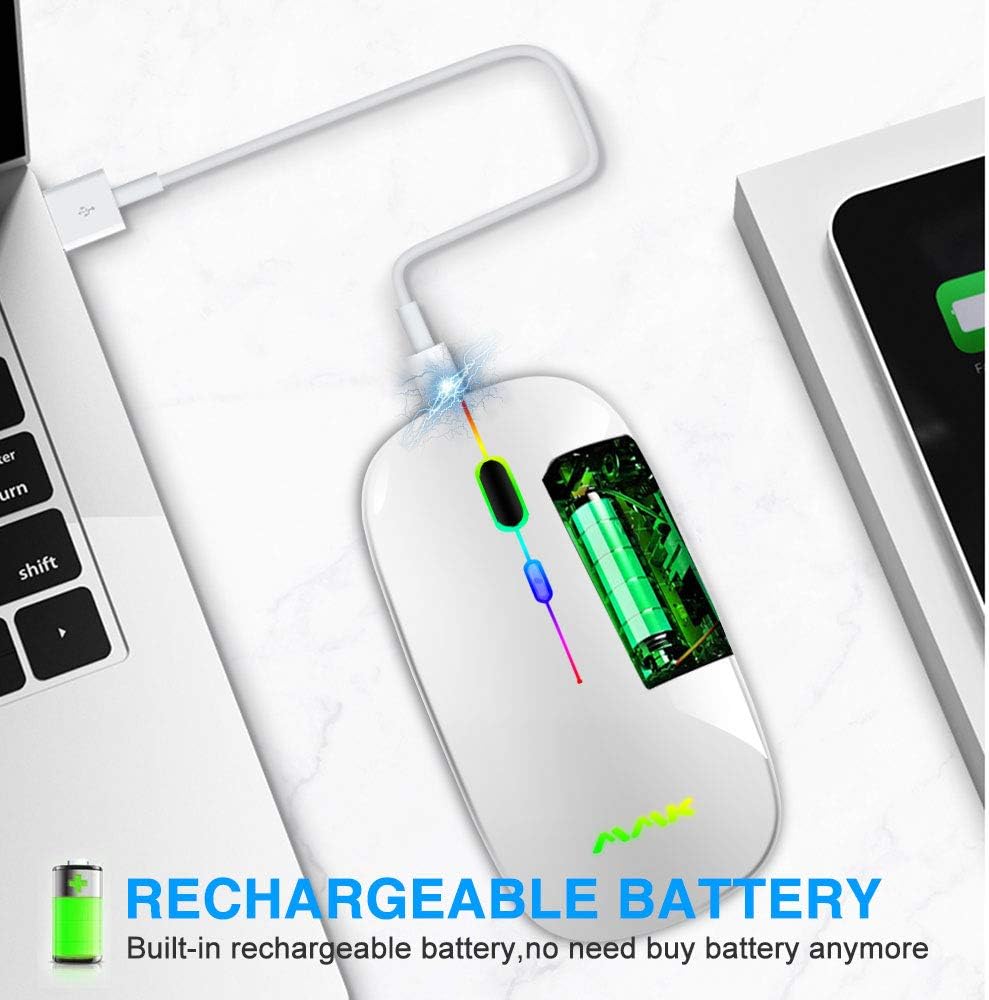
Figure 4.2: The mouse connected via USB cable for charging, showing the internal rechargeable battery.
4.3. Silent Click Feature
The MMK Dual Mode Wireless Mouse is designed with silent click buttons, minimizing noise during use. This feature is ideal for quiet environments such as libraries, offices, or late-night work sessions.
4.4. LED Lighting
The mouse features colorful breathing LED lights that enhance its aesthetic appeal. The lights cycle through various colors automatically, adding a dynamic visual element to your workspace.
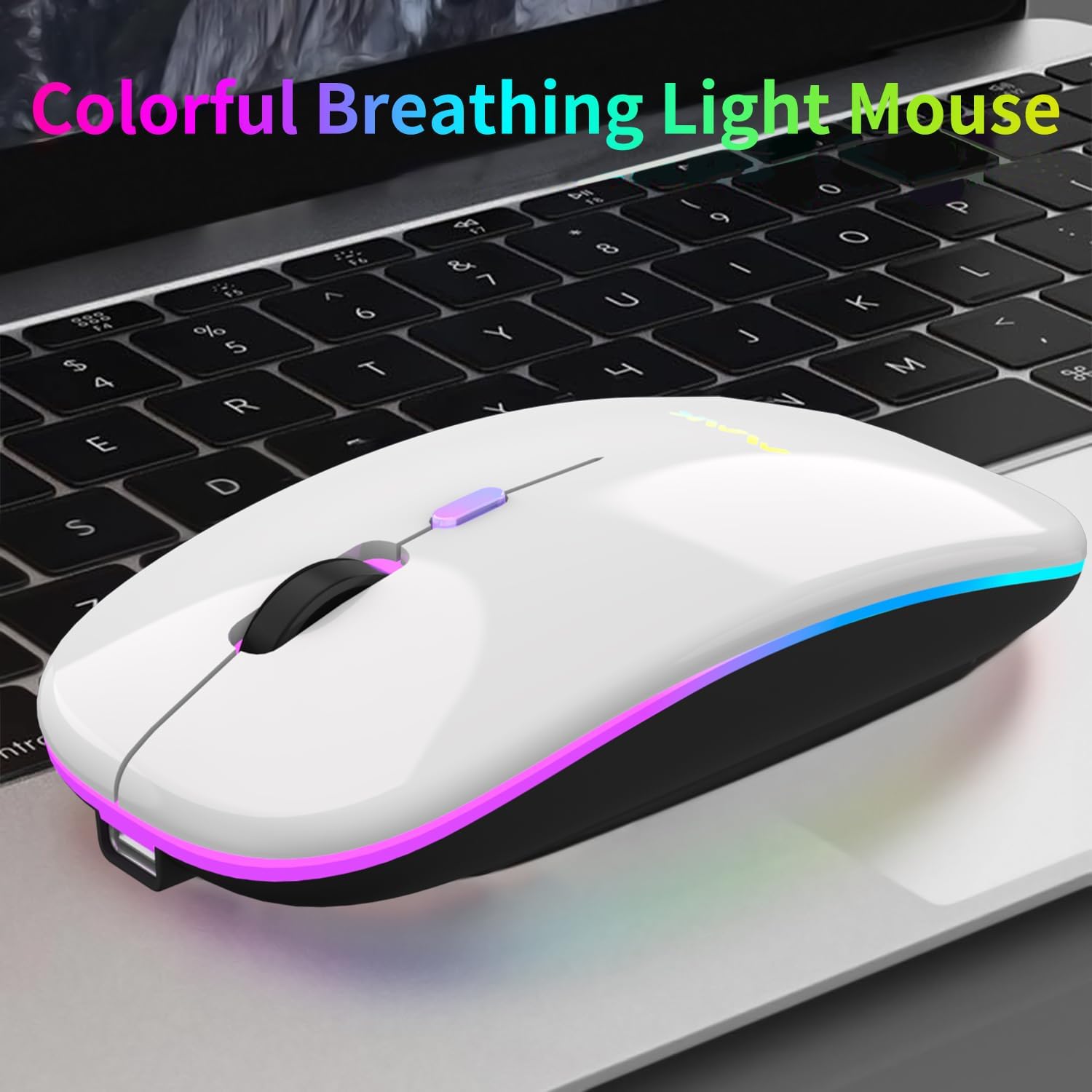
Figure 4.3: The mouse illuminated with its colorful breathing light effect while in use on a laptop.
5. Maintenance
- Cleaning: Use a soft, dry cloth to wipe the surface of the mouse. For stubborn dirt, slightly dampen the cloth with water or a mild cleaning solution. Avoid using harsh chemicals or abrasive materials.
- Storage: When not in use, store the mouse in a cool, dry place away from direct sunlight and extreme temperatures. If storing for an extended period, ensure the mouse is fully charged.
- USB Receiver: Always store the USB receiver in its designated slot on the underside of the mouse to prevent loss.
6. Troubleshooting
| Problem | Possible Cause | Solution |
|---|---|---|
| Mouse is unresponsive. | Low battery; Incorrect mode selected; Connection issue. | Charge the mouse; Ensure mode switch is set to 2.4G or BT 5.0; Re-plug USB receiver or re-pair Bluetooth. |
| Bluetooth connection unstable. | Interference; Device compatibility. | Move closer to the device; Ensure no other 2.4G devices are causing interference; Verify device supports Bluetooth 4.0 or above. |
| Cursor movement is erratic. | Dirty optical sensor; Unsuitable surface. | Clean the optical sensor on the bottom of the mouse; Use on a clean, non-reflective surface or mouse pad. |
| Mouse does not charge. | Faulty cable or power source. | Try a different USB cable or power source. |
7. Specifications
- Product Dimensions: 0.43 x 1.97 x 0.79 inches
- Item Weight: 3 ounces
- Batteries: 1 Lithium Ion batteries required (included)
- Connectivity Technology: Bluetooth 5.0, 2.4G USB
- Special Features: LED Lights, Lightweight, Portable, Rechargeable, Silent Click
- Movement Detection Technology: Optical
- Manufacturer: MMK
- Date First Available: April 2, 2020
8. Warranty and Support
MMK provides 24-hour email contact service for any questions or needs regarding your mouse. Please feel free to contact us for assistance.
For detailed warranty information and further support, please refer to the official User Manual (PDF) available here.
