
Introduction
This manual provides detailed instructions for the setup, operation, maintenance, and troubleshooting of your ABKO K515 RGB Gaming Quick Swap Switch Mechanical Keyboard. Please read this manual thoroughly before using the product to ensure proper functionality and longevity.
Package Contents
- ABKO K515 RGB Gaming Mechanical Keyboard
- USB Cable
- Keycap Puller
- Switch Puller
- User Manual (this document)
Setup
1. Connecting the Keyboard
- Unpack the ABKO K515 keyboard and its accessories from the box.
- Connect the USB cable from the keyboard to an available USB port on your computer.
- The keyboard will automatically be recognized by your operating system. No additional drivers are typically required for basic functionality.
- The RGB backlighting will illuminate upon successful connection.
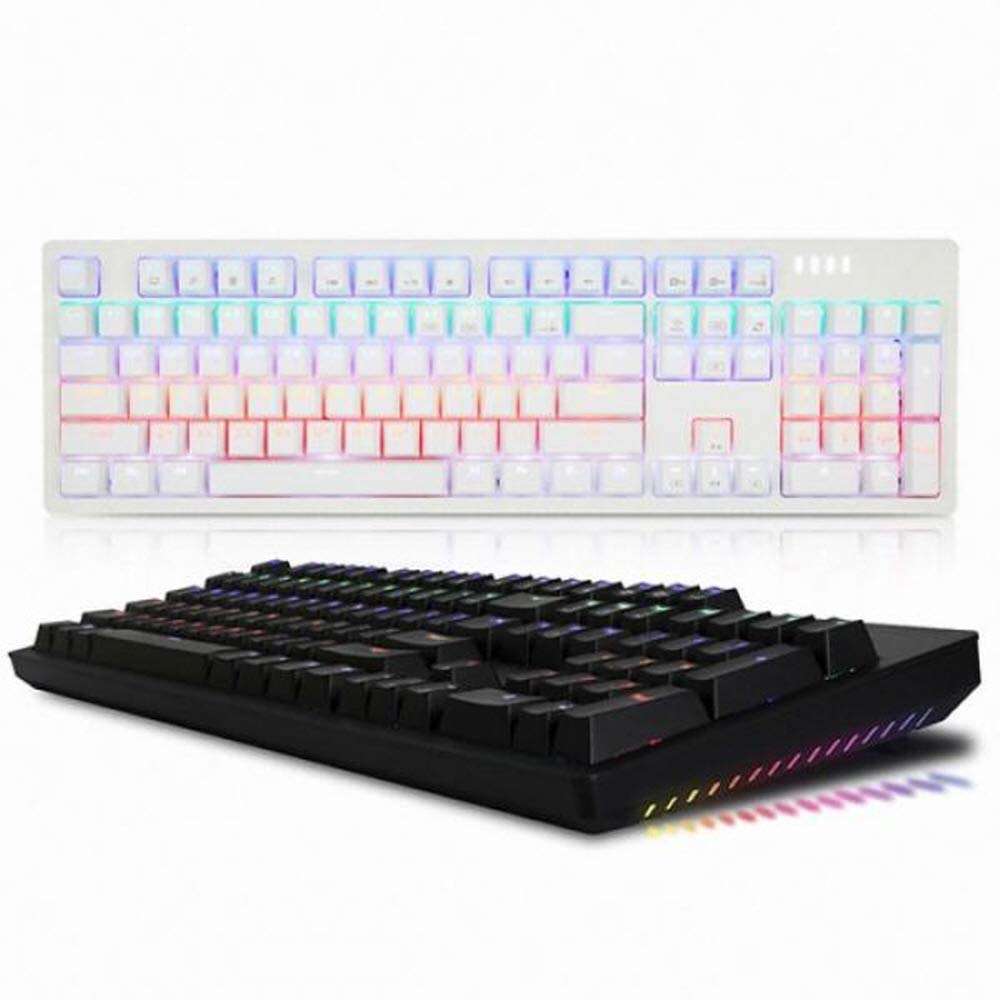
This image displays the ABKO K515 RGB Gaming Mechanical Keyboard in black. The keyboard features a full-size layout with a numeric keypad and function keys. The keys are illuminated with multi-color RGB backlighting, visible across the keycaps. The top right corner shows indicator lights.
Operating Instructions
Basic Keyboard Functions
The ABKO K515 functions as a standard 104-key mechanical keyboard. All keys perform their labeled functions. The keyboard features a 1000Hz polling rate for rapid response times.
RGB Lighting Control
The keyboard features customizable RGB backlighting. Specific key combinations are used to change lighting modes, brightness, and speed. Refer to the quick guide included with your keyboard for detailed instructions on RGB effect customization.
- Function Key (Fn) Combinations: Look for keys with secondary icons or labels related to lighting. Typically, these involve pressing the Fn key simultaneously with another key (e.g., Fn + F9 for mode change, Fn + Arrow keys for brightness/speed).
Quick Swap Switch Functionality
The ABKO K515 is designed with Quick Swap (hot-swappable) switches, allowing users to change individual mechanical switches without soldering. This feature enables customization of typing feel and sound.
Removing Keycaps
- Use the provided keycap puller. Position the puller over the keycap you wish to remove.
- Gently pull upwards until the keycap detaches from the switch stem.
- Exercise caution to avoid scratching keycaps or damaging the switch.
Removing Switches
- First, remove the keycap from the desired switch.
- Use the provided switch puller. Align the two prongs of the switch puller with the small tabs on the top and bottom (or sides) of the switch housing.
- Squeeze the tabs firmly and pull the switch straight upwards from the PCB.
- Note: Some switches, such as GTMX switches used in this keyboard, may fit very tightly. Significant force may be required, and care should be taken to avoid damaging the switch housing or the PCB. If a switch is particularly difficult to remove, ensure the tabs are fully compressed.
Installing Switches
- Ensure the new switch has straight pins. If bent, gently straighten them.
- Align the pins of the new switch with the holes on the PCB.
- Press the switch firmly and evenly into place until it clicks and sits flush with the plate.
- Test the switch functionality before replacing the keycap.
Maintenance
Cleaning the Keyboard
- General Cleaning: Use a soft, dry cloth to wipe down the keyboard surface.
- Deep Cleaning: For dust and debris under keycaps, remove keycaps using the provided puller. Use compressed air to blow out debris. A small brush or cotton swab can be used for stubborn dirt.
- Water Resistance: The ABKO K515 features a waterproof design. While it offers protection against spills, it is not recommended to submerge the keyboard. In case of a spill, disconnect the keyboard immediately, wipe off excess liquid, and allow it to air dry completely before reconnecting.
Troubleshooting
| Problem | Possible Cause | Solution |
|---|---|---|
| Keyboard not responding | Loose USB connection, faulty USB port, system error. |
|
| Keys not registering or double-typing | Dust/debris under keycap, faulty switch. |
|
| RGB lighting not working or incorrect | Software glitch, incorrect lighting settings. |
|
Specifications
- Model: K515
- Switch Type: GTMX Mechanical Switches (Blue Switch variant)
- Stabilizer: Cherry Stabilizer
- Polling Rate: 1000Hz
- Backlighting: RGB LED Effect
- Connectivity: USB
- Dimensions: 445 x 134 x 35 mm (17.52 x 5.28 x 1.38 inches)
- Weight: 840 g (2.35 pounds)
- Special Features: Quick Swap Switch, Waterproof Design
- Compatible Devices: PC, Gaming Console
Warranty and Support
For warranty information or technical support, please refer to the warranty card included with your product or visit the official ABKO website. Contact customer service for assistance with product issues or inquiries.
ABKO Official Website: www.abko.co.kr (Note: Website availability and language may vary.)