
XIAOMI BHR4152GL
Mi 4K Laser Projector 150 User Manual
Model: BHR4152GL
Product Overview
The Mi 4K Laser Projector 150 is designed to transform your living space into a private cinema. Utilizing advanced ALPD 3.0 laser display technology, it delivers bright, clear images with exceptional color and contrast. This ultra-short throw projector can project screen sizes ranging from 80 to 150 inches, offering an immersive viewing experience for movies, concerts, and games.
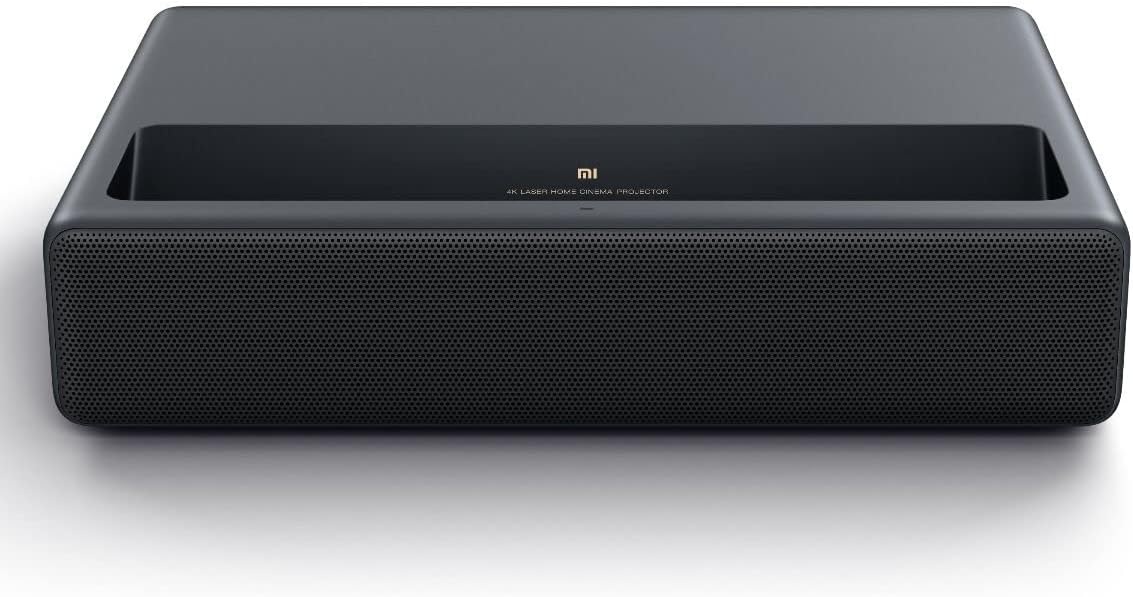
Figure 1: Front view of the Mi 4K Laser Projector 150, showcasing its sleek design and front grille.
Key Features:
- Adjustable Screen Size: Easily project screen sizes from 80 to 150 inches.
- ALPD 3.0 Laser Light Source: Advanced display technology for superior color, contrast, and brightness, enhancing product life and reducing machine size.
- High Contrast Ratio: Features a 3000:1 built-in contrast ratio, surpassing the 2000:1 cinema standard, ensuring clear projection of even the darkest scenes.
- Resolution and HDR Support: Native 1920x1080 resolution with HDR support for detailed and vibrant images.
Setup Guide
This section provides instructions for setting up your Mi 4K Laser Projector 150 for optimal performance.
1. Placement
The Mi 4K Laser Projector 150 is an ultra-short throw projector, designed to be placed very close to the projection surface. For best results, place the projector on a stable, flat surface such as a tabletop, directly in front of the wall or screen where you intend to project the image.
- For an 80-inch screen, place the projector approximately 14 cm from the wall.
- For a 100-inch screen, place the projector approximately 24 cm from the wall.
- For a 120-inch screen, place the projector approximately 34 cm from the wall.
- For a 150-inch screen, place the projector approximately 49 cm from the wall.

Figure 2: Guide illustrating recommended projection distances for various screen sizes.
2. Power Connection
Connect the power cable to the projector's power input port and then plug it into a suitable electrical outlet (240 Volts). The projector will power on automatically or can be turned on using the power button.
3. Remote Control Pairing
The included remote control uses Bluetooth for connectivity. Upon first use, or if the remote is not responding, it may need to be paired. Follow the on-screen instructions when you first power on the projector, or refer to the projector's settings menu for remote pairing options. Typically, this involves holding down specific buttons on the remote until a pairing confirmation appears.

Figure 3: The projector in operation, showing the remote control and a projected image on a screen.
4. Initial Setup and Focus
Once powered on, the projector will guide you through an initial setup process, which may include language selection and network connection. Adjust the projector's position slightly to achieve the desired screen size. Use the remote control to access the focus and keystone correction settings to ensure a sharp and rectangular image.
Operating Instructions
This section details how to operate your Mi 4K Laser Projector 150 and connect various devices.
1. User Interface and Navigation
The projector features a user-friendly interface, often based on Android TV or a similar smart TV platform. Navigate through menus and select applications using the directional buttons and select button on the remote control. Common applications like VLC can be downloaded and installed directly onto the projector's 16 GB flash memory.
2. Connecting External Devices
The projector offers a variety of connectivity options for external devices:
- HDMI: Connect laptops, game consoles, Blu-ray players, or other media players using the HDMI input ports (HDMI input 1, HDMI input 2, HDMI 3 ARC).
- USB: Use the USB 2.0 port to play media files directly from a USB stick or external hard drive.
- Audio Output: Connect external audio systems via the 3.5mm audio output or S/PDIF port.
- Ethernet: For a stable internet connection, use the Ethernet port.
- Wireless Connectivity: The projector supports 802.11 ac/b/g/n Wi-Fi for network access and Bluetooth 4.0 for connecting wireless accessories like speakers or headphones.

Figure 4: Detailed view of the projector's rear panel, highlighting all available input and output ports.
3. Picture and Sound Settings
Access the projector's settings menu to adjust picture parameters such as brightness, contrast, color, and aspect ratio (16:9 or 4:3). You can also configure sound settings, including volume and audio output preferences. The projector features integrated speakers that provide good sound quality for its size.
Maintenance
Proper maintenance ensures the longevity and optimal performance of your Mi 4K Laser Projector 150.
1. Cleaning the Lens
Regularly clean the projector lens using a soft, lint-free cloth specifically designed for optical surfaces. Avoid using abrasive materials or harsh chemicals, which can damage the lens coating. Gently wipe the lens to remove dust or smudges.
2. Ventilation and Cooling
Ensure that the projector's ventilation openings are not blocked. Adequate airflow is crucial for dissipating heat and maintaining the projector's internal temperature. Do not place the projector on soft surfaces that might obstruct the vents. The projector incorporates an efficient cooling system to manage heat generated by the laser light source.

Figure 5: An internal view of the projector, illustrating the sophisticated cooling system designed for efficient heat dissipation.
3. General Cleaning
Wipe the exterior of the projector with a soft, dry cloth to remove dust. For stubborn marks, a slightly damp cloth can be used, but ensure no moisture enters the device. Always unplug the projector before cleaning.
Troubleshooting
This section addresses common issues you might encounter with your Mi 4K Laser Projector 150 and provides potential solutions.
No Image or Poor Image Quality
- Check Connections: Ensure all HDMI or other input cables are securely connected to both the projector and the source device.
- Input Source: Verify that the correct input source is selected on the projector (e.g., HDMI 1, USB).
- Focus and Keystone: Adjust the focus and keystone correction settings in the projector menu to ensure a sharp and properly aligned image.
- Room Lighting: For optimal picture quality, especially brightness and contrast, ensure the viewing room is sufficiently dark.
Netflix or Certain Streaming Apps Not Working Directly
- App Compatibility: Some streaming services like Netflix may have specific DRM requirements that prevent direct playback on certain projector operating systems.
- Solution: Connect an external streaming device (e.g., Chromecast, Amazon Fire Stick, Nvidia Shield, or a laptop) via an HDMI cable to access these services. This will bypass any app-specific limitations of the projector's built-in system.
4K Resolution Limited to 30Hz
- HDMI Version: Ensure your HDMI cables and source devices support HDMI 2.0 or higher for 4K at 60Hz.
- Projector Limitation: The projector may output 4K resolution at a maximum of 30Hz. For 60Hz refresh rates, the resolution might automatically drop to 1080p.
- Solution: If 60Hz is critical for 4K content, verify the capabilities of your source device and consider if 1080p at 60Hz is an acceptable alternative for certain content, such as gaming.
Sound Issues (Crackling at High Volumes)
- Volume Level: Reduce the volume to a comfortable level. Excessive volume can sometimes lead to distortion or crackling from the built-in speakers.
- External Audio: For a superior audio experience and to avoid potential distortion at high volumes, connect the projector to an external sound system or soundbar via the 3.5mm audio output, S/PDIF, or Bluetooth.
Technical Specifications
Below are the detailed technical specifications for the Mi 4K Laser Projector 150.
| Feature | Specification |
|---|---|
| Brand | XIAOMI |
| Model Name | Mi 4K Laser Projector 150 |
| Model Number | BHR4152GL |
| Display Technology | DLP |
| Display Type | LCD |
| Native Resolution | 1920 x 1080 Pixels |
| Maximum Display Resolution | 3840 x 2160 Pixels (4K) |
| Image Contrast Ratio | 3000:1 |
| Aspect Ratio | 16:9, 4:3 |
| Standing Screen Display Size | 150 Inches (Max) |
| Special Features | Ultra short projection distance, ALPD 3.0 Laser Light Source technology |
| RAM | 2 GB |
| Flash Memory Installed Size | 16 GB |
| Hardware Interface | 3.5mm Audio, 802.11 ac/b/g/n, Bluetooth 4.0, Ethernet, HDMI |
| Connectivity Technology | Bluetooth, Ethernet, HDMI, USB, Wi-Fi |
| Total USB Ports | 1 |
| Refresh Rate | 60 Hz |
| Noise Level | 32 dB |
| Voltage | 240 Volts |
| Wattage | 15 watts |
| Product Dimensions | 19.99 x 19.99 x 14 cm; 10.07 kg |
| Mounting Type | Tabletop Mount |
| Included Components | Remote |
| Batteries Required for Remote | 2 AAA batteries |
Warranty and Support
For warranty information and technical support, please refer to the official XIAOMI website or contact their customer service directly. Keep your purchase receipt as proof of purchase for any warranty claims.
Online Resources: Visit the official XIAOMI support page for FAQs, software updates, and additional troubleshooting guides.
Customer Service: Contact XIAOMI customer support for personalized assistance with product issues or warranty inquiries. Contact details can typically be found on the product packaging or the official brand website.
Related documentsBHR4152GL


Ask a question about this manual
Ask about setup, troubleshooting, compatibility, parts, safety, or missing instructions. Manuals+ will review the question and use this page’s manual context to help answer it.