
1. Product Overview
The Cello C2220FSDE is a compact 22-inch Full HD LED television designed for versatile use. It features an integrated DVD player and a triple tuner (DVBT2/S2) for comprehensive signal reception. Its sleek design makes it suitable for various environments, including guest rooms, motorhomes, caravans, trucks, or boats.
Key features include HDMI and USB inputs for connecting external devices like game consoles and hard drives. The USB functionality also supports recording live television and playing stored media. This TV can also function as a monitor for laptops or desktop computers.

Image 1.1: The integrated DVD player allows for direct playback of DVDs without additional devices.

Image 1.2: Experience clear and detailed images with Full HD 1080p resolution.
2. Setup and Installation
2.1 Unboxing and Contents
Carefully remove all components from the packaging. Ensure the following items are present:
- 1 x Cello 22-inch LED TV
- Power Cord
- Remote Control
- Quick Start Guide
- 2 x AAA Batteries
- TV Stand
2.2 Attaching the Stand
Place the TV screen face down on a soft, clean surface to prevent scratches. Align the stand with the mounting holes on the bottom of the TV and secure it using the provided screws.
2.3 Connecting Power and Antenna
- Connect the power cord to the TV's power input and then to a wall outlet.
- Connect your TV aerial cable to the 'TV Aerial' input on the back of the TV.
- For satellite reception, connect a satellite dish cable (not supplied) to the 'DVB-S2' input.

Image 2.1: Rear view of the TV showing power, antenna, and other connectivity ports.
2.4 External Device Connections
The TV offers various ports for connecting external devices:
- HDMI: Connect high-definition devices such as Blu-ray players, game consoles, or set-top boxes.
- USB: Connect USB storage devices for media playback or recording.
- VGA: Connect a computer for use as a monitor.
- 3.5mm Audio Out: Connect external headphones or speakers.

Image 2.2: Illustration of HDMI and USB ports for connecting various devices.

Image 2.3: The integrated satellite tuner allows connection to a satellite dish for satellite TV reception.
3. Operating Instructions
3.1 Initial Power On and Channel Scan
- Insert the AAA batteries into the remote control.
- Press the power button on the remote control or on the TV to turn it on.
- Follow the on-screen instructions for initial setup, including language selection and automatic channel scanning for DVB-T2 (terrestrial) and DVB-S2 (satellite) signals.
3.2 Basic TV Functions
- Channel Selection: Use the 'CH+' / 'CH-' buttons or the numeric keypad on the remote control.
- Volume Control: Use the 'VOL+' / 'VOL-' buttons.
- Source Selection: Press the 'SOURCE' button to switch between inputs (TV, HDMI, USB, DVD).
- Menu Navigation: Use the 'MENU' button to access settings and navigation arrows to browse.
3.3 Integrated DVD Player Operation
- Ensure the TV is powered on and the input source is set to 'DVD'.
- Gently insert a DVD disc into the slot on the side of the TV, label side facing the mirror side (as indicated on the slot).
- The DVD should load automatically. Use the remote control for playback functions (Play, Pause, Stop, Skip).
3.4 USB Recording and Media Playback
- Media Playback: Insert a USB storage device into the USB port. Select 'USB' as the input source. Navigate through your files (photos, music, videos) using the remote control.
- USB Recording (PVR): While watching live TV, insert a USB storage device. Press the 'RECORD' button on the remote to start recording. You can also use the 'PAUSE' function for time-shifting live TV.
Video 3.1: This video demonstrates the physical controls on the TV and the various input/output ports available on the back and side of the unit, including the DVD slot, USB, HDMI, and antenna connections.
4. Maintenance
4.1 Cleaning the TV
- Always unplug the TV from the power outlet before cleaning.
- Use a soft, dry cloth to wipe the screen and cabinet. For stubborn marks, lightly dampen the cloth with water or a mild, non-abrasive screen cleaner.
- Do not use alcohol, benzene, thinners, or other volatile substances, as they may damage the screen or finish.
4.2 DVD Player Care
- Keep the DVD slot free from dust and debris.
- Only insert clean, undamaged discs.
5. Troubleshooting
If you encounter issues with your Cello TV, refer to the following common problems and solutions:
| Problem | Possible Cause | Solution |
|---|---|---|
| No power | Power cord not connected; power outlet faulty | Check power cord connection; try a different outlet |
| No picture, but sound is present | Incorrect input source selected; faulty cable connection | Press 'SOURCE' to select correct input; check HDMI/VGA cable connections |
| No sound, but picture is present | Volume too low or muted; external audio device issue | Increase volume; check mute status; ensure external audio devices are connected correctly |
| Poor picture quality (TV channels) | Weak antenna signal; incorrect antenna connection | Adjust antenna position; check antenna cable connection; perform a channel rescan |
| DVD not playing | Disc inserted incorrectly; dirty or damaged disc; incorrect source selected | Re-insert disc correctly; clean or replace disc; select 'DVD' source |
| Remote control not working | Batteries depleted or inserted incorrectly; obstruction between remote and TV | Replace batteries; ensure correct polarity; remove obstructions; point remote directly at TV sensor |
For further assistance, please refer to the support section or the full instruction manual available online.
6. Specifications
Below are the detailed technical specifications for the Cello C2220FSDE 22-inch Full HD LED TV:
| Feature | Specification |
|---|---|
| Screen Size | 22 Inches (54.6 cm diagonal) |
| Brand | Cello |
| Display Technology | LED |
| Resolution | 1080p (Full HD, 1920 x 1080 pixels) |
| Refresh Rate | 60 Hz |
| Special Feature | Integrated DVD Player |
| Connectivity Technology | HDMI, USB, VGA |
| Aspect Ratio | 16:9 |
| Product Dimensions (D x W x H) | 5P x 50.4W x 34.2H cm |
| Item Weight | 2.55 Kilograms |
| Contrast Ratio | 600:1 |
| Maximum Brightness | 180 NIT Coating |
| HDR Support | HDR10 |
| Response Time | 10 milliseconds |
| Tuner Type | DVB-C, DVB-S2, DVB-T2 |
| Audio Output Mode | Stereo |
| Speaker Description | 2 x 3 W Pitch Perfect Sound |
| Power Consumption | 21 kWh |
| Voltage | 230 Volts (100-240 V AC 50-60 Hz) |
| VESA Mount Standard | 100 x 100 mm |
| Model Year | 2023 |
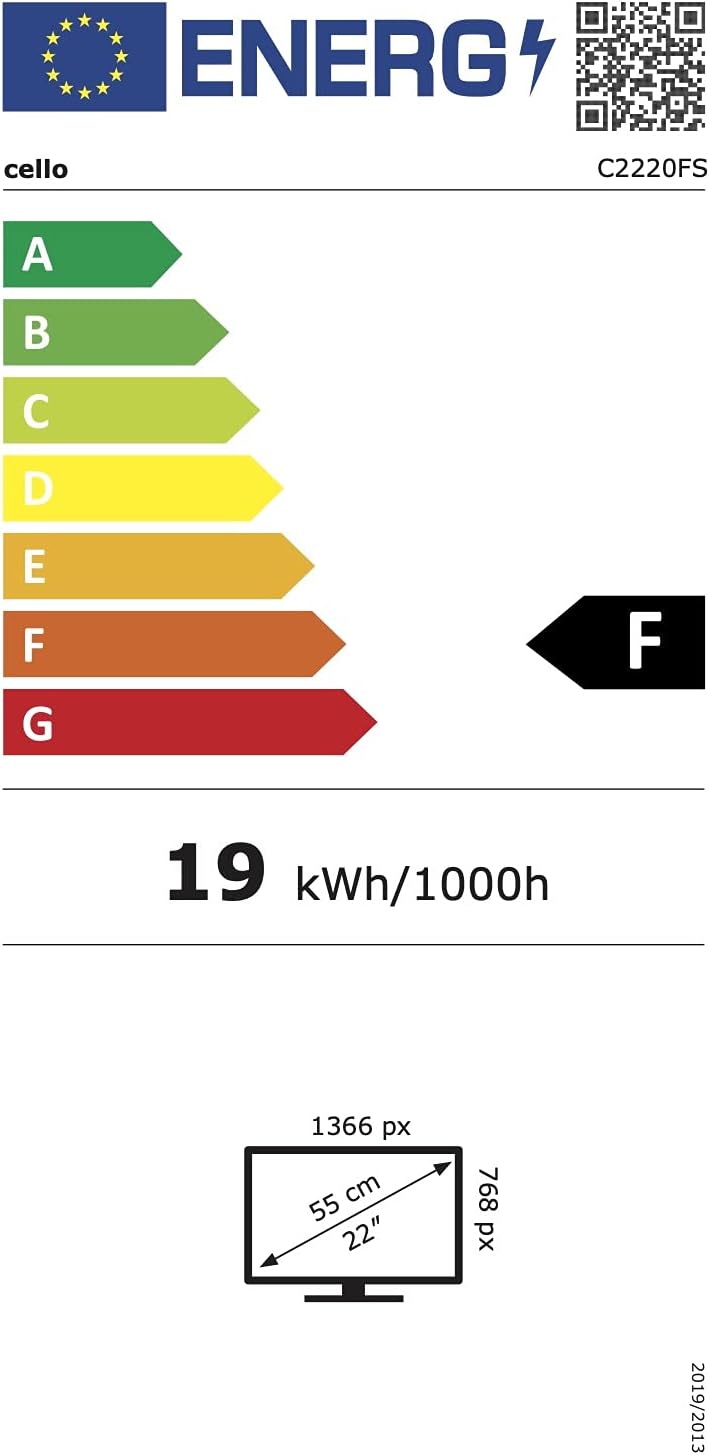
Image 6.1: Energy efficiency label for the Cello C2220FSDE TV. For more details, visit EPREL Database.

Image 6.2: Detailed product information sheet. For more details, visit EPREL Database.
7. Warranty and Support
7.1 Warranty Information
This Cello TV comes with a 1-year limited warranty. Please retain your proof of purchase for warranty claims.
7.2 Customer Support
For technical support or customer service, please contact Cello Electronics:
- Website: www.celloelectronics.de
- Email: consumersupport@celloelectronics.com
- Phone: 03334330312
- Address: Dovecot Hills, Bishop Auckland, DL14 6XW Durham, United Kingdom
You can also download the full instruction manual for your device in your preferred language from the official Cello website: https://celloelectronics.de/instruction-books/.


