
Ulefone Ulefone Armor uSmart E02 Dark Schwarz
Ulefone Armor uSmart E02 Endoscope Camera User Manual
For Armor 28 Ultra, Armor 27T Pro, Armor 26, Armor 24, Armor 18T, Armor 18, Armor 21, Armor 16S, Power Armor 26, Armor 19, Armor PAD Series
1. Product Overview
The Ulefone Armor uSmart E02 Endoscope Camera is a versatile inspection tool designed to expand the capabilities of your compatible Ulefone Armor series smartphone or tablet. It connects via the uSmart Expansion Connector, providing a stable and reliable connection for various inspection tasks in hard-to-reach areas. This endoscope features a dual camera system, adjustable LED lighting, and a durable, waterproof design.

Figure 1: Ulefone Armor uSmart E02 Endoscope Camera connected to a compatible Ulefone device, highlighting its dual camera and waterproof features.
2. Key Features
- Dual Camera System: Equipped with both a front-facing and a side-facing camera, allowing for comprehensive viewing from multiple angles without needing to reposition the endoscope.
- 2-Meter Bendable Cable: A semi-rigid cable provides ample length (2 meters) and flexibility to navigate through pipes, conduits, and other confined spaces.
- 7 Dimmable LEDs: Integrated LED lights on both cameras provide adjustable illumination, ensuring clear visibility in dark environments. Brightness can be controlled via a rotatable wheel on the cable.
- IP67 Waterproof Rating: The endoscope cable and camera are designed to be waterproof, making them suitable for use in wet or submerged conditions such as drains and sewers.
- uSmart Expansion Connector: Ensures a stable and secure connection to compatible Ulefone Armor series devices, facilitating reliable data transmission.
- Multifunctional Attachments: Includes a hook and a magnet attachment, along with a protective case for the camera lens, enhancing versatility for retrieving small objects or protecting the lens.
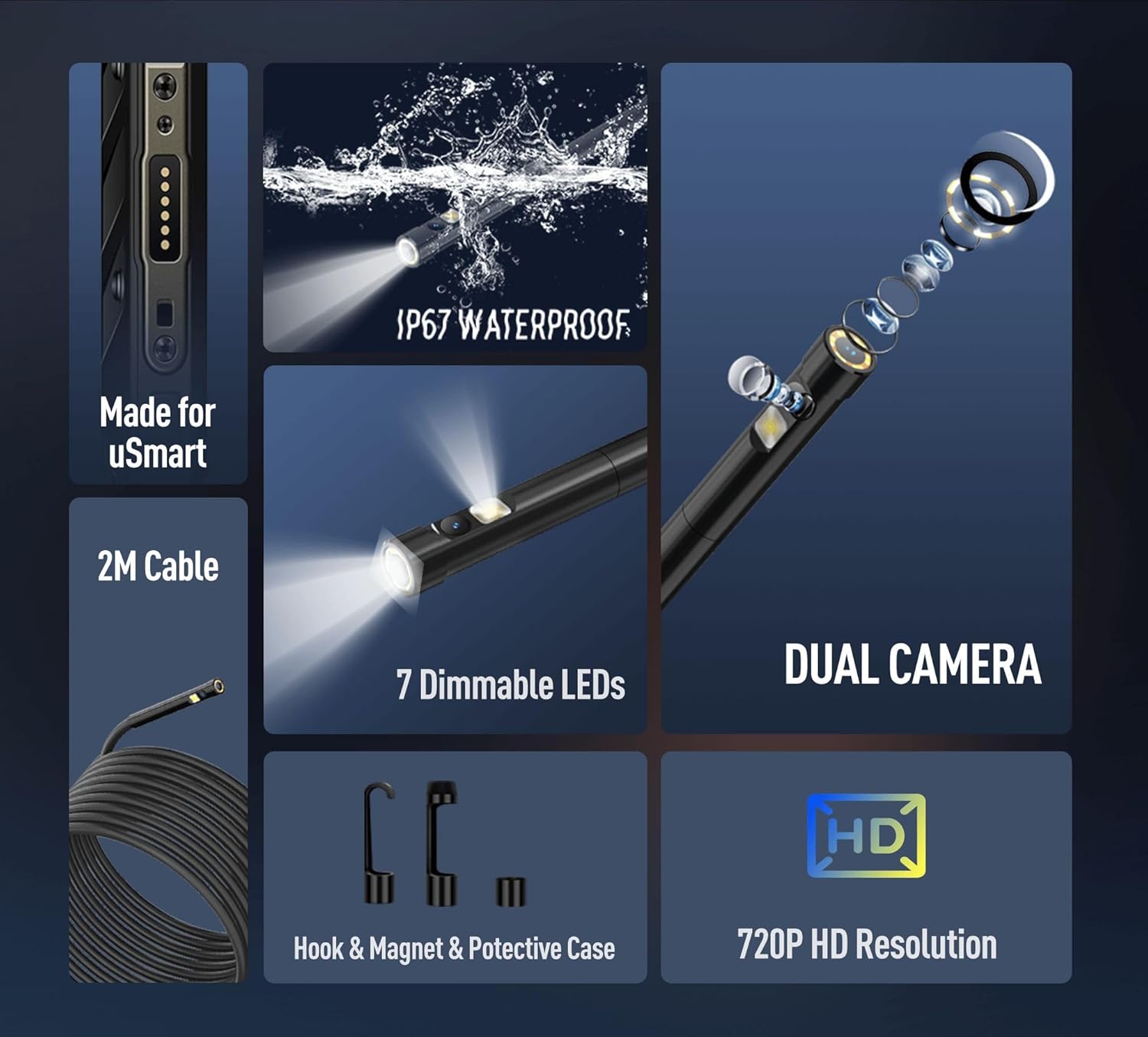
Figure 2: Overview of the Ulefone Armor uSmart E02 Endoscope's primary features.
3. Setup and Connection
To use the Ulefone Armor uSmart E02 Endoscope Camera, ensure your Ulefone device is compatible with the uSmart Expansion Connector. The endoscope is designed for easy plug-and-play functionality.
3.1 Connecting the Endoscope
- Locate the uSmart Expansion Connector port on your compatible Ulefone Armor series device. This port is typically found on the side or bottom edge of the device.
- Align the endoscope's connector with the uSmart port and gently push it in until it is securely seated.
- Once connected, your device should automatically recognize the endoscope. If prompted, allow any necessary permissions for the endoscope application.
- Open the dedicated endoscope application on your Ulefone device to view the camera feed.

Figure 3: Illustration of connecting the uSmart E02 Endoscope to a compatible Ulefone device.
4. Operating Instructions
The Ulefone Armor uSmart E02 Endoscope is designed for intuitive operation, allowing you to easily switch between cameras and adjust lighting for optimal viewing.
4.1 Camera Control
- Switching Cameras: The endoscope features a function button on the cable. A short press of this button will toggle between the front camera and the side camera, providing different perspectives.
- Taking Pictures: A long press of the function button will capture an image from the currently active camera.

Figure 4: Details of the dual camera system and control button on the endoscope.
4.2 Adjusting LED Brightness
The endoscope is equipped with 7 dimmable LEDs to illuminate dark inspection areas. The brightness can be adjusted using the rotatable wheel located on the endoscope cable.
- Rotate the brightness control wheel clockwise to increase the LED illumination.
- Rotate the brightness control wheel counter-clockwise to decrease the LED illumination.

Figure 5: Brightness control for the endoscope's integrated LEDs.
4.3 Typical Applications
The Ulefone Armor uSmart E02 Endoscope is a practical inspection tool for various scenarios:
- Drain and plumbing inspection
- Pipe checking
- Air conditioning system detection
- Viewing small openings
- Wall circuit detection
- Home appliance checking
- Automotive inspection (e.g., engine bays)

Figure 6: Examples of practical applications for the endoscope.
4.4 Multifunctional Attachments
The endoscope comes with useful attachments to enhance its functionality:
- Magnet: Useful for retrieving small metallic objects from inaccessible areas.
- Hook: Can be used to pull or retrieve non-magnetic items.
- Protective Case: Provides additional protection for the camera lens during use or storage.

Figure 7: The included multifunctional attachments.
5. Maintenance and Care
Proper maintenance ensures the longevity and optimal performance of your Ulefone Armor uSmart E02 Endoscope Camera.
- Cleaning: After use, especially in dirty or wet environments, wipe the endoscope cable and camera head with a soft, damp cloth. For stubborn dirt, a mild soap solution can be used, followed by a clean water rinse.
- Water Exposure: While the cable and camera are IP67 waterproof, avoid prolonged submersion. After use in water, ensure the endoscope is thoroughly dried before storage.
- Storage: Store the endoscope in a clean, dry place, away from extreme temperatures and direct sunlight. Coil the cable loosely to prevent kinks or damage.
- Connector Care: Keep the uSmart Expansion Connector clean and free of debris to ensure a reliable connection.

Figure 8: The endoscope's IP67 waterproof feature. Note: Avoid prolonged submersion.
6. Troubleshooting
If you encounter issues with your Ulefone Armor uSmart E02 Endoscope Camera, try the following steps:
- No Image/Connection Issue:
- Ensure the endoscope is securely connected to the uSmart Expansion Connector port on your device.
- Restart the endoscope application on your Ulefone device.
- Disconnect and reconnect the endoscope.
- Verify that your Ulefone device model is listed as compatible with the uSmart E02 Endoscope.
- Poor Image Quality:
- Adjust the LED brightness using the rotatable wheel on the cable.
- Clean the camera lenses with a soft, lint-free cloth.
- Ensure there is sufficient ambient light if not relying solely on the LEDs.
- Button Not Responding:
- Ensure the endoscope is properly connected and the application is active.
- Try restarting the application or your device.
If problems persist, please refer to the warranty and support information provided in Section 8.
7. Specifications
| Attribute | Detail |
|---|---|
| Product Dimensions | 7.48 x 3.39 x 0.69 inches (approximate, for endoscope unit) |
| Item Weight | 1.76 ounces (50 Grams) |
| Connectivity Technologies | uSmart Expansion Connector |
| Human Interface Input | Button on cable |
| Color | Black |
| What's in the box | 1x Ulefone Armor uSmart E02 Endoscope |
| Compatible Devices | Ulefone Armor 27T Pro, Armor 26 Ultra, Armor 24, Armor 18T Ultra, Armor 18 Ultra, Armor 21, Armor 16S, Power Armor 26, Armor 19, Armor 18, Ulefone Armor PAD Series |
8. Official Product Video
Video 1: Ulefone Armor PAD 4 Ultra Rugged Tablet Accessories Ecosystem. This video showcases various accessories compatible with the Ulefone Armor PAD series, including the uSmart E02 Endoscope Camera and its practical applications.
9. Warranty and Support
Ulefone is committed to providing quality products and customer satisfaction. For support regarding your Ulefone Armor uSmart E02 Endoscope Camera, please refer to the following:
- Technical Support: 24 Hours Technical support is available.
- Returns: 30 Days Return without reason.
- Service: 1 Year Efficient Service.
- Warranty: 1 Year Non-artificial damage warranty.

Figure 9: Ulefone's customer support and warranty information.
Related documentsUlefone Armor uSmart E02 Dark Schwarz


Ask a question about this manual
Ask about setup, troubleshooting, compatibility, parts, safety, or missing instructions. Manuals+ will review the question and use this page’s manual context to help answer it.