
1. Introduction
This manual provides essential information for setting up, operating, and maintaining your FILCO Majestouch MINILA-R Convertible mechanical keyboard. This compact 66-key keyboard features CHERRY MX Brown switches, offering both wired USB and wireless Bluetooth connectivity with multi-device pairing capabilities. Please read these instructions carefully before use to ensure optimal performance and longevity of your device.
2. Product Overview
The FILCO Majestouch MINILA-R Convertible is designed for users seeking a compact yet highly functional keyboard. It combines the tactile feedback of CHERRY MX mechanical switches with the versatility of dual-mode connectivity.

Figure 2.1: Overall view of the FILCO Majestouch MINILA-R Convertible keyboard.
Key Features:
- CHERRY MX Brown Switches: Known for their tactile bump and relatively quiet operation, suitable for both typing and gaming.
- 66-Key Japanese Layout: A compact layout optimized for Japanese input, providing essential keys in a space-saving design.
- Dual-Mode Connectivity: Seamlessly switch between wired USB 2.0 and wireless Bluetooth 5.1 connections.
- Multi-Device Pairing: Connects to up to four Bluetooth devices, allowing quick switching between computers, tablets, and smartphones.
- PBT Double-Shot Keycaps: Durable keycaps with legends that will not fade, featuring a two-color molded design.
- DIP Switches: Customizable key assignments for enhanced user experience.
CHERRY MX Brown Switch:
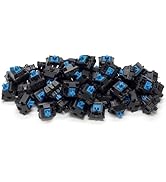
Figure 2.2: A close-up view of a CHERRY MX Brown mechanical switch. These switches provide a soft, tactile feel without an audible click, making them versatile for various tasks.
PBT Double-Shot Keycaps:

Figure 2.3: Individual keycaps demonstrating the PBT double-shot molding process, which ensures legend durability and a premium feel.
3. Setup
3.1. Wired USB Connection
- Locate the USB-C port on the keyboard and the USB-A port on your computer.
- Connect the provided USB cable to the keyboard and your computer.
- The keyboard will be automatically recognized by your operating system. The USB connection indicator LED will illuminate.
3.2. Bluetooth Wireless Connection
The keyboard supports pairing with up to four Bluetooth devices.

Figure 3.1: Top right section of the keyboard showing Bluetooth device indicator LEDs (1-4) and the USB connection indicator (U).
- Ensure the keyboard is powered on.
- Press and hold the Bluetooth pairing button (labeled 1, 2, 3, or 4) for approximately 3 seconds until the corresponding LED flashes rapidly. This indicates the keyboard is in pairing mode.
- On your device (computer, tablet, smartphone), enable Bluetooth and search for new devices.
- Select "FILCO MINILA-R" from the list of available devices.
- If prompted, enter the pairing code displayed on your device using the keyboard and press Enter.
- Once paired, the LED for the selected device number will stop flashing and remain steadily lit.
- Repeat these steps for up to four different devices, assigning each to a different Bluetooth channel (1-4).
3.3. DIP Switch Settings
The keyboard features DIP switches on the underside to customize key functions and switch to Mac mode. Ensure the keyboard is disconnected from power before adjusting DIP switches.

Figure 3.2: Location of DIP switches on the underside of the keyboard. Use a small tool to adjust the switches.
Refer to the table below for common DIP switch configurations:
| Switch No. | Function (ON) | Function (OFF) |
|---|---|---|
| 1 | Caps Lock and Left Ctrl Swap | Standard Caps Lock / Left Ctrl |
| 2 | Windows Key Disabled | Windows Key Enabled |
| 3 | Alt and Windows Key Swap | Standard Alt / Windows Key |
| 4 | Mac Mode Enabled | Windows Mode Enabled |
| 5 | Fn Key Position Change | Standard Fn Key Position |
| 6 | Reserved | Reserved |
Note: Specific DIP switch functions may vary. Always refer to the detailed diagram provided with your product packaging for precise configurations.
4. Operating Instructions
4.1. Key Functions and Layout
The MINILA-R Convertible features a compact 66-key Japanese layout. Many keys have secondary functions accessed via the Fn key.

Figure 4.1: Detailed layout diagram of the FILCO Majestouch MINILA-R Convertible keyboard, highlighting primary and secondary key functions.
Common Fn Key Combinations:
- Fn + F1-F12: Access multimedia controls (e.g., volume, play/pause) or standard F-key functions depending on the operating mode.
- Fn + Arrow Keys: Page Up, Page Down, Home, End functions.
- Fn + Backspace: Delete function.
- Fn + P: Print Screen.
- Fn + S: Scroll Lock.
- Fn + C: Pause/Break.
4.2. Switching Connection Modes
- Switching to USB Mode: Press the USB switch button (labeled 'U' next to the Bluetooth indicators). The 'U' LED will light up.
- Switching to Bluetooth Mode: Press the desired Bluetooth device button (1, 2, 3, or 4). The corresponding LED will light up, and the keyboard will attempt to connect to the last paired device on that channel.
5. Maintenance
5.1. Cleaning the Keyboard
Regular cleaning helps maintain the keyboard's performance and appearance.
- Disconnect the keyboard from all power sources (USB cable and turn off Bluetooth).
- Use a can of compressed air to blow away dust and debris from between the keycaps.
- Wipe the keycaps and keyboard surface with a soft, slightly damp, lint-free cloth. Avoid excessive moisture.
- For stubborn stains, a small amount of mild cleaning solution (e.g., isopropyl alcohol) can be applied to the cloth, not directly to the keyboard.
- Ensure the keyboard is completely dry before reconnecting it.
5.2. Keycap Removal and Replacement
Keycaps can be removed for deep cleaning or customization. Use a keycap puller to avoid damage.
- Gently attach the keycap puller to the keycap you wish to remove, ensuring it hooks onto both sides.
- Pull straight up with steady, even pressure until the keycap detaches from the switch stem. Avoid twisting or excessive force.
- To replace a keycap, align it with the switch stem and press down firmly until it clicks into place.
6. Troubleshooting
If you encounter issues with your keyboard, try the following solutions:
- Keyboard not responding (Wired):
- Ensure the USB cable is securely connected to both the keyboard and the computer.
- Try a different USB port on your computer.
- Test the keyboard on another computer to rule out system-specific issues.
- Keyboard not responding (Bluetooth):
- Ensure the keyboard is in Bluetooth mode (corresponding LED is lit).
- Check if Bluetooth is enabled on your device.
- Re-pair the keyboard with your device. Remove the existing pairing from your device's Bluetooth settings and follow the pairing instructions in Section 3.2.
- Ensure the keyboard battery is charged.
- Keys not registering or double-typing:
- Clean around the affected keycap using compressed air.
- If the issue persists, contact customer support.
- Incorrect key output:
- Check the DIP switch settings on the underside of the keyboard (refer to Section 3.3).
- Ensure the correct language input method is selected in your operating system settings.
7. Specifications
| Feature | Specification |
|---|---|
| Brand | FILCO |
| Model | Majestouch MINILA-R Convertible (KOBO-CAM08-M-NSG) |
| Key Switch | CHERRY MX Brown (Tactile) |
| Number of Keys | 66 keys |
| Key Pitch | 19 mm |
| Key Stroke | 4 mm |
| Keycaps | PBT Double-Shot (2-color molded) |
| Interface | USB 2.0 / Bluetooth 5.1 HID Profile |
| Multi-Pairing | Up to 4 Bluetooth devices |
| Dimensions (W x D x H) | 297 x 124 x 40 mm (46 mm with stand) |
| Weight | 680 g |
| Included Components | USB Cable |
| Compatible Devices | Notebook PCs, Desktop PCs |
8. Warranty and Support
FILCO products are manufactured to high-quality standards. For warranty information, technical support, or service inquiries, please refer to the warranty card included with your product or visit the official FILCO website. Keep your proof of purchase for warranty claims.

