
Alienware AWARR2-7323WHT-PUS
Alienware Area 51M R2 Gaming Laptop User Manual
Model: AWARR2-7323WHT-PUS
Introduction
This manual provides essential information for setting up, operating, and maintaining your Alienware Area 51M R2 Gaming Laptop. Please read this guide thoroughly to ensure optimal performance and longevity of your device.
The Alienware Area 51M R2 is a high-performance gaming laptop designed with desktop-level processing power, upgradable CPU and GPU components, and an advanced cooling system.
What's in the Box
Verify that all items are present in the packaging:
- Alienware Area 51M R2 Gaming Laptop
- Power Adaptor
- User Manual (this document)
Setup
1. Connecting the Power Adapter
Connect the power adapter to the laptop's power input port and then plug it into a wall outlet. Ensure the connection is secure. The laptop requires sufficient power for initial setup and operation.
2. Initial Power On
Open the laptop lid and press the power button, typically located on the top right of the keyboard deck. The system will begin its initial boot sequence.
3. Operating System Setup
Follow the on-screen instructions to complete the Windows 10 Home operating system setup. This includes selecting language, region, connecting to a network, and creating a user account.
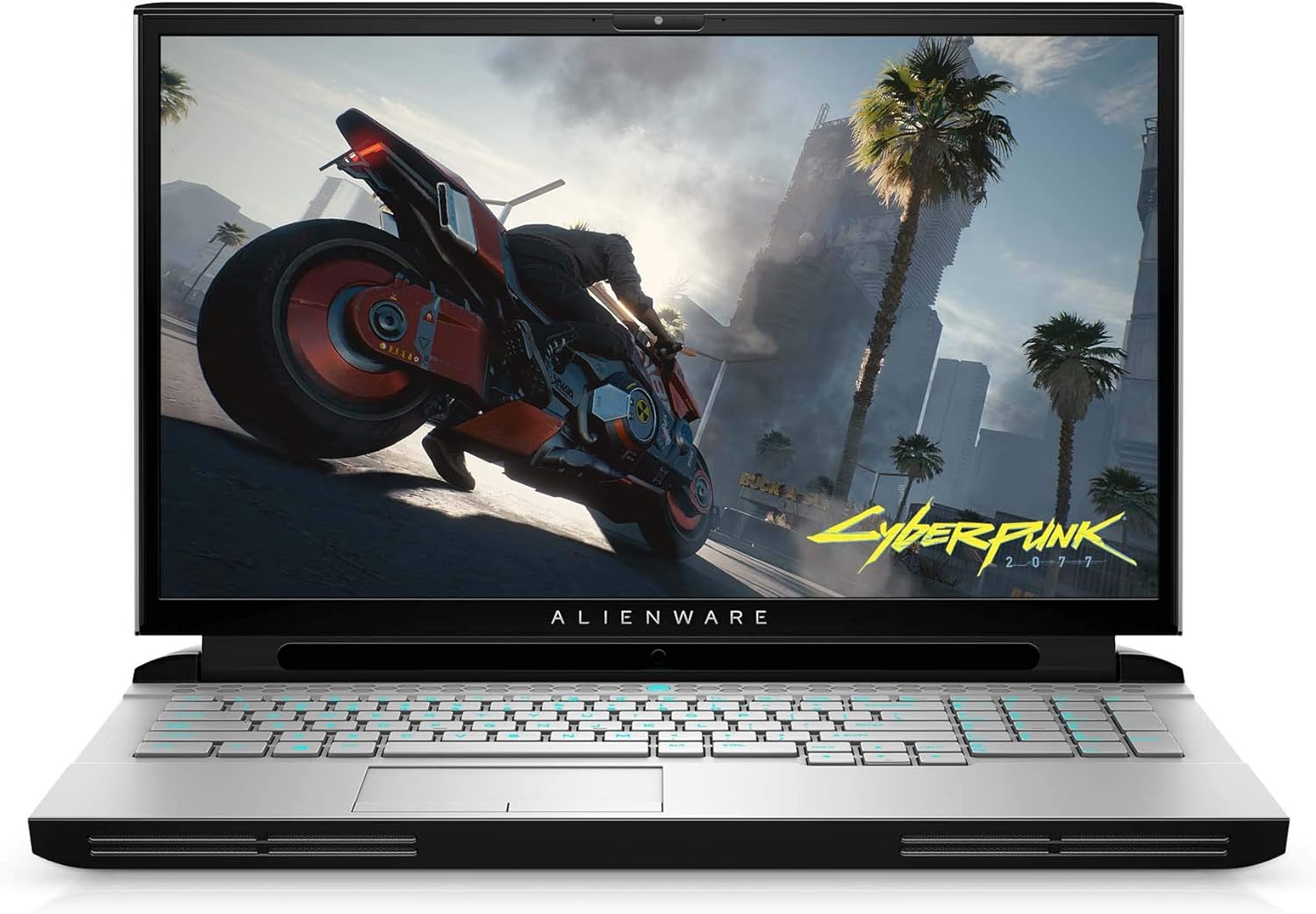
Image: Front view of the Alienware Area 51M R2 Gaming Laptop, displaying the screen and keyboard.
Operating the Laptop
Keyboard Features
The Alienware TactX keyboard features N-key rollover technology, allowing for over 108-key commands. This ensures accurate input during rapid actions. The 1.7mm key travel provides responsive feedback for each keystroke.
Display
The laptop features a 17.3-inch Full HD (1920x1080) display with a 300Hz refresh rate and 3ms response time, optimized for smooth visual performance.
Connectivity
The Area 51M R2 includes a 2.5Gbps Ethernet connection for high-speed wired network transfers. Wireless connectivity is provided via 802.11ac. The laptop also features 4 USB 3.0 ports for peripheral connections.
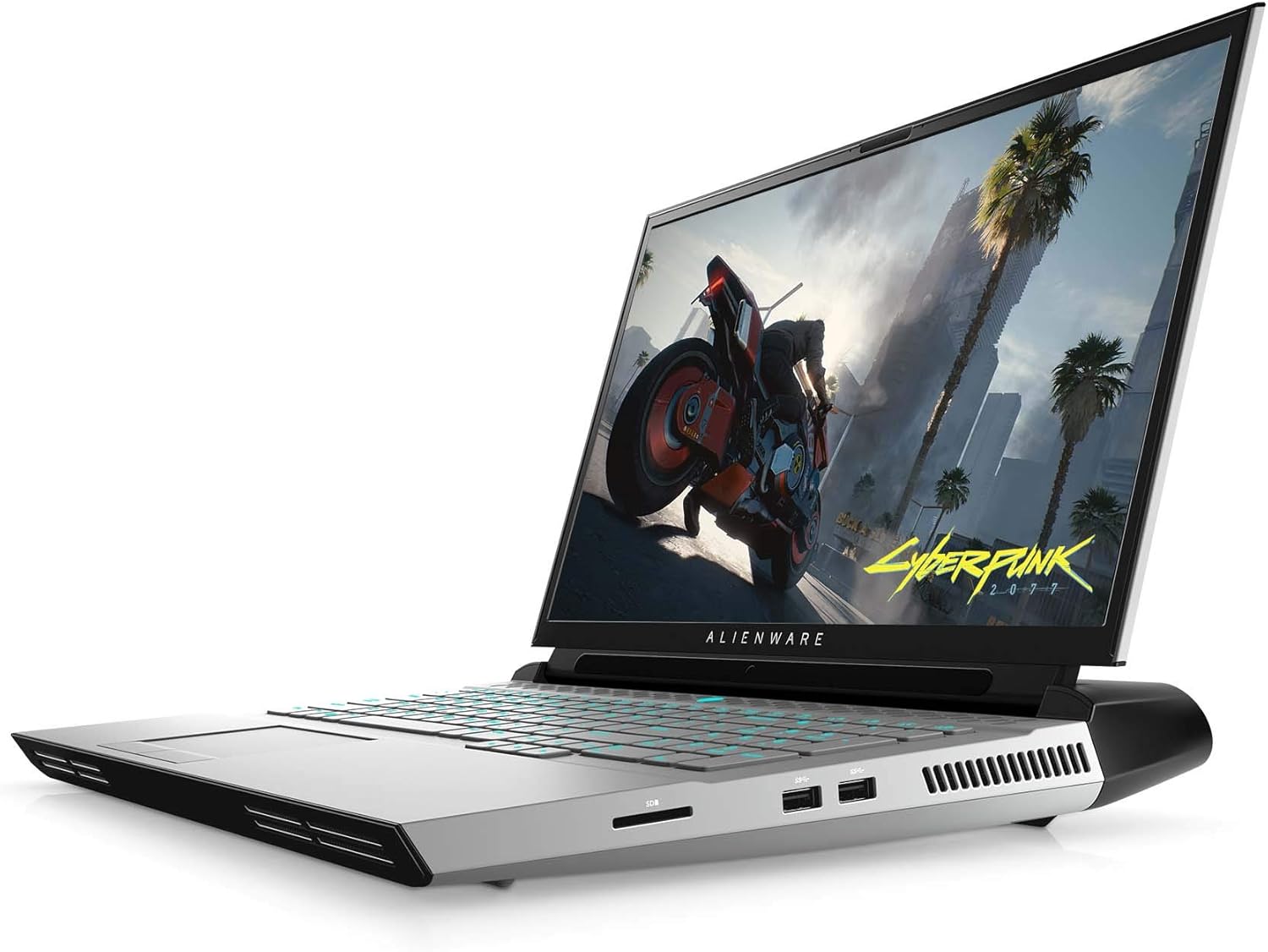
Image: Side view of the Alienware Area 51M R2 Gaming Laptop, showing various input/output ports.
Maintenance
Cooling System
The Alienware Area 51M R2 incorporates an advanced cooling system designed to manage heat generated by high-performance components. To maintain optimal cooling efficiency:
- Ensure the laptop's vents are unobstructed. Avoid placing the laptop on soft surfaces like beds or carpets that can block airflow.
- Regularly clean dust from the vents using compressed air.
- Operate the laptop in a well-ventilated environment.

Image: Internal view of the Alienware Area 51M R2, highlighting the cooling system components and airflow paths.
General Cleaning
Use a soft, lint-free cloth to clean the screen and exterior surfaces. For stubborn marks, dampen the cloth with water or a mild, non-abrasive cleaner specifically designed for electronics. Avoid spraying liquids directly onto the laptop.
Troubleshooting
This section addresses common issues you might encounter with your Alienware Area 51M R2 Gaming Laptop.
No Power / Does Not Turn On
- Ensure the power adapter is securely connected to both the laptop and a working electrical outlet.
- Verify the power outlet is functional by plugging in another device.
- If using a power strip or surge protector, ensure it is switched on and functioning.
Display Issues
- If the screen is blank, try adjusting the display brightness using the keyboard function keys.
- Connect an external monitor to determine if the issue is with the laptop's internal display or the graphics card.
- Ensure graphics drivers are up to date.
Overheating
- Check that all ventilation ports are clear of obstructions.
- Clean dust from the cooling vents.
- Ensure the laptop is used on a hard, flat surface to allow for proper airflow.
Network Connectivity Problems
- For Wi-Fi, ensure the wireless adapter is enabled and you are connected to the correct network.
- For wired Ethernet, verify the cable is securely connected to both the laptop and the router/modem.
- Restart your router/modem.
For persistent issues, consult the Alienware support website or contact customer service.
Specifications
| Feature | Detail |
|---|---|
| Brand | Alienware |
| Model Name | AWARR2-7323WHT-PUS |
| Screen Size | 17.3 Inches |
| Screen Resolution | 1920 x 1080 pixels |
| Max Screen Resolution | 1920x1080 Pixels |
| Processor | Intel Core i7-10700K (5.1 GHz) |
| RAM | 16 GB DDR4 (3200 MHz) |
| Hard Drive | 1 TB SSD |
| Graphics Coprocessor | NVIDIA GeForce RTX 2070 |
| Graphics Card Description | NVIDIA RTX 2070 Super |
| Graphics Card RAM Size | 8 GB |
| Wireless Type | 802.11ac |
| Number of USB 3.0 Ports | 4 |
| Operating System | Windows 10 Home |
| Item Weight | 10.4 pounds |
| Product Dimensions | 15.85 x 12.57 x 1.7 inches |
| Color | Lunar Light |
| Batteries | 1 Lithium Ion battery required (included) |
Warranty and Support
For warranty information and technical support, please refer to the documentation provided with your purchase or visit the official Alienware support website. Keep your proof of purchase for warranty claims.
Online resources may include:
- Alienware Support Website
- Driver downloads and software updates
- Troubleshooting guides and FAQs
Related documentsAWARR2-7323WHT-PUS


Ask a question about this manual
Ask about setup, troubleshooting, compatibility, parts, safety, or missing instructions. Manuals+ will review the question and use this page’s manual context to help answer it.