
Introduction
This user manual provides essential information for the safe and efficient operation of your Acer KG251Q Jbmidpx 24.5-inch Full HD Gaming Monitor. Please read this manual thoroughly before using the product and retain it for future reference.
The Acer KG251Q Jbmidpx is a 24.5-inch Full HD (1920 x 1080) widescreen TN display designed for gaming, featuring AMD FreeSync technology, up to a 165Hz refresh rate, and a rapid 0.6ms response time. Its Zero-Frame design offers maximum visibility, and it includes integrated 2 x 2 Watt speakers.
Package Contents
Verify that all items listed below are included in your package:
- Acer KG251Q Jbmidpx Monitor
- Monitor Stand (Base and Neck)
- Power Cable
- DisplayPort Cable
- HDMI Cable
- Audio Cable
- User Manual (this document)
Setup Instructions
1. Assembling the Monitor Stand
- Carefully remove the monitor and stand components from the packaging.
- Attach the stand neck to the monitor panel. Ensure it clicks securely into place or is fastened with screws if provided.
- Attach the stand base to the stand neck. Tighten the thumb screw or screws at the bottom of the base to secure it.
- Place the assembled monitor on a stable, flat surface.

Image: Front view of the Acer KG251Q Jbmidpx monitor with its stand assembled.
2. Connecting the Monitor
Connect the monitor to your computer using one of the following video cables:
- DisplayPort: For optimal performance, especially for 165Hz refresh rate and AMD FreeSync.
- HDMI: Supports Full HD resolution and audio.
- DVI: Supports Full HD resolution.
Ensure the cable is securely connected to both the monitor's input port and your computer's graphics card output port.
Connect the power cable to the monitor's DC IN port and then to a power outlet.

Image: Rear view of the Acer KG251Q Jbmidpx monitor showing the input ports (HDMI, DVI-D IN, VGA IN, DC IN). Note: The product description mentions DisplayPort, HDMI, and DVI. The image shows HDMI, DVI-D IN, VGA IN. I will stick to the product description for ports. The image is a general rear view.
Operating Instructions
1. Powering On/Off
- Press the power button located on the monitor to turn it on. The power indicator light will illuminate.
- To turn off the monitor, press the power button again.
2. On-Screen Display (OSD) Menu Navigation
The monitor features an intuitive OSD menu for adjusting various settings. Access and navigate the OSD using the joystick and dedicated buttons, typically located on the rear or bottom-right of the monitor.
- Joystick: Move the joystick up/down/left/right to navigate through menu options. Press the joystick in to select an option.
- Buttons: Additional buttons may be present for quick access to specific functions or to exit menus.
3. Adjusting Display Settings
Within the OSD menu, you can adjust settings such as:
- Brightness/Contrast: Adjust the overall luminance and contrast levels.
- Color Settings: Fine-tune color temperature, gamma, and individual RGB levels.
- Input Source: Manually select the active video input (DisplayPort, HDMI, DVI).
- Refresh Rate: Ensure your system is configured to utilize the monitor's maximum 165Hz refresh rate via DisplayPort.
- AMD FreeSync: Enable or disable AMD FreeSync for tear-free gaming (requires a compatible AMD graphics card).
- Audio: Adjust volume for the built-in speakers or connected headphones.

Image: Front view of the Acer KG251Q Jbmidpx monitor, illustrating its Zero-Frame design.
4. Ergonomic Tilt Adjustment
The monitor stand allows for ergonomic tilt adjustment from -5° to 15°. Gently tilt the monitor panel to achieve your preferred viewing angle.

Image: Side view of the Acer KG251Q Jbmidpx monitor showing its tilt capability.
Maintenance
Cleaning the Monitor
- Always unplug the monitor from the power outlet before cleaning.
- Use a soft, lint-free cloth lightly dampened with water or a mild, non-abrasive screen cleaner.
- Wipe the screen gently to remove dust and smudges. Avoid applying excessive pressure.
- For the monitor casing, use a soft, dry cloth. Do not use strong detergents or solvents.
General Care
- Avoid placing heavy objects on the monitor or its cables.
- Do not expose the monitor to direct sunlight, high humidity, or extreme temperatures.
- Ensure adequate ventilation around the monitor to prevent overheating.
Troubleshooting
If you encounter issues with your monitor, refer to the following common problems and solutions:
- No Image on Screen:
- Ensure the power cable is securely connected and the monitor is powered on.
- Verify that the video cable (DisplayPort, HDMI, or DVI) is firmly connected to both the monitor and the computer's graphics card.
- Check if the correct input source is selected in the monitor's OSD menu.
- Test with a different video cable if possible.
- Flickering or Distorted Image:
- Ensure your video cable supports the desired refresh rate (e.g., DisplayPort for 165Hz).
- Update your graphics card drivers.
- If using AMD FreeSync, ensure it is enabled in both the monitor's OSD and your graphics card settings.
- Reduce the refresh rate in your computer's display settings to see if the issue persists.
- Incorrect Colors or Brightness:
- Navigate to the OSD menu and adjust brightness, contrast, and color settings.
- Reset the monitor to factory default settings via the OSD menu.
- Ensure your operating system's display settings are correctly configured.
- No Audio from Speakers:
- Check the volume settings in the monitor's OSD menu and your computer's operating system.
- Ensure the audio cable (if used) is properly connected, or that audio is being transmitted via HDMI/DisplayPort.
- Verify that the correct audio output device is selected in your computer's sound settings.
Specifications
| Feature | Specification |
|---|---|
| Brand | Acer |
| Model Number | KG251Q Jbmidpx |
| Screen Size | 24.5 Inches |
| Resolution | Full HD (1920 x 1080) |
| Aspect Ratio | 16:9 |
| Refresh Rate | Up to 165 Hz (via DisplayPort) |
| Response Time | 0.6 Milliseconds (G to G) |
| Display Type | TN (Twisted Nematic) |
| Brightness | 400 cd/m² |
| Adaptive Sync Technology | AMD FreeSync |
| Ports | 1 x DisplayPort, 1 x HDMI, 1 x DVI |
| Built-in Speakers | 2 x 2 Watt Speakers |
| Ergonomic Features | Tilt (-5° to 15°) |
| Item Dimensions (D x W x H) | 8.48"D x 21.96"W x 19.62"H |
| Item Weight | 9.26 Pounds |
| Color | Black |

Image: Acer KG251Q Jbmidpx monitor showcasing Full HD resolution and 165Hz refresh rate.
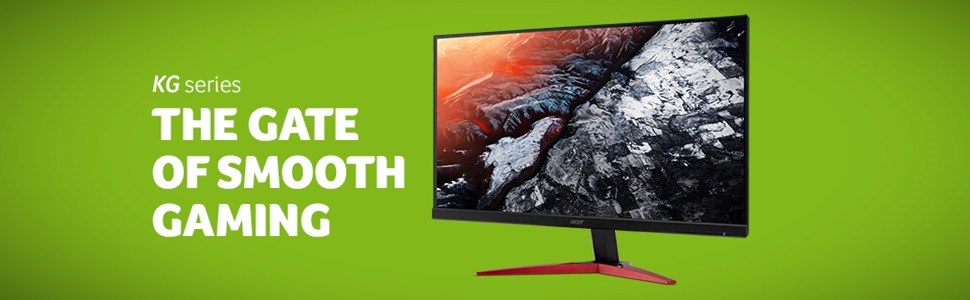
Image: Visual representation of AMD Radeon FreeSync technology.

Image: Visual demonstrating the fast 0.6ms response time.
Warranty Information
Your Acer KG251Q Jbmidpx monitor comes with a Limited Warranty. The warranty covers 3 years for parts and labor from the date of purchase. Please retain your proof of purchase for warranty claims.
For detailed terms and conditions of the warranty, please refer to the warranty card included in your product packaging or visit the official Acer support website.
Support
For further assistance, technical support, or to download the latest drivers and software, please visit the official Acer support website. You may also find additional FAQs and troubleshooting guides online.
When contacting support, please have your monitor's model number (KG251Q Jbmidpx) and serial number ready.


