
1. Introduction and Overview
This manual provides detailed instructions for the installation, operation, and maintenance of your MUNFROST 120MM Rainbowforce RGB Fan Kit. This kit includes three 120mm fans designed for efficient cooling and vibrant Addressable RGB (ARGB) lighting, controlled via an included hub or synchronized with compatible motherboards.
Key features of your MUNFROST Rainbowforce RGB Fan Kit include:
- Includes 3 fans and supports up to 5. Synchronize all your RGB lighting with the included controller.
- 5V Addressable RGB (ARGB) connector, synchronizable with compatible motherboards.
- Connects via Molex or 3-pin power. Features a 3-pin ARGB connector with male/female adapter.
- Silent hydraulic bearing design provides up to 30,000 hours of operation.
- Soft rubber pads are included on each corner to minimize vibrations.
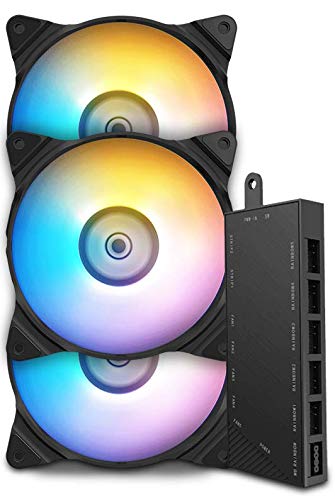
Image 1.1: The MUNFROST 120MM Rainbowforce RGB Fan Kit, showing three fans and the control hub.
2. Package Contents
Please verify that all components are present in your package:
- 3 x MUNFROST 120MM Rainbowforce RGB Fans
- 1 x RGB Control Hub
- Mounting Screws
- Cables for power and ARGB synchronization

Image 2.1: A set of three MUNFROST 120MM Rainbowforce RGB Fans.
3. Specifications
| Feature | Specification |
|---|---|
| Brand | MUNFROST |
| Model | KIT FN-12 RGB |
| Number of Items | 3 |
| Fan Size | 120mm |
| Cooling Method | Air |
| Power Connector Type | 3-pin (or Molex via adapter) |
| ARGB Connector Type | 3-pin (5V) |
| Voltage | 5 Volts |
| Bearing Type | Hydraulic |
| Lifespan | Up to 30,000 hours |
| Compatible Devices | Desktop Computer |
| Material | Metal alloy, rubber or similar material |
| Package Dimensions | 17.2 x 14.8 x 8.4 cm; 500 g |
4. Setup and Installation
Follow these steps to properly install your MUNFROST Rainbowforce RGB fans:
- Prepare Your Case: Identify the fan mounting locations in your computer case. Ensure there is adequate space for 120mm fans.
- Mount the Fans: Position each fan in the desired location. Use the included mounting screws to secure the fans. The soft rubber pads on each corner of the fan help reduce vibration and noise. Note: Some users have reported screws being tight; apply firm, even pressure during installation.
- Connect Fans to Controller: Connect the power and ARGB cables from each fan to the corresponding ports on the RGB control hub. The hub supports up to 5 fans.
- Connect Controller to Power: Connect the RGB control hub to your power supply using either a Molex connector or a 3-pin power connector, depending on your system's available connections.
- Connect Controller to Motherboard (Optional ARGB Sync): If your motherboard supports 5V Addressable RGB (ARGB) synchronization (often labeled as ADD_GEN2, JRAINBOW, or similar), connect the 3-pin ARGB cable from the control hub to the motherboard's ARGB header. This allows software control of the fan lighting.

Image 4.1: Close-up view of the RGB control hub, showing various fan and ARGB connection ports.
5. Operating Instructions
Once installed, your MUNFROST Rainbowforce RGB fans will begin operating when your computer powers on. The RGB lighting can be controlled in two primary ways:
5.1. Using the Included Controller
The control hub typically features buttons to cycle through various lighting modes, colors, and effects. Refer to the specific markings on your controller for button functions (e.g., 'MODE', 'COLOR', 'SPEED').
5.2. Motherboard ARGB Synchronization
If you connected the control hub to your motherboard's 5V ARGB header, you can control the lighting effects through your motherboard's RGB software (e.g., ASUS Aura Sync, MSI Mystic Light, Gigabyte RGB Fusion, ASRock Polychrome Sync). To enable motherboard synchronization:
- Ensure all fans are connected to the controller, and the controller is connected to the motherboard's 3-pin ARGB header.
- Press and hold the 'SW' or 'Reset' button on the control hub for approximately 3 seconds. The fans will flash white, indicating they are switching to motherboard control mode.
- Open your motherboard's RGB software and select the desired lighting effects.

Image 5.1: A MUNFROST Rainbowforce RGB fan displaying blue and green lighting effects.

Image 5.2: A MUNFROST Rainbowforce RGB fan displaying purple and blue lighting effects.
6. Maintenance
Regular maintenance ensures optimal performance and longevity of your MUNFROST fans:
- Cleaning: Periodically clean the fan blades and housing to remove dust buildup. Use compressed air or a soft brush. Ensure the computer is powered off and unplugged before cleaning.
- Inspection: Check fan cables for any signs of wear or damage. Ensure all connections to the control hub and motherboard are secure.
7. Troubleshooting
If you encounter issues with your MUNFROST Rainbowforce RGB Fan Kit, refer to the following common problems and solutions:
- Fans Not Spinning:
- Ensure the control hub is properly connected to a power source (Molex or 3-pin).
- Verify that each fan's power cable is securely connected to the control hub.
- Check your motherboard's BIOS/UEFI settings to ensure fan headers are enabled and receiving power.
- RGB Lighting Not Working/Incorrect:
- Confirm that the ARGB cables from the fans are connected to the control hub, and the hub's ARGB cable is connected to the motherboard's 5V ARGB header (if using motherboard sync).
- If using motherboard sync, ensure you have pressed and held the 'SW' or 'Reset' button on the controller for 3 seconds to switch to motherboard control.
- Verify that your motherboard's ARGB header is 5V (3-pin) and not 12V (4-pin), as connecting a 5V device to a 12V header can cause damage.
- Update your motherboard's RGB software to the latest version.
- Excessive Noise/Vibration:
- Ensure all mounting screws are tightened securely.
- Verify that the rubber pads on the fan corners are correctly positioned to absorb vibrations.
- Check for any cables or obstructions that might be touching the fan blades.
- If using fans as intake, ensure there is sufficient clearance between the fan blades and any case components to prevent contact.

Image 7.1: A close-up view of a MUNFROST fan, highlighting the brand logo on the hub.
8. Warranty and Support
For warranty information or technical assistance, please contact MUNFROST customer support through their official website or the retailer where the product was purchased. Keep your proof of purchase for warranty claims.