
symcode GR40-2D-US
symcode Bluetooth Wireless Handheld Barcode Scanner User Manual
Model: GR40-2D-US
1. Product Overview
The symcode GR40-2D-US is a versatile Bluetooth wireless handheld barcode scanner designed for efficient 1D and 2D barcode scanning. It offers multiple connectivity options including 2.4G wireless, Bluetooth, and USB wired modes, ensuring broad compatibility with various devices such as laptops, PCs, Android, and Apple iOS devices. Featuring a built-in 16MB memory for offline storage and an ergonomic design, this scanner is suitable for a wide range of applications.

Figure 1.1: symcode GR40-2D-US Barcode Scanner with its charging base.
2. Key Features
- Dual Connectivity: Supports 2.4G wireless, Bluetooth, and USB wired connections for versatile use.
- Broad Compatibility: Works with Windows, MAC OS, Android, and iOS devices.
- 1D & 2D Barcode Support: Capable of scanning common 1D barcodes (UPC, EAN, Code128, Code39, etc.) and 2D barcodes (PDF417, Data Matrix, QR Code, Aztec, etc.).
- Offline Storage: Built-in 16MB memory can store up to 50,000 QR codes in offline mode.
- Ergonomic Design: Lightweight (110g) with a comfortable grip for extended use.
- Multiple Scanning Indications: Provides beep, LED light, and vibrate feedback upon successful scans.
- Adaptable Scanning: Supports scanning in glare, reflective, and dark environments, including screen codes and express codes.
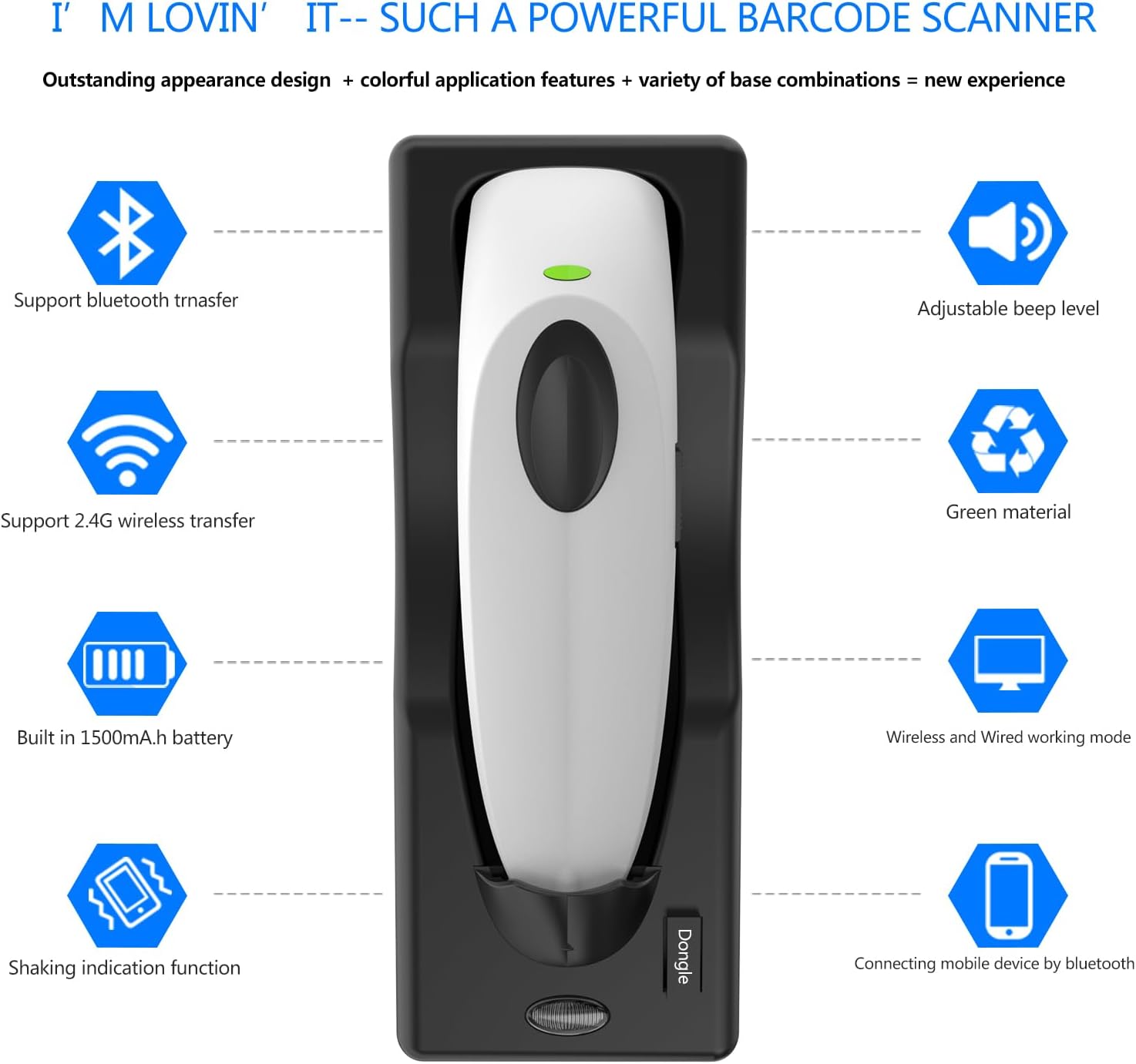
Figure 2.1: Overview of scanner features including Bluetooth transfer, 2.4G wireless, 1500mAh battery, wired/wireless modes, adjustable beep, green material, shaking indication, and mobile device connectivity.
3. Package Contents
Please check the package for the following items:
- symcode GR40-2D-US Barcode Scanner
- Charging Base / Receiver
- USB Cable
- User Manual (this document)
4. Setup
4.1 Initial Charging
Before first use, fully charge the scanner. Connect the USB cable to the charging base and then to a power source (e.g., computer USB port or USB wall adapter). Place the scanner into the charging base. The LED indicator on the scanner will show charging status.
4.2 Power On/Off
Locate the power switch on the right side of the scanner. Push it to the 'ON' position to power on the device. To power off, push the switch to the 'OFF' position.
5. Operating Instructions
5.1 Basic Scanning
To scan a barcode, point the scanner's window at the barcode and press the trigger button. Ensure the red scanning line covers the entire barcode for optimal reading. The scanner provides quick barcode scanning speed.

Figure 5.1: Scanning a barcode displayed on a mobile phone screen.
5.2 Scanning Indications
Upon a successful scan, the scanner will provide feedback through three methods:
- Beep: An audible sound confirms the scan.
- LED Light: A visual indicator light will flash.
- Vibrate: The scanner will gently vibrate.
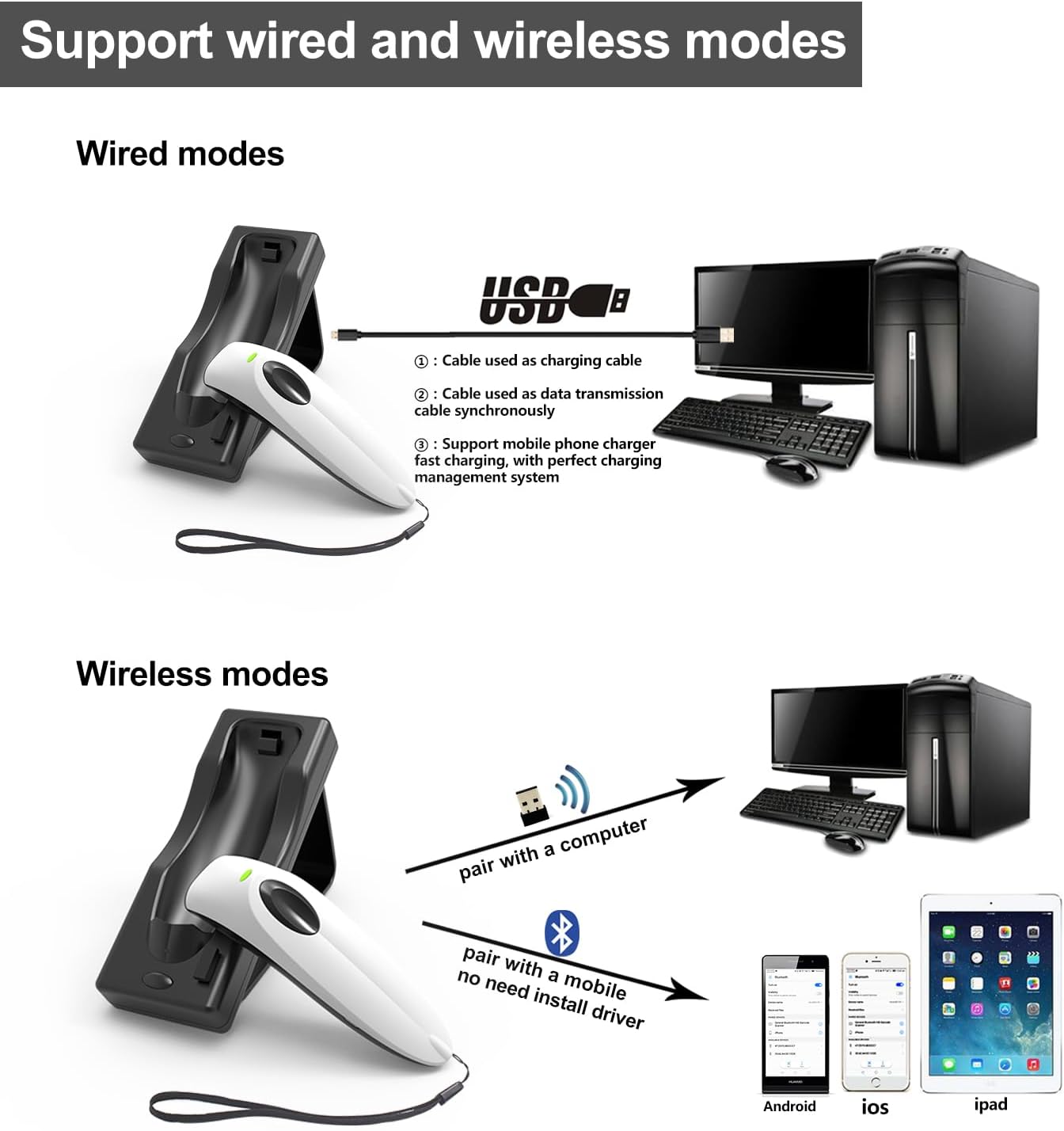
Figure 5.2: Visual representation of the three scanning indication types.
5.3 Scanning Environment Adaptability
The scanner is designed to perform effectively in various conditions, including environments with glare, reflective surfaces, or low light. It supports scanning of:
- Screen Codes (barcodes displayed on digital screens)
- Express Codes
- Standard 1D Codes
- Standard 2D Codes

Figure 5.3: The scanner's ability to read codes from screens, in challenging lighting, and various barcode types.
6. Connectivity Modes
The symcode GR40-2D-US offers three primary connection methods:
6.1 2.4G Wireless Mode
For Windows and MAC OS systems, the scanner can connect wirelessly via the included 2.4G USB dongle. Simply plug the dongle into your computer's USB port. The scanner will automatically pair with the dongle, providing a stable wireless connection. The indoor range is approximately 100ft (30m), and outdoor range is up to 330ft (100m).
6.2 Bluetooth Wireless Mode
The scanner supports Bluetooth connectivity for mobile phones, tablets, notebooks, and computers running Windows, Android, or iOS. No software installation is required. After initial pairing, the scanner will automatically reconnect when in range. The Bluetooth range is approximately 33ft (10m).
6.3 USB Wired Mode
Connect the scanner directly to your computer using the USB cable. The cable serves both as a charging cable and for synchronous data transmission. This mode is plug-and-play, requiring no drivers.

Figure 6.1: Illustration of wired connection via USB and wireless connections via 2.4G dongle or Bluetooth.
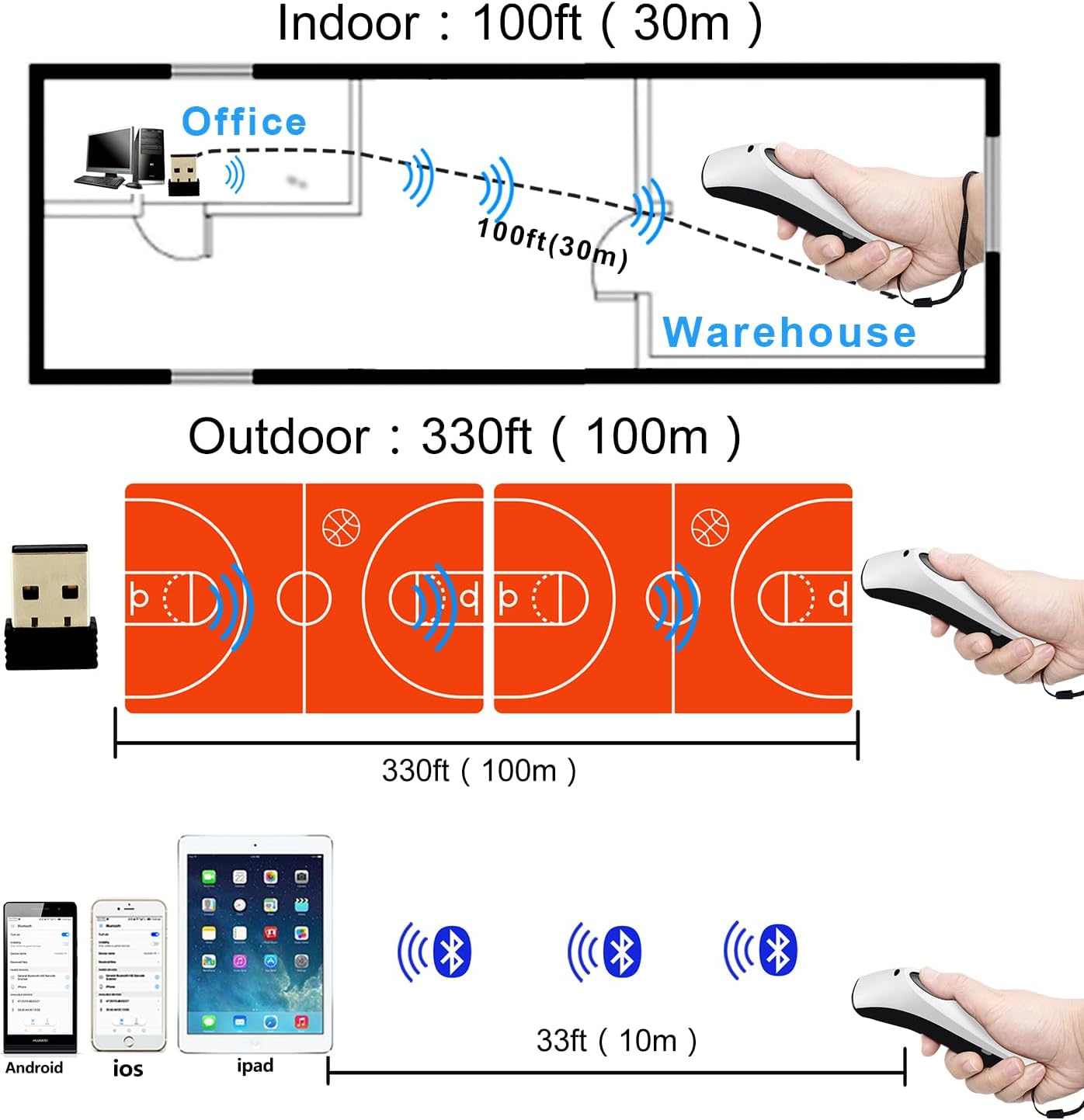
Figure 6.2: Wireless transmission range for indoor (100ft) and outdoor (330ft) 2.4G, and Bluetooth (33ft).
7. Working Modes
The scanner supports two main working modes:
7.1 Normal Mode (Instant Upload)
In Normal Mode, scanned data is immediately transmitted to your connected device (via 2.4G wireless, Bluetooth, or USB). If the data fails to transmit successfully, the scanner will beep three times and the data will be lost. This mode is ideal for real-time data entry.
7.2 Storage Mode (Offline Storage)
In Storage Mode, scanned data is saved to the scanner's internal 16MB memory. This allows for scanning when out of range or not connected to a device. The scanner will beep once shortly after each scan to confirm data storage. The memory can store up to 50,000 QR codes. Data can be uploaded to a device later by switching to Normal Mode or by scanning a specific upload barcode (refer to the full user guide for specific barcodes).

Figure 7.1: The scanner's large 16MB storage capacity, capable of holding over 50,000 codes.
8. Maintenance
- Cleaning: Use a soft, dry cloth to clean the scanner's exterior. Do not use abrasive cleaners or solvents.
- Storage: Store the scanner in a cool, dry place away from direct sunlight and extreme temperatures.
- Battery Care: To prolong battery life, avoid fully discharging the battery frequently. Charge the scanner regularly, even if not in constant use.
- Handling: Handle the scanner with care to prevent drops or impacts that could damage internal components.
9. Troubleshooting
9.1 Scanner Not Connecting / Pairing Issues
- Check Power: Ensure the scanner is turned on and fully charged.
- Dongle Connection (2.4G): Verify the USB dongle is securely plugged into the computer. Try a different USB port.
- Bluetooth Pairing: Ensure Bluetooth is enabled on your host device. Forget the device in your Bluetooth settings and re-pair. Scan the Bluetooth pairing barcode from the full user guide if necessary.
- Wired Connection: Ensure the USB cable is firmly connected to both the scanner/base and the computer.
9.2 Barcodes Not Scanning
- Aiming: Ensure the red scanning line completely covers the barcode.
- Distance: Adjust the distance between the scanner and the barcode.
- Barcode Quality: Check if the barcode is damaged, smudged, or poorly printed.
- Lighting: While the scanner is adaptable, extreme lighting conditions can affect performance. Adjust the lighting if possible.
- Mode: Ensure the scanner is in the correct working mode (Normal or Storage) for your application.
- Compatibility: This model is not compatible with Square and Shopify POS.
9.3 Scanner Not Responding
- Restart: Turn the scanner off and then on again.
- Reset: If issues persist, refer to the full user guide for factory reset instructions.
10. Specifications
| Feature | Specification |
|---|---|
| Product Dimensions | 6.69 x 1.57 x 1.57 inches |
| Item Weight | 13.4 ounces (110g for scanner only) |
| Model Number | GR40-2D-US |
| Battery Type | 1 Lithium Polymer battery (included) |
| Battery Capacity | 1500mAh |
| Connectivity Technology | Bluetooth, 2.4G Wireless, USB Wired |
| Compatible Devices | Desktop, Laptop, Smartphone (Windows, MAC OS, Android, iOS) |
| Offline Storage | 16MB (approx. 50,000 QR codes) |

Figure 10.1: Physical dimensions of the symcode GR40-2D-US scanner.
11. Warranty and Support
A one-year repair and replacement service is provided for this product. For further assistance, detailed instructions, or advanced configurations, please refer to the official Instructions for Use (IFU) PDF document.
Official User Guide (PDF): Download Here
If you have any questions or require technical support, please contact symcode customer service.
Related documentsGR40-2D-US


Ask a question about this manual
Ask about setup, troubleshooting, compatibility, parts, safety, or missing instructions. Manuals+ will review the question and use this page’s manual context to help answer it.