
Introduction
This manual provides comprehensive instructions for the installation, operation, maintenance, and troubleshooting of your GigaBlue Realtek RTL8821CE PCI-Express 802.11AC WLAN Bluetooth 4.2 WiFi Card. Please read this manual carefully before proceeding with installation or use to ensure proper functionality and to avoid potential issues.
Setup
Pre-installation Checklist
- GigaBlue Realtek RTL8821CE WiFi Card
- Compatible computer with an available M.2 slot (Key A or E)
- Small Phillips head screwdriver
- Anti-static wrist strap (recommended)
- Internet access for driver download (if not pre-installed)
Installation Steps
- Power Off and Disconnect: Completely shut down your computer and disconnect all power cables and peripherals.
- Open Computer Case: Carefully open your computer's case or access panel to expose the motherboard. Refer to your computer's manual for specific instructions.
- Locate M.2 Slot: Identify an available M.2 slot on your motherboard. The RTL8821CE card uses an M.2 2230 form factor, typically requiring a Key A or Key E slot.
- Insert WiFi Card: Gently insert the RTL8821CE card into the M.2 slot at a slight angle. Apply even pressure until it is fully seated.
- Secure the Card: Once seated, push the card down and secure it with the small screw provided with your computer or motherboard.
- Connect Antennas (if applicable): If your system uses external antennas, carefully connect the antenna cables to the corresponding connectors on the WiFi card.
- Close Computer Case: Reassemble your computer's case and reconnect all power cables and peripherals.
- Power On: Turn on your computer.
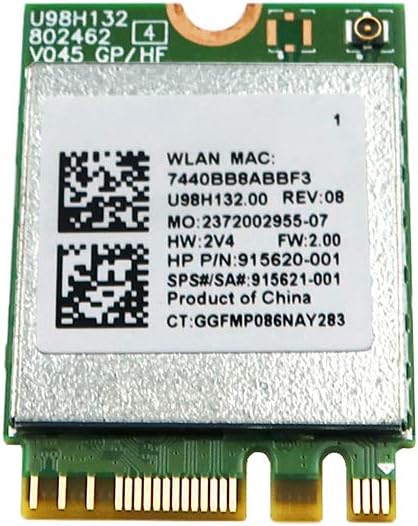
This image displays the Realtek RTL8821CE M.2 form factor card. The card features a green PCB with a silver shield covering the main chip. A white label on the shield shows the WLAN MAC address, hardware revision, HP part number (915620-001), and SPS/SA number (915621-001). The M.2 connector pins are visible at the bottom, and two antenna connectors are present at the top edge.
Operating Instructions
Driver Installation
Upon first boot after installation, your operating system may automatically detect and install the necessary drivers. If not, follow these steps:
- Check Device Manager: Open Device Manager (Windows) or System Information (Linux/macOS) to verify if the WiFi and Bluetooth adapters are recognized. Look for 'Network adapters' and 'Bluetooth'.
- Download Drivers: If drivers are missing or show errors, visit the official Realtek website or your computer manufacturer's support page. Search for drivers compatible with the RTL8821CE model and your operating system.
- Install Drivers: Follow the on-screen instructions to install the downloaded drivers. Restart your computer if prompted.
Connecting to a Wireless Network (Wi-Fi)
- Ensure Wi-Fi is enabled in your operating system settings.
- Click on the Wi-Fi icon in your system tray (Windows) or menu bar (macOS/Linux).
- Select your desired network from the list of available networks.
- Enter the network password (if required) and click 'Connect'.
Pairing Bluetooth Devices
- Ensure Bluetooth is enabled in your operating system settings.
- Put your Bluetooth device into pairing mode (refer to the device's manual).
- Go to your computer's Bluetooth settings and initiate a search for new devices.
- Select your device from the list and follow any on-screen prompts to complete the pairing process.
Maintenance
Driver Updates
Regularly check for updated drivers on the Realtek website or your computer manufacturer's support page. Driver updates can improve performance, add new features, and resolve compatibility issues.
Physical Cleaning
If your computer accumulates dust, it is advisable to periodically clean the internal components, including the WiFi card, using compressed air. Ensure the computer is powered off and disconnected from power before cleaning.
Troubleshooting
- No Wi-Fi or Bluetooth Connectivity:
- Verify the card is properly seated in the M.2 slot.
- Ensure drivers are correctly installed and up to date.
- Check if Wi-Fi/Bluetooth is enabled in your operating system settings.
- Restart your computer.
- Slow Connection Speed:
- Ensure you are connected to a 5GHz network if available, for optimal 802.11ac performance.
- Check for interference from other electronic devices.
- Update your router's firmware.
- Ensure your drivers are up to date.
- Device Not Detected:
- Re-seat the card in the M.2 slot.
- Check your computer's BIOS/UEFI settings to ensure the M.2 slot is enabled.
- Test the card in another compatible M.2 slot or computer if possible.
Specifications
| Brand | GigaBlue |
| Model Number | RTL8821CE |
| Manufacturer | Realtek |
| Interface | PCI-Express (M.2) |
| Wireless Standard | 802.11ac |
| Bluetooth Standard | Bluetooth 4.2 |
| Compatible Part Numbers | 915620-001, 915621-001, L17365-005, 915620-002 |
| Data Transfer Rate | Up to 1.3 Gbps (Wireless AC) |
| Form Factor | M.2 Type 2230 |
| UPC | 683346920012 |
Warranty and Support
For specific warranty information, please refer to the documentation provided by your retailer or the original equipment manufacturer (OEM) of your computer system. For technical support, driver downloads, and further assistance, please visit the official Realtek website or the support section of your computer manufacturer's website.