
Introduction
The Targus CityGear 3 Laptop Backpack (Model TCG662GL) is designed for commuters requiring versatile and protective storage for their electronic devices and essentials. This manual provides instructions for the proper setup, operation, and maintenance of your backpack to ensure its longevity and optimal performance.
Setup and Initial Use
Adjusting Shoulder Straps
To ensure comfortable carrying, adjust the padded shoulder straps. Loosen or tighten the straps using the buckles located at the bottom of each strap until the backpack sits comfortably on your back, distributing weight evenly.

Image: The rear view of the backpack highlights the ergonomic shoulder straps and the ventilated back panel designed for comfort.
Utilizing Laptop and Tablet Compartments
The backpack features dedicated compartments for laptops up to 15.6 inches and tablets. Locate the padded sleeves within the main compartment. Carefully slide your devices into these sleeves to utilize the built-in Dome Protection System, which absorbs shock and dissipates pressure.
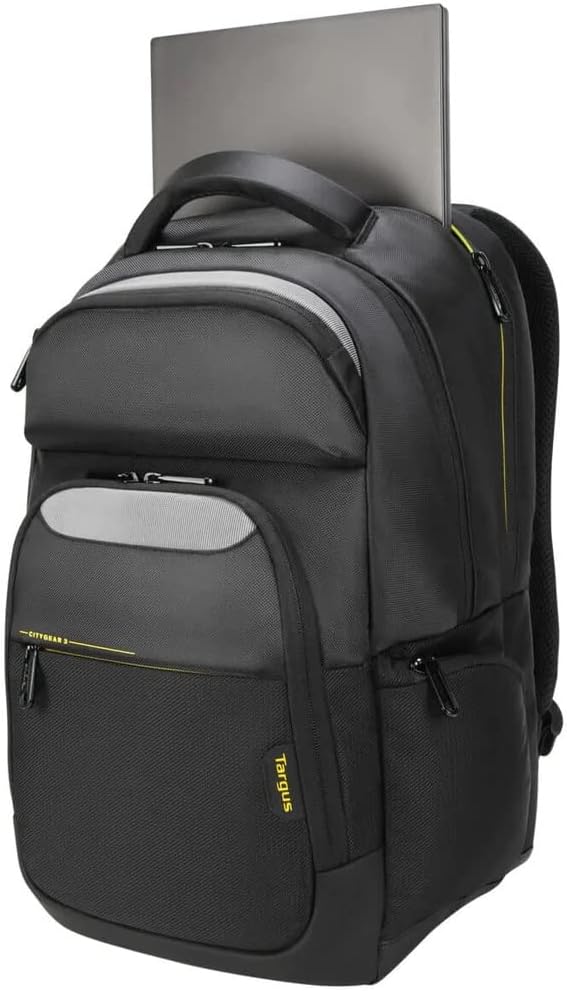
Image: A laptop is shown being placed into the dedicated, padded laptop compartment, illustrating the secure storage.
Trolley Strap Functionality
For convenient travel, the backpack includes a trolley strap on the back panel. Slide this strap over the handle of your rolling luggage to secure the backpack during transit.

Image: The backpack is shown attached to a suitcase handle via its trolley strap, demonstrating ease of transport.
Rain Cover Deployment
In adverse weather conditions, deploy the integrated rain cover. Locate the rain cover compartment, typically at the bottom of the backpack. Unfold the cover and stretch it over the entire backpack to protect its contents from moisture.

Image: The backpack is shown with its bright green rain cover fully extended, providing protection from the elements.
Operation and Features
Main Compartments and Organization
The CityGear 3 backpack features multiple compartments designed for efficient organization. The primary compartment houses the padded sleeves for your laptop and tablet. Additional zippered mesh pockets and dedicated spaces are available for notebooks, pens, and other accessories.

Image: An overhead view displays the backpack's interior, showcasing its multiple compartments, including zippered mesh pockets and dedicated slots for organization.
Dome Protection System
The integrated Dome Protection System consists of shock-absorbing layers within the laptop and tablet compartments. This system is engineered to dissipate impact pressure, providing enhanced protection for your electronic devices against bumps and drops.
Ergonomic Design
The backpack is designed with ergonomic considerations for comfortable carrying. This includes a ventilated back panel to reduce heat buildup and cushioned shoulder straps that minimize strain during extended wear. A padded grab handle is also provided for easy lifting.
Care and Maintenance
- Cleaning: For general cleaning, wipe the exterior of the backpack with a damp cloth and mild soap. Avoid harsh chemicals or abrasive cleaners.
- Drying: Allow the backpack to air dry completely before storing or reusing it. Do not machine wash or tumble dry.
- Storage: Store the backpack in a cool, dry place away from direct sunlight when not in use.
- Zippers: Periodically check zippers for smooth operation. If a zipper becomes stiff, apply a small amount of zipper lubricant or wax.
Troubleshooting
Backpack feels uncomfortable or heavy:
Ensure the shoulder straps are properly adjusted to distribute weight evenly across both shoulders. Avoid overloading the backpack beyond its intended capacity. Utilize the internal compartments to balance the load.
Devices do not fit in compartments:
Verify that your laptop or tablet size is within the specified compatibility range (up to 15.6 inches for laptops). Do not force devices into compartments, as this may cause damage to both the device and the backpack.
Zippers are sticking:
Clean any debris from the zipper teeth. Apply a small amount of zipper lubricant, graphite from a pencil, or wax to the teeth and gently work the zipper back and forth.
Specifications
| Model Number | TCG662GL |
| Product Dimensions | 3.94 x 18.9 x 19.69 inches (10 x 48 x 50 cm) |
| Item Weight | 2.14 pounds (970 Grams) |
| Capacity | 25 Liters |
| Laptop Compatibility | Up to 15.6 inches |
| Manufacturer | Targus |
Warranty and Support
For information regarding warranty coverage, product registration, or technical support, please refer to the official Targus website or contact their customer service department. Keep your purchase receipt as proof of purchase for warranty claims.
You can visit the Targus Store on Amazon for more product information.


