
1. Product Overview
The Cradlepoint MA-MC400-1200M-B is an advanced LTE Advanced Pro cellular modem designed for high-speed mobile connectivity. This modem is intended as an upgrade module for compatible Cradlepoint devices, specifically mentioning IBR1700 and COR Dock doors. It provides robust and reliable internet access in mobile environments, supporting data transfer rates up to 1200 Mbps.
This module integrates seamlessly into existing Cradlepoint router systems, enhancing their cellular capabilities without requiring external antennas (as indicated by "no antennas" in the description, implying it uses the host device's antenna system or internal antennas).
2. Setup and Installation
Before installing the MA-MC400-1200M-B modem, ensure your Cradlepoint host device (e.g., IBR1700 or COR Dock) is powered off and disconnected from all power sources.
2.1 Inserting SIM Cards
The modem requires one or two active Nano-SIM cards for cellular connectivity. Locate the SIM card slots on the modem module.

Figure 2.1: Rear view of the MA-MC400-1200M-B modem, highlighting the two Nano-SIM card slots (SIM 1 and SIM 2).
- Gently insert the Nano-SIM card(s) into the designated SIM slots (SIM 1 and/or SIM 2) with the gold contacts facing down and the notched corner oriented correctly.
- Push the SIM card until it clicks into place.
2.2 Module Installation into Host Device
Refer to the specific installation guide for your Cradlepoint IBR1700 or COR Dock host device for detailed instructions on how to insert the MA-MC400-1200M-B modem module. Generally, this involves:
- Opening the modem bay or dock door on the host device.
- Aligning the MA-MC400-1200M-B module with the internal connector.
- Gently pushing the module into place until it is securely seated.
- Securing the module with any provided screws or latches, and closing the bay/door.
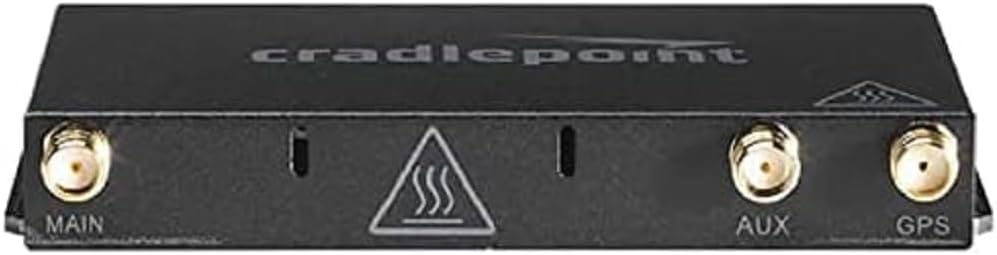
Figure 2.2: Front view of the MA-MC400-1200M-B modem, displaying the MAIN, AUX, and GPS antenna ports. Note: This module is designed to integrate with the host device's antenna system.
Once the module is installed, reconnect power to your Cradlepoint host device and power it on.
3. Operation
After successful installation and powering on the host device, the MA-MC400-1200M-B modem will initialize and attempt to connect to the cellular network. The status of the modem is typically indicated by LEDs on the host Cradlepoint router.
3.1 Understanding LED Indicators
Refer to your Cradlepoint host device's user manual for specific LED indicator meanings related to cellular modem status. Common indicators include:
- Solid Green: Connected to cellular network, good signal strength.
- Flashing Green: Attempting to connect to cellular network.
- Solid Amber: Connected to cellular network, weak signal strength.
- Flashing Amber: SIM card error or no SIM detected.
- Off: Modem is not powered or not recognized by the host device.
3.2 Accessing Modem Settings
Modem settings, such as APN configuration, network selection, and data usage monitoring, are managed through the administrative interface of your Cradlepoint host router. Access the router's web interface using its IP address (e.g., 192.168.0.1 or 192.168.1.1) from a connected device.
Consult your host router's documentation for detailed instructions on navigating its administrative interface and configuring cellular modem settings.
4. Maintenance
The MA-MC400-1200M-B modem is designed for reliable operation with minimal maintenance. Adhering to the following guidelines will help ensure its longevity and performance:
- Firmware Updates: Ensure your Cradlepoint host router's firmware is kept up-to-date. Firmware updates often include performance enhancements and bug fixes for integrated modem modules.
- Physical Inspection: Periodically inspect the modem module and its connection within the host device for any signs of damage or loose connections.
- Cleaning: If necessary, gently clean the exterior of the modem module with a soft, dry cloth. Do not use liquid cleaners or solvents.
- Environmental Conditions: Operate the device within the recommended temperature and humidity ranges specified in your host router's documentation.
5. Troubleshooting
If you encounter issues with your MA-MC400-1200M-B modem, consider the following troubleshooting steps:
| Problem | Possible Cause | Solution |
|---|---|---|
| No cellular signal / Modem not connecting. |
|
|
| Slow cellular speeds. |
|
|
| Modem LED is off. |
|
|
For more advanced troubleshooting, consult the comprehensive documentation for your Cradlepoint host router or visit the Cradlepoint support website.
6. Specifications
| Feature | Detail |
|---|---|
| Model Number | MA-MC400-1200M-B |
| Brand | Cradlepoint |
| Modem Type | Cellular modem (LTE Advanced Pro) |
| Maximum Upstream Data Transfer Rate | 1200 Megabits Per Second |
| Compatibility | Designed for Cradlepoint IBR1700 & COR Dock host devices |
| SIM Card Type | Nano-SIM |
| Package Dimensions | 3.94 x 1.97 x 0.79 inches |
| Item Weight | 2.2 pounds |
| UPC | 810007800912 |
| Date First Available | August 19, 2019 |
7. Warranty Information
Cradlepoint products typically come with a limited hardware warranty. The exact terms and duration of the warranty for your MA-MC400-1200M-B modem are dependent on your region and the point of purchase. Please refer to the warranty card included with your product or visit the official Cradlepoint website for detailed warranty information and registration procedures.
Keep your proof of purchase for warranty claims.
8. Customer Support
For technical assistance, product inquiries, or further support, please visit the official Cradlepoint support website:
You may also find helpful resources, FAQs, and community forums on their website.