1. Introduction
This manual provides essential information for the safe and efficient use of your Lenovo Tab M8 Tablet. The Lenovo Tab M8 is an 8-inch HD Android tablet featuring a Quad-Core Processor, 32GB storage, and a full metal cover. It operates on Android 9 Pie and is designed for extended use with its long-life battery.
Please read this manual thoroughly before operating your device to ensure optimal performance and longevity.
2. Device Overview
Familiarize yourself with the physical components of your Lenovo Tab M8 Tablet.

Figure 2.1: Front view of the Lenovo Tab M8 Tablet, showing the display and bezels.
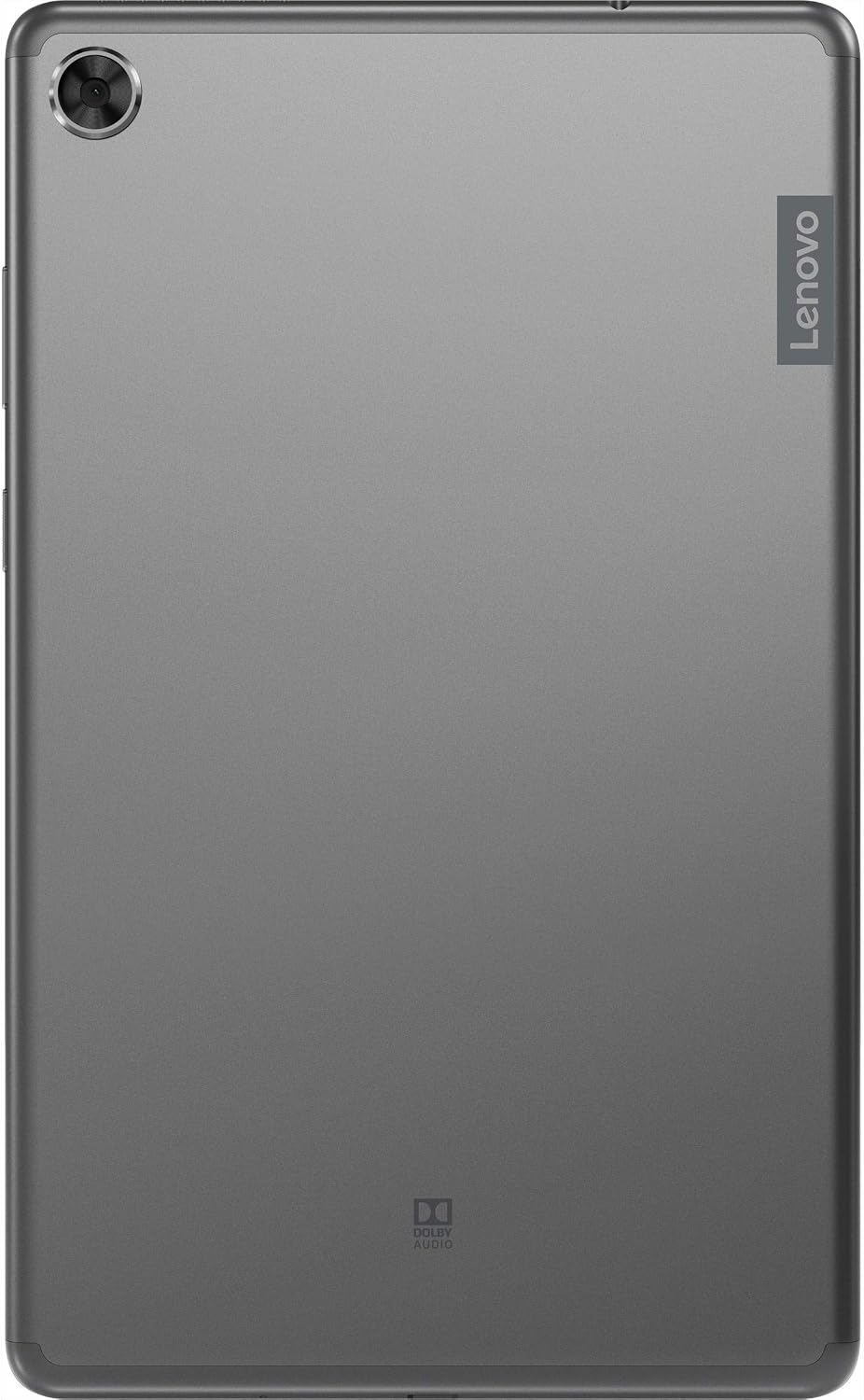
Figure 2.2: Back view of the Lenovo Tab M8 Tablet, highlighting the camera and Lenovo branding.

Figure 2.3: Side view of the Lenovo Tab M8 Tablet, showing the power button and volume rocker.

Figure 2.4: Side view of the Lenovo Tab M8 Tablet, illustrating the various ports and slots.
3. Setup
3.1 Initial Charging
Before first use, fully charge your tablet using the provided USB cable and power adapter. The battery indicator on the screen will show charging progress.
3.2 Powering On/Off
- To power on: Press and hold the Power button (refer to Figure 2.3) until the Lenovo logo appears.
- To power off: Press and hold the Power button, then select "Power off" from the options on the screen.
- To restart: Press and hold the Power button, then select "Restart" from the options.
3.3 Initial Setup Wizard
Upon first power-on, the tablet will guide you through the initial setup process:
- Select Language: Choose your preferred language.
- Connect to Wi-Fi: Select your Wi-Fi network and enter the password. A stable internet connection is required for updates and Google account setup.
- Copy Apps & Data: You can choose to transfer data from another device or set up as new.
- Google Account: Sign in with your existing Google account or create a new one. This is necessary for accessing the Google Play Store and other Google services.
- Date & Time: Confirm or adjust date and time settings.
- Screen Lock: Set up a PIN, pattern, or password for screen security.
- Google Services: Review and accept Google services terms.
4. Operating Instructions
4.1 Basic Navigation
- Tap: Touch the screen once to select an item or open an application.
- Long Press: Touch and hold an item to access additional options.
- Swipe: Drag your finger across the screen to scroll through pages or lists.
- Pinch-to-Zoom: Use two fingers to zoom in or out on images and web pages.
4.2 Wi-Fi and Bluetooth Connectivity
- Wi-Fi: Go to Settings > Network & internet > Wi-Fi. Turn Wi-Fi on, select your network, and enter the password if required.
- Bluetooth: Go to Settings > Connected devices > Bluetooth. Turn Bluetooth on, then pair with compatible devices like headphones or speakers.
4.3 Using the Cameras
The tablet features both front and rear cameras. Open the Camera app from your home screen or app drawer. Tap the shutter button to take photos or switch to video mode to record. Use the icon on the screen to switch between front and rear cameras.
4.4 Battery Management
The Lenovo Tab M8 is equipped with a 5000 mAh battery. To optimize battery life:
- Reduce screen brightness.
- Turn off Wi-Fi and Bluetooth when not in use.
- Close unused applications running in the background.
- Enable battery saver mode in Settings > Battery.
5. Maintenance
5.1 Cleaning the Device
Use a soft, lint-free cloth to clean the screen and body of the tablet. Avoid using harsh chemicals or abrasive materials. For stubborn smudges, slightly dampen the cloth with water or a screen cleaner specifically designed for electronics.
5.2 Software Updates
Regularly check for and install software updates to ensure your tablet has the latest features, security patches, and performance improvements. Go to Settings > System > System update to check for available updates.
5.3 Storage Management
To maintain optimal performance, manage your tablet's 32GB internal storage. You can uninstall unused apps, clear app caches, and transfer large files (photos, videos) to cloud storage or an external microSD card (if supported). Access storage settings via Settings > Storage.
6. Troubleshooting
- Tablet not turning on: Ensure the battery is charged. Connect the tablet to its charger and wait a few minutes before attempting to power on again.
- Screen unresponsive: Try restarting the tablet by holding the power button for approximately 10-15 seconds until the device powers off and then on again.
- Wi-Fi/Bluetooth connectivity issues:
- Toggle Wi-Fi/Bluetooth off and on in settings.
- Restart your Wi-Fi router or Bluetooth device.
- Forget the network/device and reconnect.
- Slow performance:
- Close unused apps.
- Clear app caches (Settings > Apps & notifications > [App Name] > Storage & cache > Clear cache).
- Ensure sufficient free storage space.
- Restart the tablet.
- Factory Reset (Last Resort): If issues persist, you may need to perform a factory reset. This will erase all data on your tablet. Go to Settings > System > Reset options > Erase all data (factory reset). Backup important data before proceeding.
7. Specifications
| Feature | Detail |
|---|---|
| Model Name | Lenovo Tab M8 |
| Screen Size | 8 Inches |
| Screen Resolution | 1280 x 800 (HD) |
| Processor | Quad-Core, 2 GHz |
| RAM | 4 GB |
| Internal Storage | 32 GB |
| Operating System | Android 9 Pie |
| Rear Camera | 5 MP |
| Wireless Connectivity | Wi-Fi 802.11ac, Bluetooth 5.0 |
| Battery Capacity | 5000 mAh |
| Dimensions (LxWxH) | 9.59 x 6.69 x 0.39 inches |
| Item Weight | 0.01 ounces |
8. Warranty and Support
As this product is listed as "Renewed," specific warranty terms may vary. Please refer to the warranty information provided by the seller at the time of purchase. Typically, renewed products come with a limited warranty from the seller or a third-party refurbisher.
For technical support, driver downloads, and additional resources, please visit the official Lenovo support website: support.lenovo.com. You will need your device's model number (ZA5G0060US) for specific support.


