
DRONEEYE 4DF4
DRONEEYE 4DF4 GPS Drone User Manual
Model: 4DF4
1. Introduction
The DRONEEYE 4DF4 GPS Drone is an advanced quadcopter designed for both beginners and experienced pilots, offering a stable and intelligent flight experience. Equipped with a 4K UHD camera and a 2-axis gimbal, it captures stunning aerial footage with enhanced stability. Its GPS-assisted features ensure safe and precise flights, including automatic return functions and intelligent flight modes for creative photography and videography.
2. What's in the Box
- DRONEEYE 4DF4 GPS Drone
- Remote Controller
- 2 x Intelligent Batteries
- Carrying Case
- USB Charging Cable
- Spare Propellers
- Screwdriver
- User Manual


3. Setup
3.1 Charging Batteries
Ensure both the drone's intelligent batteries and the remote controller's battery are fully charged before flight. Use only the factory-approved USB charging cable provided. Each intelligent battery provides up to 26 minutes of flight time, totaling 52 minutes with both batteries.
3.2 Installing Batteries
Carefully slide the intelligent battery into the drone's housing until it clicks into place. Ensure a secure fit. For the remote controller, insert batteries as indicated in the controller's battery compartment.
3.3 Attaching Propellers
Attach the propellers according to the markings on the drone arms and propellers. Ensure they are securely fastened. Spare propellers are included for replacement.
3.4 Unfolding the Drone
Gently unfold the drone's arms until they lock into position. The foldable design allows for easy transport in the provided carrying case.
3.5 Controller Setup and App Installation
Mount your smartphone onto the remote controller. Download and install the official DRONEEYE app (check the manual for specific app name and QR code). This app enables 5G WiFi high-speed image transmission and access to advanced flight features.
3.6 Calibration
Before the first flight and after any significant impact, perform a calibration of the drone and its gimbal. Refer to the detailed instructions in the included manual for the specific calibration procedure to ensure stable flight and camera performance.


4. Operating the Drone
4.1 Basic Flight Controls
Familiarize yourself with the remote controller's joysticks for basic movements: take-off, landing, ascending, descending, forward, backward, left, and right. The drone is designed for stable hovering, making it easier for beginners to control.
4.2 Intelligent Flight Modes
- Follow Me: The drone automatically follows the user, freeing hands for complex shots.
- Waypoint Fly: Draw a custom flight path on the app, and the drone will fly along the designated route.
- Point of Interest: Set a subject, and the drone will circle it, capturing a 360° shot.
- Tap Fly: Tap a point on the map in the app, and the drone will fly to that location.
- Gravity Control: Control the drone's movement by tilting your smartphone.
- Headless Mode: Eliminates the need to adjust the aircraft's position before flight, as the forward direction is the direction the user is facing.


4.3 Camera Operation
The 4DF4 drone features a 4K UHD camera with a 2-axis gimbal for stable and high-resolution image and video capture. The 90° adjustable lens allows for versatile shooting angles. Ensure the camera protective cover is removed before powering up the drone to prevent gimbal damage.
4.4 Safety Guidelines
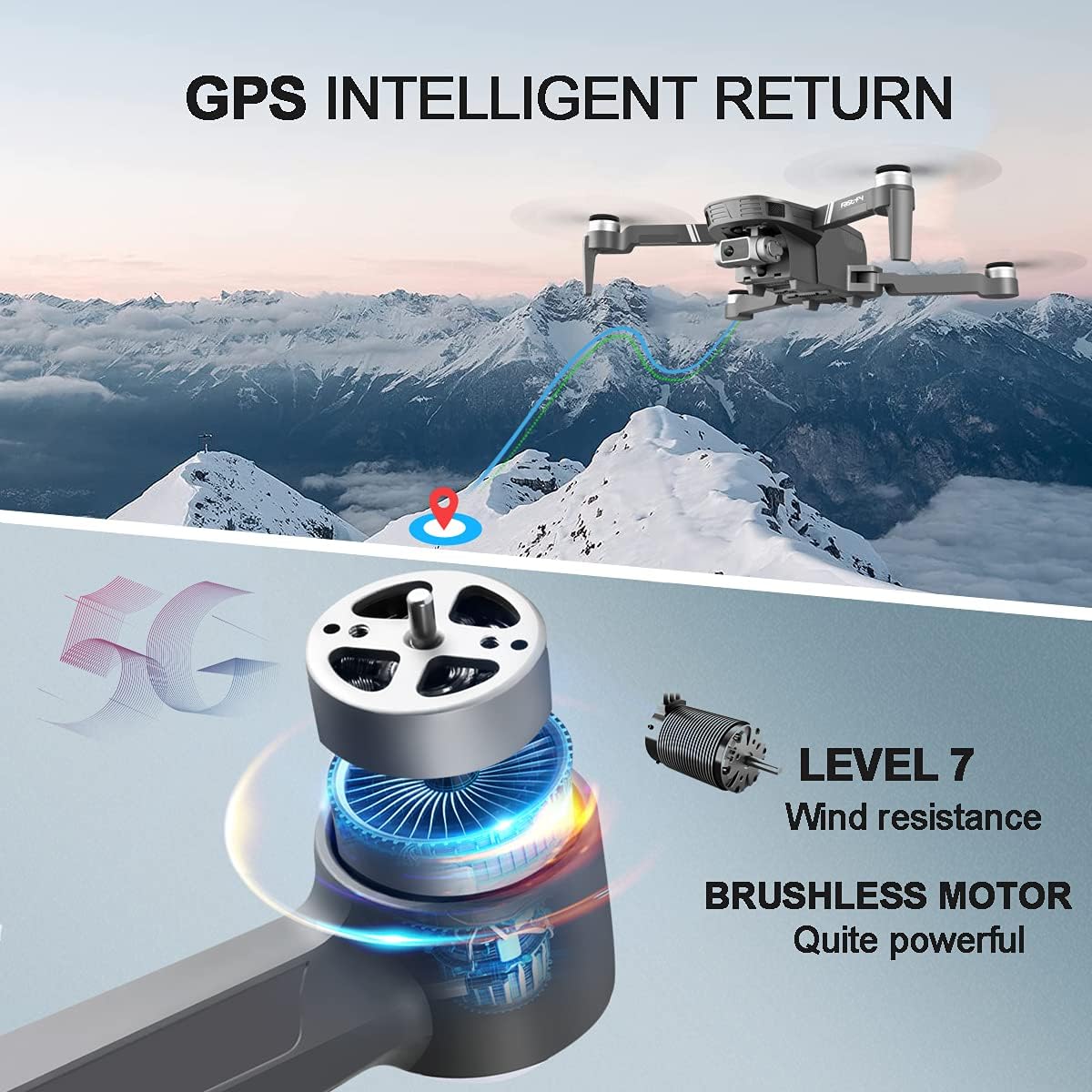
- The drone has 5-level wind resistance, but avoid flying in strong winds (e.g., above 15mph) to maintain stability and prevent loss of control.
- Do not use batteries from other brands, as this may cause product issues or safety concerns.
- Always ensure a strong GPS signal (minimum 10 satellites) before take-off for stable flight and accurate return functions.
- Be aware of no-fly zones and local regulations regarding drone operation.
4.5 GPS Features
- Auto Return: The drone automatically returns to its take-off point when the battery is low, the signal is lost, or the one-key return button is pressed.
- GPS Optical Flow Dual Positioning System: Provides stable hovering and precise positioning for both indoor and outdoor flights.

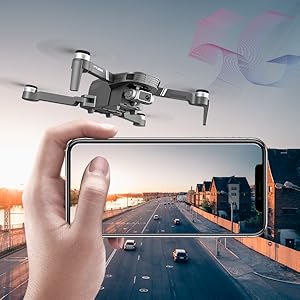
Official product video showcasing the 4DF4 GPS Brushless Drone with its 4K camera, highlighting its features and flight capabilities.
5. Maintenance
5.1 Battery Care
- Always use the provided charging cable.
- Do not turn on the battery power when charging.
- Avoid using damaged or swollen batteries.
- Store batteries in a cool, dry place away from direct sunlight.
5.2 Propeller Replacement
If propellers are damaged, replace them immediately using the spare propellers and screwdriver provided. Ensure correct orientation as indicated by markings.
5.3 General Cleaning
Wipe the drone and remote controller with a soft, dry cloth after each use. Avoid using harsh chemicals or excessive moisture.
6. Troubleshooting
- Drone Drifts/Unstable Hover: Ensure proper calibration of the drone and its gimbal. Check for damaged propellers and replace if necessary. Verify strong GPS signal acquisition before flight.
- Slow GPS Signal Acquisition: It may take a few minutes for the drone to acquire sufficient satellite signals (minimum 10). Ensure you are in an open area with a clear view of the sky.
- Camera Tilt Not Responding: Check the camera protective cover is fully removed. Ensure the drone is powered on and properly connected to the remote controller and app.
- Drone Lost/Crashed: The drone features an Auto Return function for low battery or signal loss. However, strong winds can affect control. Always fly in suitable weather conditions.
7. Specifications
| Feature | Specification |
|---|---|
| Brand | DRONEEYE |
| Model Name | 4DF4 |
| Age Range (Description) | Adult |
| Color | gray |
| Video Capture Resolution | 4K UHD (4096*3072P images, 1080p video) |
| Connectivity Technology | Wi-Fi (5G) |
| Included Components | Carrying Case, 2 Batteries |
| Skill Level | Beginner |
| Item Weight | 550 Grams (1.21 pounds) |
| Battery Capacity | 52 minutes (total with 2 batteries) |
| Maximum Range | 984 Feet |
| UPC | 738633781477 |
Ask a question about this manual
Ask about setup, troubleshooting, compatibility, parts, safety, or missing instructions. Manuals+ will review the question and use this page’s manual context to help answer it.