
Introduction
This manual provides detailed instructions for setting up, operating, and maintaining your Motorola MG8702 DOCSIS 3.1 Cable Modem and AC3200 Wi-Fi Router. This high-speed combo device is designed to deliver robust internet performance and advanced Wi-Fi capabilities for your home or office network. It is approved for use with major cable internet service providers such as Comcast Xfinity, Cox, and Charter Spectrum.

Image: Motorola MG8702 DOCSIS 3.1 Cable Modem + Wi-Fi Router, front view.
Package Contents
Verify that all items are present in the box:
- Motorola MG8702 Cable Modem + Wi-Fi Router
- AC Power Adapter
- Ethernet Cable
- Quick Start Guide
Setup Instructions
Follow these steps to set up your Motorola MG8702 modem/router combo:
- Connect Coaxial Cable: Connect a coaxial cable from your wall outlet to the COAX port on the back of the MG8702. Ensure the connection is finger-tight.
- Connect Power Adapter: Connect the supplied AC power adapter to the POWER port on the back of the MG8702 and then plug the adapter into an electrical outlet.
- Power On: Press the ON/OFF button on the back of the device. The front panel lights will begin to illuminate. Wait for the online indicator light (usually a globe or internet icon) to turn solid, indicating a successful connection to your internet service provider (ISP). This may take several minutes.
- Connect Devices (Optional): For wired connections, use the included Ethernet cable to connect your computer or other network devices to any of the LAN ports on the back of the MG8702.
- Activate Service: Contact your internet service provider (Comcast Xfinity, Cox, Charter Spectrum) to activate your new modem. You will typically need to provide the MAC address and serial number, which are located on a label on the bottom or back of the device. Many ISPs also offer online activation portals or mobile apps for this process.
- Configure Wi-Fi (Optional): For wireless setup and advanced features, download the Motorola Motosync mobile app. The app provides an intuitive interface for managing your network, setting up guest Wi-Fi, monitoring usage, and configuring parental controls.
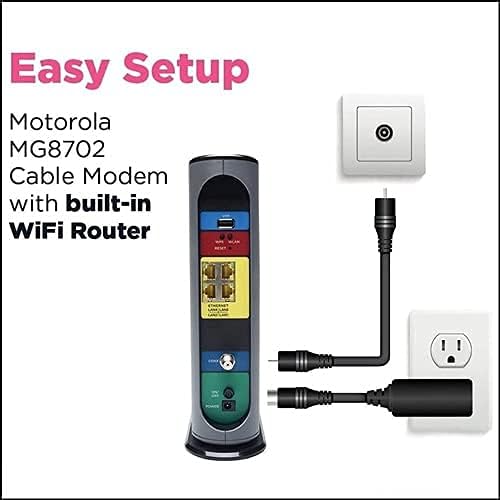
Image: Easy Setup diagram for Motorola MG8702, illustrating cable, power, and Ethernet connections.
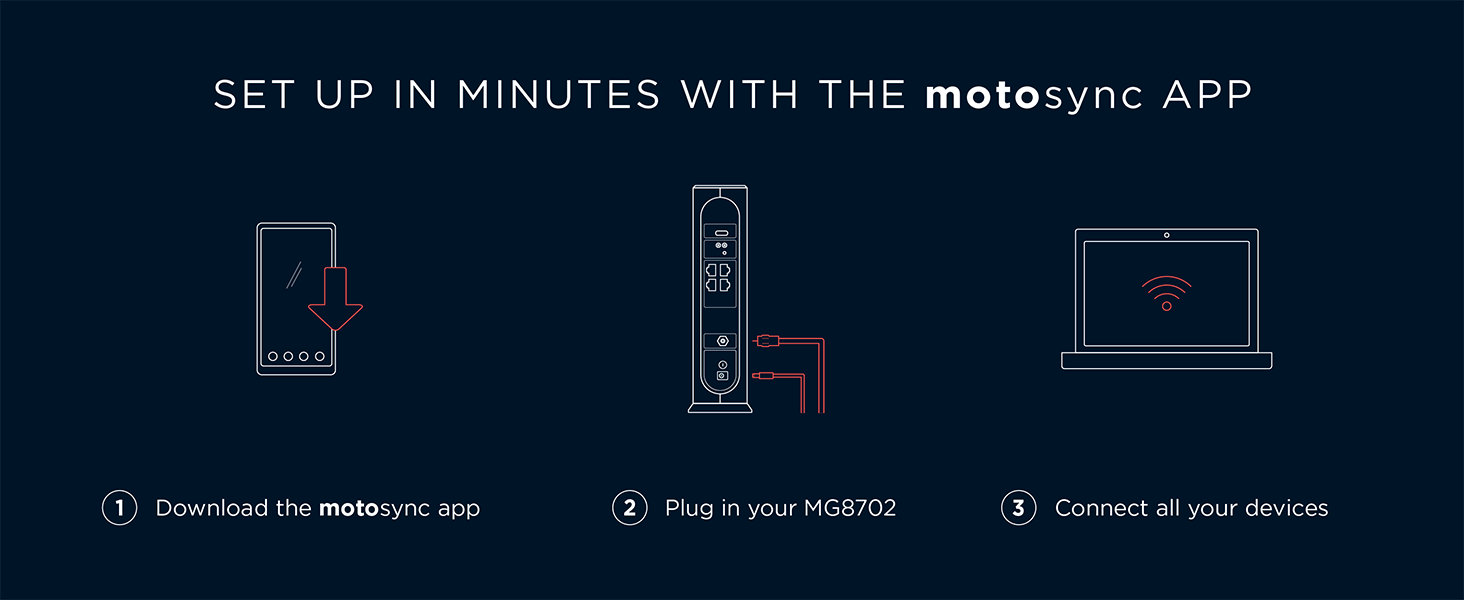
Image: Motosync app setup guide, showing three steps: download app, plug in device, connect devices.
Operating Instructions
The Motorola MG8702 combines a high-speed DOCSIS 3.1 cable modem with an AC3200 Wi-Fi router, offering advanced features for optimal network performance.
Wi-Fi Connectivity
- Dual-Band Wi-Fi: The router operates on both 2.4 GHz and 5 GHz frequency bands. The 2.4 GHz band provides wider coverage, while the 5 GHz band offers faster speeds for closer devices.
- AC3200 Speed: Delivers combined Wi-Fi speeds up to 3200 Mbps for smooth streaming, gaming, and browsing.
- Power Boost & Range Boost: Enhances Wi-Fi signal strength and extends coverage throughout your home or office.
- AnyBeam Wi-Fi Beamforming: Focuses Wi-Fi signals directly to your connected devices for improved performance and range.
Motosync Mobile App
The intelligent Motosync app provides comprehensive control over your network:
- Easy Setup: Guides you through the initial installation process.
- Guest Network Management: Create separate Wi-Fi networks for guests, keeping your main network secure.
- Usage Monitoring: Track internet usage for connected devices.
- Speed Testing: Perform on-demand speed tests to monitor your internet performance.
- Parental Controls: Manage internet access and content for family members.
- Network Security Alerts: Receive notifications about potential threats and vulnerabilities.

Image: Motosync app interface, demonstrating features for device scanning, network profiles, and security monitoring.

Image: Motosync+ app highlights, including internet speed testing, device protection, remote network control, parental controls, and live chat support.
Maintenance
To ensure optimal performance and longevity of your Motorola MG8702, consider the following maintenance tips:
- Placement: Place the modem/router in a central location, away from obstructions, large metal objects, and other electronic devices that may cause interference.
- Ventilation: Ensure adequate airflow around the device to prevent overheating. Do not cover ventilation openings.
- Cleaning: Periodically clean the exterior of the device with a soft, dry cloth. Avoid using liquid cleaners or abrasive materials.
- Firmware Updates: Keep your device's firmware updated. The Motosync app may provide notifications for automatic updates.
- Rebooting: If you experience slow speeds or connectivity issues, try rebooting the device by unplugging it from the power outlet for 10-15 seconds, then plugging it back in.
Troubleshooting
Here are solutions to common issues you might encounter:
- No Internet Connection:
- Check all cable connections (coaxial, Ethernet, power) to ensure they are secure.
- Verify that the online indicator light on the front panel is solid. If it's blinking or off, contact your ISP.
- Reboot the modem/router by unplugging it for 10-15 seconds and plugging it back in.
- Confirm your service is activated with your ISP.
- Slow Wi-Fi Speeds:
- Ensure your device is connected to the appropriate Wi-Fi band (5 GHz for faster speeds, 2.4 GHz for wider range).
- Move closer to the modem/router to improve signal strength.
- Check for interference from other electronic devices.
- Use the Motosync app to perform a speed test and check for network congestion.
- Reboot the modem/router.
- Wi-Fi Signal Drops:
- Ensure the modem/router is placed in an open area, free from obstructions.
- Check for firmware updates via the Motosync app.
- Consider adjusting Wi-Fi channel settings if you suspect interference (advanced users or contact support).
- Cannot Access Motosync App:
- Ensure your mobile device is connected to the MG8702's Wi-Fi network.
- Verify you have the latest version of the Motosync app installed.
- Restart your mobile device and try again.
Specifications
| Feature | Detail |
|---|---|
| Model Name | MG8702 |
| Brand | Motorola |
| Product Dimensions | 9.5 x 2.88 x 9.75 inches |
| Item Weight | 2.15 pounds |
| Connectivity Technology | Ethernet, Wi-Fi |
| Wireless Communication Standard | 2.4 GHz Radio Frequency (Dual-Band) |
| Frequency Band Class | Dual-Band |
| Special Features | Access Point Mode, Beamforming, Parental Control, QoS, Remote Access, WPS |
| Compatible Devices | Gaming Console, Personal Computer, Security Camera, Smart Television, Smartphone, Tablet |
| Color | Black |
| Manufacturer | Motorola |
| Date First Available | July 24, 2020 |
Product Overview & Benefits
The Motorola MG8702 offers a combination of high-speed internet access and robust Wi-Fi performance, designed to meet the demands of modern connected homes and offices.
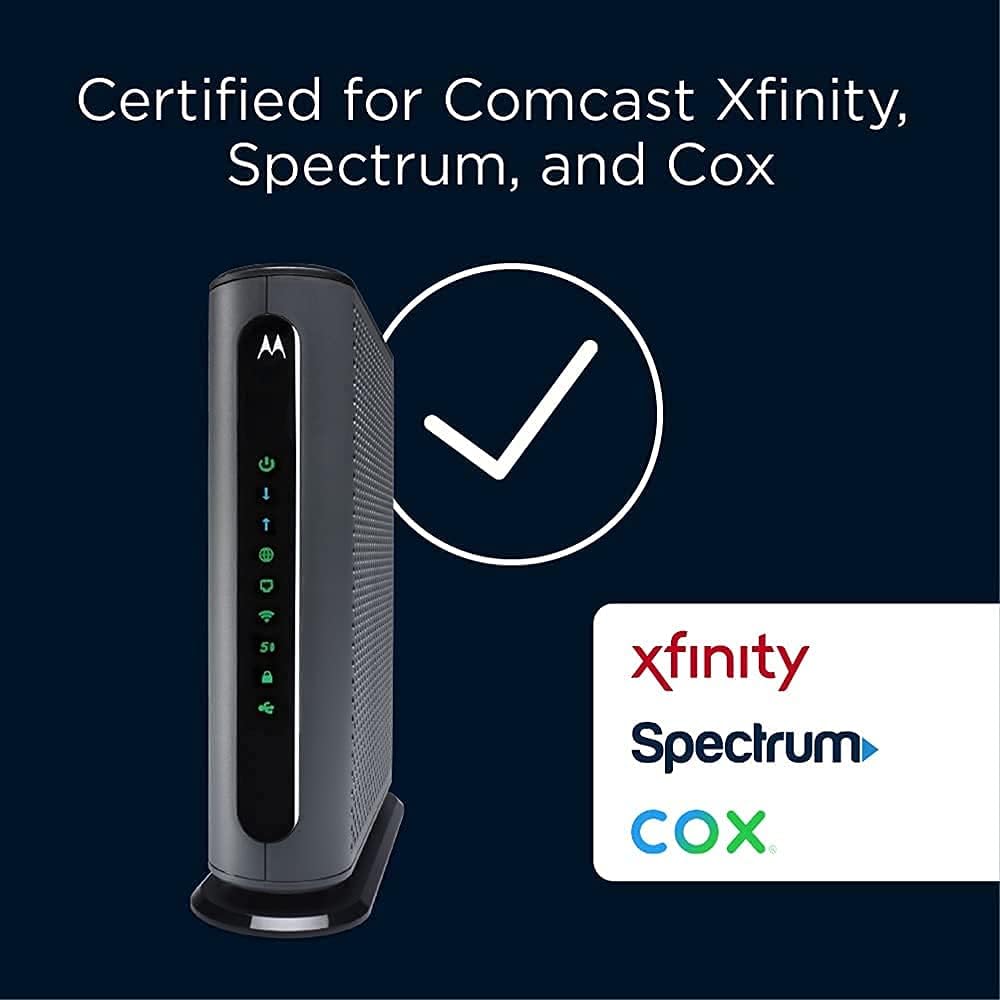
Image: Motorola MG8702 certified for use with major internet service providers including Comcast Xfinity, Spectrum, and Cox.

Image: Graph illustrating internet plan speeds supported by the device, up to 1000 Mbps.

Image: Visual highlighting the benefits of DOCSIS 3.1 technology, including support for the fastest speeds, significant lag reduction, more responsive gaming, and enhanced video conferencing.
Key Advantages
- Cost Savings: Owning your modem can eliminate monthly rental fees from your ISP, potentially saving you money over time.
- DOCSIS 3.1 Technology: Provides access to the fastest cable internet plans available, offering future-proof performance.
- Integrated AC3200 Wi-Fi Router: Features Power Boost, Range Boost, and AnyBeam Wi-Fi Beamforming for ultra-fast, reliable Wi-Fi across your devices.
- Intelligent Mobile App: The Motosync app simplifies setup, network management, and security, offering features like guest networks, parental controls, and speed testing.
Video: A user shares their experience after owning the Motorola MG8702 for two years, discussing its reliability and performance.
Video: A user reviews the Motorola MG8702, highlighting its features and performance as a modem-router combo.
Video: A user provides a review of the Motorola modem, offering insights before purchase.
Video: A user discusses how owning this modem can help save money by avoiding equipment rental fees.
Video: A user highlights the fast loading and high-quality performance of the Motorola modem.
Video: A user explains how to extend Wi-Fi range using this modem and router.
Warranty and Support
The Motorola MG8702 comes with 2 years of free expert support from the Motorola team. For technical assistance, troubleshooting, or warranty claims, please refer to the contact information provided in your Quick Start Guide or visit the official Motorola support website.


