
Product Overview
The Motorola Care 3-in-1 Non-Contact Baby Forehead Thermometer (Model MBP66N) is a versatile clinical device designed for quick and accurate temperature readings. It can be used to measure body temperature (forehead), as well as the temperature of food or liquids. Its non-contact design ensures hygienic use, and the large display provides clear readouts.

Image: The Motorola Care 3-in-1 Non-Contact Thermometer, white with a blue display showing a temperature reading.
Key features include instant temperature readout, pinpoint accuracy, the ability to measure food and liquid temperatures, a travel-friendly size, and convenient LED indicators for temperature alerts.
Setup and Battery Installation
Before first use, ensure the batteries are correctly installed.
- Locate the battery compartment cover on the back of the thermometer.
- Slide the cover open.
- Insert two (2) AA batteries, ensuring the correct polarity (+ and -) as indicated inside the compartment. Two AA batteries are included with the device.
- Close the battery compartment cover securely.
- The device should power on automatically or by pressing the power button.
Operating Instructions
The Motorola Care thermometer offers a simple and efficient way to take temperatures.
Taking a Forehead Temperature
- Ensure the thermometer is in body temperature mode (usually indicated by a person icon on the display).
- Hold the thermometer approximately 1 inch (2.5 cm) from the center of the forehead.
- Press the measurement button. The reading will appear on the large LCD screen within one second.
- The LED light will indicate temperature status: green for normal, red for high temperature.

Image: A person holding the thermometer near a baby's forehead, demonstrating the non-contact measurement.

Image: A close-up of the thermometer's display showing a temperature reading, emphasizing quick and accurate results.

Image: The thermometer held in front of a distressed baby, with the display showing a high temperature and a red alert light.
Measuring Food or Liquid Temperature
- Switch the thermometer to object/liquid temperature mode (usually indicated by a bottle or object icon).
- Hold the thermometer approximately 1 inch (2.5 cm) from the surface of the food or liquid.
- Press the measurement button to get the reading.

Image: The thermometer being used to measure the temperature of a baby bottle and baby food, demonstrating its versatility.

Image: A hand holding the thermometer over a bowl of baby food, highlighting the large, backlit LCD screen for easy reading.
Night-Time Mode
The thermometer features a night-time mode that silences beeps, making it ideal for taking temperatures without disturbing sleeping babies or children.

Image: A hand holding the thermometer near a sleeping baby, illustrating the use of night-time mode for silent operation.
Temperature Unit Conversion
To switch between Celsius (°C) and Fahrenheit (°F), refer to the specific button or menu option on your device. This is typically done by pressing and holding a specific button (often the mode button) while the device is off, then powering it on, or by navigating through a settings menu.
Memory Function
The device can save up to 30 temperature readings, allowing you to track changes over time. Consult your device's display for instructions on how to access stored readings.
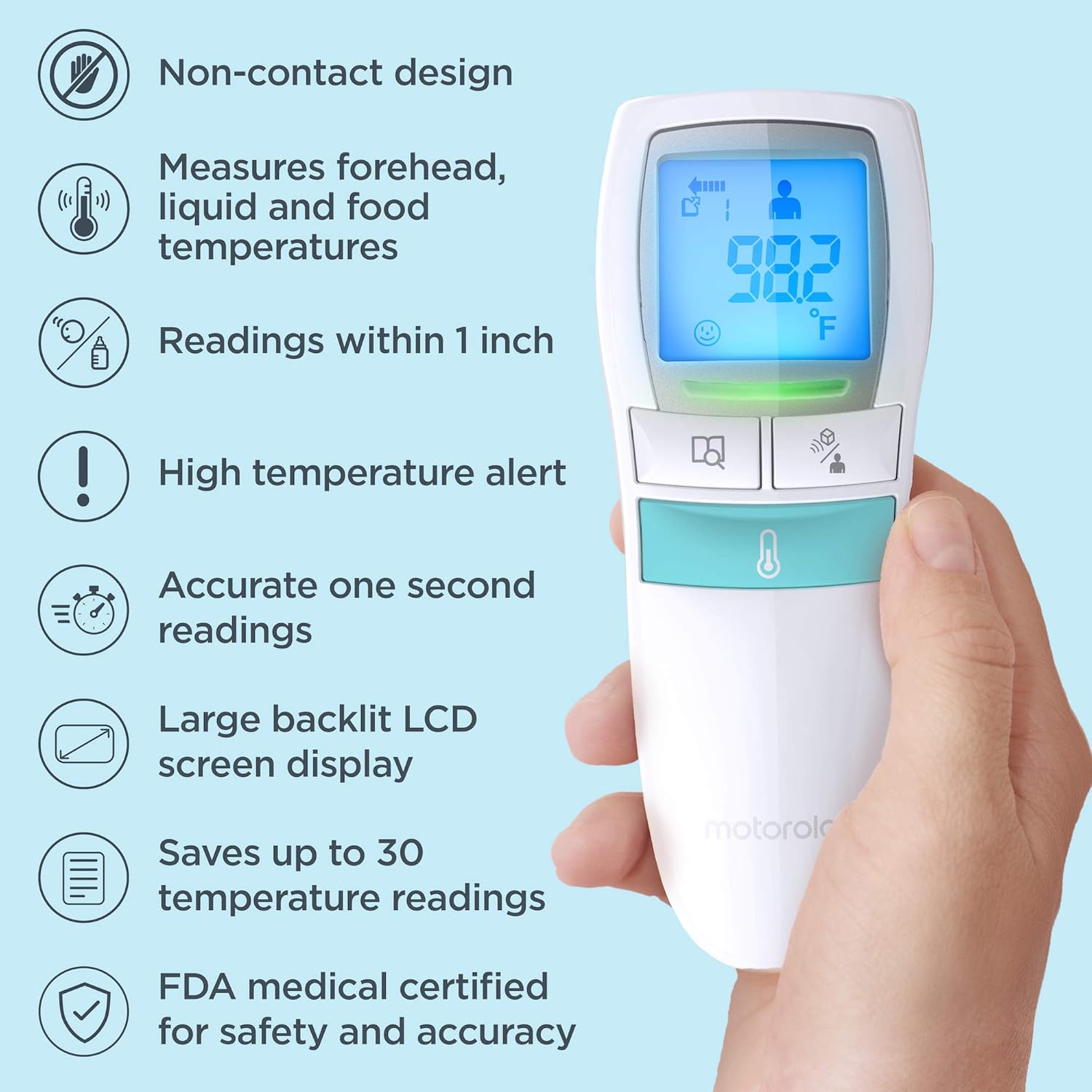
Image: An infographic highlighting key features of the thermometer, including non-contact design, measurement capabilities, quick readings, large display, and memory function.
Maintenance and Care
- Cleaning: To clean the thermometer, gently wipe the surface with a soft, damp cloth. Do not immerse the device in water or use abrasive cleaning agents. Ensure the sensor area is kept clean for accurate readings.
- Storage: Store the thermometer in a cool, dry place, away from direct sunlight and extreme temperatures. Keep it out of reach of children when not in use.
- Battery Replacement: Replace batteries when the low battery indicator appears on the display. Always use new AA batteries and dispose of old batteries responsibly according to local regulations.
Troubleshooting
| Problem | Possible Cause | Solution |
|---|---|---|
| Device does not turn on. | Batteries are dead or incorrectly inserted. | Check battery polarity or replace with new AA batteries. |
| Inaccurate readings. | Sensor is dirty; distance to forehead/object is incorrect; environmental factors. | Clean the sensor. Ensure correct distance (approx. 1 inch). Avoid strong drafts or direct sunlight during measurement. Allow device to acclimate to room temperature. |
| Display shows "Lo" or "Hi". | Temperature is outside the measurable range. | Ensure the measurement is taken within the specified operating temperature range for the device. |
| LED light is red. | High temperature detected. | This indicates a high temperature reading. Consult a medical professional if concerned about body temperature. |
Specifications
- Brand: Motorola
- Model: MBP66N
- Color: White
- Special Features: Auto Off, Non-Contact, Digital, Night-Time Mode
- Display Type: LCD
- Power Source: Battery Powered
- Batteries: 2 AA batteries (included)
- Item Length: 5.06 Inches
- Item Weight: 2.4 ounces
- Response Time: 1 second (1000 Milliseconds)
- Reusability: Reusable
- Connectivity Technology: Bluetooth (Note: While listed in specs, the primary function is non-contact measurement. Bluetooth might be for app connectivity if available, but not detailed in product description.)
- UPC: 816479019326
Warranty and Support
For warranty information and technical support, please refer to the warranty card included with your product or visit the official Motorola support website. Keep your purchase receipt as proof of purchase for any warranty claims.
Motorola Support: www.motorola.com/us/support


