
ASHATA eboxer-1gv4y83r0ea
ASHATA High Definition Multimedia Interface Cable User Manual
Model: eboxer-1gv4y83r0ea
1. Introduction
This manual provides detailed instructions for the ASHATA High Definition Multimedia Interface Cable, Model eboxer-1gv4y83r0ea. This cable is designed to facilitate screen mirroring from compatible mobile devices to larger displays such as televisions, monitors, and projectors. It supports 1080P resolution and includes Bluetooth and Miraplug APP functionality for enhanced connectivity and online upgrades.

Figure 1: ASHATA High Definition Multimedia Interface Cable showing its USB-A, HDMI, and combined Micro USB/Type-C connectors.
2. Product Features
- Supports Bluetooth function for audio transmission.
- Compatible with Miraplug APP for screen mirroring and online firmware upgrades.
- Applicable for use with TVs, monitors, projectors, and other display equipment featuring an HDMI interface.
- Compatible with Micro USB and Type-C mobile phones, offering plug-and-play convenience.
- Compact and lightweight design for portability, suitable for both home and office environments.
3. Setup Instructions
Follow these steps to connect your ASHATA HDMI cable and begin screen mirroring:
- Connect to Display: Plug the HDMI connector of the cable into an available HDMI input port on your television, monitor, or projector.
- Provide Power: Connect the USB-A plug of the cable into a USB power adapter (e.g., a wall charger or power bank) for power supply. Ensure the power source provides sufficient power.
- Connect to Mobile Device: Plug the Micro USB/Type-C connector into your compatible mobile phone. The cable is designed to be plug-and-play.
- Select Input: On your display device (TV, monitor, projector), select the corresponding HDMI input source using its remote control or menu buttons.
- Initiate Mirroring: Your mobile device screen should now be mirrored on the larger display. If prompted, allow screen mirroring permissions on your phone.

Figure 2: Connection diagram illustrating how to connect the HDMI cable to a TV, power source, and mobile phone.
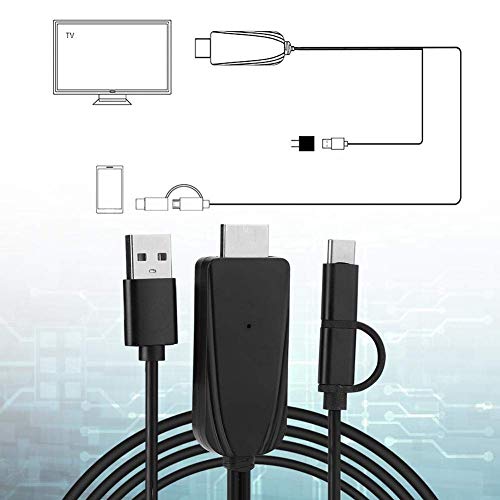
Figure 3: A more detailed visual representation of the cable's connection points to a display and a mobile device.
4. Operating Instructions
Once connected, the cable typically operates in a plug-and-play manner. For advanced features or troubleshooting, consider the following:
- Miraplug APP: The cable supports the Miraplug APP. Download and install the Miraplug application on your mobile device for potential additional features, settings, or online firmware updates. Refer to the app's instructions for specific usage.
- Bluetooth Function: If your mobile device supports Bluetooth audio, you may be able to transmit audio wirelessly while mirroring video. Consult your phone's Bluetooth settings for pairing options. Note that audio sync may vary depending on the device and application.
- Content Playback: Ensure that any content you wish to mirror is not protected by Digital Rights Management (DRM) that prevents external display. Some streaming services may restrict mirroring.
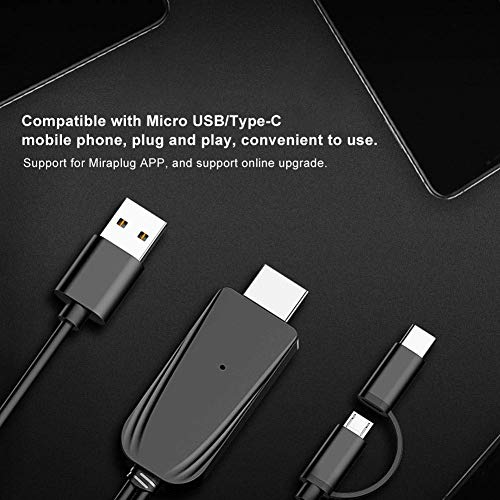
Figure 4: The cable's connectors, highlighting compatibility with Micro USB/Type-C phones and support for the Miraplug APP.
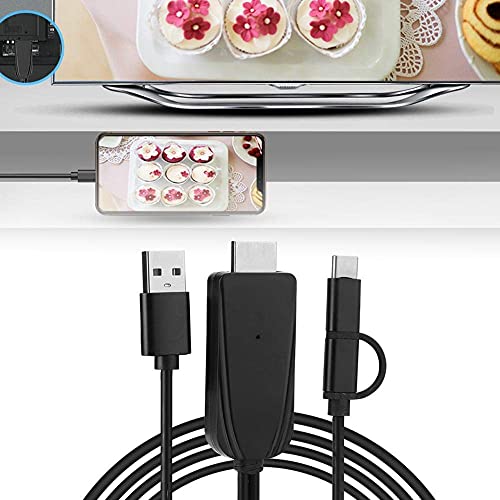
Figure 5: An example of a mobile phone successfully mirroring its screen content to a television using the cable.
5. Compatibility
The ASHATA HDMI cable is designed for broad compatibility with various devices and applications:
- Mobile Devices: Compatible with Micro USB and Type-C Android mobile phones.
- Display Devices: Works with any display equipment featuring an HDMI input, including televisions, computer monitors, and projectors.
- Use Cases: Suitable for home entertainment (e.g., home theater, gaming), professional presentations (e.g., conferences, education), and general content sharing.

Figure 6: Visual examples of the cable's application in various settings such as home theater, gaming, conferences, and educational environments.
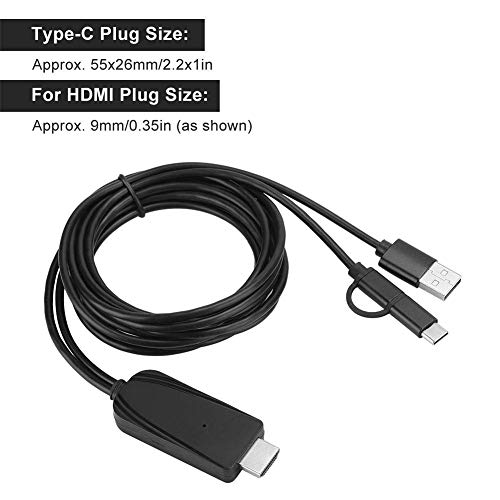
Figure 7: Illustrates the cable's compatibility with Android phones (both Micro USB and Type-C), various USB power sources (wall charger, power bank), and different display types (HDTV, projector, monitor).
6. Specifications
| Feature | Detail |
|---|---|
| Brand | ASHATA |
| Model Number | eboxer-1gv4y83r0ea |
| Connector Type | HDMI, Micro USB, Type-C, USB-A (for power) |
| Cable Type | HDMI |
| Compatible Devices | Monitor, Projector, Television, Micro USB/Type-C Mobile Phones |
| Color | Black |
| Resolution Support | Up to 1080P |
| Special Features | Bluetooth, Miraplug APP support, Online Upgrade |
7. Troubleshooting
If you encounter issues, refer to the following troubleshooting steps:
- No Signal on Display:
- Ensure all cable connections are secure.
- Verify the display device is set to the correct HDMI input source.
- Check that the USB-A power connector is plugged into a functional power source (e.g., a wall adapter, not just a TV's USB port which may not provide enough power).
- Restart your mobile device and the display device.
- No Audio or Audio Sync Issues:
- If using Bluetooth for audio, ensure your mobile device is correctly paired and connected to the desired audio output device.
- Try disconnecting and reconnecting the Bluetooth audio device.
- Some applications or content may have inherent audio sync delays when mirroring.
- Screen Mirroring Stops Unexpectedly:
- Ensure your mobile device's screen mirroring settings are configured to remain active.
- Check for any power saving modes on your phone that might interrupt the connection.
- Verify the Miraplug APP is running correctly in the background if required for your device.
- Overheating:
- It is normal for the dongle part of the cable to become warm during extended use. However, if it becomes excessively hot, disconnect it immediately and ensure adequate ventilation.
- Incompatibility with Certain Apps:
- Some streaming services (e.g., Netflix, Hulu, Amazon Prime Video) may implement DRM protection that prevents content from being mirrored to external displays. This is a limitation of the content provider, not the cable.
8. Maintenance
To ensure the longevity and optimal performance of your ASHATA HDMI cable, follow these maintenance guidelines:
- Storage: Store the cable in a cool, dry place away from direct sunlight and extreme temperatures.
- Cleaning: Use a soft, dry cloth to clean the cable and connectors. Avoid using liquid cleaners or abrasive materials.
- Handling: Avoid bending the cable sharply or applying excessive force to the connectors, as this can damage internal wiring.
- Disconnection: Always grasp the connector housing when plugging or unplugging the cable, rather than pulling on the cable itself.
9. Warranty and Support
For warranty information, technical support, or service inquiries regarding your ASHATA High Definition Multimedia Interface Cable, please contact ASHATA customer support through their official channels. Refer to the product packaging or the ASHATA brand website for contact details.
Ask a question about this manual
Ask about setup, troubleshooting, compatibility, parts, safety, or missing instructions. Manuals+ will review the question and use this page’s manual context to help answer it.