
1. Introduction
This manual provides comprehensive instructions for the safe and effective use of your RDSJK C41N2009 laptop battery. Please read this manual carefully before installation and operation to ensure optimal performance and safety.
2. Safety Information
WARNING: Improper handling of lithium-ion batteries can lead to fire, explosion, or other hazards. Always follow these safety guidelines.
- Do not disassemble, crush, puncture, or short-circuit the battery.
- Do not expose the battery to high temperatures (above 60°C / 140°F) or direct sunlight.
- Keep the battery away from water or other liquids.
- Do not use the battery if it is damaged, swollen, or shows signs of leakage.
- Dispose of used batteries according to local regulations. Do not dispose of with household waste.
- Ensure your laptop is powered off and disconnected from the AC adapter before installing or removing the battery.
- Use only compatible chargers and power adapters.
3. Product Specifications
| Feature | Specification |
|---|---|
| Battery Type | Li-ion |
| Voltage | 15.48V |
| Capacity | 62Wh / 4007mAh |
| Cells | 4-cell |
| Color | Black |
| Compatible Part Numbers | C41N2009, 0B200-03850000, 4ICP5/64/75 |
| Dimensions | Approximately 11.93 x 5.63 x 1.02 inches |
| Weight | Approximately 2.11 ounces |

Image: Key specifications of the RDSJK C41N2009 battery, including model, type, voltage, and capacity.
4. Compatibility
The RDSJK C41N2009 laptop battery is compatible with the following Asus ROG Flow X13 series models:
- Asus ROG Flow X13 GV301 Series
- Asus ROG Flow X13 GV301QC Series (e.g., GV301QC-K5020, GV301QC-K6017)
- Asus ROG Flow X13 GV301QE Series (e.g., GV301QE-K5010T, GV301QE-K6008T)
- Asus ROG Flow X13 GV301QH Series (e.g., GV301QH-DS96, GV301QH-K5040T)
- Asus ROG Flow X13 GV301RA Series
- Asus ROG Flow X13 GV301RC Series (e.g., GV301RC-LJ078)
- Asus ROG Flow X13 GV301RE Series (e.g., GV301RE-LJ057W)
- Asus ROG Flow X13 PV301 Series
- Asus ROG Flow X13 PV301QH Series (e.g., PV301QH-K6210R)
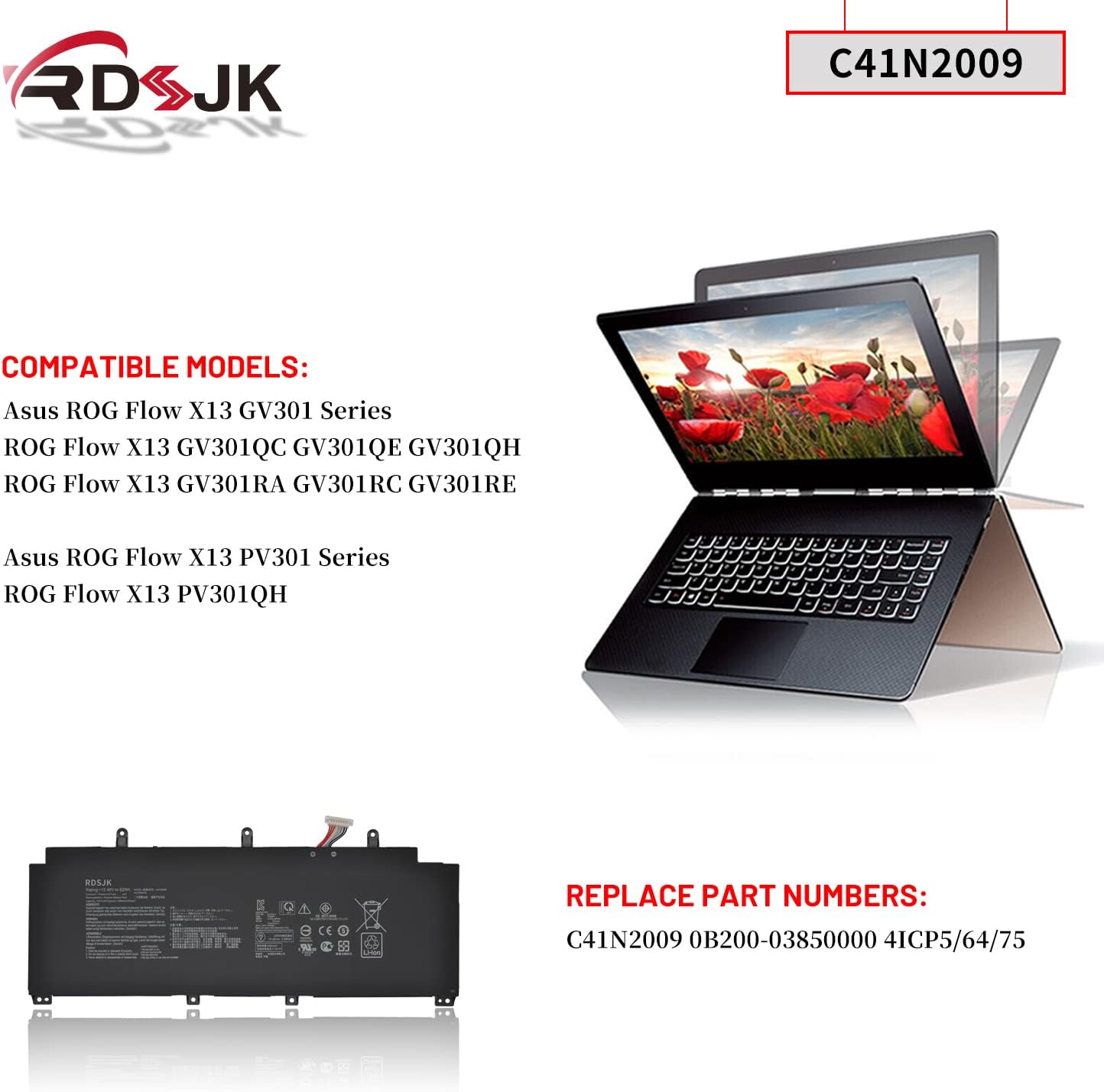
Image: Visual representation of compatible Asus ROG Flow X13 laptop models and the battery's part numbers.
5. Setup and Installation
Replacing a laptop battery requires careful handling. If you are unsure, consult a professional technician.
- Preparation: Power off your laptop completely and disconnect the AC adapter. Close all applications and save your work.
- Discharge Static Electricity: Touch a grounded metal object to discharge any static electricity from your body before handling internal components.
- Access Battery Compartment: Depending on your laptop model, you may need to remove the back cover. Refer to your laptop's specific service manual for instructions on how to open it safely.
- Disconnect Old Battery: Carefully disconnect the old battery's cable from the motherboard. There may be screws holding the battery in place; remove them if present.
- Remove Old Battery: Gently lift and remove the old battery from its compartment.
- Install New Battery: Place the new RDSJK C41N2009 battery into the compartment, ensuring it fits correctly. Secure it with any screws that were removed.
- Connect New Battery: Carefully connect the new battery's cable to the motherboard connector. Ensure a firm and secure connection.
- Reassemble Laptop: Replace the back cover and secure any screws.
- Initial Charge: Connect the AC adapter to your laptop and allow the battery to charge fully before first use.

Image: The RDSJK C41N2009 laptop battery and its packaging, as received.
6. Operating Instructions
To optimize the performance and lifespan of your new battery, follow these guidelines:
- First Use Cycle: For the initial use, discharge the battery to approximately 5% (do not let it drain to 0%) and then charge it fully to 95%. Repeat this discharge/charge cycle 3-4 times. This helps calibrate the battery's charge indicator.
- Regular Use: It is generally recommended to avoid frequently discharging the battery completely. Partial discharges and charges are better for lithium-ion battery longevity.
- Storage: If storing the laptop or battery for an extended period, ensure the battery is charged to about 50-60% and stored in a cool, dry place.

Image: Examples of typical laptop usage scenarios, including business, office, study, and entertainment, all supported by a reliable battery.
7. Maintenance
Proper maintenance can extend the life of your battery:
- Temperature Control: Avoid exposing your laptop and battery to extreme temperatures, both hot and cold. Optimal operating temperature is typically between 10°C and 35°C (50°F and 95°F).
- Cleanliness: Keep the battery contacts and compartment clean and free of dust or debris.
- Software Updates: Ensure your laptop's operating system and drivers are up to date, as power management features can impact battery performance.
- Avoid Constant Charging: While modern laptops manage charging cycles well, prolonged periods of 100% charge can slightly degrade battery health over time. If you primarily use your laptop plugged in, consider using battery health management features if available in your laptop's settings.

Image: Detailed view of the battery's internal components, highlighting the connector, ABS+PC casing, and screw clip for secure installation.
8. Troubleshooting
If you encounter issues with your battery, consider the following common solutions:
- Battery Not Detected:
- Ensure the battery is correctly seated and its cable is securely connected to the motherboard.
- Restart your laptop.
- Check your laptop's BIOS/UEFI settings to see if the battery is recognized.
- Battery Not Charging:
- Verify that the AC adapter is functioning correctly and is securely plugged into both the laptop and a working power outlet.
- Try a different compatible AC adapter if available.
- Update your laptop's battery drivers via Device Manager (Windows) or system updates (macOS/Linux).
- Perform a battery calibration cycle (discharge to 5%, then charge fully).
- Short Battery Life:
- Adjust power settings in your operating system to a more power-efficient mode.
- Reduce screen brightness.
- Close unnecessary background applications.
- Disconnect peripherals (USB devices, external monitors) when not in use.
- Ensure your laptop's cooling system is clean and functioning properly to prevent overheating, which can reduce battery efficiency.
- Battery Swelling:
If the battery appears swollen, immediately power off your laptop, disconnect the AC adapter, and cease use. Do not attempt to puncture or use the battery. Contact customer support for safe disposal and replacement options.

Image: Diagram illustrating the multiple protection features of the battery, including over-temperature, over-current, over-discharge, over-voltage, and over-charge protection.
9. Warranty and Support
Your RDSJK C41N2009 laptop battery comes with the following:
- 30-Day Exchange Policy: If you experience any issues within 30 days of purchase, you may be eligible for an exchange.
- 365-Day Warranty: The battery is covered by a 365-day warranty from the date of purchase against manufacturing defects.
- Customer Service: For any questions, concerns, or support needs, please contact our 7x24 hours online customer service. Refer to your purchase documentation for contact details.

Image: Illustration highlighting the quality aspects of the battery cells, such as longer discharge time, lower power consumption, quick charging, and over 500 recycle times.