
Introduction
Welcome to your new LEDLUX SH02753 Smart LED Bulb. This manual provides essential instructions for the safe installation, setup, operation, and maintenance of your Wi-Fi enabled RGB+CCT dimmable smart bulb. Please read this manual thoroughly before use and retain it for future reference.

Image: LEDLUX SH02753 Smart LED Bulbs with app interface.
Safety Information
To ensure safe operation, please observe the following precautions:
- Always turn off the power supply before installing or removing the bulb.
- Do not use in fully enclosed luminaires, as this may shorten the bulb's lifespan.
- This bulb is designed for indoor use only.
- Do not disassemble or modify the bulb.
- Keep away from water and high humidity environments.
- Ensure the voltage of your electrical system matches the bulb's specifications (240V).
Package Contents
Your package should contain the following items:
- 2 x LEDLUX SH02753 Smart LED Bulbs (E27, A65, 15W)
- 1 x Instruction Manual (this document)
Product Specifications
| Feature | Specification |
|---|---|
| Brand | LEDLUX |
| Model Number | SH02753 (SH02753X2 for 2-pack) |
| Base Type | E27 |
| Bulb Shape | A65 (Standard) |
| Power Consumption | 15 Watts |
| Luminous Flux | 1500 lm |
| Color Temperature | 2700K - 6500K (RGB+CCT) |
| Voltage | 240 Volts |
| Wireless Standard | IEEE 802.11 b/g/n (2.4 GHz Wi-Fi) |
| Average Lifespan | 30,000 Hours |
| Product Dimensions (L x W x H) | 6.5 x 0.03 x 13.5 cm |
| Item Weight | 150 g |
| Energy Efficiency Class | F |
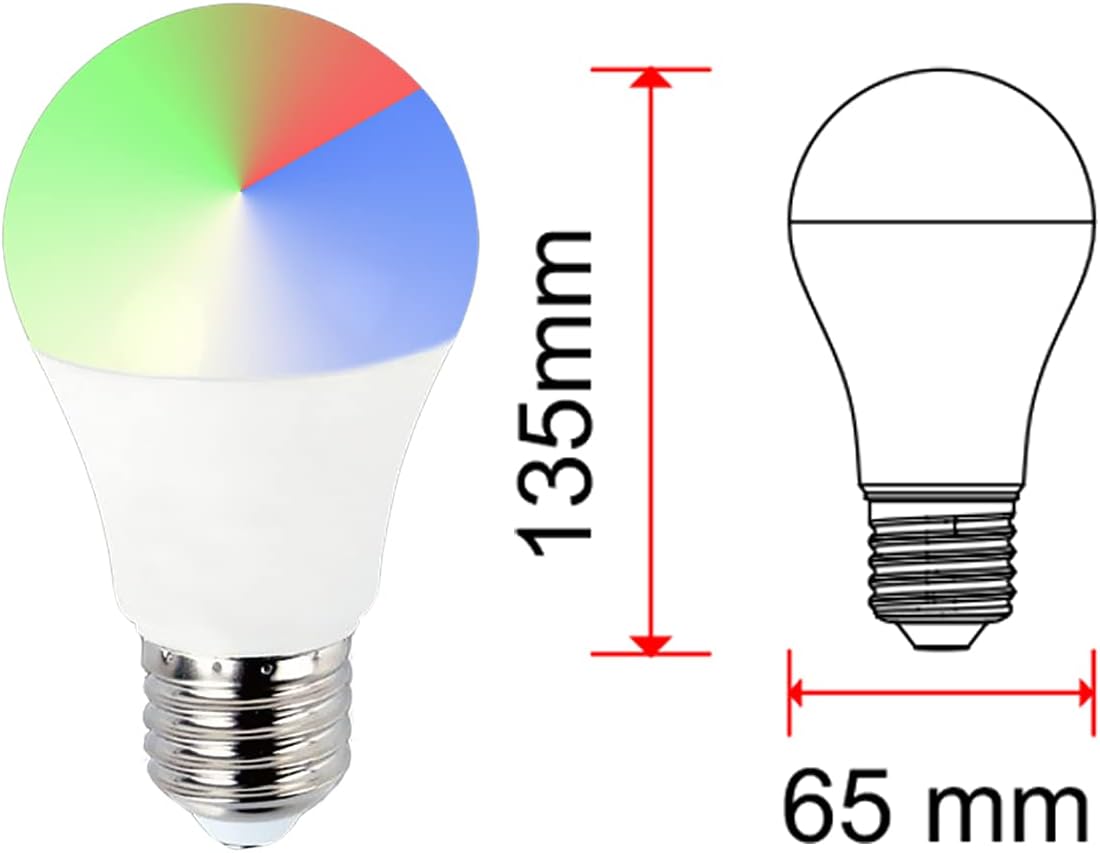
Image: Dimensions of the LEDLUX SH02753 Smart LED Bulb.

Image: Energy Efficiency Label for LEDLUX SH02753. For more details, visit the EPREL database.
Setup Guide
1. Physical Installation
- Ensure the power to the light fixture is turned OFF at the main switch.
- Carefully screw the LEDLUX SH02753 Smart LED Bulb into a standard E27 socket.
- Turn ON the power to the light fixture. The bulb should light up.
2. App Installation
The LEDLUX Smart LED Bulb operates with the 'Smart Life' or 'Tuya Smart' application. Download one of these apps to your smartphone or tablet:
- Download Smart Life App: smartapp.tuya.com/smartlife
- Download Tuya Smart App: smartapp.tuya.com/tuyasmart
Alternatively, scan the QR code on the product packaging or in the image below to download the app.

Image: App download options for Smart Life and Tuya Smart.
3. Device Pairing (Wi-Fi Connection)
- Open the Smart Life or Tuya Smart app and register/log in.
- Tap '+' in the top right corner to add a device.
- Select 'Lighting' > 'Light Source (Wi-Fi)'.
- Ensure your Wi-Fi network is 2.4 GHz. Enter your Wi-Fi password.
- To put the bulb into pairing mode, turn the light switch OFF-ON-OFF-ON-OFF-ON. The bulb should start flashing rapidly. If it doesn't flash, repeat the OFF-ON cycle.
- Confirm in the app that the indicator light is flashing rapidly and proceed with the pairing process.
- Once connected, you can rename the bulb for easier control.

Image: App interface for controlling bulb color and brightness.
4. Voice Assistant Integration (Alexa/Google Home)
To control your LEDLUX Smart LED Bulb with voice commands:
- Open the Amazon Alexa or Google Home app.
- Navigate to 'Skills & Games' (Alexa) or 'Works with Google' (Google Home).
- Search for and enable the 'Smart Life' or 'Tuya Smart' skill.
- Link your Smart Life/Tuya Smart account with your voice assistant account.
- Discover devices. Your LEDLUX bulb should now appear and be controllable via voice commands.

Image: Compatibility with Amazon Alexa and Google Assistant.
Operating Instructions
Once connected, you can control your smart bulb using the Smart Life/Tuya Smart app or integrated voice assistants.
Basic Control (On/Off, Dimming)
- App Control: Tap the bulb icon in the app to turn it on/off. Use the brightness slider to adjust the light intensity.
- Voice Control: Say "Alexa, turn on [bulb name]" or "Hey Google, dim [bulb name] to 50%."
Color Adjustment (RGB & CCT)
- RGB Colors: In the app, select the 'Color' tab to choose from millions of RGB colors.
- CCT (White Light) Adjustment: Select the 'White' or 'CCT' tab to adjust the color temperature from warm white (2700K) to cool white (6500K).
Scene Modes and Scheduling
- Pre-set Scenes: The app offers various pre-set scenes (e.g., Party, Reading, Sleep) to instantly change the lighting ambiance.
- Custom Scenes: Create your own custom scenes with preferred colors, brightness, and effects.
- Scheduling: Set schedules for the bulb to turn on/off or change settings at specific times.

Image: Examples of lighting scenes for various activities.
Maintenance
To maintain the performance and longevity of your LEDLUX Smart LED Bulb:
- Ensure the power is off before cleaning.
- Wipe the bulb with a soft, dry cloth. Do not use liquid cleaners or abrasive materials.
- Avoid exposing the bulb to extreme temperatures or direct sunlight for prolonged periods.
Troubleshooting
If you encounter issues with your LEDLUX Smart LED Bulb, try the following solutions:
- Bulb not connecting to Wi-Fi:
- Ensure your Wi-Fi network is 2.4 GHz. 5 GHz networks are not supported.
- Make sure the bulb is flashing rapidly (OFF-ON cycle 3 times) to enter pairing mode.
- Check your Wi-Fi password for accuracy.
- Move the bulb closer to your Wi-Fi router during setup.
- Bulb not responding to app/voice commands:
- Check your internet connection.
- Verify that the bulb is powered on.
- Ensure the Smart Life/Tuya Smart app is updated to the latest version.
- For voice control, confirm the skill is enabled and accounts are linked correctly.
- Bulb flickering:
- Ensure the bulb is screwed in tightly.
- Check for loose wiring in the fixture (consult a qualified electrician if unsure).
Warranty and Support
LEDLUX products are designed for reliability and performance. For specific warranty information, please refer to the documentation provided with your purchase or contact your retailer. For technical support, please visit the manufacturer's website or use the contact information provided on the product packaging.
Additional Resources
For further information, product updates, or to access digital resources, you may scan the QR code found on the product packaging or visit the dedicated product page:
- Product Information Link: uqr.to/SH02753

Image: LEDLUX SH02753 product packaging with QR code.