
Introduction
Thank you for choosing the Trust Taro Wired Keyboard and Mouse Set. This manual provides essential information for setting up, operating, maintaining, and troubleshooting your new peripheral set. Designed for comfort and efficiency, the Taro set offers a full-size keyboard with a QWERTY UK layout and a comfortable mouse, both featuring quiet operation and plug-and-play functionality.
Setup
The Trust Taro Keyboard and Mouse Set is designed for simple plug-and-play installation, requiring no additional software or drivers for basic functionality.
Connecting the Set
- Locate an available USB-A port on your computer (PC, Laptop, Mac, Chrome OS device).
- Plug the USB connector from the Trust Taro Keyboard into the USB port.
- Plug the USB connector from the Trust Taro Mouse into another available USB port.
- Wait a few moments for your operating system to automatically detect and install the necessary drivers. The keyboard and mouse will be ready for use once detected.
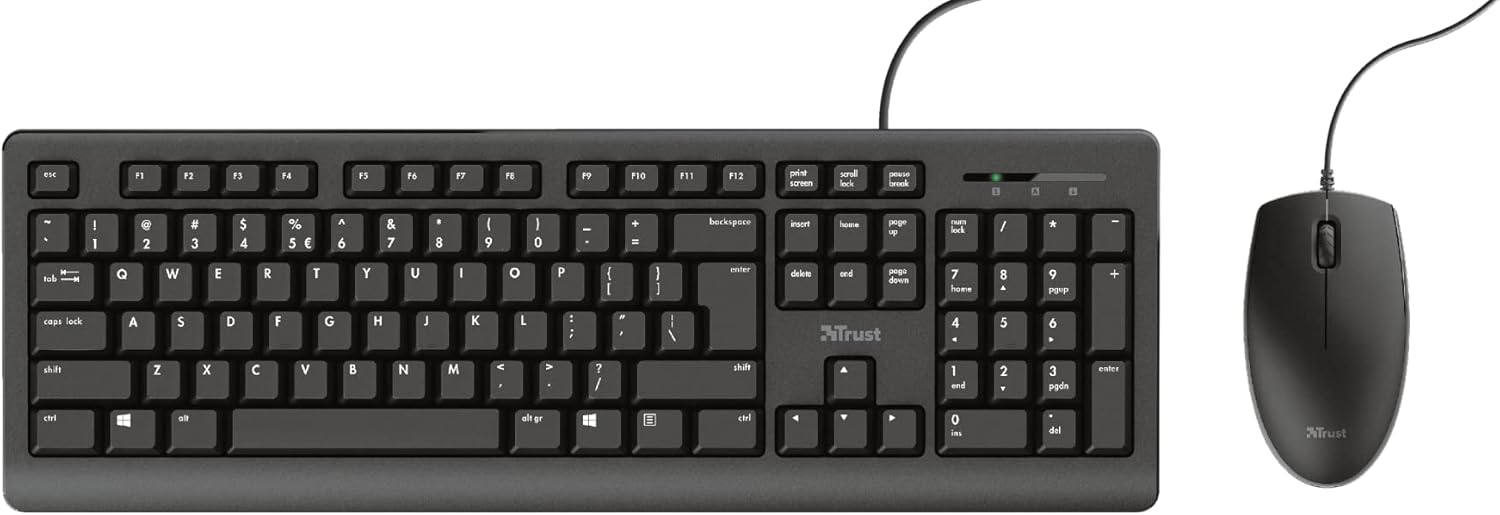
The 1.8-meter long USB cables provide ample reach for various desk setups.
Operating
The Trust Taro set offers a comfortable and quiet user experience for daily computing tasks.
Keyboard Usage
- Full-Size UK Layout: The keyboard features a standard QWERTY UK layout, including a dedicated numeric keypad (numpad) for efficient data entry.
- Quiet Keys: The keys are designed to be up to 50% quieter than standard keyboards, reducing typing noise in shared environments.
- Function Keys: Standard function keys (F1-F12) are available at the top of the keyboard.

Mouse Usage
- Ambidextrous Design: The mouse is designed to be comfortable for both left-handed and right-handed users.
- Quiet Buttons: The mouse buttons are engineered for quiet clicks, complementing the silent keyboard.
- Scroll Wheel: Use the scroll wheel for easy navigation through documents and web pages.

Maintenance
Proper care will ensure the longevity of your Trust Taro Keyboard and Mouse Set.
Cleaning
- Disconnect the keyboard and mouse from your computer before cleaning.
- Use a soft, slightly damp cloth to wipe down the surfaces. Avoid abrasive cleaners or solvents.
- For dust between keys, use compressed air.
Spill Resistance
The keyboard is designed to be spill-resistant. In case of accidental spills:
- Immediately disconnect the keyboard from your computer.
- Carefully tilt the keyboard to drain any liquid.
- Wipe the surface dry with a clean cloth.
- Allow the keyboard to air dry completely for several hours (or overnight) before reconnecting it.
Note: Spill resistance is designed to protect against minor liquid spills. It does not guarantee protection against heavy liquid exposure or submersion.
Troubleshooting
If you encounter issues with your Trust Taro Keyboard and Mouse Set, try the following solutions:
| Problem | Possible Solution |
|---|---|
| Keyboard or mouse not responding |
|
| Keys not typing or mouse not moving smoothly |
|
| Mouse cursor erratic or jumping |
|
Specifications
| Feature | Detail |
|---|---|
| Model Name | Taro |
| Item Model Number | 24089 |
| Connectivity Technology | USB Wired |
| Cable Length | 1.8 meters (180 cm) |
| Keyboard Layout | Full-size QWERTY UK |
| Number of Keys (Keyboard) | 104 |
| Special Features | Spill-resistant keyboard, Quiet keys and mouse buttons |
| Compatible Operating Systems | Windows, macOS, Chrome OS, Linux |
| Color | Black |
| Product Dimensions (Keyboard) | Approx. 5.83 x 17.68 x 1.18 inches (14.8 x 44.9 x 3 cm) |
| Item Weight | Approx. 1.74 pounds (0.79 kg) |
Warranty and Support
Trust products are manufactured to high quality standards. For information regarding the warranty period and terms for your Trust Taro Keyboard and Mouse Set, please refer to the warranty card included with your product or visit the official Trust website.
For technical support, frequently asked questions, and driver downloads (if applicable), please visit the Trust support page at www.trust.com/support. You may also find contact information for customer service in your region on the website.


