
Trust 24083-02
Trust Ymo Wireless Keyboard and Mouse Set User Manual
Model: 24083-02
Introduction
This manual provides comprehensive instructions for the setup, operation, maintenance, and troubleshooting of your Trust Ymo Wireless Keyboard and Mouse Set. Please read this manual carefully before using the product to ensure optimal performance and longevity.

Image: The Trust Ymo Wireless Keyboard and Mouse Set, featuring a full-size QWERTY UK layout keyboard and a compact wireless mouse.
Key Features
- Full-Size UK Layout: The keyboard features a QWERTY UK layout with a dedicated numpad, compatible with Windows, MacOS, and ChromeOS.
- Wireless Connectivity: Both keyboard and mouse connect via a single USB micro receiver, promoting a clutter-free workspace. The receiver can be stored inside the mouse for portability.
- Spill-Resistant Design: The keyboard is designed to withstand accidental liquid spills, enhancing durability.
- Silent Operation: Keys and mouse buttons are engineered for quiet operation, minimizing disturbance in shared environments.
- Multimedia and Function Keys: Includes 13 dedicated office and multimedia keys for quick access to functions like calculator and volume control.
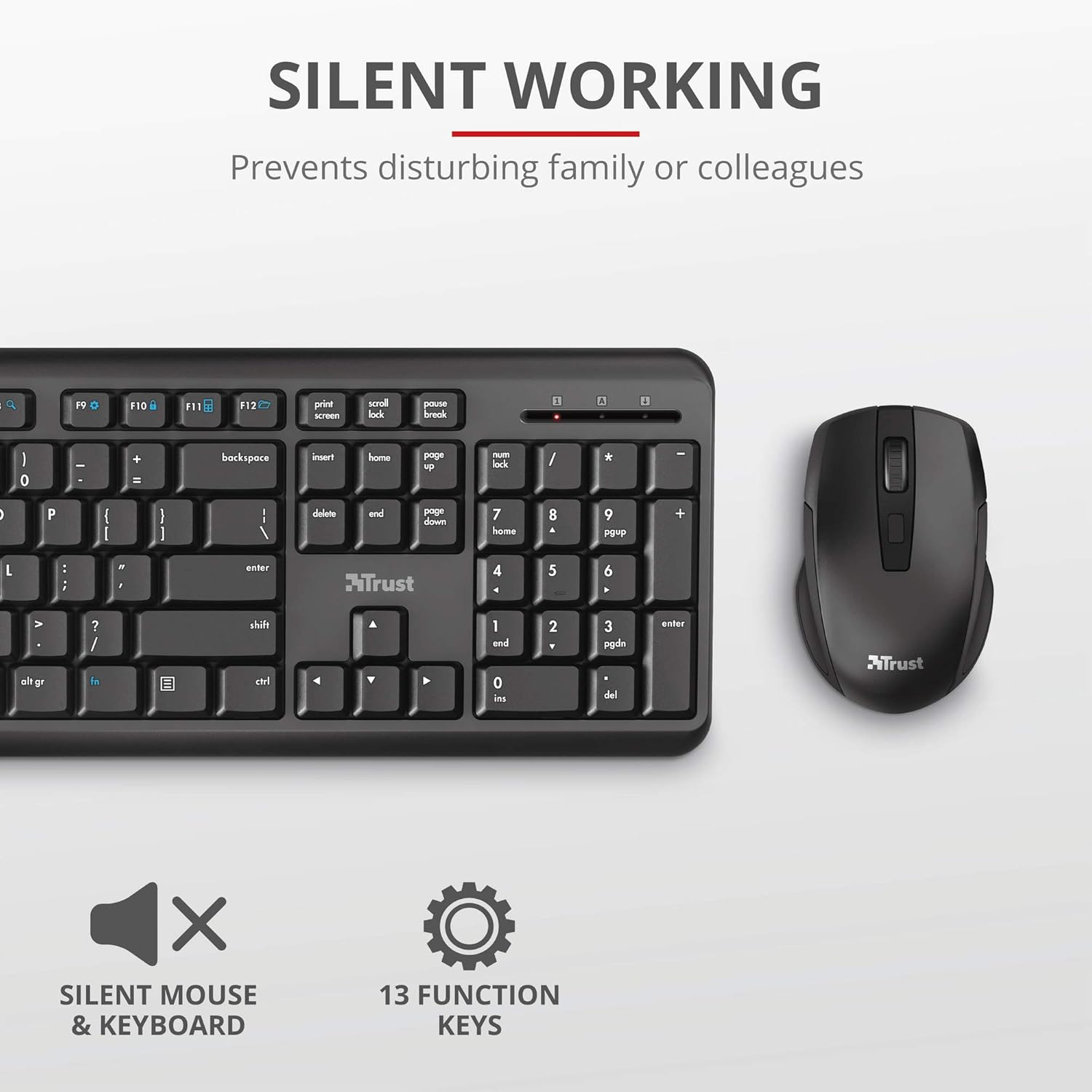
Image: Close-up view of the Trust Ymo keyboard and mouse, highlighting the silent working feature. The image shows the keyboard and mouse from a top-down perspective, emphasizing their quiet design.

Image: A close-up of the Trust Ymo keyboard keys with water droplets, illustrating its spill-resistant design.
Setup Instructions
- Insert Batteries:
- For the keyboard: Open the battery compartment on the underside and insert 2 AAA batteries (included), ensuring correct polarity.
- For the mouse: Open the battery compartment on the underside and insert 2 AAA batteries (included), ensuring correct polarity.
- Locate USB Receiver: The USB micro receiver is typically stored within the mouse's battery compartment or a dedicated slot. Carefully remove it.
- Connect Receiver: Plug the USB micro receiver into an available USB port on your computer (PC, laptop, etc.).
- Power On: Ensure the keyboard and mouse are switched on. The mouse usually has an on/off switch on its underside. The keyboard may have an auto-sleep function or a small switch.
- Automatic Connection: The keyboard and mouse should automatically connect to your computer. No additional drivers are typically required for basic functionality.
- Test Functionality: Verify that both the keyboard and mouse are responsive by typing and moving the mouse.

Image: The Trust Ymo keyboard, mouse, and the compact USB receiver, illustrating the components for setup.
Operating Instructions
Keyboard Usage
The Trust Ymo keyboard features a standard QWERTY UK layout, providing a familiar typing experience. It includes a full numeric keypad for data entry and various function keys for enhanced productivity.
- Function Keys (F1-F12): These keys often have secondary multimedia or office functions accessible by pressing the 'Fn' key simultaneously. Refer to the icons on the keys for specific functions (e.g., volume control, media playback, calculator, web browser).
- Numpad: Use the numeric keypad for efficient number entry. Ensure 'Num Lock' is active if numbers are not registering.
- Spill Resistance: While spill-resistant, it is recommended to clean any liquid spills immediately to prevent long-term damage. Do not immerse the keyboard in liquid.
Mouse Usage
The wireless mouse is designed for comfortable use with silent buttons and adjustable DPI speed.
- Left/Right Click: Standard mouse button functions.
- Scroll Wheel: Used for vertical scrolling in documents and web pages. Can also function as a middle click button.
- DPI Speed Button: Located near the scroll wheel, this button allows you to cycle through different cursor speeds (DPI settings) to suit your preference and task.
- Power Saving: The mouse will enter a low-power sleep mode after a period of inactivity to conserve battery life. Move the mouse or click a button to wake it up.

Image: A detailed view of the Trust Ymo wireless mouse, highlighting its ergonomic design, silent buttons, and adjustable speed feature.
Maintenance and Care
- Cleaning: Use a soft, dry cloth to clean the surfaces of the keyboard and mouse. For stubborn dirt, a slightly damp cloth with mild soap can be used, ensuring no liquid enters the internal components. Do not use abrasive cleaners or solvents.
- Battery Replacement: Replace batteries when performance degrades (e.g., delayed response, intermittent connection). Always use new, good quality AAA batteries. Dispose of old batteries responsibly according to local regulations.
- Storage: When not in use for extended periods, it is recommended to switch off the mouse to conserve battery life. Store the USB receiver inside the mouse to prevent loss. Store the set in a cool, dry place away from direct sunlight and extreme temperatures.
- Avoid Drops and Impacts: While durable, avoid dropping the devices or subjecting them to strong impacts, which can damage internal components.
Troubleshooting
| Problem | Possible Cause | Solution |
|---|---|---|
| Keyboard/Mouse not responding | Low or dead batteries; USB receiver not properly connected; Device switched off; Interference. | Replace batteries. Ensure USB receiver is firmly plugged into a working USB port. Turn on the device. Move closer to the receiver or away from other wireless devices. Try a different USB port. |
| Mouse cursor erratic or jumping | Dirty optical sensor; Unsuitable surface; Low battery. | Clean the optical sensor on the mouse's underside with a soft cloth. Use a mouse pad or a smooth, non-reflective surface. Replace batteries. |
| Delayed response or lag | Low battery; Distance from receiver; Wireless interference. | Replace batteries. Reduce the distance between the device and the USB receiver. Minimize interference from other 2.4GHz wireless devices (e.g., Wi-Fi routers, cordless phones). |
| Function keys not working | Fn key not pressed; Software conflict. | Ensure you are pressing the 'Fn' key simultaneously with the desired function key if required. Check your operating system's settings for keyboard function key behavior. |
Specifications
- Model Name: YMO
- Item Model Number: 24083-02
- Connectivity: Wireless (2.4 GHz USB receiver)
- Keyboard Layout: Full-size QWERTY UK Layout, 104 keys
- Special Features: Silent keys and mouse buttons, Spill-resistant keyboard
- Power Source: Battery Powered (4 x AAA batteries required, 2 for keyboard, 2 for mouse)
- Compatible Devices: Laptop, PC
- Operating Systems: Chrome OS, Windows, Mac OS
- Colour: Black
- Item Weight: 720 g
- Package Dimensions: 45.1 x 16 x 6.4 cm
- Manufacturer: Trust
- Date First Available: 19 August 2020
Warranty Information
Trust products are manufactured to high quality standards. For specific warranty terms and conditions, please refer to the warranty card included with your product or visit the official Trust website. Keep your proof of purchase for warranty claims.
Customer Support
For technical support, frequently asked questions, or further assistance, please visit the official Trust support page:
You may also find helpful resources and contact information on the Trust brand store on Amazon:
Related documents24083-02


Ask a question about this manual
Ask about setup, troubleshooting, compatibility, parts, safety, or missing instructions. Manuals+ will review the question and use this page’s manual context to help answer it.