
Introduction
This manual provides detailed instructions for the installation, operation, and maintenance of your upHere 10-Port 6PIN SATA RGB Hub. Please read this manual thoroughly before use to ensure proper functionality and safety. This hub is designed to control up to 10 upHere 6-pin RGB case fans.
Product Overview
The upHere 10-Port 6PIN SATA RGB Hub is a central control unit for managing multiple 6-pin RGB case fans. It includes a 21-key RF remote control for easy customization of lighting effects and fan speeds.
Key Features:
- Supports up to 10 upHere 6-pin RGB fans.
- Powered by a stable SATA connection to the system PSU.
- Includes a 21-Key RF Remote Control for comprehensive lighting and speed adjustments.
- Offers 12 color modes and 56 pre-programmed effects.
- Allows brightness and cycle adjustments.
- Enables fan speed control via remote.
- Compact design for easy installation.
Components:
- upHere 10-Port 6PIN SATA RGB Hub
- 21-Key RF Remote Control

Image: The upHere 10-Port 6PIN SATA RGB Hub, designed to connect up to ten 6-pin fans.

Image: The 21-key RF remote control for managing the hub's functions.

Image: Diagram illustrating the upHere RGB Fan Hub and the 21-key remote control with labeled buttons and fan port assignments.
Setup
Follow these steps to properly install your upHere RGB Fan Hub and connect your fans.
1. Prepare the Hub:
- Choose a suitable location for the hub inside your PC case, typically on the back panel or a flat surface.
- The hub features pre-installed double-sided tape for easy attachment. Ensure the surface is clean and dry before adhering.
2. Connect Power:
- Connect the SATA power connector from your power supply unit (PSU) to the SATA power input on the RGB hub. This provides stable power for up to 10 fans.
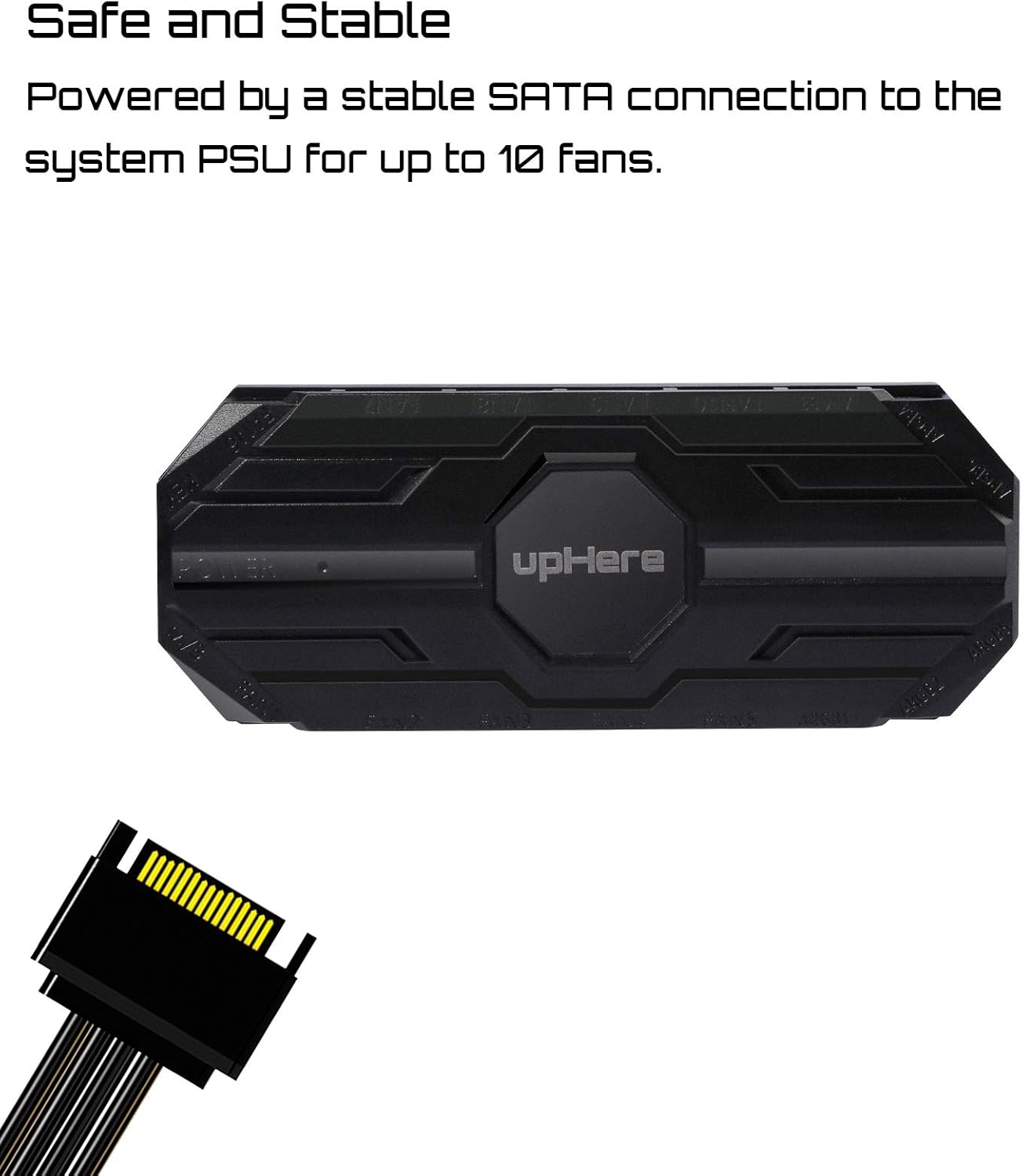
Image: The upHere RGB Fan Hub showing the SATA power input for connection to the system PSU.
3. Connect Fans:
- Connect your upHere 6-pin RGB case fans to the available fan ports on the hub. The hub supports up to 10 fans.
- Ensure each fan connector is securely seated in its respective port.
Important: This hub is designed exclusively for upHere 6-pin RGB fans. Using other fan types or connectors may cause damage to the hub or fans.
Operating Instructions
The upHere RGB Fan Hub is controlled using the included 21-key RF remote control. Ensure the hub is powered on (indicated by a small LED on the hub) before attempting to use the remote.
Remote Control Functions:

Image: A detailed view of the 21-key remote control with labels for each button's function.
- On/Off: Power on or off the RGB lighting.
- AUTO: Activates automatic cycling through 256 pre-programmed lighting modes.
- S+/S-: Adjusts the speed of dynamic lighting effects.
- M+/M-: Switches between different lighting modes (56 pre-programmed effects).
- Brightness Up/Down: Adjusts the brightness level of the RGB lighting.
- Color Buttons: Selects individual static colors (12 options).
- Fan Speed Control: Dedicated buttons to increase or decrease fan rotation speed.
Note:
- The remote control uses RF (Radio Frequency) technology, allowing control without direct line-of-sight to the hub.
- Ensure the remote's battery is functional for proper operation.
Maintenance
Regular maintenance helps ensure the longevity and optimal performance of your upHere RGB Fan Hub.
- Cleaning: Periodically clean the hub and fan surfaces with a soft, dry cloth to remove dust buildup. Avoid using liquid cleaners directly on electronic components.
- Cable Management: Ensure all cables connected to the hub are neatly routed and secured to prevent strain or accidental disconnection.
- Environmental Conditions: Operate the hub within standard PC case temperatures. Avoid extreme heat or humidity.
Troubleshooting
If you encounter issues with your upHere RGB Fan Hub, refer to the following common problems and solutions:
| Problem | Possible Cause | Solution |
|---|---|---|
| Fans not lighting up or spinning. | No power to the hub; loose fan connection; incompatible fans. | Check SATA power connection to the hub. Ensure all 6-pin fan connectors are firmly seated. Verify that only upHere 6-pin fans are used. |
| Remote control not working. | Dead battery; remote out of range; interference. | Replace the remote control battery. Ensure the remote is within a reasonable range of the hub. Minimize potential RF interference from other devices. |
| RGB effects are inconsistent or frozen. | Software conflict (if connected to motherboard RGB header); temporary glitch. | Restart your computer. If using motherboard RGB sync, ensure the hub is properly configured in the motherboard's software or disconnect the sync cable and use the remote directly. |
| Fan speed cannot be adjusted. | Remote control issue; fan not supporting speed control. | Check remote battery. Ensure the fans connected are capable of speed adjustment via the hub. |
Specifications
Technical specifications for the upHere 10-Port 6PIN SATA RGB Hub (MBX10-US):
- Brand: upHere
- Model Number: MBX10-US
- Power Connector Type: 6-Pin (for fans), SATA (for hub power)
- Voltage: 12 Volts
- Wattage: 1.68 watts
- Cooling Method: Air (for connected fans)
- Compatible Devices: Desktop PCs (with upHere 6-pin fans)
- Noise Level: 30 Decibels (for typical upHere fans)
- Material: Copper (internal components)
- Maximum Rotational Speed: 1500 RPM (for typical upHere fans)
- Item Weight: 3.2 ounces
- Package Dimensions: 6.22 x 5.94 x 1.22 inches
Warranty and Support
For warranty information and technical support, please refer to the official upHere website or contact their customer service directly. Keep your purchase receipt as proof of purchase for any warranty claims.
Website: Visit the upHere Store on Amazon