
1. Introduction
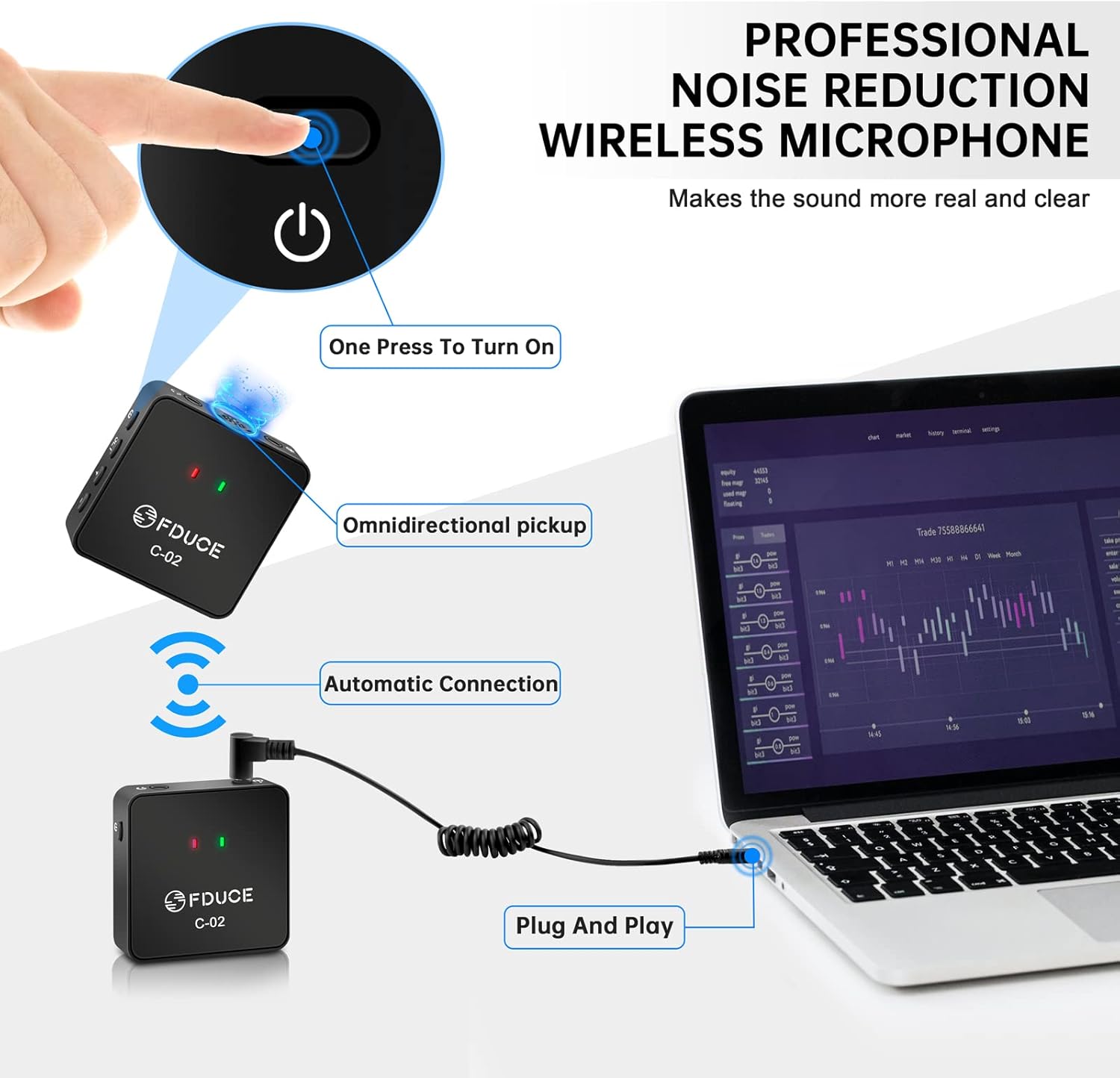
The FDUCE Dual UHF Wireless Lavalier Microphone System C-02 is designed for high-quality audio recording with smartphones, cameras, and other compatible devices. This system includes two transmitters and one receiver, enabling simultaneous recording from two sources. Its compact design, stable UHF signal, and omnidirectional pickup make it suitable for various applications such as interviews, podcasts, streaming, and video recording.
2. What's in the Box
Carefully unpack your FDUCE C-02 system and ensure all components are present:
- 2 x Transmitters (Microphone A, Microphone B)
- 1 x Receiver
- 2 x Furry Windshields
- 2 x Furry Windshield Fixers
- 1 x Camera TRS Cable (3.5mm)
- 1 x Mobile TRRS Phone Cable (3.5mm)
- 1 x Type-C Charging Cable
- 1 x User Manual
Video: An unboxing demonstration of the FDUCE C-02 Wireless Lavalier Microphone System, showing all included accessories and how they are packaged.
3. Product Overview
Transmitter (TX)
- Built-in Microphone: Omnidirectional sound pickup.
- External Microphone Input: 3.5mm jack for connecting an external lavalier microphone (not included).
- Headphone Output: For real-time audio monitoring.
- ON/OFF Button: Power on/off the unit.
- Frequency Modulation (SET) Button: To switch UHF channels.
- Volume +/- Buttons: Adjust microphone input volume.
- Power Indicator: Shows battery status.
- Connection Indicator: Shows pairing status with the receiver.
Receiver (RX)
- 3.5mm TRS Jack: Output for connecting to cameras, smartphones (with appropriate cable/adapter), or other recording devices.
- Headphone Output: For real-time audio monitoring.
- ON/OFF Button: Power on/off the unit.
- Type-C Charging Cable Port: For charging the receiver.
- Power Indicator: Shows battery status (flashes when low).
- Connection Indicator: Shows pairing status with transmitters.

4. Setup Instructions
4.1 Initial Setup and Pairing
- Charge Devices: Ensure both transmitters and the receiver are fully charged using the provided Type-C charging cable.
- Power On: Press and hold the ON/OFF button on each transmitter and the receiver. The units will automatically connect within approximately 3 seconds. The connection indicator light will turn solid blue or green when paired.
- Install Windshields: For outdoor use or to reduce plosive sounds, attach the furry windshields to the built-in microphones on the transmitters.
4.2 Connecting to a Camera
- Connect one end of the 3.5mm TRS cable (camera cable) to the 3.5mm TRS output jack on the receiver.
- Connect the other end of the TRS cable to the microphone input jack on your camera.
- Mount the receiver to your camera's hot shoe or cold shoe mount if available.
4.3 Connecting to a Smartphone
- Connect one end of the 3.5mm TRRS phone cable to the 3.5mm TRS output jack on the receiver.
- Connect the other end of the TRRS cable to your smartphone's 3.5mm audio jack.
- For iPhones without a 3.5mm jack: You will need a Lightning to 3.5mm jack adapter (not included). Ensure the adapter supports audio input/recording functions, not just audio output. Connect the TRRS cable to the adapter, then the adapter to your iPhone.

Video: A step-by-step guide on correctly connecting the FDUCE lavalier microphone system to an iPhone, including adapter usage.
5. Operating Instructions
5.1 Power On/Off
Press and hold the ON/OFF button on each transmitter and the receiver for approximately 2 seconds to power them on or off.
5.2 Volume Adjustment
Use the Volume +/- buttons on the transmitters to adjust the input gain of the microphones. Monitor the audio output through the receiver's headphone jack to achieve optimal levels.
5.3 Channel Switching (Transmitters)
In case of interference or noise, press the 'SET' button on the transmitter to switch to an available UHF channel. The receiver will automatically adjust its frequency to match the transmitter.
6. UHF Frequency Modulation
The FDUCE C-02 system utilizes UHF frequency modulation for stable and interference-resistant signal transmission. It offers 30 adjustable channels to minimize signal conflicts.
- Transmitter Channel A (Red Light): Operates within the frequency band range of 520.5-549.5 MHz.
- Transmitter Channel B (Blue Light): Operates within the frequency band range of 550.5-579.5 MHz.
If you experience interference, simply press the 'SET' button on the affected transmitter to cycle through the available channels until a clear signal is established. The receiver will automatically synchronize.

7. Compatibility
The FDUCE C-02 Wireless Lavalier Microphone System is compatible with a wide range of devices:
- Smartphones (iPhone/Android)
- Cameras (DSLR, Mirrorless, Camcorders)
- Laptops
- Desktop Computers
Note: Devices without a 3.5mm interface will require a standard adapter (not included) for connection. Ensure the adapter supports audio input/recording functionality.

8. Applications
This dual wireless lavalier microphone system is ideal for scenarios requiring high-quality audio capture from two individuals simultaneously:
- Interviews: Capture clear audio from both interviewer and interviewee.
- Vlogging & YouTube: Enhance audio quality for video content.
- Podcasts: Record multiple speakers with professional sound.
- Online Teaching & Streaming: Ensure clear communication for virtual sessions.
- ASMR Recording: Capture subtle sounds with high sensitivity.


9. Maintenance
To ensure the longevity and optimal performance of your FDUCE C-02 system, follow these maintenance guidelines:
- Cleaning: Use a soft, dry cloth to clean the units. Avoid using harsh chemicals or abrasive materials.
- Storage: Store the microphone system in a cool, dry place away from direct sunlight and extreme temperatures.
- Battery Care: Fully charge the units before long-term storage. Recharge periodically if not used for extended periods to maintain battery health.
- Cable Care: Handle cables gently to prevent damage. Avoid sharp bends or excessive pulling.
10. Troubleshooting
If you encounter issues with your FDUCE C-02 system, refer to the following common problems and solutions:
| Problem | Possible Cause | Solution |
|---|---|---|
| No sound input during recording. | Incorrect cable connection; adapter not supporting recording; low battery; units not paired. | Ensure TRRS cable is used for smartphones. Verify adapter supports recording. Check battery levels. Confirm units are paired (solid indicator light). |
| Audio interference or noise. | Nearby electronic devices; conflicting UHF channel; excessive distance. | Move away from other wireless devices. Press 'SET' button on transmitter to change channel. Reduce distance between transmitter and receiver (max 50m/164ft). |
| Low audio volume. | Transmitter volume too low; recording device input gain too low. | Increase volume using +/- buttons on the transmitter. Adjust input gain settings on your recording device (camera/smartphone). |
| Units not pairing. | Units too far apart; interference; power issue. | Ensure units are within close proximity during initial pairing. Power cycle both units. Check for strong interference sources. |
11. Specifications
| Feature | Detail |
|---|---|
| Brand | FDUCE |
| Model Number | C-02 (FDUCE lavalier microphone) |
| Microphone Form Factor | Lavalier (Clip-on) |
| Polar Pattern | Omnidirectional |
| Connectivity Technology | Auxiliary, UHF Wireless |
| Number of Channels | 30 (UHF adjustable) |
| Frequency Response | 520.5 MHz (Transmitter A: 520.5-549.5 MHz, Transmitter B: 550.5-579.5 MHz) |
| Signal-to-Noise Ratio | 80 dB |
| Audio Sensitivity | 10 Decibels |
| Power Source | Battery Powered (Type-C Rechargeable) |
| Item Weight | 30 Grams (approx. 1.06 ounces per unit) |
| Material | Plastic |
| Color | Black |
| Compatible Devices | Camera, Smartphone, Laptop |
| Special Feature | Volume Control |
| Wireless Range | Up to 50 meters (164 feet) without interference |
12. Warranty and Support
FDUCE products are designed for reliability and performance. For warranty information, please refer to the documentation included with your purchase or contact FDUCE customer support directly. Keep your proof of purchase for any warranty claims.
For further assistance, technical support, or inquiries, please visit the official FDUCE website or contact their customer service department.