
Fujitsu S26391-F3327-L100
Fujitsu USB Type-C Port Replicator 2 User Manual
Model: S26391-F3327-L100
1. Introduction
This manual provides comprehensive instructions for the setup, operation, maintenance, and troubleshooting of the Fujitsu USB Type-C Port Replicator 2. This device is designed to expand the connectivity options of compatible Fujitsu mobile clients, including LIFEBOOK and STYLISTIC devices from the 9th generation and later.
Key Features:
- Power delivery to Fujitsu mobile clients.
- Multiple display outputs: DisplayPort, HDMI, and VGA.
- Integrated On/Off button with resume support.
- Various USB interfaces: USB Type-C and USB Type-A.
- Ethernet LAN data rates: 10, 100, 1000 Mbit/s.

Figure 1: Top-down view of the Fujitsu USB Type-C Port Replicator 2.
2. Setup Instructions
Follow these steps to set up your Fujitsu USB Type-C Port Replicator 2:
- Connect Power (Optional, but recommended for power delivery): Connect a compatible AC adapter (not included with this specific model) to the power input port on the port replicator. Ensure the adapter meets the power requirements of your connected devices.
- Connect to Host Device: Use the integrated USB Type-C cable to connect the port replicator to a USB Type-C port on your Fujitsu LIFEBOOK or STYLISTIC device.
- Connect Peripherals:
- Displays: Connect external monitors using HDMI, DisplayPort, or VGA cables to the corresponding ports on the replicator.
- USB Devices: Plug in USB peripherals such as keyboards, mice, external hard drives, or USB flash drives into the available USB Type-A or USB Type-C ports.
- Network: For a wired network connection, connect an Ethernet cable to the RJ-45 port.
- Audio: Connect headphones or speakers to the audio jack.
- Power On: Press the power button on the port replicator to turn it on. The device should automatically be recognized by your host computer.

Figure 2: Rear view illustrating the various connectivity ports including VGA, HDMI, DisplayPort, Ethernet, USB Type-A, and USB Type-C.
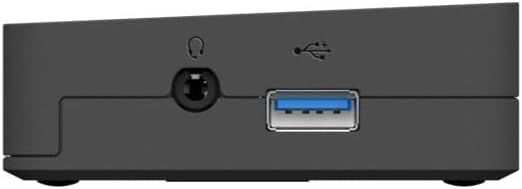
Figure 3: Side view showing the power input port and the integrated USB Type-C host cable connection.
3. Operation
Once connected, the Fujitsu USB Type-C Port Replicator 2 functions as an extension of your laptop's ports.
- Display Output: Your operating system should automatically detect connected external displays. You can configure display settings (e.g., extend, duplicate) through your computer's display settings. The replicator supports DisplayPort, HDMI, and VGA outputs.
- USB Connectivity: All connected USB devices will be accessible through your host computer. The USB Type-A ports support data transfer, and some may offer charging capabilities.
- Network Connection: The Ethernet port provides a stable wired network connection, ideal for environments where Wi-Fi is unreliable or unavailable.
- Power Button: The power button on the replicator can be used to turn the device on or off. It also supports resume functionality, allowing your connected laptop to wake from sleep.
- Audio Jack: Connect standard 3.5mm audio devices for sound output.

Figure 4: Front view highlighting the power button and an accessible USB port.
4. Maintenance
To ensure optimal performance and longevity of your port replicator, follow these simple maintenance guidelines:
- Cleaning: Use a soft, dry, lint-free cloth to clean the exterior of the device. Do not use liquid cleaners, aerosols, or solvents.
- Storage: When not in use for extended periods, store the device in a cool, dry place away from direct sunlight and extreme temperatures.
- Handling: Avoid dropping the device or subjecting it to strong impacts. Do not attempt to disassemble the unit.
5. Troubleshooting
If you encounter issues with your Fujitsu USB Type-C Port Replicator 2, refer to the following common problems and solutions:
| Problem | Possible Cause / Solution |
|---|---|
| No power or device not turning on. |
|
| External display not detected or flickering. |
|
| USB devices not recognized. |
|
| Network connection issues. |
|
| Laptop not charging via replicator. |
|
6. Specifications
Below are the technical specifications for the Fujitsu USB Type-C Port Replicator 2 (Model S26391-F3327-L100):
| Feature | Detail |
|---|---|
| Brand | Fujitsu |
| Model Number | S26391-F3327-L100 |
| Connectivity Technology | Wired |
| Host Interface | USB 3.2 Gen 1 (3.1 Gen 1) Type-C |
| Ethernet LAN Data Rates | 10, 100, 1000 Mbit/s |
| Product Colour | Black |
| Dimensions (LxWxH) | 1.1 x 9.7 x 6.5 inches (26 x 219 x 75 mm) |
| Item Weight | 11.8 ounces (334 Grams) |
| Hardware Interface | USB Type C, HDMI, DisplayPort, VGA, Ethernet |
| Total USB Ports | 2 (Type-A) + 1 (Type-C for host) |
| Total HDMI Ports | 1 |
| Compatible Devices | Fujitsu LIFEBOOK (9th generation and later), Fujitsu STYLISTIC (9th generation and later) |
| Voltage | 1 Volts (Input Voltage: 25.7 Volts) |
| Wattage | 25.7 watts |
7. Warranty and Support
For warranty information and technical support, please refer to the official Fujitsu website or contact Fujitsu customer service directly. Keep your purchase receipt as proof of purchase for warranty claims.
Online Resources:
- Fujitsu Official Website: www.fujitsu.com
- Product Support Page (if available): Search for "Fujitsu USB Type-C Port Replicator 2" on the Fujitsu support portal.
Related documentsS26391-F3327-L100


Ask a question about this manual
Ask about setup, troubleshooting, compatibility, parts, safety, or missing instructions. Manuals+ will review the question and use this page’s manual context to help answer it.